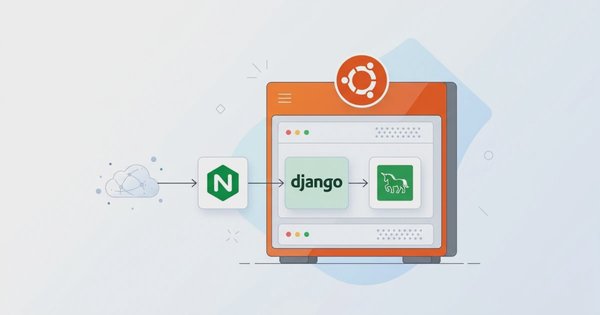
For developers, managing a VPS can be challenging when every small task requires manual configuration via the command line (CLI). This is where aaPanel comes in as a solution. aaPanel is a lightweight, user-friendly, and free control panel for managing Linux servers. When combined with Laravel, the most popular PHP framework today, developers gain a productive, secure, and easy-to-manage development environment.
Here is a step-by-step tutorial on how to install and configure Laravel on aaPanel.
Prerequisites
Before getting started, ensure you have prepared the following:
- VPS (Virtual Private Server):
- Minimum recommended: 1 CPU and 2 GB RAM.
- Operating System: Ubuntu 22.04 LTS (recommended).
- aaPanel Installed: The panel is already installed and accessible on your server.
- Domain: A domain with an A Record pointing to your VPS IP address.
- SSH Access: Root access to the server for command execution.
Installing aaPanel
If aaPanel is not yet installed, run the following command via SSH to begin installation:
URL=https://www.aapanel.com/script/install_panel_en.sh && if [ -f /usr/bin/curl ];then curl -ksSO $URL ;else wget --no-check-certificate -O install_panel_en.sh $URL;fi;bash install_panel_en.sh ipssl1. Installing the LEMP Stack
The first step is to set up the LEMP Stack (Nginx, MariaDB/MySQL, PHP) via aaPanel:
- Log in to your aaPanel dashboard.
- Navigate to the AppStore menu in the left sidebar.
- Search for and install the following packages (select versions as needed):
- Nginx: Recommended for optimal performance.
- PHP: Choose a version compatible with Laravel (PHP 8.3 recommended).
- After installation, click Settings for PHP and ensure the following extensions are enabled:
fileinfo,intl,mbstring,openssl,pdo,zip. - Still in the PHP menu, go to the Disable functions tab and remove
putenvandproc_openfrom the list to enable these functions. - Database: Choose MySQL 8.4 or MariaDB 10.11.
- phpMyAdmin: For visual database management.
- Ensure all services show a status of Running after installation completes.
2. Creating a Website & Database
aaPanel simplifies website and database creation in a single integrated step:
- Go to the Website menu.
- Click the Add Site button.
- Fill in the following form:
- Domain: Enter your domain name (e.g.,
example.com). - SSL: Check Apply for SSL to automatically enable HTTPS.
- Database: Select MySQL, then specify the database name, username, and password. Save these credentials!
- PHP Version: Select PHP 8.3 that was installed earlier.
- Site Directory: Leave as default (typically
/www/wwwroot/example.com).
- Domain: Enter your domain name (e.g.,
- Click Submit to complete site creation.
3. Installing Laravel via SSH
First, install Composer if it is not already available on your server:
wget https://getcomposer.org/download/latest-stable/composer.phar -O /usr/local/bin/composer
chmod +x /usr/local/bin/composer
Next, download the Laravel source code into the website directory you just created:
Navigate to the wwwroot directory:
cd /www/wwwrootRemove the default website directory (if it exists), as Composer will create the Laravel structure from scratch:
rm -rf example.comInstall Laravel using Composer:
composer create-project laravel/laravel example.com
chown -R www:www example.com
Configuring Document Root
- Go to Website menu > click Conf for your domain.
- Select the Directory tab.
- Under Running directory, select
/public. - Click Save to apply the changes.
Configuring URL Rewrite
Click the URL Rewrite menu, then add the following configuration to support Laravel routing:
location / {
  try_files $uri $uri/ /index.php?$query_string;
}
4. Environment & Database Configuration
Navigate to your Laravel project directory:
cd /www/wwwroot/example.comDuplicate the environment template file:
cp .env.example .envGenerate the application key:
php artisan key:generateOpen the .env file for configuration:
nano .envLocate the DB_CONNECTION section and update it with the database credentials created earlier:
DB_CONNECTION=mysql
DB_HOST=127.0.0.1
DB_PORT=3306
DB_DATABASE=your_database_name
DB_USERNAME=your_database_username
DB_PASSWORD=your_database_password
Run database migrations to verify the connection works:
php artisan migrate5. Verifying the Installation
Open your browser and visit your domain via HTTPS: https://example.com. If you see the Laravel welcome page, congratulations! The installation was successful.
If you encounter a 500 Internal Server Error, check the following logs for troubleshooting:
- aaPanel: Menu Website > Settings > Error Log.
- Laravel: Log file at
storage/logs/laravel.log.
Conclusion
Installing Laravel on aaPanel combines the power of a modern framework with the convenience of GUI-based server management. Developers no longer need to wrestle with manual Nginx or PHP-FPM configurations, allowing them to focus more on building application features. After following this guide, you will have a secure, well-structured production environment ready for further development.
Happy coding, and may your project be a success!