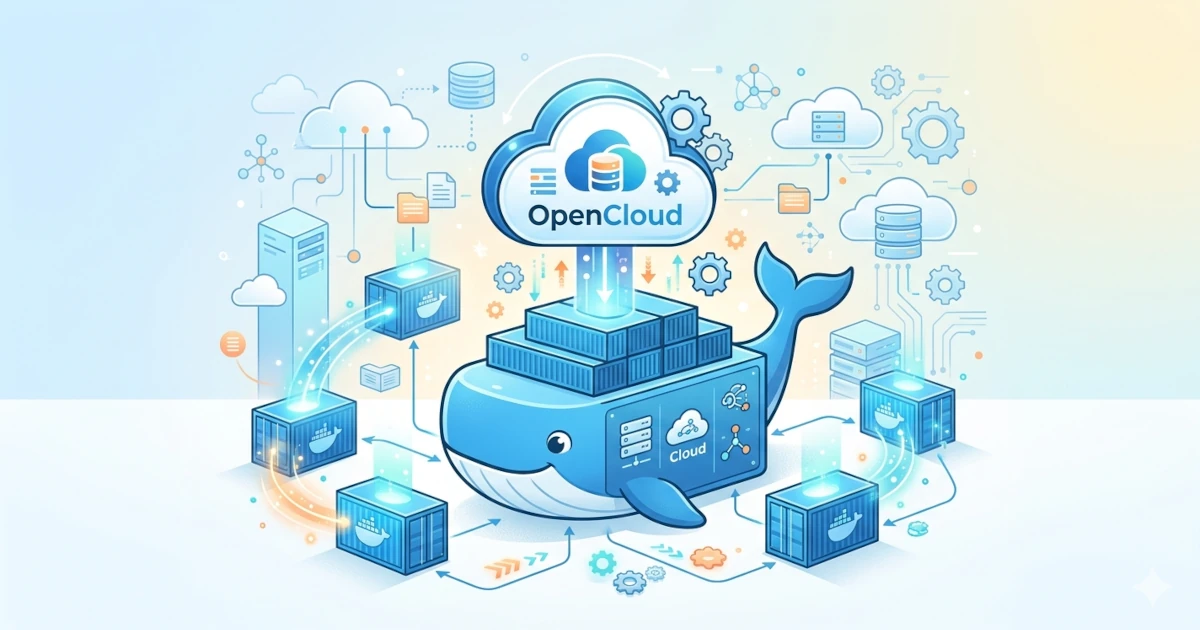
In an era where data is a strategic asset and regulations like the General Data Protection Regulation (GDPR) increasingly demand full control over data location and access, open-source, self-hosted, and scalable cloud solutions have become essential. One particularly compelling option in this field is OpenCloud.
Introduction to OpenCloud
OpenCloud is developed by the Heinlein Group (Berlin, Germany) with the motto “Excellent file management & collaboration”, emphasizing data sovereignty, cloud-native scalability, interoperability, and ease of use.
Key highlights include:
- Microservices architecture, optimized for containerized environments (Docker/Kubernetes).
- No relational database for metadata; it is stored as files instead of traditional tables.
- Supports both on-premises deployment and SaaS via partners, giving organizations the choice between full control or managed hosting.
For system administrators and cloud engineers, OpenCloud offers a powerful way to build secure, regulation-compliant, and highly flexible collaborative storage servers. In this tutorial, we’ll explore its use across various sectors, main features, self-hosting setup, and support options.
OpenCloud in Different Sectors
Public Sector
For government agencies and public institutions that must meet strict regulations (such as GDPR, accountability, audit trails, and multi-location access), OpenCloud offers:
- A user-friendly interface suitable for non-technical users and easy integration into existing IT infrastructure.
- Granular access control, encryption, modern authentication, and a zero-trust design, ensuring full data control.
- Self-hosted or SaaS options, allowing agencies to decide where data is physically stored (local or cloud).
- Collaborative “Spaces” enabling interdepartmental teamwork securely and efficiently.
For example, a municipal IT department could use OpenCloud to enable secure internal file sharing and collaboration across departments, maintaining data sovereignty and regulatory compliance.
Education
For schools, universities, and research institutions, the priorities are usability, multi-device access, and integration with existing learning systems:
- Intuitive interfaces suitable for students, teachers, and administrators.
- Quick integration and stable operation, with flexible deployment on-premises or through partners.
- Online/offline collaboration support and access from multiple devices (PCs, tablets, smartphones).
- Open-source advantage, avoiding vendor lock-in and ensuring full control of academic data.
A university, for instance, could implement OpenCloud for internal collaboration between students, faculty, and administrative staff, maintaining full control of its infrastructure.
Business
From SMEs to large enterprises, businesses often need solutions that enhance productivity, cross-location collaboration, and data security:
- Data Rooms / Workspaces allow flexible setup of temporary or project-based collaboration areas with proper access controls.
- Seamless integration with existing infrastructure, rapid deployment, and scalable performance.
- Open-source and self-hosted architecture offers full data control and eliminates dependency on large commercial cloud vendors, key for security and compliance strategies.
Businesses looking for secure, local, and compliant collaboration storage solutions can rely on OpenCloud as a strong alternative to foreign cloud providers.
OpenCloud Features, Self-Hosting & Client Apps
Key Features
According to official documentation, OpenCloud’s major capabilities include:
- File Sync & Share: Real-time document synchronization so teams always work with the latest version.
- Workspaces: Separate, team-specific collaboration spaces with role-based access control.
- Smart Search Full-text and metadata search with OCR, tagging, and filtering support.
- Web Office Integration: Edit text, spreadsheet, and presentation files directly in the browser (e.g., via Collabora Online).
- Desktop & Mobile Apps: Clients for Windows, macOS, Linux, and iOS (Android under development) with offline access and auto-sync.
- Cloud-Native Architecture: Built in Go with microservices, container-optimized, horizontally and vertically scalable, and no relational database for metadata.
- Backup & Restore: “File native backup” (introduced in v2.0.0) allows consistent backups through simple file snapshots.
- Security & Compliance: Encryption, access management, MFA, GDPR compliance, and regional data sovereignty.
Self-Hosting
For organizations that require full control, self-hosting is a key advantage:
- Deployable on private data centers or private clouds.
- Flexible installation options, from single-binary testing setups to production-grade deployments using Docker Compose or Kubernetes.
- Simplified backup and scaling, since metadata is file-based.
- Comprehensive admin documentation and GitHub resources.
Client Apps & User Access
For end users:
- Desktop apps for Windows, macOS (Intel & Apple Silicon), and Linux integrate with native file managers (Explorer, Finder, Nautilus, Dolphin).
- Mobile app for iOS (with document scanning, photo backup, and offline access). Android version is in development.
- Features include file sharing, access control, password-protected links, expiry settings, and external upload “drop zones.”
Service & Support: Community vs Business
Support Packages
According to OpenCloud’s official Service & Support page, there are two main tracks: Community (free) and Business (commercial).
Community (Free) includes:
- Core features: file sharing, desktop app, workspace, full-text search, unlimited upload size, federated sharing.
- Community-based support, ideal for testing, small organizations, or pilot projects.
Business (Commercial) adds:
- Long-Term Support (LTS), rapid security updates, and upgrade checklists.
- Enterprise services: large-scale installations, scalability, IT system integration, migration, and professional backup/restore support.
- Direct technical support from the Heinlein Group or certified partners.
Choosing Between Community and Business
- For individuals, hobbyists, or small teams, the Community edition is sufficient — you get the source code, self-hosting capabilities, and community support.
- For enterprises, educational institutions, or governments that require SLAs, security compliance, or integration support, the Business edition is recommended.
Privacy, compliance, and scalability are critical considerations for choosing the right edition.
Install OpenCloud
The following step-by-step tutorial shows how to install OpenCloud on Ubuntu 24.04 using Docker Compose, ideal for self-hosted cloud storage setups.
Requirements & Preparation
System:
- OS: Ubuntu 24.04
- For medium deployment (~1000 users): 2 GHz dual-core + 8 GB RAM.
- Storage: Depends on data volume; ensure good IOPS performance.
- Supported backends: local filesystem (ext4, XFS, ZFS), S3-compatible, NFS (v4.2+), CephFS.
Limited Time: Vultr Is Giving Away $300 Credits
Grab $300 NowNetwork & Domain:
- Configure a domain/subdomain pointing to the server’s IP.
- For reverse proxy/SSL, prepare certificates (Let’s Encrypt or custom).
- Open necessary ports (80/443).
Docker Setup:
- Install Docker Engine and Docker Compose v2.
- Prepare working directory, e.g., /opt/opencloud or /srv/opencloud.
Installing Docker
ssh root@server-ip
sudo apt update && sudo apt upgrade -y
sudo sh -c "curl -fsSL https://get.docker.com/ | sh"
sudo docker -v
sudo docker compose version
Clone Repository & Configure .env
git clone https://github.com/opencloud-eu/opencloud-compose.git
cd opencloud-compose
cp .env.example .env
Edit key environment variables:
# INSECURE=true
OC_DOMAIN=cloud.YOUR.DOMAIN
INITIAL_ADMIN_PASSWORD=YourSecurePassword
[email protected]
COMPOSE_FILE=docker-compose.yml:traefik/opencloud.yml
OC_DOCKER_IMAGE=opencloudeu/opencloud
OC_DOCKER_TAG=2
OC_CONFIG_DIR=/opt/opencloud/config
OC_DATA_DIR=/opt/opencloud/data
Create configuration directories:
sudo mkdir -p /opt/opencloud/{config,data}
sudo chown -R $USER:$USER /opt/opencloud
Run OpenCloud
sudo docker compose up -d
sudo docker compose ps
You should see containers like:
opencloud-compose-opencloud-1   opencloudeu/opencloud:2   ...   Up   9200/tcp
opencloud-compose-traefik-1     traefik:v3                ...   Up   80/tcp,443/tcp
Access OpenCloud
Open your browser and visit: https://cloud.YOUR.DOMAIN Login using admin and the password you defined.
Add Users
- Log in as admin.
- Navigate to Admin Settings → Users.
- Click + Create User, fill in details (username, email, password), and click Confirm.
Set Up Client Apps
- Install the OpenCloud client for your platform (Windows, macOS, Linux, iOS).
- Launch the app and connect it to https://cloud.YOUR.DOMAIN.
- Approve browser login and click Allow when prompted.
- Once authenticated, click Finish. Synchronization begins automatically.
Conclusion
Building a Cloud Storage Server with OpenCloud provides organizations with full autonomy to manage data securely and efficiently. With Docker Compose, installation and maintenance become straightforward, even for production-scale environments. OpenCloud offers a modern, flexible solution for government, education, and business sectors, emphasizing security, collaboration, and data sovereignty. Combined with comprehensive client applications and flexible community or business support, OpenCloud stands out as a robust foundation for sustainable and private cloud infrastructure worldwide.