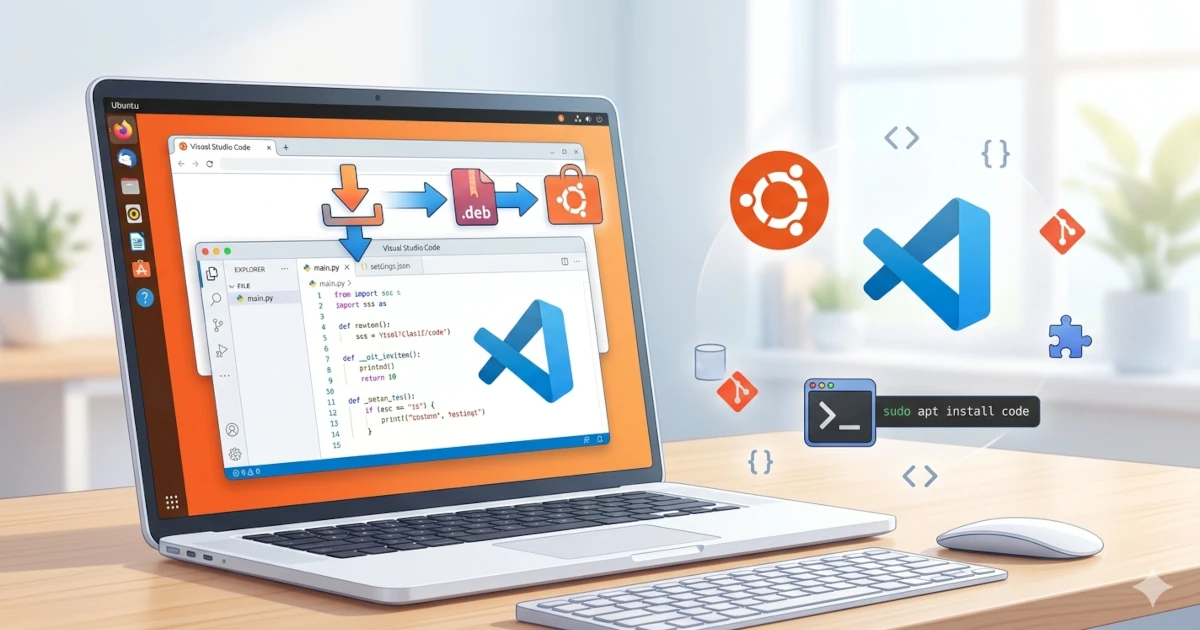
Visual Studio Code (VS Code) is one of the most popular code editors among developers. Created by Microsoft and available for free, VS Code supports various programming languages, Git integration, and thousands of extensions to boost productivity. Ubuntu, as a Linux-based operating system, is also a favorite platform for developers, making installing VS Code on Ubuntu a great first step toward building a modern development environment.
Advantages of Visual Studio Code
Some of the advantages that make VS Code widely used include:
- Free & open source: Can be used at no cost, with an active global community.
- Lightweight & fast: Not as heavy as full IDEs like IntelliJ or Eclipse.
- Cross-platform: Available for Linux, Windows, and macOS.
- Rich extensions: Supports various programming languages, frameworks, and DevOps tools.
- Built-in Git integration: Makes it easy to commit, push, and pull directly from the editor.
- Customizable: Supports themes, snippets, and settings based on your preferences.
Install Visual Studio Code
Method 1: Install via .deb File
This method is suitable for quick installation without adding a repository.
Download the .deb file from the official site:
wget 'https://code.visualstudio.com/sha/download?build=stable&os=linux-deb-x64' -O code.debInstall using dpkg:
sudo dpkg -i code.debIf there are missing dependencies:
sudo apt install -fMethod 2: Install via Repository
Install Visual Studio Code by adding the repository.
Add the Microsoft key:
sudo apt install wget gpg apt-transport-https -y
wget -qO- https://packages.microsoft.com/keys/microsoft.asc | gpg --dearmor > microsoft.gpg
sudo install -D -o root -g root -m 644 microsoft.gpg /usr/share/keyrings/microsoft.gpg
rm -f microsoft.gpg
Create the repository configuration file:
sudo nano /etc/apt/sources.list.d/vscode.sourcesInsert the configuration:
Types: deb
URIs: https://packages.microsoft.com/repos/code
Suites: stable
Components: main
Architectures: amd64,arm64,armhf
Signed-By: /usr/share/keyrings/microsoft.gpg
Update the repository and install VS Code:
sudo apt update
sudo apt install code -y
After installation, VS Code will be available in the application menu or can be run with the command:
codeInstalling Extensions and Themes
Popular programming language extensions:
- Python:
ms-python.python - JavaScript/TypeScript: built-in, but you can add
esbenp.prettier-vscode - PHP:
bmewburn.vscode-intelephense-client - Java:
vscjava.vscode-java-pack - Go:
golang.go - C/C++:
ms-vscode.cpptools
Extensions for DevOps and supporting tools:
- Docker:
ms-azuretools.vscode-docker - Kubernetes:
ms-kubernetes-tools.vscode-kubernetes-tools - GitLens:
eamodio.gitlens(for enhanced Git integration) - YAML:
redhat.vscode-yaml(commonly used for CI/CD and Kubernetes manifests)
To install extensions, open the Command Palette (Ctrl+Shift+X) and search for the extension name.
For a more comfortable coding experience, try these themes:
- One Dark Pro – an elegant dark theme.
- Dracula Official – a modern theme with vibrant colors.
- Material Theme – material design theme variations.
- Monokai Pro – a classic for long-time developers.
Install them via the extension marketplace, then select from File > Preferences > Themes > Color Theme.
Tips & Tricks
- Split Editor: Press
Ctrl+\to open two code tabs side by side. - Multi-Cursor Editing: Press
Alt+Clickto add cursors on multiple lines simultaneously. - Quick Open File: Use
Ctrl+Pto quickly open files. - Integrated Terminal: Press
Ctrl+`to open the terminal inside VS Code. - Snippets: Create custom code snippets to write templates faster.
- Remote Development: Use the Remote: SSH extension to code directly on a server.
Installing Visual Studio Code on Ubuntu provides a lightweight, flexible, and highly customizable development environment. With support for thousands of extensions, attractive themes, and smart features, VS Code becomes a top choice for various development needs, from web and mobile to DevOps. After following this guide, you are ready to build any project more productively on Ubuntu.