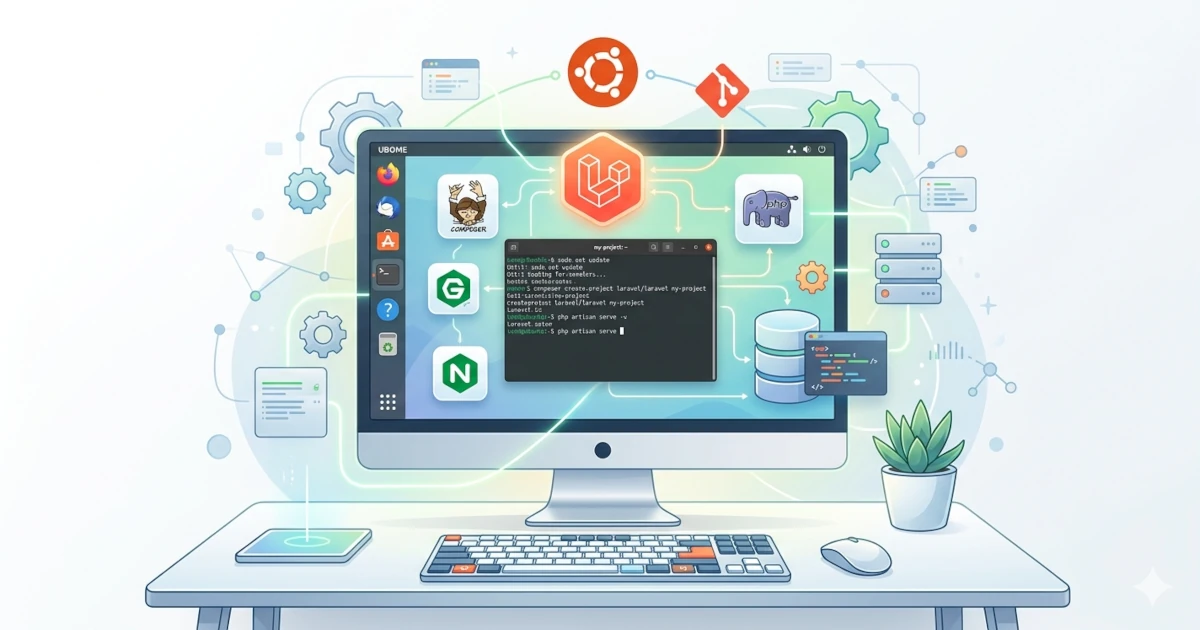
Laravel is a powerful modern PHP framework widely used to build web applications. To make the development environment closer to production, we can use Apache as the web server, PHP 8.3 from the Ondřej PPA, MariaDB as the database, and local SSL using mkcert. Additionally, we will use Visual Studio Code (VS Code) with several Laravel-specific extensions to make the coding process more productive and comfortable. In the end, we will have a local domain https://laravel.local with a fully running Laravel setup on Ubuntu.
1. Install PHP 8.3
Add the Ondřej repository:
sudo add-apt-repository ppa:ondrej/php -yInstall PHP 8.3 along with essential extensions for Laravel:
sudo apt install php8.3 php8.3-cli php8.3-common php8.3-mysql \
php8.3-xml php8.3-mbstring php8.3-bcmath php8.3-curl unzip curl -y
Check PHP version:
php -vInstall Composer for PHP dependency management:
sudo apt install composer -y2. Install Apache
Install Apache and the PHP module:
sudo apt install apache2 libapache2-mod-php8.3 -yEnable required modules and restart Apache:
sudo a2enmod rewrite ssl
sudo systemctl restart apache2
3. Install MariaDB
MariaDB will be used as the database backend:
sudo apt install mariadb-server mariadb-client -yCreate a database and user for Laravel:
CREATE DATABASE laraveldb;
CREATE USER 'laraveluser'@'localhost' IDENTIFIED BY 'passwordku';
GRANT ALL PRIVILEGES ON laraveldb.* TO 'laraveluser'@'localhost';
FLUSH PRIVILEGES;
EXIT;
4. Install mkcert
Install mkcert for local SSL:
sudo apt install mkcert -yInstall the Root CA and generate a certificate for the laravel.local domain:
mkcert -install
mkcert laravel.local
Move the SSL certificate and private key:
sudo mkdir -p /etc/apache2/ssl
sudo mv laravel.local.* /etc/apache2/ssl
5. Setup Local Domain
Add the laravel.local domain to the hosts file:
echo "127.0.0.1 laravel.local" | sudo tee -a /etc/hosts6. Create Laravel Project
Create a new Laravel project in /var/www:
cd /var/www
sudo composer create-project laravel/laravel laravelapp
sudo chown -R $USER:www-data laravelapp
sudo chmod -R 775 laravelapp
7. Configure Virtual Host
Create configuration for laravel.local:
sudo nano /etc/apache2/sites-available/laravel.local.confInsert the configuration:
<VirtualHost *:80>
  ServerName laravel.local
  Redirect permanent / https://laravel.local/
</VirtualHost>

<VirtualHost *:443>
  ServerName laravel.local
  DocumentRoot /var/www/laravelapp/public

  SSLEngine on
  SSLCertificateFile /etc/apache2/ssl/laravel.local.pem
  SSLCertificateKeyFile /etc/apache2/ssl/laravel.local-key.pem

  <Directory /var/www/laravelapp/public>
    AllowOverride All
    Require all granted
  </Directory>

  ErrorLog ${APACHE_LOG_DIR}/laravel_error.log
  CustomLog ${APACHE_LOG_DIR}/laravel_access.log combined
</VirtualHost>
Enable the virtual host:
sudo a2ensite laravel.local.conf
sudo systemctl restart apache2
8. Configure .env
Edit the .env file:
sudo nano /var/www/laravelapp/.envAdjust the configuration:
DB_CONNECTION=mysql
DB_HOST=127.0.0.1
DB_PORT=3306
DB_DATABASE=laraveldb
DB_USERNAME=laraveluser
DB_PASSWORD=passwordku
9. Run Database Migration
Execute the database migration:
cd /var/www/laravelapp
php artisan migrate
If successful, the default Laravel tables will be created in laraveldb.
10. Install Git
Install Git for project version control:
sudo apt install git -y
git --version
Configure identity:
git config --global user.name "Your Name"
git config --global user.email "[email protected]"
Initialize repository in the project:
cd /var/www/laravelapp
git init
git add .
git commit -m "Initial Laravel project setup"
11. Install Visual Studio Code
Install VS Code:
wget 'https://code.visualstudio.com/sha/download?build=stable&os=linux-deb-x64' -O code.deb
sudo dpkg -i code.deb
sudo apt install -f
To improve productivity, install the following extensions (Ctrl+Shift+X → search → Install):
- PHP Intelephense – IntelliSense for PHP
- Laravel Artisan – Run Artisan commands directly from VS Code
- Laravel Blade Snippets – Snippets & syntax highlighting for Blade templates
- Laravel Extra Intellisense – Auto-completion for Laravel helpers
- DotENV – Syntax highlighting for
.env - GitLens – Enhanced Git integration
Opening Laravel Project in VS Code
Navigate to the project folder:
cd /var/www/laravelapp
code .
Alternatively, open VS Code → File → Open Folder → select /var/www/laravelapp.
12. Test Laravel Application
Access in the browser:
https://laravel.localAdd a simple route in routes/web.php:
Route::get('/hello', function () {
return "Hello, Laravel with Apache, MariaDB, SSL, and VS Code!";
});
Open:
https://laravel.local/helloWith the steps above, we have built a complete and modern Laravel development environment on Ubuntu:
- Apache with mkcert SSL → the application runs on a secure local domain
https://laravel.local. - PHP 8.3 (Ondřej PPA) → latest PHP version with full support for Laravel 10.
- MariaDB → a lightweight and reliable open-source relational database.
- Composer + Laravel → dependency management and a leading PHP framework.
- Visual Studio Code + Laravel Extensions → a productive and comfortable coding experience with auto-completion, snippets, Artisan commands, and Git integration.
With this setup, you can not only build simple Laravel applications but also prepare for larger-scale projects. This environment reflects modern development best practices with a server, database, SSL, and a workflow similar to production.