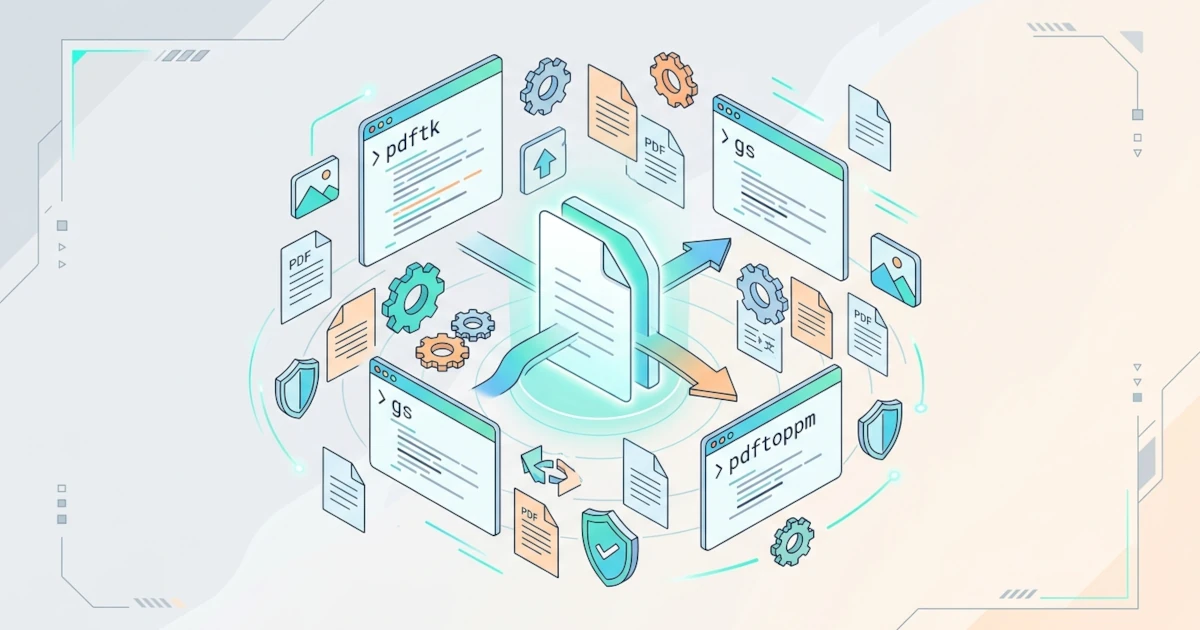
Managing PDF documents on Linux doesn't have to rely on heavy GUI applications or risky third-party upload sites. This article discusses how to merge, split, compress, and convert PDFs directly from the Linux terminal, using three staple tools: PDFtk, Ghostscript, and Poppler-utils, complete with ready-to-use command examples.
Why Manage PDFs via the Linux Terminal?
Consider this scenario: a user needs to reduce the file size of their ID card, diploma, or work contract before uploading it to an online form. The quickest option that often comes to mind is a free PDF compression website. The problem is, once the file is sent to a third‑party server, we lose full control over that document. We never really know if the file is stored, analysed, or even sold to another party.
This situation becomes even riskier if the document contains sensitive personal data such as identity numbers, signatures, or business contract details. If that data leaks, the consequences can range from identity theft to breach of contract confidentiality. An attacker who successfully breaches the server of a free compression service could potentially access thousands of sensitive documents at once, not just one person's.
Many Linux users actually have a much safer alternative, but they assume that PDF tasks must be done through heavy GUI applications like Adobe Acrobat or LibreOffice Draw, or through third‑party sites. Yet there is a third option that is often overlooked: the terminal.
Modern Linux distributions provide a number of command‑line tools that can handle almost all PDF management needs, from merging, splitting, reducing size, to converting formats. The entire process runs locally on our own computer, so no files leave to third‑party servers. The process is also much lighter than GUI applications, and equally important, it can be automated via scripts for repetitive tasks.
PDF Tools on Linux
Before diving into practice, it is good to get to know the PDF tool ecosystem on Linux. Unlike GUI applications that usually bundle all functions into one program, the command‑line interface (CLI) ecosystem on Linux follows the Unix philosophy: one tool does one specific task, but does it very well.
The following table summarises the tools we will use throughout this article along with their main functions:
| Tool | Primary Function | When to Use |
|---|---|---|
pdftk (PDFtk) | Document structure management: merge, split, rotate, password | Rearranging page order or content of a PDF |
gs (Ghostscript) | File size optimisation (compress) | When scanned PDFs or those with high‑resolution images become too large |
pdftoppm & pdftotext (Poppler-utils) | Extract PDF to images or text | When you need image snapshots of pages, or raw text content from a PDF |
convert (ImageMagick) / img2pdf | Convert images to PDF | Combining several scanned pages or photos into one PDF |
These four tools are generally not installed by default on most distros, except for Ghostscript which is often already present as a dependency of the printing system or LibreOffice. We will cover installation in each respective section.
PDFtk for Merge and Split PDF
PDFtk (PDF Toolkit) is a command‑line tool for manipulating PDF document structures, from merging, splitting, rotating pages, to adding password protection. The actively developed version today is pdftk-java, a Java port of the original PDFtk which was left unmaintained after the original developer stopped maintaining the native version.
Installing PDFtk on Ubuntu, Debian, Fedora, and Arch
The installation method for PDFtk varies depending on the distro, because not all distros include pdftk-java in their official repositories.
On Ubuntu and Debian, we can install directly via apt:
sudo apt update
sudo apt install pdftk-java
A note from field experience: on Ubuntu Server, the universe repository is sometimes not enabled by default. If apt fails to find the pdftk-java package, enable the repository first with sudo add-apt-repository universe before repeating the install command.
Fedora does not provide pdftk-java in the official dnf repository. The most practical option is to install via Snap, assuming snapd is already active on the system:
sudo snap install pdftkIt is worth noting that the PDFtk snap package has not received regular updates for quite some time. System administrators who need the latest features or specific bug fixes should consider building from source as an alternative.
Arch Linux also does not place pdftk-java in the official repository, so we need the AUR (Arch User Repository). The easiest way is to use an AUR helper like yay:
yay -S pdftk-binThe pdftk-bin package is chosen because it is already in binary form, so we do not need to compile gcc-gcj which takes quite a while. Since AUR packages are community‑maintained, not officially by Arch, it is a good habit to check the contents of the PKGBUILD before installing.
After installation is complete on any distro, verify by checking the version:
pdftk --versionMerging PDFs with PDFtk
PDFtk uses the cat operation for both merging and splitting. The cat ("catenate") operation essentially rearranges pages from one or more PDF files into a new single file.
If we only need to merge a few specific files, the order of the files follows the order they are written in the command:
pdftk report-jan.pdf report-feb.pdf report-mar.pdf cat output report-q1.pdfTo bulk‑merge all PDF files in one folder, we can use a wildcard:
pdftk *.pdf cat output merged.pdfOne thing to keep in mind: the merge order with wildcards follows the alphabetical order of the file names, not the modification date. If page order matters, it is better to prefix file names with numbers (01-cover.pdf, 02-content.pdf, etc.) or list the file names explicitly as in the previous example.
For more complex cases, for example if we only want to take certain pages from different files, PDFtk has a handle feature. We assign uppercase letters as labels for each input file, then specify the page ranges we want from each handle:
pdftk A=contract.pdf B=appendix.pdf cat A1-3 B5-8 output complete-package.pdfThe command above takes pages 1 to 3 from contract.pdf, combined with pages 5 to 8 from appendix.pdf, and saves the result as complete-package.pdf. This technique is very helpful for developers who need to rearrange reports from multiple source documents without opening a GUI at all.
Splitting PDFs with PDFtk
Still using the cat operation, we can extract a certain page range from a PDF into a new file:
pdftk source.pdf cat 10-25 output chapter-3.pdfIf the need is to split a PDF into separate files per page, PDFtk has a dedicated operation called burst:
pdftk source.pdf burst output page_%02d.pdfThis command produces page_01.pdf, page_02.pdf, and so on, following the printf pattern we specify in the output part. If the output part is omitted, PDFtk automatically uses the default pattern pg_%04d.pdf and still creates an additional report file named doc_data.txt containing the metadata of the source document.
Rotating Pages and Password Protection
Besides merge and split, PDFtk can also rotate pages via rotation suffixes in the cat operation. To rotate all pages 180 degrees, for example a document that was scanned upside‑down:
pdftk source.pdf cat 1-endsouth output rotated-result.pdfIf only a specific page needs rotation, combine it with other page ranges left as‑is:
pdftk source.pdf cat 1east 2-end output result.pdfThe command above rotates the first page 90 degrees clockwise (east), while pages 2 to the end remain unchanged.
For password protection, PDFtk distinguishes between two types of passwords: a user password to open the document, and an owner password to change permissions (such as printing or copy‑paste):
pdftk document.pdf output locked-document.pdf owner_pw "adminPass123" user_pw "openPass123"If only user_pw is set, anyone who knows that password automatically gets full permissions on the document. Also set owner_pw if we want to distinguish who can just read and who can change document permissions.
Compress PDF Without Losing Quality Using Ghostscript
PDFtk is indeed great at managing document structure, but it is not designed to reduce file size. Merge or split operations in PDFtk only rearrange pages, without reprocessing the embedded images inside. As a result, scanned PDFs that are dominated by high‑resolution images remain large even after being "processed" via PDFtk.
This is where Ghostscript comes in. Ghostscript is an interpreter for PostScript and PDF that, among many other functions, can re‑render the images inside a PDF at lower resolution and compression levels, significantly shrinking the file size.
The basic syntax is:
gs -sDEVICE=pdfwrite -dCompatibilityLevel=1.4 -dPDFSETTINGS=/ebook -dNOPAUSE -dBATCH -dQUIET -sOutputFile=compressed-result.pdf source.pdfSome important flags to understand, not just memorise:
-sDEVICE=pdfwritetells Ghostscript to re‑render the input as a new PDF file.-dPDFSETTINGSis the compression profile that controls how aggressively images inside the PDF are downsampled.-dNOPAUSEand-dBATCHprevent Ghostscript from stopping to wait for interactive input, important for use in automated scripts.-dQUIETsuppresses the verbose log output.
Three -dPDFSETTINGS profiles that are most often used:
| Profile | Characteristics | Recommended Use |
|---|---|---|
/screen | Image resolution lowered to 72 dpi, smallest file size | Sending via WhatsApp/phone, visual quality is not a priority |
/ebook | Medium resolution, balance between size and quality | Everyday work documents, default recommendation |
/printer | High quality, larger file size than the two above | Documents intended for printing |
If you find typing the long gs command tedious, Ghostscript provides a shortcut called ps2pdf. Originally, ps2pdf was designed to convert PostScript files to PDF, but since it still calls Ghostscript with the pdfwrite device behind the scenes, this tool can also accept a PDF file as input:
ps2pdf -dPDFSETTINGS=/ebook source.pdf compressed-result.pdfThis command produces the same output as the long gs command above, only more concise for daily use.
Converting PDF Formats and Images
This section covers the three most common conversion directions: PDF to image, PDF to text, and image to PDF.
Converting PDF to Images with pdftoppm
pdftoppm is part of the Poppler-utils package that can convert each page of a PDF into separate image files. By default, pdftoppm renders pages at 150 DPI (dots per inch). For tasks that require higher sharpness, such as OCR material or printing, increase to 300 DPI using the -r flag:
pdftoppm -png -r 300 source.pdf pageThis command produces page-1.png, page-2.png, and so on, one file per page. If you only need a subset of pages, combine with the -f (first page) and -l (last page) flags, e.g., -f 2 -l 4 to render only pages 2 through 4.
Extracting PDF to Text with pdftotext
Also from Poppler-utils, pdftotext pulls all text content from a PDF into a plain .txt file:
pdftotext source.pdf result.txtFor PDFs that contain tables or multiple columns, add the -layout flag so that pdftotext tries to preserve the original spatial layout of the text, rather than just dumping all text into a single flow:
pdftotext -layout source.pdf result.txtConverting Images to PDF with ImageMagick and img2pdf
The basic syntax to combine several images into one PDF via convert (part of the ImageMagick package) is quite simple:
convert page1.jpg page2.jpg page3.jpg merged.pdfOn many modern Linux installations, the command above may fail with an error message like:
convert-im6.q16: attempt to perform an operation not allowed by the security policy `PDF' @ error/constitute.c/IsCoderAuthorized/421.The root cause is not a bug, but a security policy deliberately applied. Since 2018, ImageMagick has disabled read/write permissions for PDF by default via policy.xml, as a mitigation after a security vulnerability was found in the Ghostscript delegate that ImageMagick uses to process PDF.
If we trust the source image files (e.g., our own scans), the solution is to edit the file /etc/ImageMagick-6/policy.xml (the path may vary depending on the distro and ImageMagick version). Find the following line:
<policy domain="coder" rights="none" pattern="PDF" />Change the rights value to read|write to allow ImageMagick to process PDF again:
<policy domain="coder" rights="read|write" pattern="PDF" />A safer alternative that does not require any tinkering with policy.xml at all is img2pdf. Unlike ImageMagick, img2pdf inserts the JPEG images as‑is into the PDF structure without any re‑encoding, so image quality is truly lossless and the process is faster:
img2pdf page1.jpg page2.jpg page3.jpg -o merged.pdfFor everyday needs that do not involve other image manipulations (crop, resize, watermark), img2pdf is a more recommended choice than changing ImageMagick's security policy.
Tips: Create Aliases for Long Commands
The Ghostscript command for PDF compression is quite long to type every time we need to compress a file. The solution is to create an alias, or more precisely a shell function, because the compression command needs two positional arguments (input and output file names) that a simple alias cannot handle.
Open your shell configuration file, ~/.bashrc for Bash users or ~/.zshrc for Zsh users, and add the following function at the very bottom:
compress-pdf() {
    gs -sDEVICE=pdfwrite -dCompatibilityLevel=1.4 -dPDFSETTINGS=/ebook -dNOPAUSE -dBATCH -dQUIET -sOutputFile="compressed-$1" "$1"
}
Save the file, then reload the shell configuration so the new function can be used immediately without opening a new terminal:
source ~/.bashrcNow, compressing a PDF is as simple as one short command:
compress-pdf document.pdfThe result is automatically saved as compressed-document.pdf in the same folder. The same trick can be applied to other long commands in this article, such as image‑to‑PDF conversion or text extraction.
Conclusion
Managing PDFs via the Linux terminal has proven to be not just about sysadmin style. There are three concrete advantages: document privacy remains intact because the entire process runs locally without uploading to any server, the process is much faster because there is no waiting for uploads and downloads, and it is more resource‑efficient than running heavy GUI applications.
The combination of PDFtk for structure management, Ghostscript for compression, and Poppler-utils with ImageMagick or img2pdf for conversion already covers almost all daily PDF management needs. Once you get used to it, this workflow can even be chained into a single automated script for repetitive tasks—something that is impossible with online compression sites.