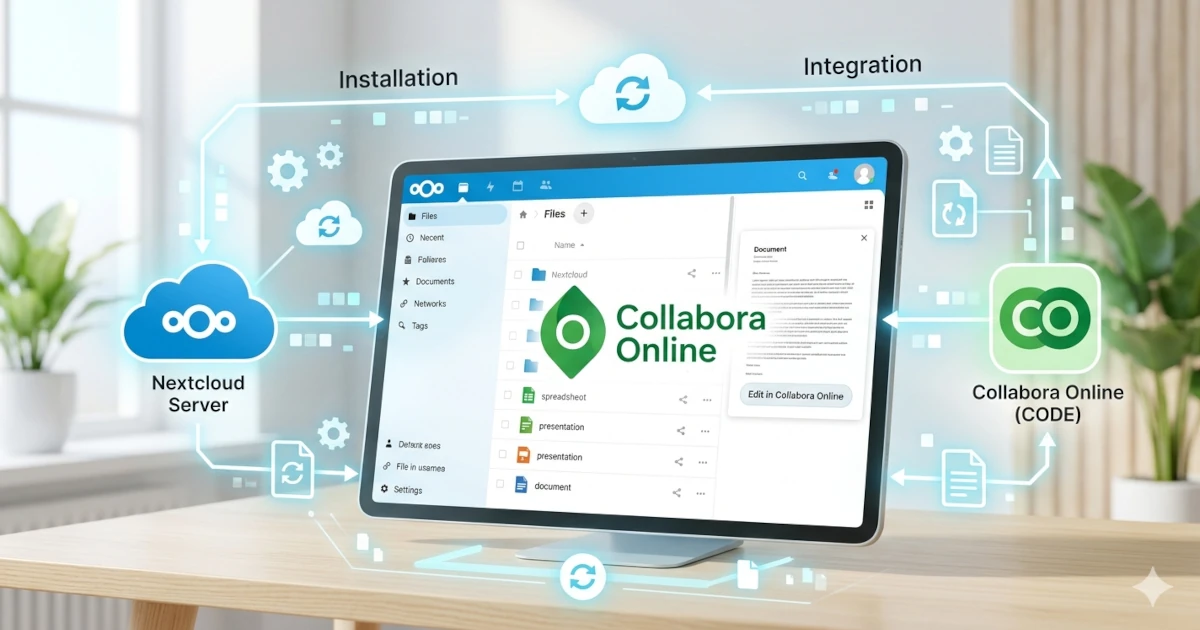
Nextcloud provides centralized file storage on your own server, but by default it does not include the ability to edit documents directly in the browser. To deliver a collaboration experience like Google Docs or Microsoft 365 on private infrastructure, an integrated document editor engine is required: Collabora Online.
What Is Collabora Online (CODE)?
Collabora Online Development Edition (CODE) is the open-source version of Collabora Online, based on LibreOffice. CODE runs as a separate server that exposes an API based on the WOPI protocol (Web Application Open Platform Interface). Nextcloud communicates with CODE through this protocol to display a document editor capable of processing .docx, .xlsx, .pptx, .odt, .ods, and various other Office formats.
Why Use Docker?
Collabora Online is available in two installation methods: native packages and Docker images. Docker is the more recommended choice for several reasons:
- Isolation: Docker containers run in their own environment, avoiding pollution of the host system's library dependencies.
- Easy updates: Updating to the latest CODE version only requires
docker pull collabora/codeand restarting the container without touching system configuration. - Consistency: The same image runs identically across different environments (development, staging, production).
- Stability: Runtime dependencies are bundled with the image, eliminating issues with library versions incompatible with the host OS.
This guide continues from a Nextcloud installation with Nginx already running at https://nextcloud.example.com. If Nextcloud is not yet installed, first follow the guide Install Nextcloud with Nginx on Ubuntu 24.04.
Prerequisites
Ensure all the following prerequisites are met before proceeding:
| Prerequisite | Details |
|---|---|
| OS | Linux, Ubuntu 24.04 LTS recommended |
| Nextcloud | Already running with HTTPS (e.g., https://nextcloud.example.com) |
| Web Server | Nginx (already installed for Nextcloud) |
| Docker & Docker Compose | Latest version (Docker Engine v24+ / Compose v2) |
| Collabora Subdomain | Separate subdomain pointing to the same server IP, e.g., collabora.example.com |
| SSL Certificate | Let's Encrypt via Certbot (will be generated in this guide) |
| Access | root or user with sudo privileges |
| Firewall | Ports 80 and 443 open to the public |
Limited Time: Vultr Is Giving Away $300 Credits
Grab $300 NowInstall Docker
If Docker is not yet installed on your server, follow these steps to install Docker Engine:
sudo sh -c "curl -fsSL https://get.docker.com/ | sh"Verify Installation:
docker -v
docker compose version
Step 1: Configure Docker Compose
Using Docker Compose is a more structured and manageable approach compared to running containers directly with the docker run command. The docker-compose.yml file serves as living documentation of the container configuration.
Create Working Directory
Create a dedicated directory to store Collabora configuration. Separating configuration per service simplifies management and backup.
sudo mkdir -p /opt/collaboraCreate docker-compose.yml File
Create the docker-compose.yml file with the following content. Replace the values for nextcloud.example.com, admin_username, and admin_password according to your configuration.
sudo nano /opt/collabora/docker-compose.ymlFill the file with the following configuration:
services:
  collabora:
    image: collabora/code
    container_name: collabora
    ports:
      - "127.0.0.1:9980:9980"
    environment:
      - aliasgroup1=https://nextcloud.example.com:443
      - username=admin
      - password=replace_with_strong_password
      - extra_params=--o:ssl.enable=false --o:ssl.termination=true
    cap_add:
      - MKNOD
restart: always| Variable | Description |
|---|---|
image: collabora/code | Official Docker image for Collabora Online Development Edition from Docker Hub. |
ports: 127.0.0.1:9980:9980 | Container listens only on localhost:9980, not directly exposed to the internet. Nginx will forward external traffic. |
aliasgroup1 | Full URL of Nextcloud (including port 443 for HTTPS) allowed to access Collabora. If you have more than one Nextcloud instance, use aliasgroup2=https://nextcloud2.example.com:443, etc. |
username & password | Credentials to access the Collabora admin panel at /browser/dist/admin/admin.html. Use a strong password. |
extra_params | --o:ssl.enable=false disables internal container SSL because SSL will be terminated by Nginx (SSL termination). This is the correct and secure configuration for a reverse proxy setup. --o:ssl.termination=true tells CODE that a reverse proxy handles SSL in front of it. |
cap_add: MKNOD | Linux capability required by internal LibreOffice processes inside the container to create temporary device nodes. |
restart: always | Container will automatically restart if it crashes or when the server reboots. |
Step 2: Start the Collabora Container
From the /opt/collabora directory, run the following command to download the image and start the container in background (detached) mode:
cd /opt/collabora
sudo docker compose up -d
The up -d command creates and runs the container based on the configuration in docker-compose.yml.
Verify the container is running:
sudo docker compose psThe STATUS column should show Up. If the container is in Restarting status, there is a configuration issue that needs to be checked via logs.
The Collabora container needs a few seconds to initialize all internal LibreOffice processes. Monitor the logs to ensure startup proceeds normally:
sudo docker compose logs -f collaboraThe startup process is considered successful if you see lines indicating the server is ready to accept connections, such as:
wsd-00001-00001 ...  coolwsd:  Listening on port 9980 of type HTTP
wsd-00001-00001 ...  coolwsd:  Ready to accept connections.
Press Ctrl+C to exit log follow mode.
Ensure the container is actually listening on 127.0.0.1:9980:
ss -tlnp | grep 9980Expected output:
LISTEN 0 4096 127.0.0.1:9980 0.0.0.0:*The fact that the port binds only to 127.0.0.1 (loopback) is correct—it means Collabora is not directly exposed to the internet.
Step 3: Configure Nginx Reverse Proxy
This section is often a major point of failure. Collabora Online uses WebSocket for real-time communication between the browser and the document server. The Nginx configuration must explicitly handle HTTP connection upgrades to WebSocket (wss://). Errors in this section cause the editor to open but fail to save changes, or connections to drop during editing.
Create Temporary Nginx Configuration (HTTP Only)
First, create a configuration for collabora.example.com using HTTP only. This is required so Certbot can validate domain ownership via HTTP-01 challenge before generating the SSL certificate.
sudo nano /etc/nginx/sites-available/collabora.confFill it with the following minimal configuration:
server {
    listen 80;
    server_name collabora.example.com;

    location / {
        return 200 "Collabora OK";
        add_header Content-Type text/plain;
    }
}
Enable and reload Nginx:
sudo ln -s /etc/nginx/sites-available/collabora.conf /etc/nginx/sites-enabled/
sudo nginx -t
sudo systemctl reload nginx
Generate SSL Certificate with Certbot
If certbot is not yet installed on the server, install it first:
sudo apt install -y certbot python3-certbot-nginxGenerate the certificate for the Collabora subdomain:
sudo certbot --non-interactive \
  --agree-tos \
  --no-eff-email \
  -m [email protected] \
  --nginx \
  -d collabora.example.com
Certbot will modify the Nginx configuration file and automatically add the SSL block. However, because the reverse proxy configuration for Collabora is quite specific (especially for WebSocket), we will replace that configuration manually in the next step.
Complete Nginx Configuration with Reverse Proxy
Overwrite the Nginx configuration modified by Certbot with the complete configuration below. The SSL certificate location (/etc/letsencrypt/live/collabora.example.com/) is kept unchanged as it was already generated by Certbot.
sudo nano /etc/nginx/sites-available/collabora.confReplace the entire file content with the following configuration:
server {
    listen 80;
    server_name collabora.example.com;

    # Redirect all HTTP traffic to HTTPS
    return 301 https://$host$request_uri;
}

server {
    listen 443 ssl;
    server_name collabora.example.com;

    # SSL certificates from Let's Encrypt
    ssl_certificate     /etc/letsencrypt/live/collabora.example.com/fullchain.pem;
    ssl_certificate_key /etc/letsencrypt/live/collabora.example.com/privkey.pem;
    include             /etc/letsencrypt/options-ssl-nginx.conf;
    ssl_dhparam         /etc/letsencrypt/ssl-dhparams.pem;

    # Security headers
    add_header X-Content-Type-Options    nosniff;
    add_header X-Frame-Options           SAMEORIGIN;
    add_header X-XSS-Protection          "1; mode=block";
    add_header Referrer-Policy           no-referrer;

    # Max body size for large document uploads
    client_max_body_size 100M;

    # -------------------------------------------------------
    # Static assets: HTML, JS, CSS, images (browser client)
    # -------------------------------------------------------
    location /browser {
        proxy_pass         http://127.0.0.1:9980;
        proxy_set_header   Host              $host;
        proxy_set_header   X-Real-IP         $remote_addr;
        proxy_set_header   X-Forwarded-For   $proxy_add_x_forwarded_for;
        proxy_set_header   X-Forwarded-Proto $scheme;
    }

    # -------------------------------------------------------
    # WOPI discovery endpoint
    # -------------------------------------------------------
    location /hosting/discovery {
        proxy_pass         http://127.0.0.1:9980;
        proxy_set_header   Host              $host;
        proxy_set_header   X-Real-IP         $remote_addr;
        proxy_set_header   X-Forwarded-For   $proxy_add_x_forwarded_for;
        proxy_set_header   X-Forwarded-Proto $scheme;
    }

    # -------------------------------------------------------
    # Capabilities endpoint
    # -------------------------------------------------------
    location /hosting/capabilities {
        proxy_pass         http://127.0.0.1:9980;
        proxy_set_header   Host              $host;
        proxy_set_header   X-Real-IP         $remote_addr;
        proxy_set_header   X-Forwarded-For   $proxy_add_x_forwarded_for;
        proxy_set_header   X-Forwarded-Proto $scheme;
    }

    # -------------------------------------------------------
    # Main WebSocket — crucial for real-time editing
    # -------------------------------------------------------
    location ~ ^/cool/(.*)/ws$ {
        proxy_pass         http://127.0.0.1:9980;
        proxy_http_version 1.1;
        proxy_set_header   Upgrade           $http_upgrade;
        proxy_set_header   Connection        "Upgrade";
        proxy_set_header   Host              $host;
        proxy_set_header   X-Real-IP         $remote_addr;
        proxy_set_header   X-Forwarded-For   $proxy_add_x_forwarded_for;
        proxy_set_header   X-Forwarded-Proto $scheme;
        proxy_read_timeout 36000s;
    }

    # -------------------------------------------------------
    # Admin Console WebSocket
    # -------------------------------------------------------
    location /cool/adminws {
        proxy_pass         http://127.0.0.1:9980;
        proxy_http_version 1.1;
        proxy_set_header   Upgrade           $http_upgrade;
        proxy_set_header   Connection        "Upgrade";
        proxy_set_header   Host              $host;
        proxy_set_header   X-Real-IP         $remote_addr;
        proxy_set_header   X-Forwarded-For   $proxy_add_x_forwarded_for;
        proxy_set_header   X-Forwarded-Proto $scheme;
        proxy_read_timeout 36000s;
    }

    # -------------------------------------------------------
    # Download, fullscreen, image upload, and other operations
    # -------------------------------------------------------
    location /cool {
        proxy_pass         http://127.0.0.1:9980;
        proxy_set_header   Host              $host;
        proxy_set_header   X-Real-IP         $remote_addr;
        proxy_set_header   X-Forwarded-For   $proxy_add_x_forwarded_for;
        proxy_set_header   X-Forwarded-Proto $scheme;
    }

    # -------------------------------------------------------
    # Backward compatibility for legacy integrations (/lool)
    # -------------------------------------------------------
    location /lool {
        proxy_pass         http://127.0.0.1:9980/cool;
        proxy_set_header   Host              $host;
        proxy_set_header   X-Real-IP         $remote_addr;
        proxy_set_header   X-Forwarded-For   $proxy_add_x_forwarded_for;
        proxy_set_header   X-Forwarded-Proto $scheme;
    }
}
Test Nginx:
sudo nginx -tEnsure the output shows syntax is ok and test is successful before proceeding to reload Nginx:
sudo systemctl reload nginxVerify WOPI Discovery Endpoint
Test that Collabora is reachable through the reverse proxy by accessing the WOPI discovery endpoint. This endpoint is the first one Nextcloud contacts to check Collabora availability.
curl -s https://collabora.example.com/hosting/discovery | head -5Example output:
<wopi-discovery>
    <net-zone name="external-https">

        <!-- Writer documents -->
        <app favIconUrl="https://collabora.example.com/browser/4610258811/images/x-office-document.svg" name="writer">
If the output is an error page or connection refused, recheck the Nginx reverse proxy configuration and ensure the Collabora container is running.
Step 4: Connect Collabora to Nextcloud
Once the Collabora server is running and accessible via HTTPS, the final step is to integrate it into Nextcloud through the Nextcloud Office app.
Install Nextcloud Office App
Log in to Nextcloud as an administrator, click the profile icon in the top-right corner, and select Apps. On the Apps page, search for the Office & text category or search directly for Nextcloud Office. Click Download and enable.
Alternatively, install via command line using occ:
sudo -u www-data php /var/www/nextcloud/occ app:install richdocumentsConfigure Collabora Server URL
After enabling the app, go to Administration settings → Nextcloud Office.
On the Nextcloud Office settings page:
- Select the option Use your own server
- Enter the Collabora server URL in the provided field: https://collabora.example.com
- Click Save
Nextcloud will immediately attempt a test connection to the /hosting/discovery endpoint. If the connection succeeds, a green notification will appear stating Collabora Online server is reachable or a list of supported file formats will be displayed.
On the same page, scroll down to see additional option Allow list for WOPI requests. Fill in the Collabora Docker compose IP (in this case 172.18.0.2) to restrict which servers can make WOPI requests to Nextcloud.
Configuration via Command Line (occ)
If you prefer configuration via terminal (suitable for automated deployments with Ansible or shell scripts):
# Set Collabora server URL
sudo -u www-data php /var/www/nextcloud/occ config:app:set \
  --value="https://collabora.example.com" richdocuments wopi_url

# Activate configuration
sudo -u www-data php /var/www/nextcloud/occ richdocuments:activate-config
Step 5: Testing and Verification
Test Document Editing
To verify the integration works perfectly, create a new document in Nextcloud:
- Open Nextcloud Files in your browser.
- Click the + (New) button and select New document, New spreadsheet, or New presentation.
- The Collabora Online editor should open within a Nextcloud tab or popup. If a blank page or error appears, check the Troubleshooting section below.
- Type some characters and ensure the document can be saved.
Test Multi-User Collaboration
Open the same document from two browsers or two different Nextcloud accounts simultaneously. Typing in one session should be immediately visible in the other session in real-time (live co-editing). Each user's cursor will be displayed in a different color.
Access Collabora Admin Panel
Collabora provides a web-based admin panel to monitor performance, view active documents, and usage statistics. Access it via:
https://collabora.example.com/browser/dist/admin/admin.htmlUse the username and password you set in the docker-compose.yml file earlier. In this panel you can monitor:
- Number of active documents.
- Number of WebSocket connections (users).
- Memory and CPU usage by LibreOffice processes.
- Server activity logs.
Automated Verification with curl
Test the capabilities endpoint to ensure all features are reported correctly:
curl -s https://collabora.example.com/hosting/capabilities | python3 -m json.toolThe JSON output will list the running CODE version and supported features such as convert-to and collabora_exports.
Troubleshooting
Error "Collabora Online server is not reachable"
This error appears in Nextcloud Settings when Nextcloud cannot connect to the /hosting/discovery endpoint. Perform checks in order:
Is the container running?
sudo docker compose -f /opt/collabora/docker-compose.yml psStatus should be Up. If not, restart it:
sudo docker compose -f /opt/collabora/docker-compose.yml up -dIs port 9980 listening?
ss -tlnp | grep 9980Test from the server itself:
curl -s http://127.0.0.1:9980/hosting/discovery | head -5If this works but HTTPS does not, the issue is with Nginx.
Test via domain:
curl -s https://collabora.example.com/hosting/discovery | head -5Editor Opens But Cannot Edit (WebSocket Error)
Symptoms: editor appears in browser, but cursor cannot be placed, or a "Connecting..." message never completes. This is almost always caused by incorrect WebSocket configuration in Nginx.
- Ensure the
location ~ ^/cool/(.*)/ws$block exists in the Nginx configuration and includes theUpgradeandConnectionheaders. - Verify that
proxy_http_version 1.1;is set in the WebSocket block (HTTP/1.1 is required for WebSocket upgrade). - Open browser Developer Tools (F12) → Network tab, filter by "WS". WebSocket requests to
/cool/...should show status101 Switching Protocols, not400or502.
SSL Mismatch or Invalid Certificate
Collabora will reject connections from Nextcloud if there is an SSL mismatch.
Ensure the SSL certificate for collabora.example.com is valid and not expired:
sudo certbot certificatesVerify the extra_params variable in docker-compose.yml is correct (--o:ssl.enable=false --o:ssl.termination=true). If ssl.termination is set to false, CODE will assume the connection is plain HTTP and reject it.
Ensure the URL entered in Nextcloud Settings uses https://, not http://.
Error on aliasgroup / Domain Not Allowed
If Collabora rejects requests from Nextcloud with container log errors like "Request failed: unauthorized" or "domain not allowed":
Ensure the aliasgroup1 value in docker-compose.yml exactly matches your Nextcloud URL, including the port:
aliasgroup1=https://nextcloud.example.com:443After changing environment variables, the container must be restarted:
sudo docker compose -f /opt/collabora/docker-compose.yml up -d --force-recreateChecking Container Logs
Container logs are the primary source of information when troubleshooting. Display the last 100 lines of logs:
sudo docker compose -f /opt/collabora/docker-compose.yml logs --tail=100 collaboraOr monitor logs in real-time while reproducing the error:
sudo docker compose -f /opt/collabora/docker-compose.yml logs -f collaboraUpdates and Maintenance
Updating Collabora to the Latest Version
One of Docker's advantages is easy updates. To update CODE to the latest image version, run:
cd /opt/collabora

# Pull latest image
sudo docker compose pull

# Restart container with new image
sudo docker compose up -d --remove-orphans
The old container will be stopped and a new container with the latest image will start automatically. This process usually takes less than 1 minute.
Backup Configuration
The only configuration files that need to be backed up are docker-compose.yml and the Nginx configuration. Since Collabora CODE is stateless (all document data is stored in Nextcloud), there are no special data volumes that need to be backed up from the Collabora side.
sudo cp /opt/collabora/docker-compose.yml ~/collabora-docker-compose.yml.bak
sudo cp /etc/nginx/sites-available/collabora ~/nginx-collabora.bak
Resource Limiting (Optional)
To prevent the Collabora container from consuming all server resources, add CPU and memory limits in docker-compose.yml:
services:
  collabora:
    image: collabora/code
    container_name: collabora
    ports:
      - "127.0.0.1:9980:9980"
    environment:
      - aliasgroup1=https://nextcloud.example.com:443
      - username=admin
      - password=replace_with_strong_password
      - extra_params=--o:ssl.enable=false --o:ssl.termination=true
    cap_add:
      - MKNOD
    restart: always
    deploy:
      resources:
        limits:
          cpus: "2.0"
          memory: 2G
        reservations:
          memory: 512M
Adjust the cpus and memory values according to your server specifications. For personal use or small teams (< 10 simultaneous users), 1 CPU and 1 GB RAM is generally sufficient.
Conclusion
You have successfully integrated Collabora Online (CODE) into Nextcloud using Docker. Nextcloud users can now create and edit .docx, .xlsx, .pptx, .odt, and other Office formats directly from the browser, with real-time collaboration support and change history through Nextcloud's version control feature—all running on your own server, without data leaving your private infrastructure.