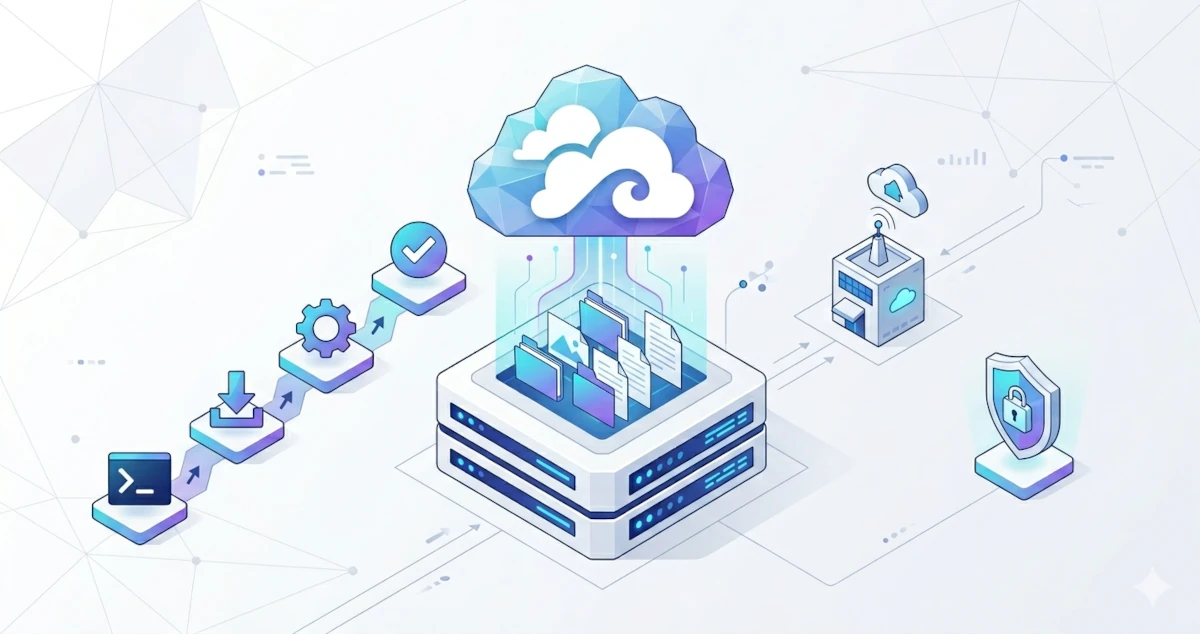
Storing files on third-party cloud services like Google Drive or Dropbox feels convenient, but there is a price to pay beyond the monthly subscription: data privacy, vendor lock-in, and storage limits that become increasingly restrictive as your needs grow. The self-hosted solution is the most reasonable answer for technical teams, businesses, or individuals who want complete control over their data.
Seafile emerges as one of the best choices in this category. This open-source platform from China has been used by millions of users worldwide, from universities and enterprise companies to individual developers running servers at home. Its synchronization speed, built-in encryption system, and library-based architecture make Seafile stand out from many of its competitors.
What is Seafile?
Seafile is an open-source cloud storage platform designed for efficient and secure file synchronization and sharing. Seafile Ltd., together with the open-source community, has been developing this platform since 2012 and now provides three variants: Community Edition (CE), Professional Edition (Pro), and the managed cloud service Seafile Plus Cloud.
This project is open-source on GitHub (haiwen/seafile) and has received thousands of stars from the global community. The source code for the server, desktop clients, and mobile applications is freely available to modify and redistribute as needed.
Key Advantages of Seafile
What sets Seafile apart from similar platforms is its approach to performance and data integrity. Seafile uses a library-based architecture that stores files in encrypted blocks. This approach enables incremental synchronization that is much faster than other solutions which sync entire files whenever a change occurs.
Other notable advantages include:
- Client-side end-to-end encryption: libraries can be encrypted on the client side so that even the server administrator cannot read their contents.
- Virtual drive client: files remain stored in the cloud and are only downloaded when opened, without consuming local storage.
- File version control: every change is saved as a revision that can be restored at any time.
- WebDAV support: easy integration with third-party tools.
- Smart metadata & tagging: layered tag system with AI support for automatic categorization.
Key Features of Seafile
Library-Based File Sync & Sharing
Seafile organizes data into units called libraries. This approach differs from conventional cloud storage solutions that treat the server as one large folder. Each library can be encrypted, shared with specific users or groups, and has its own revision history. This method provides excellent granularity of control for multi-user or team scenarios.
Desktop clients are available for Windows, macOS, and Linux. Synchronization runs automatically in the background like Dropbox, but operates on infrastructure you fully control.
Virtual Drive Client (SeaDrive)
SeaDrive is a virtual drive client that maps Seafile storage as a virtual drive on your local computer. Files remain on the server and are only downloaded when opened by the user. This feature is very useful for teams with terabytes of data but who don't want to consume local SSD space syncing all files.
SeaDrive is compatible with Windows, macOS, and Linux. The virtual drive appears like a regular partition in File Explorer on Windows operating systems.
Team Collaboration: SeaDoc and Knowledge Base
Seafile includes SeaDoc, a browser-based collaborative document editor that supports real-time co-authoring. SeaDoc is designed as a lighter and faster alternative to OnlyOffice or Microsoft 365 for technical documentation, meeting notes, and team wikis.
The Knowledge Base (Wiki) feature allows the creation of nested, interconnected pages. This feature includes revision history and per-page permission controls. This system is suitable for building internal team knowledge bases without requiring a separate platform like Notion or Confluence.
Comprehensive Data Security
Seafile provides layered security rarely found in open-source cloud storage platforms:
- Client-side encryption: libraries are encrypted before data is uploaded so the server only stores ciphertext.
- Two-factor authentication (2FA): supports standard authenticator apps (TOTP).
- Fine-grained folder permissions: read-only, read/write, or preview permissions can be set per subfolder.
- Secure share links: sharing links can be password-protected, expiration-dated, and restricted to specific emails.
- Activity logging & audit trail: every access, change, and admin action is recorded in the system.
Multi-Platform Access
Seafile provides mobile apps for iOS and Android as well as a full-featured web interface accessible from any browser. Users can upload, preview, edit, and share files directly from the browser without needing to install additional software.
Version Comparison: CE vs Pro vs Cloud
Seafile Community Edition (CE)
Seafile CE is the free and open-source version of the platform. This version is suitable for personal use, small teams, educational institutions, or SMEs who want complete control over their data without licensing fees. The source code is available on GitHub and can be modified as needed.
CE already includes a very comprehensive set of core features, such as multi-platform file synchronization, virtual drive, SeaDoc, knowledge base, client-side encryption, WebDAV, OnlyOffice or Collabora integration, and basic LDAP authentication.
Seafile Professional Edition (Pro)
Seafile Pro is intended for organizations that need enterprise features. Pro is free for up to 3 users so very small teams can enjoy premium features at no cost. For users above that number, annual licenses start at $100 for 9 users or $48 per user per year for scales of 10 to 249 users.
Exclusive Pro features include: full-text search, audit log, remote wipe, file locking, fine-grained folder permissions, full LDAP or AD synchronization, single sign-on (SAML 2.0, ADFS), antivirus integration, S3-compatible storage support, and clustering or HA capabilities.
Seafile Cloud (SaaS)
Seafile provides a managed cloud service called Seafile Plus Cloud for users who do not want to manage their own servers. All infrastructure is managed by the Seafile team so users just need to sign up and can start using it immediately. This option is ideal for teams that prioritize convenience and do not have an internal IT team.
Feature Comparison Table
| Feature | CE (Free) | Pro | Cloud (SaaS) |
|---|---|---|---|
| Price | Free, open-source | Free up to 3 users; paid > 3 | Subscription per user |
| Multi-platform file sync | Yes | Yes | Yes |
| Virtual Drive (SeaDrive) | Yes | Yes | Yes |
| Client-side encryption | Yes | Yes | Yes |
| SeaDoc (document collaboration) | Yes | Yes | Yes |
| Knowledge Base / Wiki | Yes | Yes | Yes |
| WebDAV | Yes | Yes | Yes |
| OnlyOffice / Collabora integration | Yes | Yes | Yes |
| Full-text search | No | Yes | Yes |
| File locking | No | Yes | Yes |
| Fine-grained folder permissions | No | Yes | Yes |
| Audit log | No | Yes | Yes |
| Remote wipe | No | Yes | Yes |
| Full LDAP/AD sync | No | Yes | Yes |
| SAML 2.0 / ADFS SSO | No | Yes | Yes |
| Antivirus integration | No | Yes | Yes |
| S3-compatible storage backend | No | Yes | Yes |
| Cluster / High Availability | No | Yes | Yes |
| Infrastructure management | Self-hosted | Self-hosted | Managed by Seafile |
Self-Hosted Seafile CE Installation
1. System Prerequisites
Before starting the installation, ensure your server meets the following minimum specifications. The latest version of Seafile CE (14.x) uses Docker as the officially recommended installation method.
| Component | Minimum | Recommended |
|---|---|---|
| RAM | 2 GB | 4 GB or more |
| CPU | 2 cores (>2 GHz) | 4 cores |
| Storage | 10 GB (available) | 50 GB or more |
| Operating System | Ubuntu 22.04 / Debian 12 | Ubuntu 24.04 LTS |
| Docker | Latest Docker Engine | Docker Engine + Docker Compose v2 |
Get $25 DigitalOcean Credit
Claim $25 CreditDocker installation automatically integrates the following services: Seafile, MariaDB, Redis, SeaDoc, and Caddy (as a reverse proxy with automatic SSL).
Note: Ensure ports 80 and 443 are open on your server firewall, and the domain you will use is already pointed (DNS A record) to the server IP before starting the installation.
Install Docker if not already available:
curl -fsSL https://get.docker.com | sudo shVerify the Docker installation is working correctly:
sudo docker --version
sudo docker compose version
Ensure the output shows the Docker Engine and Docker Compose versions. To have Docker start automatically when the server reboots, enable its service:
sudo systemctl enable docker --now2. Download Configuration Files
Seafile provides official Docker Compose configuration files that can be downloaded directly from the documentation. Create a working directory and download all necessary files using the following commands:
# Create directory for Seafile
sudo mkdir -p /opt/seafile
cd /opt/seafile

# Download official Seafile CE configuration files
sudo wget -O .env https://manual.seafile.com/13.0/repo/docker/ce/env
sudo wget -O seafile-server.yml https://manual.seafile.com/13.0/repo/docker/ce/seafile-server.yml
sudo wget -O seadoc.yml https://manual.seafile.com/13.0/repo/docker/seadoc.yml
sudo wget -O caddy.yml https://manual.seafile.com/13.0/repo/docker/caddy.ymlNote: The
.envfile is the main configuration file containing all environment variables for Seafile, database, cache, and reverse proxy. This file should not be distributed or committed to a public repository because it contains sensitive credentials.
3. Customize Configuration Variables in the .env File
Edit the .env file to adjust the configuration according to your server environment. Open the file with your preferred text editor using the following command:
sudo nano /opt/seafile/.envHere are the important variables that must be customized:
# =============================================
# SEAFILE CE CONFIGURATION: .env FILE
# =============================================

# --- Volume/data storage directories ---
SEAFILE_VOLUME=/opt/seafile-data
SEAFILE_MYSQL_VOLUME=/opt/seafile-mysql/db
SEAFILE_CADDY_VOLUME=/opt/seafile-caddy

# --- MySQL/MariaDB Configuration ---
INIT_SEAFILE_MYSQL_ROOT_PASSWORD=ReplaceWithStrongRootPassword
SEAFILE_MYSQL_DB_HOST=db
SEAFILE_MYSQL_DB_PORT=3306
SEAFILE_MYSQL_DB_USER=seafile
SEAFILE_MYSQL_DB_PASSWORD=ReplaceWithStrongDBPassword

# --- Database names ---
SEAFILE_MYSQL_DB_CCNET_DB_NAME=ccnet_db
SEAFILE_MYSQL_DB_SEAFILE_DB_NAME=seafile_db
SEAFILE_MYSQL_DB_SEAHUB_DB_NAME=seahub_db

# --- JWT key: mandatory, at least 32 random characters ---
# Generate with: pwgen -s 40 1
JWT_PRIVATE_KEY=FillWithASafeRandomStringOfAtLeast32Characters

# --- Server domain and protocol ---
SEAFILE_SERVER_HOSTNAME=cloud.yourdomain.com
SEAFILE_SERVER_PROTOCOL=https

# --- Cache (Redis recommended since version 13) ---
CACHE_PROVIDER=redis
REDIS_HOST=redis
REDIS_PORT=6379
# REDIS_PASSWORD=   # leave empty if you don't want to set a Redis password

# --- Time zone ---
TIME_ZONE=Asia/Jakarta

# --- First admin account ---
[email protected]
INIT_SEAFILE_ADMIN_PASSWORD=ReplaceWithStrongAdminPassword
Use the following command to generate a secure JWT key:
pwgen -s 40 1Install the package first with the command sudo apt install pwgen if that command is not yet available, or use this alternative:
openssl rand -base64 404. Enable HTTPS via Caddy
Caddy is the built-in reverse proxy since Seafile Docker version 12.0. This service handles issuing and renewing SSL certificates from Let's Encrypt automatically. No additional configuration is required as long as the SEAFILE_SERVER_PROTOCOL and SEAFILE_SERVER_HOSTNAME variables in the .env file are filled correctly.
Ensure the values in the .env file are correct for HTTPS usage:
SEAFILE_SERVER_PROTOCOL=https
SEAFILE_SERVER_HOSTNAME=cloud.yourdomain.com
Caddy will automatically contact Let's Encrypt when the container is first started to issue a valid TLS certificate. The domain must already point to the server IP (DNS propagated) and ports 80 and 443 must be open as the main requirements.
5. Run the Containers
Run the entire Seafile stack from the /opt/seafile directory after completing the configuration:
cd /opt/seafile
sudo docker compose up -d
This command will download the necessary Docker images (Seafile, MariaDB, Redis, SeaDoc, Caddy) and run all containers in the background. The database initialization and initial configuration process will run automatically.
Monitor the initialization process through the Seafile container logs with the following command:
sudo docker logs seafile -fWait until the log displays the following message indicating the server has been successfully started:
-----------------------------------------------------------------
Your seafile server configuration has been finished successfully.
-----------------------------------------------------------------

Starting seafile server, please wait ...
Seafile server started

Starting seahub at port 8000 ...

----------------------------------------
Successfully created seafile admin
----------------------------------------

Seahub is started
Caddy logs can be monitored separately using the following command to verify that the SSL certificate was issued successfully:
sudo docker logs seafile-caddy -f
Check the status of all running containers using the following command:
sudo docker compose psAll containers should show a status of Up or healthy. You can check the logs of the relevant containers to find the cause of the problem if any container shows a status of Exit or Restarting:
# View all logs at once
sudo docker compose logs --follow

# View logs of a specific container
sudo docker compose logs seafile --follow
sudo docker compose logs db --follow
6. Initial Configuration: Access the Admin Dashboard
Open your browser and navigate to the configured domain after all containers are running: https://cloud.yourdomain.com/
The Seahub login page or Seafile web interface will appear. Log in using the credentials specified in the .env file:
- Email: value of
INIT_SEAFILE_ADMIN_EMAIL - Password: value of
INIT_SEAFILE_ADMIN_PASSWORD
You will be taken to the Seahub main page after successful login. Click the profile menu in the top right corner, then select System Admin to access the system administration panel. This panel provides user management, storage usage statistics, LDAP authentication configuration, and other server settings.
Post-Installation Basic Operations
Adding a New Admin
Run the following command on the running container if you need to add or change an admin account:
sudo docker exec -it seafile /opt/seafile/seafile-server-latest/reset-admin.sh
Enter the new email and password according to the on-screen prompts.
Accessing the Container Shell
sudo docker exec -it seafile /bin/bashSeafile Data Backup
Seafile data is stored in three main directories on the host:
- /opt/seafile-data: file data, configurations, and Seafile logs
- /opt/seafile-mysql: MariaDB database data
- /opt/seafile-caddy: Caddy data (SSL certificates)
Back up these three directories regularly. Complete guidelines on the backup and restore process are available in the official Seafile documentation.
Seafile Upgrade
Run the following commands to upgrade Seafile to the latest version:
cd /opt/seafile
sudo docker compose pull
sudo docker compose up -d
Always check the official release notes before upgrading to a new major version as some versions may require additional database migration steps.
Garbage Collection
Data blocks from deleted files are not immediately removed from storage due to Seafile's deduplication mechanism. Run garbage collection periodically using the following command to clean up unused blocks:
sudo docker exec seafile /opt/seafile/seafile-server-latest/seaf-gc.sh
Additional Security Tips
Firewall Configuration
Restrict access to the server to only the necessary ports. Run the following commands if using UFW on Ubuntu operating systems:
# Allow SSH, HTTP, and HTTPS
sudo ufw allow 22/tcp
sudo ufw allow 80/tcp
sudo ufw allow 443/tcp

# Enable firewall
sudo ufw enable
The MariaDB (3306) and Redis (6379) database ports do not need to be opened to the public because communication between these services occurs within the Docker internal network.
Enable Two-Factor Authentication (2FA)
Seafile CE supports 2FA for all user accounts. Admins can enforce 2FA usage through the System Admin > Settings > Force Two-Factor Authentication menu. Users are then prompted to activate 2FA using an authenticator app like Google Authenticator or Authy.
Set Redis Password (Optional)
Adding a Redis password provides an extra layer of security even though Redis is only accessible from the Docker internal network. Add the following value to the .env file:
REDIS_PASSWORD=StrongRedisPasswordEdit the seafile-server.yml file afterwards to enable the Redis password parameter according to the comments already available in that file.
Conclusion
Seafile Community Edition is a mature and proven self-hosted cloud storage choice. Its library-based architecture, client-side encryption, incremental synchronization, and virtual drive client make it superior in terms of performance compared to similar platforms. Docker-based installation makes the setup process fast and reproducible, while Caddy as the built-in reverse proxy eliminates the complexity of manual SSL configuration.