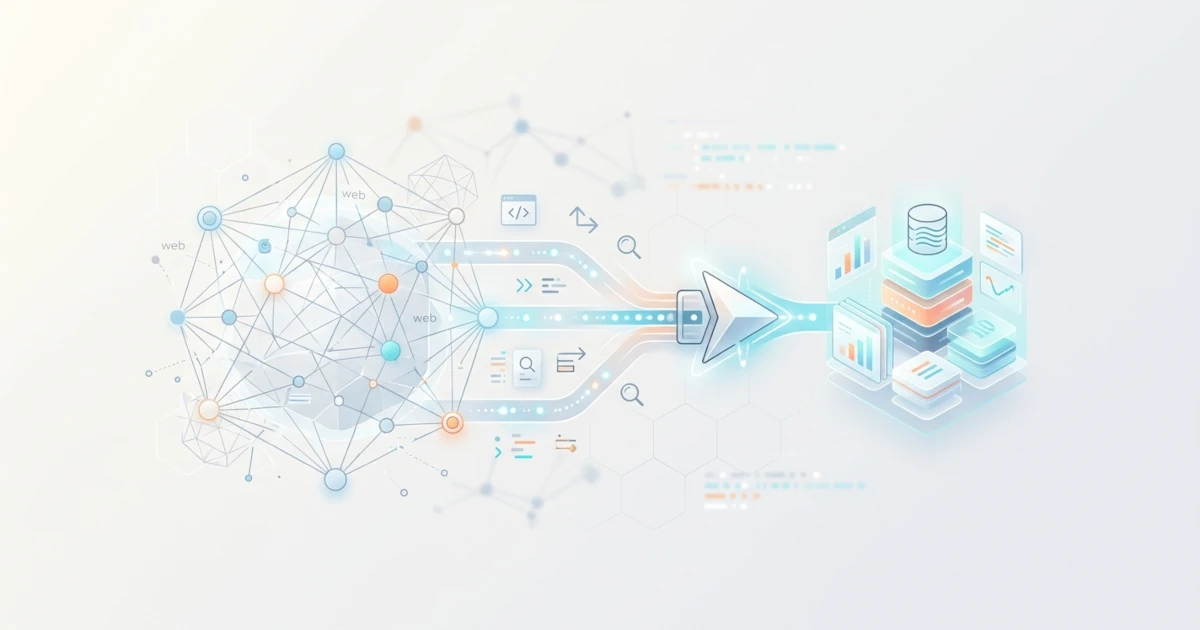
Every time we run dozens of headless browsers for scraping or AI agents, we've all seen server RAM get consumed almost instantly. Chrome is reliable for manual browsing, but when run thousands of times in parallel on a server, its memory consumption becomes a real problem. This is where Obscura comes in as the answer. Obscura is an open-source headless browser engine built with Rust, specifically designed for AI agents and large-scale web scraping needs.
There are three main issues with the headless version of Chrome: slow startup (around 2 seconds per instance), heavy RAM consumption (200 MB or more per instance), and the risk of state bleeding, which is data or cookie leakage between tasks when running multiple instances simultaneously. Obscura resolves all three through its native Rust architecture: instant startup without a full browser fork process, an average page load time of 85 milliseconds compared to about 500 milliseconds in Chrome, and memory consumption of only about 30 MB per session. Obscura also comes with built-in bot anti-detection features, something that headless Chrome lacks by default. This article covers installation, CLI usage, integration with Puppeteer/Playwright, stealth mode, and MCP integration for AI agents.
1. Obscura vs Headless Chrome
Before diving into installation, it is important to look at a direct performance comparison between Obscura and headless Chrome. The following table summarizes figures published officially in the Obscura documentation.
| Metric | Obscura | Headless Chrome |
|---|---|---|
| Memory per session | ~30 MB | 200+ MB |
| Binary size | ~70 MB | 300+ MB |
| Startup time | Instant | ~2 seconds |
| Page load | ~85 ms | ~500 ms |
| Built-in anti-detect | Yes (stealth mode) | No |
This difference in memory becomes significant once we talk about scale. Running 10 headless Chrome instances simultaneously can consume over 2 GB of RAM, whereas the same workload in Obscura uses only around 300 MB. For developers running scrapers on resource-constrained servers, this difference can dictate how many parallel workers can run without exhausting server memory.
2. Installation and Setup of Obscura
Obscura is distributed as a single static binary, so there is no need to install Chrome, Node.js, or additional dependencies. Three installation methods are available depending on your needs: download the official binary, run via Docker, or build from source code.
2.1 Download Official Binary
The fastest way to try Obscura is to download the official binary from the Obscura GitHub repository. For Linux x86_64, execute the following steps:
- Download the binary archive using
curl:curl -LO https://github.com/h4ckf0r0day/obscura/releases/latest/download/obscura-x86_64-linux.tar.gz - Extract the
.tar.gzarchive:tar xzf obscura-x86_64-linux.tar.gz - Verify the installation by checking the version:
./obscura --version
For other architectures, replace the filename according to the target: obscura-aarch64-linux.tar.gz for Linux ARM64, obscura-x86_64-macos.tar.gz for macOS Intel, and obscura-aarch64-macos.tar.gz for macOS Apple Silicon. On Windows, download the .zip file from the Releases page, extract it, and run obscura.exe --version via terminal.
2.2 Running via Docker
For sysadmins who prefer managing services via containers, Docker is the most instant way to run Obscura without cluttering the host system. Run the following command:
- Pull and run the Obscura container with port
9222mapped to localhost:docker run -d --name obscura -p 127.0.0.1:9222:9222 h4ckf0r0day/obscura - Ensure the container is running normally:
docker ps --filter name=obscura
This configuration enables Obscura to accept Chrome DevTools Protocol connections immediately at ws://127.0.0.1:9222, ready to be used by Puppeteer or Playwright without extra setup.
2.3 Build from Source Code
The third option suits developers who want to enable advanced rendering features (screenshots, PDFs) and stealth capabilities, or build specifically for custom architectures. Building from source requires Rust 1.75 or higher.
- Clone the official Obscura repository:
git clone https://github.com/h4ckf0r0day/obscura.git cd obscura - Build the CLI binary with both rendering and stealth features enabled:
cargo build --release -p obscura-cli --bins --features render,stealth - The compiled binary will be available at
target/release/obscura.
The initial build usually takes about 5 minutes as it compiles all dependencies, including V8. Subsequent builds are much faster because Cargo only recompiles modified parts. If you only need core features without rendering or stealth, run:
cargo build --release -p obscura-cli --bins --no-default-features3. Web Scraping with Obscura CLI
Once the binary is ready, you can directly test basic Obscura CLI commands to extract data from web pages.
3.1 Fetching Page Titles
The obscura fetch command loads a page and executes JavaScript expressions via the --eval flag. The following example retrieves the page title:
obscura fetch https://example.com --eval "document.title"This command returns "Example Domain". Because Obscura runs real JavaScript through the V8 engine, you can write more complex expressions, such as collecting all links inside a function:
obscura fetch https://example.com --eval "(function(){
  const links = document.querySelectorAll('a');
  return Array.from(links).map(a => a.href);
})()"
3.2 Extracting Links and Assets
For more specific scraping requirements, the --dump flag provides several output modes without writing manual JavaScript scripts:
obscura fetch https://example.com --dump html      # Rendered HTML
obscura fetch https://example.com --dump text      # Plain page text
obscura fetch https://example.com --dump links      # All URLs from <a href> tags
obscura fetch https://example.com --dump assets     # External resources (fetch/XHR)
The links and assets modes are helpful when mapping a site's structure prior to full scraping, such as identifying API endpoints invoked by a page via fetch or XHR requests.
3.3 Screenshots and PDF Rendering
Screenshot and PDF features require a binary compiled with the render feature enabled. To capture a page viewport screenshot, use the --screenshot flag:
obscura fetch https://example.com --screenshot output.pngTo export a PDF, use a Puppeteer or Playwright client connected to Obscura via CDP, then call page.pdf() as usual. Note that Obscura's PDF output is currently rasterized, meaning text inside cannot be selected like standard Chrome-generated PDFs.
3.4 Large-Scale Parallel Scraping
For scraping hundreds or thousands of URLs simultaneously, Obscura offers the obscura scrape subcommand, which distributes tasks across multiple worker processes in parallel. By default, Obscura runs 10 parallel workers:
obscura scrape --concurrency 20 --format json url1 url2 url3You can also pipe a list of URLs from a file:
cat urls.txt | obscura scrape --concurrency 20 -This command requires the obscura-worker binary to be present in the same PATH as obscura, as the main process invokes worker binaries for each job unit.
4. Puppeteer and Playwright Integration
One of Obscura's primary strengths is its complete support for the Chrome DevTools Protocol (CDP). Developers with existing Puppeteer or Playwright code do not need to rewrite their scraping logic. Simply route the WebSocket connection to Obscura instead of Chrome.
The initial step for both integrations is identical: run Obscura in server mode.
obscura serve --port 92224.1 Puppeteer Connection
Since you are connecting to an existing external browser instance rather than launching a new Chrome process, use puppeteer-core instead of full puppeteer:
const puppeteer = require('puppeteer-core');

const browser = await puppeteer.connect({
  browserWSEndpoint: 'ws://127.0.0.1:9222',
});

const page = await browser.newPage();
await page.goto('https://example.com');
console.log(await page.title());
4.2 Playwright Connection
Playwright provides the chromium.connectOverCDP method specifically to connect to running browsers via CDP:
const { chromium } = require('playwright');

const browser = await chromium.connectOverCDP('ws://127.0.0.1:9222');
const page = await browser.newPage();
await page.goto('https://example.com');
console.log(await page.title());
This connection pattern enables engineering teams to migrate production scrapers from Chrome to Obscura by altering the connection target, without touching existing navigation or extraction logic.
5. Enabling Stealth Mode
When scrapers target sites with bot detection systems, standard headless Chrome is frequently flagged due to distinct fingerprints: navigator.webdriver evaluates to true, uniform GPU and display resolution configurations across instances, and recognizable traffic patterns by anti-bot systems. Stealth mode in Obscura is designed to mitigate these issues.
5.1 How Stealth Works
When enabled, stealth mode randomizes various fingerprint signals per session, including GPU profiles, screen resolutions, Canvas rendering outputs, and Audio APIs, making every browser session appear as a distinct device. Obscura also sets navigator.webdriver to undefined, mimicking human-driven GUI browsers rather than automated software.
5.2 Tracker Blocking
Beyond fingerprinting, stealth mode loads a blocklist containing 3,520 widely known analytics, advertisement, and fingerprinting domains. Requests to these domains are blocked at the network level before loading, resulting in faster and lighter page loads since third-party tracking scripts are prevented from executing.
5.3 Practical Application
To enable stealth mode, append the --stealth flag to obscura fetch, obscura serve, or obscura scrape commands:
obscura fetch https://target-site.com --stealth --dump htmlNote that stealth features are only active if the binary was built with the --features stealth flag as described in the source build steps. Technically, this mode also switches the TLS transport from Rustls (default) to BoringSSL via the wreq library, aligning the TLS fingerprint (cipher order, ALPN, ClientHello) with real browsers rather than generic HTTP client libraries often flagged by anti-bot systems.
However, Obscura's stealth mode has limitations. According to its official documentation, it handles basic bot detection but does not bypass interactive challenges such as Cloudflare, Datadome, Akamai Bot Manager, CAPTCHAs, or IP-based rate limiting. For such scenarios, additional strategies like residential proxy rotation remain necessary.
6. MCP Integration for AI Agents
The Model Context Protocol (MCP) is an open standard allowing AI applications like Claude Desktop or Cursor to invoke external tools in a structured manner. Obscura includes a built-in MCP server that exposes browser control as a set of tools, allowing AI agents to navigate, click, fill forms, and read web pages autonomously without manual automation scripting.
6.1 Exposed Tools
Obscura's MCP server exposes over 30 tools categorized into several functional areas:
- Navigation:
browser_navigate,browser_back,browser_reload - Page Reading:
browser_snapshot,browser_markdown,browser_extract,browser_search - Interaction:
browser_click,browser_fill,browser_type,browser_select_option - Asynchronous Operations:
browser_wait_for,browser_evaluate - Diagnostics:
browser_network_requests,browser_console_messages - Visual Output:
browser_screenshot,browser_pdf - State Management:
browser_get_cookies,browser_storage_state - Tab Management:
browser_tab_new,browser_tab_switch
This coverage allows AI agents to perform complex browser workflows, from logging into websites to extracting structured data from search results.
6.2 Basic Configuration
The Obscura MCP server supports two transport modes: stdio for direct desktop application integration, and HTTP for network access. For stdio mode, run:
obscura mcpFor HTTP mode, such as when Obscura runs inside a container accessed by AI agents from another machine:
obscura mcp --http --port 3000 --host 0.0.0.0Because HTTP mode lacks built-in authentication, exposing this transport beyond localhost requires configuring allowed origins using the OBSCURA_MCP_ALLOWED_ORIGINS environment variable, preferably behind a reverse proxy enforcing authentication.
To connect Obscura to Claude Desktop, add the following configuration to claude_desktop_config.json (located at ~/Library/Application Support/Claude/claude_desktop_config.json on macOS, or %APPDATA%\Claude\claude_desktop_config.json on Windows):
{
  "mcpServers": {
    "obscura": {
      "command": "/path/to/obscura",
      "args": ["mcp"]
    }
  }
}
After saving the file, restart Claude Desktop to make Obscura tools available for AI agents during conversation sessions.
7. Obscura vs Alternatives
Obscura is not the sole option in browser automation. Comparing its position with popular alternatives helps clarify its ideal use cases.
Browserless is a managed Chrome-as-a-service solution: infrastructure management is handled, but billing scales with usage while maintaining Chrome's backend resource consumption. This fits teams needing quick deployment without server management overhead.
ZenRows operates as a complete scraping API with built-in proxy rotation and CAPTCHA solving, functioning as an all-in-one service rather than a self-controlled browser engine. This option makes sense when targeting sites with strict anti-bot protections where teams prefer not to manage bypass infrastructure.
Meanwhile, standard Playwright or Puppeteer running native Chromium remains the safest choice for rendering compatibility because they rely on the exact engine used by production Chrome. Obscura is the right choice when resource efficiency and startup speed are top priorities, particularly for AI agent workloads running many short-lived browser sessions in parallel on self-hosted infrastructure.
8. Limitations of Obscura
As an independent rendering engine rather than native Chromium, Obscura has specific limitations to consider prior to production deployment. These points are derived directly from official Obscura documentation.
- Single V8 isolate per session: All pages within a session share the same V8 isolate, meaning CPU-heavy JavaScript in one tab can slow down other tabs within that session.
- Incomplete PDF capabilities: PDF output is rasterized, text cannot be selected, and features such as tagged PDFs, headers/footers, outlines, and full CSS paged media are not implemented.
- Web APIs less comprehensive than Chromium: Features like service workers, native media playback, and certain Web APIs are incomplete compared to full Chromium.
- Immature device emulation: Mobile device simulation and custom viewport emulation are more limited compared to Chromium.
For modern web pages heavy on JavaScript or dependent on niche Web APIs, rendering quirks may occur. Developers and sysadmins should test target pages in Obscura before fully replacing Chromium in production pipelines.
9. Conclusion
Obscura is worth considering when managing AI agent projects with heavy browser usage, parallel web scraping across thousands of pages, or operating on resource-constrained servers. Its memory efficiency of ~30 MB per session and instant startup make it far more economical than scaling headless Chrome, while full CDP support ensures compatibility with existing Puppeteer and Playwright codebases.
Conversely, if your project depends heavily on rendering parity with production Chrome (such as visual regression testing or pages utilizing complex Web APIs), standard Playwright or Puppeteer on native Chromium remains the safest option. The most practical approach is to test Obscura directly within active scraping or AI agent workflows, compare resource consumption and compatibility against existing Chrome setups, and decide based on real-world data.