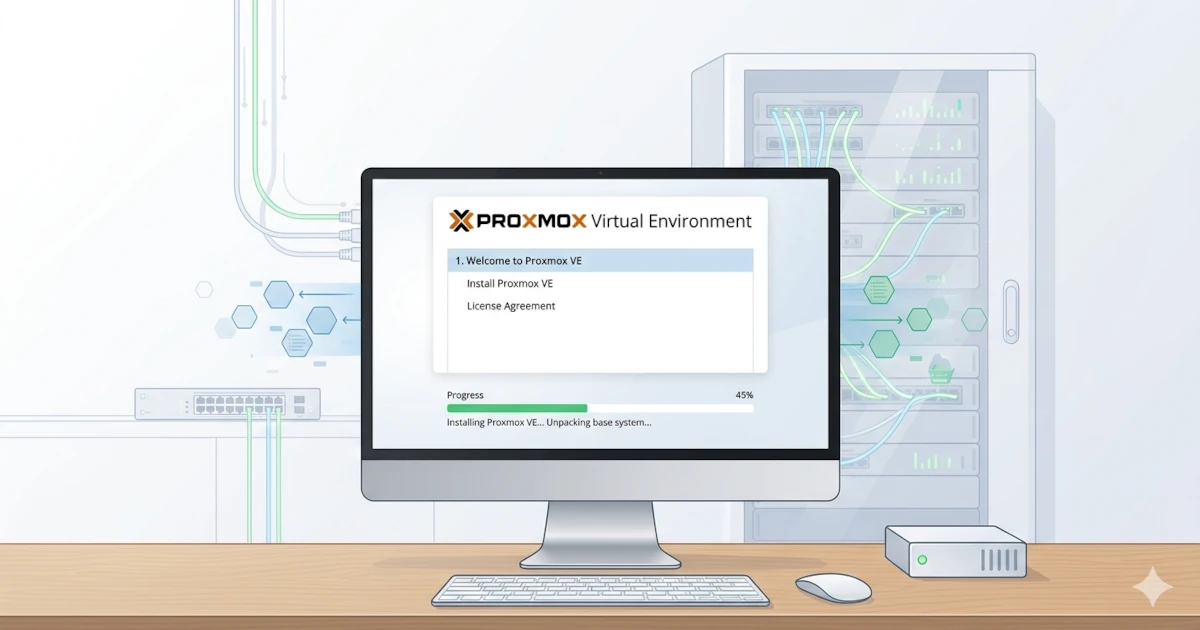
Building a virtualization infrastructure on bare-metal servers no longer requires expensive licenses or specific vendor expertise. Proxmox Virtual Environment comes as a complete open-source solution. This single platform manages KVM-based virtual machines and LXC-based containers through a unified web interface. This article guides you through the entire installation process from scratch until the server is ready to run its first workload.
What is Proxmox Virtual Environment?
Proxmox Virtual Environment (Proxmox VE) is an open-source virtualization management platform based on Debian GNU/Linux, developed by Proxmox Server Solutions GmbH. This project is released under the GNU AGPL v3 license and is available for free, including for production use.
Two main virtualization technologies are combined in one platform:
- KVM (Kernel-based Virtual Machine): A type-1 hypervisor that runs directly on the Linux kernel. KVM is used to run virtual machines with any operating system, including Windows and various Linux distributions, each in full isolation.
- LXC (Linux Containers): A container technology that shares the kernel with the host. LXC is lighter than VMs because it doesn't require full hardware emulation, making it suitable for Linux workloads that don't need separate kernel isolation.
Why Choose Proxmox VE?
Comparing with commercial virtualization solutions like VMware vSphere or Microsoft Hyper-V shows several real advantages of Proxmox VE:
- Free and open-source: No license costs. The source code is available in the official Proxmox repository.
- Unified web interface: All management of VMs, containers, storage, networking, backups, and clusters is done from a single browser-based dashboard.
- Active community: The official Proxmox forum has hundreds of thousands of active members with comprehensive and well-maintained documentation.
Proxmox VE is suitable for various scenarios, such as experimental homelabs, SMB servers, and medium-scale data centers requiring clustering and high availability features.
Preparation Before Installation
Hardware Specifications
Ensure the server meets the minimum specifications before starting the installation. Proxmox VE requires a 64-bit processor with hardware virtualization support active in the BIOS/UEFI.
Minimum Specifications
- 64-bit CPU (Intel EM64T or AMD64) supporting Intel VT-x or AMD-V
- Minimum 2 GB RAM, with 4 GB recommended to run full features
- Minimum 32 GB HDD or SSD for the system
- One Network Interface Card (NIC)
Recommended Specifications for Production
- Intel Xeon or AMD EPYC multi-core CPU (8 cores or more)
- 16 GB RAM or more. The number of running VMs and containers affects the required RAM capacity.
- SSD or NVMe storage for the system and VM data. Storage I/O performance greatly affects VM responsiveness.
- Two or more NICs to separate management traffic from VM traffic.
Important note: Hardware virtualization features (Intel VT-x or AMD-V) must be enabled in the BIOS/UEFI before installation. KVM cannot run without this feature.
Required Materials
- Latest Proxmox VE ISO file: download from proxmox.com/en/downloads
- Minimum 8 GB flash drive: the entire contents of the flash drive will be erased during the bootable creation process.
- Bootable creation application: Raspberry Pi Imager (available on Windows, macOS, Linux), Rufus (Windows), or Balena Etcher (cross-platform).
Installation Steps
Creating a Bootable USB
The first step is to flash the Proxmox VE ISO file to a flash drive so it can be used as an installer. Here is how to do it using Raspberry Pi Imager:
- Download and run Raspberry Pi Imager on your computer.
- Click Choose OS, scroll down, then select Use custom. Choose the Proxmox VE ISO file you downloaded.
- Click Choose Storage and select the target flash drive.
- Click Write, confirm the action, and wait for the process to finish. Do not remove the flash drive until the process is completely finished.
BIOS/UEFI Settings
Enter the server's BIOS/UEFI before booting from the USB installer, then do the following two things:
- Enable hardware virtualization: Look for options labeled Intel Virtualization Technology (VT-x) or AMD Virtualization (AMD-V / SVM Mode) in the CPU or Advanced menu. Change its value to Enabled.
- Change boot order: Ensure the USB drive is first in the boot order list so the server boots from the USB installer first.
Save changes (usually using the F10 key) then restart the server.
Step 1: Boot and Select Installation Mode
Connect the installer flash drive to the server, then turn on the device. The server will boot into the Proxmox VE menu which offers several options:
- Install Proxmox VE (Graphical): An interactive graphical installer with a visual interface. This is the main option and is highly recommended for most users.
- Install Proxmox VE (Terminal UI): A terminal-based installer that has the same function as the graphical mode. This option is compatible with hardware that does not support certain graphics drivers.
- Install Proxmox VE (Terminal UI, Serial Console): A terminal installer specifically configured for output via serial port. This mode is used on headless servers that only have serial console access.
- Advanced Options: This menu contains advanced options such as debug mode, rescue boot, unattended installation, and memory test (memtest86+).
Select Install Proxmox VE (Graphical) to start the installation process.
Step 2: License Agreement
The first page displays the Proxmox VE End User License Agreement (EULA). You can click the I agree button after reading the license to proceed to the next step.
Step 3: Target Hard Disk Selection
The installer displays a list of all hard disks or SSDs detected on the server. You can select the target disk where Proxmox VE will be installed.
Warning: All data on the target disk will be erased during the installation process. You must ensure there is no important data on that disk before proceeding.
The installer uses the ext4 filesystem by default and sets up automatic partitioning using LVM. Click Next to continue with this configuration, or click the Options button if you want to customize the filesystem and partition sizes.
Filesystem Options
- ext4 (default): A mature and stable Linux filesystem that uses LVM for logical volume management. This is the safe choice for most cases.
- xfs: A high-performance filesystem with good journaling, also using LVM. Suitable for high-I/O workloads.
- ZFS (RAID0, RAID1, RAID10, RAIDZ-1/2/3): A filesystem with built-in checksumming, native snapshots, and various software RAID levels. Ideal for servers without a hardware RAID controller. This configuration requires more RAM. A rough calculation needs 4 GB RAM plus 1 GB per TB of storage.
- BTRFS (technology preview): A modern filesystem with snapshot and compression features. This option is still a technology preview in Proxmox VE.
Advanced LVM Options (for ext4 and xfs)
Options are available to set logical volume size allocation if you choose ext4 or xfs:
- hdsize: Total disk size used for the Proxmox VE installation. Useful if you want to leave disk space outside LVM for other purposes.
- swapsize: Size of the swap volume. The default value equals the installed RAM size, with a minimum of 4 GB and maximum of 8 GB. You can enter 0 if you do not want to create swap.
- maxroot: Maximum size of the root volume that stores the Proxmox VE operating system. Default is one quarter of hdsize for disks over 48 GB.
- minfree: Free space left in the LVM Volume Group. Default is 16 GB for disks over 128 GB. This space is needed for classic LVM snapshots, but not for LVM thin.
- maxvz: Maximum size of the data volume where VM disk files and containers are stored. The actual data volume size is calculated as: hdsize - rootsize - swapsize - minfree. You can enter 0 if you do not want a separate data volume.
Step 4: Location, Time Zone, and Keyboard
You need to set the following three location parameters:
- Country: Select Indonesia. This setting is used to choose the nearest download mirror when updating packages, making the update process faster.
- Time zone: Choose the appropriate time zone. Examples are
Asia/JakartaforWIB,Asia/MakassarforWITA, orAsia/JayapuraforWIT. - Keyboard Layout: Choose
U.S. English (default)or adjust to the keyboard layout you use. This setting affects input on the server's local console.
Click Next to continue.
Step 5: Administrator Password and Email
You can create credentials for the Proxmox VE root (administrator) account via the following settings:
- Password: Create at least 8 characters. Use a combination of uppercase, lowercase, numbers, and symbols. A minimum length of 12 characters is highly recommended for better security.
- Confirm: Re-type the same password for confirmation.
- Email: Enter the administrator's email address. The system uses this email to send notifications, including information about available package updates and error messages from scheduled cron jobs.
Security: The root password is the key to full access of the entire system. You should use a password manager to store a strong and unique password.
Click Next after all fields are filled.
Step 6: Network Configuration
This step configures the network interface to access Proxmox VE from the network. All fields must be filled correctly because this configuration determines how the server connects to the management network.
- Management Interface: The network interface used for management. The installer displays the interface name (e.g.,
enp3s0oreth0) along with its MAC address. Select the interface connected to the management network. - Hostname (FQDN): The server's fully qualified domain name. Example:
pve.example.com. The part before the first dot (pve) becomes the system hostname. Use a descriptive and consistent name. - IP Address (CIDR): The static IP address for the server in CIDR notation. Example:
192.168.100.2/24. The/24prefix is equivalent to subnet mask255.255.255.0. Proxmox VE requires a static IP because all management access depends on this address. - Gateway: The IP address of the network's default gateway, typically the router or layer-3 switch address. Example:
192.168.100.1. - DNS Server: The DNS server address for domain name resolution. Use a local DNS if available. Public DNS addresses like
1.1.1.1(Cloudflare) or8.8.8.8(Google) are alternatives. - Pin network interface names: Network interface names are locked to consistent names based on MAC address if this option is checked. This prevents interface name changes when adding or replacing NICs later. Enabling this option is highly recommended on production servers.
Click Next after network configuration is complete.
Step 7: Summary and Confirmation
The installer displays a summary of all configured settings: target disk, filesystem, location, time zone, hostname, and network configuration. You should review every detail before proceeding. Use the Previous button to go back and change settings if anything needs correction.
- Automatically reboot after successful installation: The server will automatically restart after installation completes without manual intervention if this option is checked.
Click the Install button to start the installation process.
Step 8: Installation Process and Reboot
The installer will format the target disk, create partitions and logical volumes, then copy all system packages to the disk. This process usually takes a few minutes and depends on the speed of the USB installer and the performance of the target disk.
The server will reboot after the installation finishes. You should remove the installer flash drive before or as soon as possible after the server starts restarting. This is done so the server boots from the internal disk and does not return to the installer.
The server will then boot into Proxmox VE GNU/Linux and display a login prompt on the console, along with the URL information to access the web interface:
https://192.168.100.2:8006/Post-Installation Initial Configuration
Accessing the Proxmox VE Web Interface
You can open a browser on another computer within the same network after the server has successfully booted, then access the following URL:
https://<SERVER_IP_ADDRESS>:8006Replace <SERVER_IP_ADDRESS> with the IP address configured during installation. Example: https://192.168.100.2:8006.
The browser will display a security warning because Proxmox VE uses a self-signed SSL certificate on a fresh installation. This is normal system behavior. You can click Advanced then Proceed (or the equivalent menu depending on your browser) to continue to the login page.
Use the following credentials to log in:
- User name: root
- Password: the password you created during installation
- Realm: Linux PAM standard authentication
Getting to Know the Proxmox VE Dashboard
The main dashboard view is divided into several areas after you successfully log in:
- Left Panel (Resource Tree): This area displays the infrastructure hierarchy. The top level is Datacenter, followed by the Proxmox node (server) name. The lower part lists available VMs, containers, and storage.
- Right Panel (Content Area): This panel shows navigation tabs such as Summary (real-time CPU, RAM, storage, and network statistics), Shell (direct terminal to the server), Updates, Repositories, Network, and other menus when a node is selected.
- Top Toolbar: This area contains main action buttons like Create VM, Create CT (container), and the user account menu.
Configuring the Non-Subscription Repository
A fresh Proxmox VE installation is connected by default to the enterprise repository which requires a paid subscription. A "No valid subscription" notification will appear every time you log in. The enterprise repository needs to be disabled for users without a subscription, then replaced with the free no-subscription repository which still receives security updates.
You can access the server shell via the Shell tab in the web interface (or via SSH), then run the following commands:
# Disable the enterprise repository
sed -i 's/^deb/#deb/' /etc/apt/sources.list.d/pve-enterprise.list

# Add the no-subscription repository
echo "deb http://download.proxmox.com/debian/pve trixie pve-no-subscription" \
  > /etc/apt/sources.list.d/pve-no-subscription.list

# Update the package list
apt updateNote: The no-subscription repository contains the same packages as the enterprise repository. It still receives security patches and important feature updates. The only difference is that official support SLA is not available without a subscription.
Run a system upgrade after the repository has been successfully updated:
apt dist-upgrade -yYou should restart the server to activate the new kernel if there was a kernel update:
rebootAlternative repository configuration can also be done directly from the web interface via the Updates → Repositories tab on the selected node.
First Test: Creating a VM or Container
Uploading an ISO File to Storage
Guest operating system ISO files need to be uploaded to Proxmox VE storage before creating a VM. The steps are as follows:
- Select the local storage (or another available storage) in the left panel.
- Click the ISO Images tab.
- Click the Upload button to upload an ISO file from your local computer, or click Download from URL to download an ISO directly from the internet to Proxmox VE storage without going through your local computer first.
- Wait for the upload or download to finish. The progress status is displayed in the bottom task panel.
Creating a Virtual Machine
Click the Create VM button on the top toolbar to open the VM creation wizard. This wizard consists of several configuration tabs:
General Tab
- Node: Select the Proxmox node where the VM will run. This option is relevant if you already have a multi-node cluster setup.
- VM ID: A unique numeric ID for the VM. This is auto-filled by the system but can be changed as needed.
- Name: A descriptive name for the VM. Examples:
ubuntu-server-01orwindows-dev.
OS Tab
- ISO image: Select the ISO file previously uploaded to storage.
- Guest OS Type: Select the guest OS type such as Linux, Windows, Solaris, or others. This setting influences the default virtual hardware configuration optimized for that OS type.
- Version: Select the appropriate kernel or OS version for additional optimization.
System Tab
- BIOS: Select SeaBIOS (default, widely compatible) or OVMF (UEFI) for OSes that require UEFI like Windows 11.
- Machine: Select the virtual machine type. The q35 type is recommended for modern OSes because it supports PCIe bus and recent hardware features.
Disks Tab
- Storage: Select the storage pool for the VM disk.
- Disk size (GiB): Size of the virtual disk. Adjust this value according to the guest operating system and application requirements.
- Bus/Device: Select VirtIO SCSI for best performance on Linux guests, or SATA for wider compatibility including Windows without additional drivers.
CPU Tab
- Sockets: Number of virtual CPU sockets. 1 is generally sufficient for most workloads.
- Cores: Number of CPU cores allocated to the VM. Adjust according to workload needs.
- Type: Type of emulated CPU. Select host to pass through host CPU instructions directly for optimal performance, or kvm64 for broader compatibility if the VM might be migrated to another host.
Memory Tab
- Memory (MiB): RAM allocation for the VM in mebibytes. Example:
2048for 2 GB RAM or4096for 4 GB. - Ballooning Device: Proxmox VE can dynamically adjust RAM allocation between VMs and the host based on actual needs if this option is enabled.
Network Tab
- Bridge: Select the virtual network bridge. The
vmbr0bridge (default) connects to the server's physical interface and gives network access to VMs. - Model: Select VirtIO (paravirtualized) for best network performance on Linux guests. Use VirtIO with additional driver installation for Windows guests, or Intel E1000 which is compatible without extra drivers.
Confirm Tab
Review the VM configuration summary before creating. You can check the Start after created option if you want the VM to start immediately after creation, then click Finish.
Running the VM and Accessing the Console
You can select the VM from the left panel after it has been successfully created. Click the Start button on the toolbar to power on the VM. After that, click the Console button to open the VM's screen display in the browser.
Proxmox VE supports the following three console modes:
- noVNC: Console access via browser without installing any plugins. This is the easiest and most commonly used mode.
- SPICE: A higher-performance protocol that supports USB redirection and audio. This option requires a SPICE client like virt-viewer on the user's side.
- xterm.js: A text-based console in the browser, ideal for server VMs without a graphical interface.
Alternative: Creating a Linux Container (LXC)
Proxmox VE supports LXC-based Linux Containers in addition to VMs. This technology is much lighter than VMs because it shares the kernel with the host. LXC container RAM and CPU consumption can even be one tenth of a VM for equivalent workloads.
You need to download a container template first to create an LXC container via the following steps:
- Select the local storage in the left panel, then click the CT Templates tab.
- Click the Templates button to open the official template catalog, including Ubuntu, Debian, Alpine Linux, CentOS, Fedora, and others.
- Select the desired template, then click Download.
Click Create CT on the toolbar to open the container creation wizard after the template is available. The configuration steps are similar to VM creation, including ID, hostname, password, template, disk, CPU, RAM, and network.
Conclusion
Proxmox VE is a solid choice for building a virtualization infrastructure without license costs. The combination of KVM and LXC in a single platform allows managing various workloads from one unified web interface, from enterprise Windows servers to lightweight and efficient Linux containers. The Proxmox VE installation process is relatively simple compared to other enterprise hypervisor solutions. The time from booting the USB installer to the server being ready for use is generally no more than 30 minutes, including repository configuration and system updates.