
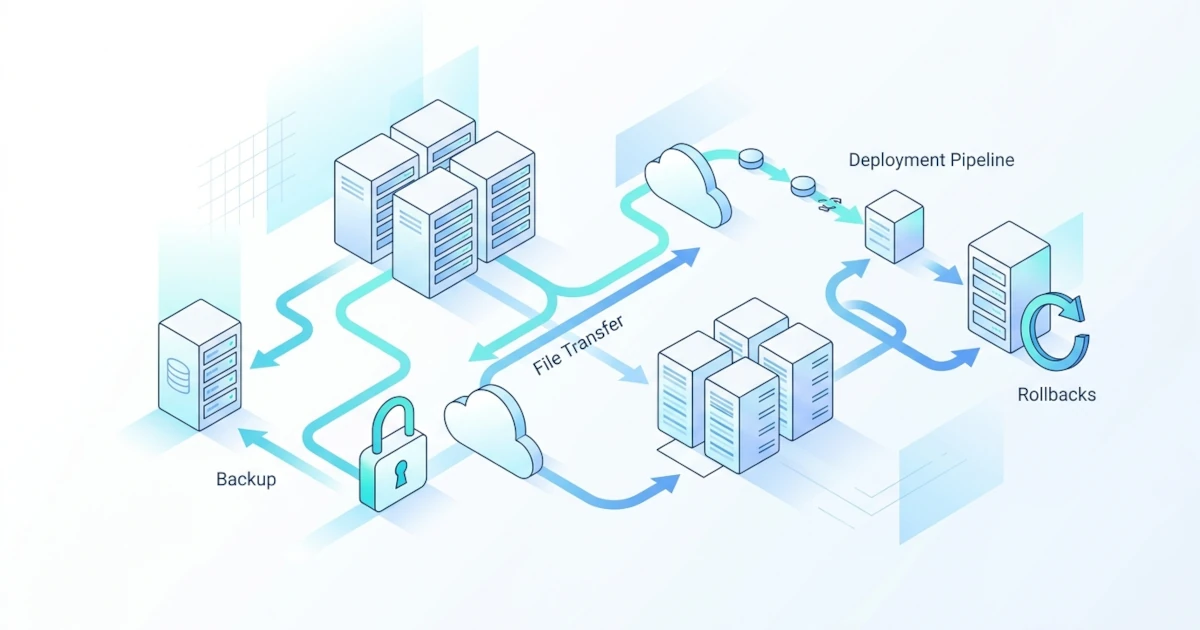
Chapter 13.2 covered rsync and tar for backing up personal desktop folders, and that section promised these tools would be covered in greater depth for server contexts in Chapter 21. Now is the time to fulfill that promise. Server backup requirements are much more demanding than those of a personal laptop: Sysadmins must copy data to another location (ideally a different physical machine, not just another folder on the same disk), establish multi-tiered rotation so that errors noticed a week later can still be restored, and ensure the entire process runs automatically without needing to stand in front of a terminal typing passwords one by one. This chapter covers three closely related operational requirements: automated backups with space-efficient snapshot strategies and multi-tiered rotation, secure file transfer over SSH without manual interaction, and simple deployment (the process of moving the latest code version to a server currently serving users) that pulls the latest code and safely restarts services, complete with a rollback mechanism (a process to return the system to its previous state) if anything fails. The closing case study combines all three into a single pipeline, while reusing the kirim_alert() function from Chapter 20.4.2 so that Sysadmins immediately know when a backup or deploy process encounters issues, rather than discovering it the next day through user complaints.
21.1 Automated Backups and Multi-Tiered Rotation
These first three sub-chapters build a realistic server backup strategy: not just copying files once, but storing multiple recovery points simultaneously without inflating disk space requirements linearly.
21.1.1 Incremental Backup with Hard Link Concepts
Running rsync -av --delete to the same destination folder every night, exactly like the pattern in 13.2.2, ensures the destination is always identical to the source. The problem is that once --delete is active, the previous night's backup is overwritten; if an important file was accidentally deleted three days ago and only noticed today, that single backup has already deleted that same file. The solution is not to stop using --delete (which causes backups to gradually fill with garbage), but to store multiple daily snapshots simultaneously, each representing a complete state at a specific point in time.
Storing full daily snapshots via tar is clearly wasteful of disk space if most of the contents do not change from day to day. This is where the hard link concept comes into play. Unlike a symbolic link, which is merely a pointer containing a path to another file, a hard link is an additional directory entry pointing directly to the exact same inode (physical data block) on the disk. Two filenames that are hard-linked together are essentially the exact same data, simply referenced via two names; deleting one name does not delete the data as long as the other name still exists, and more importantly for backups, creating a hard link consumes no additional disk space because no data is actually copied.
The --link-dest=DIR option in rsync leverages this behavior: for every file whose content is identical to the version in DIR (usually the snapshot from the previous backup), rsync creates a hard link to that file instead of copying the data again, according to official rsync documentation. As a result, each snapshot folder looks and functions as a full backup that can be browsed independently, even though physically only files that have actually changed use new disk space. This technique is sometimes called "poor man's Time Machine" because it mimics the built-in incremental backup feature of macOS, and it has long been standard practice for rsync-based server backups. One important requirement: because hard links cannot cross filesystem boundaries, the snapshot destination folder and the referenced --link-dest folder must reside on the same filesystem/partition.
21.1.2 Implementing Daily Snapshots
BACKUP_ROOT="/backup/aplikasi"
SNAPSHOT_DIR="$BACKUP_ROOT/$(date +%Y-%m-%d)"
LATEST_LINK="$BACKUP_ROOT/latest"

rsync -a --delete \
    --link-dest="$LATEST_LINK" \
    /var/www/aplikasi/ \
    "$SNAPSHOT_DIR/"

rm -f "$LATEST_LINK"
ln -s "$SNAPSHOT_DIR" "$LATEST_LINK"
Every time this script runs, rsync compares the source with the contents of $LATEST_LINK, a symbolic link that always points to the most recent snapshot. Unchanged files are simply hard-linked, while changed or new files are fully copied to today's $SNAPSHOT_DIR. The last line updates $LATEST_LINK to point to the snapshot that was just created, ready to serve as the --link-dest reference for tomorrow's backup. Using --delete here is safe because the context differs from the concern in 21.1.1: it only deletes entries within one specific snapshot so that its contents accurately reflect the source state for that day, while previous daily snapshots remain completely untouched.
To prove that hard links actually save space, compare the size of each snapshot folder checked individually with the combined size of the entire backup directory.
du -sh "$BACKUP_ROOT/2026-08-30"
du -sh "$BACKUP_ROOT/2026-08-31"
du -sh "$BACKUP_ROOT"
Checked individually via separate commands like this, each snapshot folder shows a size as if it stood completely on its own. But when executed once for the entire $BACKUP_ROOT, GNU du by default counts identical data only once even if referenced by multiple hard links, according to official GNU Coreutils documentation, making the total far smaller than manually summing up the sizes of each snapshot. If the total turns out to be close to the sum of all snapshots rather than much smaller, it is likely that --link-dest failed to find matching files to hard-link, either because $LATEST_LINK did not exist on the first run (the first snapshot naturally has no baseline for comparison), or because file metadata at the source (permissions, timestamps) changed, causing rsync to treat them as distinct new files.
21.1.3 tar Archives for One-Off Backups
For different needs, such as a one-off snapshot before making major changes or backing up rarely modified /etc configurations, a single tar archive like the pattern in 13.2.3 remains more practical than a multi-tiered snapshot system. Server contexts often introduce a requirement rarely seen on desktops: sending that archive directly to another machine without ever touching the local disk, using tar to write its output to stdout and piping it over to ssh.
tar -czf - -C /etc . | ssh backup@server-cadangan \
    "cat > /backup/etc-$(hostname)-$(date +%F).tar.gz"
The - character in the -f - option tells tar to write its archive to stdout instead of a file, consistent with the convention where a dash represents stdin/stdout across many Unix tools. The pipe routes the stream of archive bytes directly into the input of the ssh command, which on the destination server simply runs cat to write it to a file. This trick avoids the need to write temporary archive files on the source server, which is useful when local disk space is limited or when the data being backed up is extremely large. Sub-chapter 21.2 covers more common file transfer methods with easier progress verification using scp, sftp, and rsync over SSH.
21.1.4 Multi-Tiered Backup Rotation
Keeping daily snapshots forever is obviously not a realistic solution; disk space will eventually run out regardless of hard link savings. The most common rotation pattern used by Sysadmins is multi-tiered rotation (sometimes called the grandfather-father-son scheme): keep daily snapshots for the last few days, one weekly snapshot for the last few weeks, and one monthly snapshot for long-term retention. This combination balances two competing requirements: high recovery granularity for recent events and long-term history without having to store daily copies for years.
The simplest implementation extends the find ... -mtime +N -delete pattern from 13.2.4 for each retention class, executed via cron after the daily backup completes.
find "$BACKUP_ROOT" -maxdepth 1 -type d -name "20*" -mtime +7 -exec rm -rf {} \;-mtime +7 matches snapshot folders older than 7 days, and -exec rm -rf {} \; deletes them one by one. For weekly or monthly retention, the simplest approach is to schedule a separate cron job that runs only once a week or once a month (rather than selecting which daily snapshot happens to be weekly), copying the latest snapshot to a different retention directory with a more relaxed -mtime range, such as 90 days for weekly and 365 days for monthly. The rm -rf command above is destructive and permanent, so as usual, temporarily replace it with -print to inspect the list of folders that will be deleted before executing real -exec rm -rf commands on a production server.
21.2 Secure File Transfer Over SSH
The backups discussed in 21.1 are only fully useful if copies are also stored on another machine, not just on the same disk as the original data. These three sub-chapters discuss how to move files between servers securely over SSH, while setting up authentication so the process can run automatically without manual password input.
21.2.1 SSH Key Authentication for Automated Scripts
Scripts scheduled via cron cannot type passwords when prompted, making password-based authentication unsuitable for automation. The solution is public key authentication: generate a key pair, store the private part on the source machine, and register the public part on the destination machine so ssh can verify identity without requiring a password.
ssh-keygen -t ed25519 -f ~/.ssh/id_ed25519_deploy -N "" -C "deploy@$(hostname)"-t ed25519 selects the Ed25519 algorithm, recommended by official OpenSSH documentation as a modern replacement for RSA because its keys are significantly shorter while providing equivalent security. -f specifies the key filename, and -N "" sets an empty passphrase, which is required for keys used by automated scripts since no human is present to type a passphrase when cron triggers execution at midnight. Admittedly, a private key without a passphrase becomes the single layer of defense; anyone who manages to steal it can immediately impersonate the script. Chapter 23 discusses methods to mitigate this risk, such as using the command= option in authorized_keys to restrict specific keys to running a single specific command rather than granting full interactive shell access.
ssh-copy-id -i ~/.ssh/id_ed25519_deploy.pub deploy@server-tujuanssh-copy-id copies the public key content to ~/.ssh/authorized_keys belonging to the deploy user on the destination server using a one-time password authentication (the last time a password is required). sshd rejects key authentication if permissions on the ~/.ssh directory or the authorized_keys file on the server side are too loose (allowing group or public write access), according to the StrictModes check active by default per man sshd_config; widespread security best practice dictates chmod 700 ~/.ssh and chmod 600 ~/.ssh/authorized_keys as well as for the private key file itself. Test the setup before proceeding to the next step.
ssh -i ~/.ssh/id_ed25519_deploy deploy@server-tujuan 'echo koneksi berhasil'If the error Permission denied (publickey) appears instead, the two most common root causes in the field are incorrect permissions on ~/.ssh/authorized_keys on the target server as described above, or an incomplete public key transfer (truncated when copied manually instead of using ssh-copy-id). Append the -v option to the ssh command above to display the step-by-step authentication process, including which keys are attempted and the failure reasons, which is much faster than guessing.
21.2.2 Copying Files with scp
scp copies files or directories over SSH using syntax similar to standard cp, making it suitable for one-off transfers that do not require two-way synchronization.
scp -i ~/.ssh/id_ed25519_deploy -P 2222 -r ./dist/ deploy@server-tujuan:/var/www/aplikasi/-r recursively copies directories, exactly like cp. One common pitfall: the port option in scp (and sftp) uses an uppercase -P, unlike ssh which uses a lowercase -p, because lowercase -p in scp was previously assigned to preserve modification times, access times, and file modes from the original file, according to man scp. Confusing this case sensitivity may not immediately produce visible errors, especially if the destination server happens to use the default SSH port 22.
21.2.3 Batch Transfers with sftp
sftp establishes an interactive file transfer session over SSH, similar to classic FTP, but with the entire connection encrypted over the SSH protocol. To use it in automated scripts, the interactive session must be switched to batch mode, reading a list of commands from a file or heredoc instead of waiting for manual keyboard input.
sftp -i ~/.ssh/id_ed25519_deploy -P 2222 deploy@server-tujuan <<EOF
put dist.tar.gz /var/www/uploads/
ls /var/www/uploads/
bye
EOF
The put command uploads files from the local machine to the destination server, get performs the reverse, and bye closes the session. The -b batch_file option provides an alternative if the command list is longer and needs to be stored separately from the main script, reading input identically to the heredoc above, per man sftp. sftp is better suited when transfers need to be interspersed with remote commands like ls or rename within a single session, something scp cannot do since it handles single copy operations and exits.
21.2.4 Efficient Synchronization via rsync over SSH
For recurring transfers between servers, such as sending build outputs to multiple application servers during deployment, rsync over SSH is significantly more efficient than scp because it only transmits modified data parts, for the exact same reasons outlined in 13.2.1, but over the network rather than between local directories.
rsync -avz -e "ssh -i ~/.ssh/id_ed25519_deploy -p 2222" \
    ./dist/ deploy@server-tujuan:/var/www/aplikasi/
-e specifies the remote shell command used by rsync to establish the connection, here ssh complete with custom key and port flags; note that the port option within the ssh command passed via -e returns to using lowercase -p, unlike uppercase in scp/sftp, because the binary being invoked here is actually ssh, not scp. The -z option compresses data during transfer, which is useful when network bandwidth between servers is a bottleneck (e.g., across WANs), but less useful or even counterproductive if the transferred data is already compressed (.tar.gz archives, images, videos) or if both servers reside on a high-speed local network.
According to official rsync documentation, an important distinction must be made regarding path syntax: a single colon syntax (user@host:/path) as shown above uses remote shell transport (SSH), whereas a double colon (host::module/path) or a URL starting with rsync:// uses the rsync daemon protocol, connecting directly to port 873 without SSH encryption unless the daemon itself is explicitly tunneled over SSH. For transfers between production servers, the single colon syntax is much safer because it is automatically encrypted via SSH, which is why all examples in this chapter consistently use it.
| Tool | When to Use | Drawbacks |
|---|---|---|
scp | One-off copy, single file/folder, no sync needed | Re-copies everything every time, inefficient for repeated transfers |
sftp | Interactive transfer session or requires additional remote commands (list, rename) | Batch mode is slightly more complex to set up compared to a one-line scp |
rsync over SSH | Repeated synchronization, only changed parts need re-transmitting | Slightly more complex syntax, requires rsync installed on both ends |
21.3 Simple Deployment Scripts
The following two sub-chapters build a basic deployment script: pulling the latest code and restarting services, concluding with a rollback mechanism for failure conditions during deployment.
21.3.1 Pull-Based Deployment Workflow
There are two fundamental deployment patterns: push-based, where an external machine (a developer laptop or CI/CD server) actively pushes code to the destination server, and pull-based, where the server itself actively pulls the latest code from a central repository. This chapter focuses on the pull-based pattern because it is simpler to implement purely using Bash without additional infrastructure: the server maintains a single repository clone set up once initially, and the deployment script simply executes git fetch followed by git reset --hard to the latest commit on the tracked branch. The git syntax used here is intentionally kept minimal; deeper discussions on versioning and Git workflows are covered in Chapter 26.3.
git reset --hard is destructive: all uncommitted local changes within that directory are permanently lost once executed, according to official Git documentation. As a practical consequence, application directories on production servers must never be edited directly by hand (such as patching a line of code using vim during an urgent bug fix), because those patches will disappear during the next deployment. All changes, regardless of size, must pass through the repository. This is not merely a matter of cleanliness, but a direct consequence of how pull-based patterns operate.
21.3.2 Implementing deploy.sh
Services restarted within the script require root privileges, but running the entire deployment script as root via sudo bash deploy.sh grants far more administrative power than necessary. A safer approach: create a dedicated deploy user (Chapter 17.3), then configure permissions via visudo so that user can execute only one specific command without a password.
# Additional entry in /etc/sudoers.d/deploy (edit via visudo -f)
deploy ALL=(root) NOPASSWD: /usr/bin/systemctl restart aplikasi-web.service
Specifying the full path /usr/bin/systemctl alongside the exact unit name aplikasi-web.service, rather than a generic systemctl restart *, is critical to prevent this privilege from being misused to restart or stop other services that the deploy user should not manage. Chapter 23 further explores least privilege principles for server hardening.
#!/bin/bash
set -euo pipefail

APP_DIR="/var/www/aplikasi"
SERVICE="aplikasi-web.service"
BRANCH="main"
LOG_FILE="/var/log/deploy.log"

log() {
    printf '[%s] %s\n' "$(date '+%Y-%m-%d %H:%M:%S')" "$*" | tee -a "$LOG_FILE"
}

cd "$APP_DIR"
log "Starting deployment for branch $BRANCH"

git fetch origin "$BRANCH"
git reset --hard "origin/$BRANCH"
log "Latest code pulled, commit: $(git rev-parse --short HEAD)"

sudo systemctl restart "$SERVICE"
sleep 2

if systemctl is-active --quiet "$SERVICE"; then
    log "Deploy successful, $SERVICE is active"
else
    log "Deploy FAILED, $SERVICE is not active after restart"
    exit 1
fi
set -euo pipefail at the beginning enables debugging mode discussed in Chapter 25.1; unlike the alert script in 20.4.2 which deliberately omitted -e, this deployment script needs to exit immediately if any step fails (e.g., git fetch failing due to network issues), because proceeding to restart services with incomplete or failed code fetches is far more dangerous than stopping and reporting failure. systemctl is-active --quiet, using the pattern from Chapter 19.3.2, verifies that the service is actually active post-restart, rather than assuming success simply because the command finished running.
21.3.3 Automatic Rollbacks on Deployment Failure
The simplest way to implement rollbacks in a pull-based model is to store the active commit hash before pulling new code, establishing a guaranteed recovery point if needed.
PREV_COMMIT=$(git rev-parse HEAD)

git fetch origin "$BRANCH"
git reset --hard "origin/$BRANCH"

sudo systemctl restart "$SERVICE"
sleep 2

if ! systemctl is-active --quiet "$SERVICE"; then
    log "Deploy failed, rolling back to commit $PREV_COMMIT"
    git reset --hard "$PREV_COMMIT"
    sudo systemctl restart "$SERVICE"
    exit 1
fi
This pattern is sufficient for small-to-medium applications where all critical state resides in an external database rather than the code directory itself. For larger applications with complex dependencies that change per release, more mature patterns typically use timestamped releases/ directories and a current symbolic link pointing instantly to any release folder (similar to patterns popularized by deployment tools like Capistrano); rolling back in that pattern simply involves updating the symbolic link target without executing git reset. The commit hash pattern is selected here because it meets basic Bash requirements without external tooling while serving as an easy foundation before moving to advanced deployment designs.
21.4 Case Study: Bash-Based Manual Deployment Pipeline
This closing case study unifies the three chapter topics into a cohesive workflow: snapshot backup prior to deployment (21.1), deployment with rollback functionality (21.3), and automated notifications (reusing the kirim_alert() pattern from 20.4.2) whenever a step fails.
21.4.1 End-to-End Pipeline Design
Execution steps for deploy-pipeline.sh: (1) save a snapshot of the current application directory via rsync --link-dest as a safety net separate from Git rollbacks; (2) pull the latest code; (3) restart the service; (4) run a basic health check via curl against the application endpoint, going beyond service checks in 21.3.2 since a service may report active status in systemd while failing to respond to application requests; (5) if the health check fails, rollback to the previous commit and send an alert notification. Chapter 22 will cover network health checks comprehensively; curl usage here is kept minimal for pipeline deployment purposes.
21.4.2 Implementing deploy-pipeline.sh
#!/bin/bash
set -uo pipefail

APP_DIR="/var/www/aplikasi"
SERVICE="aplikasi-web.service"
BRANCH="main"
BACKUP_ROOT="/backup/aplikasi"
HEALTHCHECK_URL="http://127.0.0.1:8080/health"
LOG_FILE="/var/log/deploy-pipeline.log"

source /etc/deploy-pipeline/alert-notifikasi.env

log() {
    printf '[%s] %s\n' "$(date '+%Y-%m-%d %H:%M:%S')" "$*" | tee -a "$LOG_FILE"
}

kirim_alert() {
    local pesan="$1"
    log "ALERT: $pesan"
    [[ -z "${TELEGRAM_BOT_TOKEN:-}" ]] && return 0
    curl -s -X POST "https://api.telegram.org/bot$TELEGRAM_BOT_TOKEN/sendMessage" \
        -d chat_id="$TELEGRAM_CHAT_ID" \
        --data-urlencode "text=$pesan" > /dev/null
}

cd "$APP_DIR"
PREV_COMMIT=$(git rev-parse HEAD)
SNAPSHOT_DIR="$BACKUP_ROOT/$(date +%Y-%m-%d-%H%M%S)"

log "Saving pre-deployment snapshot"
rsync -a --delete --link-dest="$BACKUP_ROOT/latest" "$APP_DIR/" "$SNAPSHOT_DIR/"
rm -f "$BACKUP_ROOT/latest"
ln -s "$SNAPSHOT_DIR" "$BACKUP_ROOT/latest"

log "Fetching code for branch $BRANCH"
if ! git fetch origin "$BRANCH" || ! git reset --hard "origin/$BRANCH"; then
    kirim_alert "Deployment on $(hostname) failed: git pull error"
    exit 1
fi

log "Restarting $SERVICE"
sudo systemctl restart "$SERVICE"
sleep 3

if curl -sf -o /dev/null "$HEALTHCHECK_URL"; then
    log "Deploy successful, commit $(git rev-parse --short HEAD), health check OK"
else
    log "Health check FAILED, rolling back to $PREV_COMMIT"
    git reset --hard "$PREV_COMMIT"
    sudo systemctl restart "$SERVICE"
    kirim_alert "Deployment on $(hostname) automatically rolled back, health check failed after code update"
    exit 1
fi
kirim_alert() here is simplified to use a single Telegram channel rather than the full three-channel dispatcher from 20.4.2, keeping focus on the deployment flow without repeating previous material; on production servers, reuse the complete kirim_alert() function from 20.4.2 as-is. curl -sf -o /dev/null uses a different approach from HTTP_CODE in 20.2.4: the -f (fail) flag causes curl to return a non-zero exit status if HTTP response codes indicate errors (4xx or 5xx), allowing direct checks inside if statements without explicitly storing status codes in variables, which is ideal here since response body content is not needed. set -uo pipefail is used without -e for the same reason as in 20.4.2: the rollback logic at the end must execute even if the initial restart step fails with a non-zero exit status.
21.4.3 Verification and Failure Scenario Testing
Run the script manually first to confirm the normal path (successful deployment, passed health check) works as expected before testing failure paths.
chmod +x deploy-pipeline.sh
./deploy-pipeline.sh
tail -f /var/log/deploy-pipeline.log
To test the rollback path, temporarily point HEALTHCHECK_URL to an incorrect port or stop the service manually right before running the script. Verify that logs show git reset --hard "$PREV_COMMIT" was triggered and that Telegram notifications arrive rather than just logging locally. Once both paths are verified, revert HEALTHCHECK_URL to its original value. This pipeline is still triggered manually; connecting it to CI/CD systems to run automatically whenever code is pushed to the main branch is covered further in Chapter 24.1.
This chapter completes Sysadmin capabilities for securely transferring data and code between servers, covering multi-tiered backups through deployments with rollback safety nets. Chapter 22 proceeds to foundational networking topics, including comprehensive coverage of curl and health checks beyond the simple implementations in 21.4, along with diagnostic tools like ss/netstat and ping to troubleshoot connectivity issues that often cause failed deployments or file transfers.