
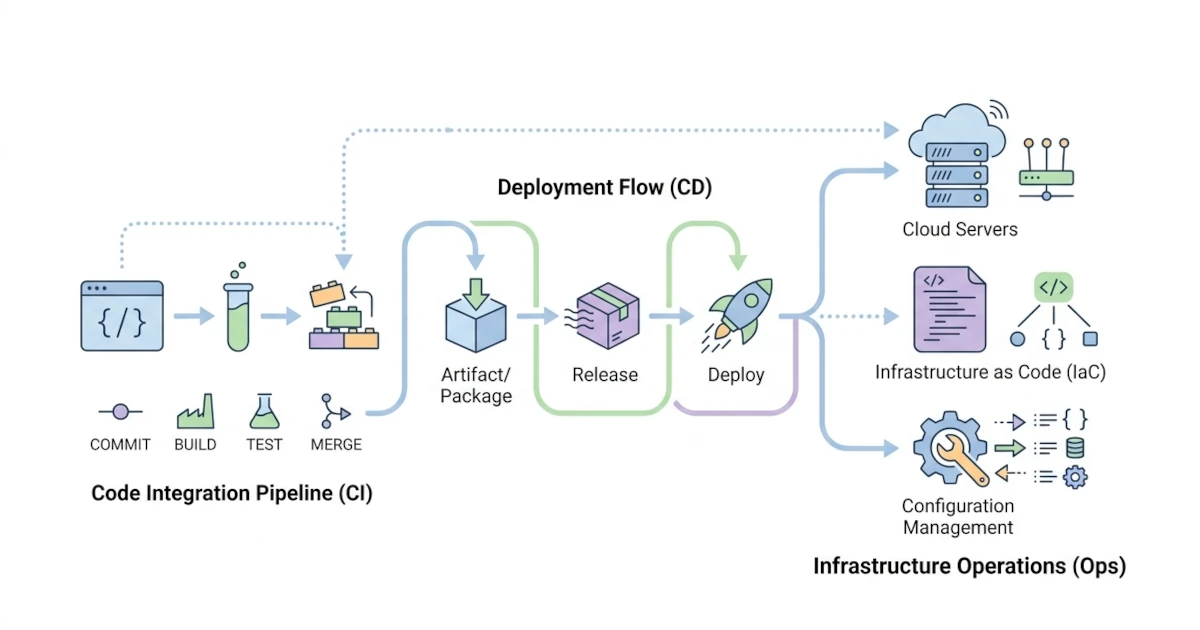
Chapter 21.4.3 closed the deployment pipeline case study with one pending promise: the deploy-pipeline.sh pipeline was "still triggered manually", and connecting it to a CI/CD system so that it runs automatically every time new code is pushed to the main branch was "discussed further in Chapter 24.1". Chapter 23 concluded the security discussion with a similar warning that all principles of avoiding command injection, validating input, and maintaining idempotency "become even more crucial in Chapter 24, when Bash scripts begin running inside CI/CD pipelines without any human supervision at every step". Chapter 17.3.1 also deferred one more thing, the full useradd pattern used "for the needs of automation or provisioning a new server (Chapter 24)". This chapter fulfills all three promises at once, as all three lead to the same role: Bash as the glue that unites modern DevOps tools, executed automatically by machines rather than typed manually one by one by a Sysadmin or Developer at terminal screen. This chapter is divided into four parts: running Bash inside CI/CD pipelines like GitHub Actions and GitLab CI (24.1), using Bash as a glue script that unifies Docker, Ansible, and Terraform (24.2), building wrapper scripts to make team operations safer and easier to follow (24.3), and closing with a case study of unifying everything into a single server provisioning script from scratch (24.4).
24.1 Bash in CI/CD Pipelines (GitHub Actions, GitLab CI)
These five sub-chapters discuss how Bash scripts that have been executed manually in the terminal transform into part of a CI/CD pipeline (Continuous Integration/Continuous Deployment), a series of automated steps that run whenever there is a code change, without a Sysadmin or Developer needing to press Enter at all. Every pipeline consists of one or more jobs, units of work executed by a runner that usually contain several sequential steps; the term job is used repeatedly throughout the remainder of this chapter with that precise meaning.
24.1.1 Bash as the Default CI/CD Shell
All scripts in Chapters 1 to 23 were executed directly by a Sysadmin or User who knew exactly which shell was active in their terminal. As soon as the same script is run as part of a CI/CD pipeline, the shell executing it is determined by the platform, not by who triggered it, and a wrong assumption about which shell is active can cause a script that runs smoothly on a Developer's laptop to suddenly fail on the runner, which is the machine (usually a disposable container) that actually executes each pipeline step.
According to official GitHub Actions documentation, the run step on Linux and macOS runners uses bash by default if available, with sh as a fallback. An even more important detail: once shell: bash is written explicitly, GitHub Actions executes it precisely via the command bash --noprofile --norc -eo pipefail {0}, which differs from the default behavior without shell that is merely equivalent to bash -e {0} without the pipefail option. This pipefail option is the exact same concept as set -o pipefail discussed thoroughly in Chapter 25.1; if that option is not active, a pipeline like curl ... | grep success that fails at the curl stage is still considered "successful" by the CI step because the exit status checked belongs solely to grep at the end of the pipe. A safer practice is to explicitly set shell: bash via the defaults block at the workflow or job level, rather than relying on unwritten defaults.
defaults:
  run:
    shell: bash
GitLab CI exhibits similar behavior but configures it from a different perspective. According to official GitLab Runner documentation, bash/sh is the default shell across Unix-based systems, with bash attempted first and sh serving as a fallback if bash is unavailable. Unlike GitHub Actions, this shell is determined via the config.toml configuration on the runner side (for shell executors), not per line in the pipeline file; for Docker executors, the shell actually used depends on what is available inside the chosen job container image. The practical implication: if a GitLab CI job uses a minimal image like alpine that does not include bash by default, scripts relying on Bash-specific features like arrays (Chapter 4) or [[ ]] (Chapter 6.1.3) will fail with a command not found message, not because the script is wrong, but because the shell available in that image is pure sh. A common industry practice is to ensure the image used by the job includes bash, or to add a bash installation step at the beginning of the script if the base image is indeed minimal.
24.1.2 GitHub Actions Workflow Triggering Deployments
The following workflow fulfills the promise from Chapter 21.4.3 by connecting deploy-pipeline.sh to trigger automatically whenever a push occurs on the main branch. This file is stored at .github/workflows/deploy.yml in the application repository, following the workflow location convention required by GitHub Actions.
name: Deploy Application

on:
  push:
    branches: [main]

defaults:
  run:
    shell: bash

jobs:
  deploy:
    runs-on: ubuntu-latest
    steps:
      - name: Checkout code
        uses: actions/checkout@v4

      - name: Deploy via SSH
        env:
          SSH_PRIVATE_KEY: ${{ secrets.SSH_DEPLOY_KEY }}
          SSH_HOST: ${{ secrets.SSH_HOST }}
        run: |
          set -euo pipefail
          mkdir -p ~/.ssh
          printf '%s\n' "$SSH_PRIVATE_KEY" > ~/.ssh/deploy_key
          chmod 600 ~/.ssh/deploy_key
          ssh -o StrictHostKeyChecking=accept-new \
              -i ~/.ssh/deploy_key deploy@"$SSH_HOST"
An easily overlooked detail: the ssh ... deploy@"$SSH_HOST" line above does not include any command to run on the server side, and that is entirely intentional. Chapter 23.3.4 introduced the restrict,command="..." option in authorized_keys, which forces sshd to always run a specific command as soon as authentication succeeds, ignoring whatever command the client requests. The SSH_DEPLOY_KEY key used by this workflow is deliberately paired with an authorized_keys line restricted solely to /var/www/aplikasi/deploy-pipeline.sh (full details in 24.4.2), so even if additional commands are appended to the step above, sshd will still only run deploy-pipeline.sh. This is not just a matter of cleanliness, but a real mitigation: if SSH_DEPLOY_KEY leaks from workflow logs or a compromised runner, an Attacker holding that key can still only trigger one specific script, rather than opening an unrestricted shell to the production server. The StrictHostKeyChecking=accept-new option, available since OpenSSH 7.6 according to ssh_config(5), automatically adds new host keys to known_hosts while still rejecting connections if an already stored host key changes, making it far safer than StrictHostKeyChecking=no, which accepts any host key without verification and opens the door to man-in-the-middle attacks.
24.1.3 Equivalent Pipeline in GitLab CI
The same concept, translated to .gitlab-ci.yml at the repository root, uses the predefined variable CI_COMMIT_BRANCH, which according to official GitLab documentation contains the current commit branch name and is available in branch pipelines including the default branch.
stages:
  - deploy

deploy-production:
  stage: deploy
  rules:
    - if: $CI_COMMIT_BRANCH == "main"
  script:
    - mkdir -p ~/.ssh
    - printf '%s\n' "$SSH_PRIVATE_KEY" > ~/.ssh/deploy_key
    - chmod 600 ~/.ssh/deploy_key
    - ssh -o StrictHostKeyChecking=accept-new
        -i ~/.ssh/deploy_key deploy@"$SSH_HOST"
Here, SSH_PRIVATE_KEY and SSH_HOST are not defined inside the file, but registered via the Settings > CI/CD > Variables page in the GitLab project, marked as both masked and protected. According to official GitLab documentation, variables marked protected are injected only into pipelines running on protected branches or tags, so if an Attacker creates an arbitrary new branch and attempts to trigger a pipeline from it, these secret variables will not be carried over. The rules above restrict the deploy-production job to run only when CI_COMMIT_BRANCH is exactly main, preventing every feature branch push from triggering a production deployment.
24.1.4 Securing Secrets in CI/CD
The following table summarizes the terminology differences between the two discussed platforms, serving as a quick reference when moving from one platform to another.
| Concept | GitHub Actions | GitLab CI |
|---|---|---|
| Configuration file | .github/workflows/*.yml | .gitlab-ci.yml |
| Unit of work | job, containing steps | job, containing script |
| Restrict to specific branch | on.push.branches | rules.if with $CI_COMMIT_BRANCH |
| Secret storage location | Settings > Secrets and variables > Actions | Settings > CI/CD > Variables |
| Secret reference method | ${{ secrets.NAME }} | $NAME (directly as environment variable) |
Both platforms offer automatic masking of secret values in logs, but based on their official documentation, this masking is not an absolute guarantee. GitHub Actions documentation notes that secrets modified before printing (re-encoded, truncated, or appended with characters) can bypass automatic masking. GitLab documentation states this even more explicitly: "masking a CI/CD variable is not a guaranteed way to prevent a malicious user from accessing the variable value", and variables containing spaces or fewer than eight characters do not meet the criteria to be masked at all. A safe practical principle: never intentionally print secret contents to logs using echo or printf for debugging, and avoid enabling set -x (Chapter 25.1) on steps holding secret variables, because set -x prints every command line along with its expanded variable values right before execution, including lines that happen to use $SSH_PRIVATE_KEY directly. Combining platform-masked secrets with SSH keys scoped down via command= (24.1.2) creates a defense-in-depth model; even if one layer fails, the other limits potential damage.
24.1.5 Testing Pipelines and Troubleshooting Failures
The safest way to test the workflow in 24.1.2 initially is via a test repository or an unmonitored branch before applying it to the actual application repository. After pushing a test commit, open the Actions tab (GitHub) or Pipelines tab (GitLab) in the repository, then watch the real-time logs for each step; both platforms display the job's stdout/stderr output as-is, including which line failed if set -euo pipefail halts the script before the final line.
Three common failures encountered in the field: first, Permission denied (publickey), caused by the exact same issues described in Chapter 21.2.1 troubleshooting, either authorized_keys on the server does not contain the correct key, or the SSH_DEPLOY_KEY secret registered in 24.1.4 was incompletely copied (a common case: the last line of the private key gets truncated during manual copying). Second, the job fails at the earliest step with a message like bash: [[: command not found, signaling that the runner or image provided only sh and not bash, exactly as discussed in 24.1.1. Third, a workflow fails to trigger entirely despite being pushed to main, usually because the branch name in on.push.branches or the rules.if condition does not match the real branch name (such as master versus main), or the YAML file itself has indentation errors causing the platform to reject the workflow without executing it.
A honest note regarding StrictHostKeyChecking=accept-new from 24.1.2: this option is safe for developer machines used repeatedly over time, as man-in-the-middle attempts on subsequent connection attempts will be caught if the stored host key changes. Most CI/CD runners are ephemeral, starting with an empty known_hosts file on every job, so the "reject if changed" protection is never truly tested across jobs, every job essentially trusts the first host key it receives. For strictly critical needs, a tighter mitigation is to manually record the destination server's known_hosts line once using ssh-keyscan, store it as a separate secret, and write it explicitly to known_hosts before calling ssh, rather than relying on trust-on-first-use in every new job.
echo "$SSH_KNOWN_HOSTS" > ~/.ssh/known_hosts
ssh -o StrictHostKeyChecking=yes -i ~/.ssh/deploy_key deploy@"$SSH_HOST"
24.2 Bash as a Glue Script Between Tools
Chapter 1.2.3 touched upon the term "glue script", a script that unifies various tools into a single workflow without being the primary application language. These three sub-chapters examine that role more concretely across three DevOps tools most commonly encountered by developers: Docker, Ansible, and Terraform.
24.2.1 Docker Build and Push Wrapper
The most common requirement around Docker is building images and pushing them to a registry with a consistent tagging scheme, usually based on Git commits. The git rev-parse --short HEAD pattern from Chapter 21.4.2 is reused here, combined with the array pattern from 23.1.3 to construct -t options dynamically.
#!/bin/bash
set -euo pipefail

IMAGE="registry.example.com/team/application"
COMMIT=$(git rev-parse --short HEAD)
BRANCH=$(git rev-parse --abbrev-ref HEAD)

TAGS=(-t "$IMAGE:$COMMIT")
if [[ "$BRANCH" == "main" ]]; then
    TAGS+=(-t "$IMAGE:latest")
fi

docker buildx build "${TAGS[@]}" --push .
According to official Docker documentation, --tag/-t in docker buildx build can be used multiple times in a single command to attach multiple tags to the same built image, and --push serves as a shortcut that automatically sends the build output directly to the registry without needing a separate docker push command. The TAGS array avoids the temptation to use eval or concatenate option strings manually for the exact reasons outlined in 23.1.3: the latest tag is appended only when on the main branch, and the conditional logic remains standard Bash branching rather than a re-evaluated string. Every image can be traced back to the exact commit that produced it via the $COMMIT tag, which is far more useful during incident investigations than relying solely on a latest tag overwritten on every build. Verify the result using docker buildx imagetools inspect "$IMAGE:$COMMIT", which according to official Docker documentation displays image manifest details directly from the registry without downloading all layers; if that command fails to find the manifest for that tag, it indicates the --push process has not successfully uploaded the image, catching the issue far faster than discovering it when the server deployment fails to pull a non-existent image.
24.2.2 Ansible as a Trigger, Not an Idempotency Replacement
Chapter 23.2.3 defined idempotent as the quality of being safe to execute multiple times without unexpected side effects, showing how to achieve it manually in Bash using conditional checks before modifying anything. According to official Ansible documentation, idempotency is defined as "an operation is idempotent if the result of performing it once is exactly the same as the result of performing it repeatedly without any intervening actions", and built-in Ansible modules such as user, apt, or ufw are designed to satisfy this property out of the box, validated across platforms by the community and Ansible team. The practical consequence for developers: once a provisioning requirement can be expressed via an existing Ansible module, choose that over rewriting "check before change" logic manually in Bash as in 23.2.3, because Ansible guarantees it with greater maturity and testing.
The role of Bash around Ansible shifts into a wrapper layer that simplifies the extensive command-line options of ansible-playbook so team members do not have to memorize them individually.
#!/bin/bash
set -euo pipefail

TEST_MODE=false
LIMIT_HOST=""

while getopts ":cl:" option; do
    case "$option" in
        c) TEST_MODE=true ;;
        l) LIMIT_HOST="$OPTARG" ;;
        *) echo "Usage: $0 [-c] [-l host]" >&2; exit 1 ;;
    esac
done

cmd=(ansible-playbook -i inventory.ini site.yml)

if [[ "$TEST_MODE" == "true" ]]; then
    cmd+=(--check --diff)
fi

if [[ -n "$LIMIT_HOST" ]]; then
    cmd+=(--limit "$LIMIT_HOST")
fi

"${cmd[@]}"
This getopts pattern follows Chapter 12.2 precisely, and the array pattern cmd+=(...) follows 23.1.3, used here because the combination provides the safest way to build external commands with dynamic options without eval. According to official ansible-playbook documentation, the -C/--check option runs the playbook in dry-run mode, predicting changes without executing them, while -D/--diff shows file content differences, "working great when combined with --check". The -c flag in this Bash wrapper offers a quick way to run ./run-playbook.sh -c before executing ./run-playbook.sh without flags, establishing a strong standard practice before any playbook alters production state. Inspect the summary line at the end of the simulation output formatted as changed=N for each host; if the changed count is unexpected (for instance, much higher than intended), halt execution and investigate via -D before running the actual execution without -c.
24.2.3 Terraform Plan and Apply Wrapper
Terraform, an infrastructure-as-code tool for defining and managing cloud resources using declarative configuration files, follows a standard three-step workflow: init, plan, and apply. Bash serves well as a glue script here to guarantee consistent execution order and add validation gates before apply modifies actual infrastructure.
#!/bin/bash
set -euo pipefail

cd infrastructure/

echo "Checking configuration format..."
if ! terraform fmt -check -recursive; then
    echo "Terraform formatting does not match standard" >&2
    echo "Run 'terraform fmt -recursive' and commit again" >&2
    exit 1
fi

terraform init -input=false
terraform plan -input=false -out=tfplan

if [[ "${TERRAFORM_AUTO_APPLY:-false}" == "true" ]]; then
    terraform apply tfplan
fi
According to official HashiCorp documentation, terraform fmt -check verifies whether configuration files match canonical formatting without altering content, exiting with status 0 if compliant and non-zero otherwise, while -recursive expands checks across all subdirectories. Making this the initial gate before init or plan prevents pipelines from wasting time processing poorly formatted configurations. The -input=false option on init and plan disables interactive prompts, which is essential because CI/CD pipelines have no operator to input answers. -out=tfplan saves plan outputs to a file; according to official documentation, passing that file to terraform apply acts as explicit approval, bypassing the manual "yes" prompt typically required when calling apply directly without a plan file. The TERRAFORM_AUTO_APPLY variable on the final line acts as an extra gate at the pipeline level rather than Terraform itself, allowing teams to separate automated "plan" jobs on pull requests from "apply" jobs that require human approval, a common pattern in infrastructure pipelines to prevent unreviewed changes to live cloud resources. Before enabling TERRAFORM_AUTO_APPLY, review the summary line at the end of terraform plan output (formatted as Plan: N to add, N to change, N to destroy); any non-zero destroy count must be manually verified, as destroyed Terraform resources cannot be recovered via git reset like application code in Chapter 21.3.3.
24.3 Wrapper Scripts for Team Operations
Chapter 12.4 covered basic CLI tool creation, and Chapters 17 through 22 introduced various operational commands with individual options and sequences. This sub-chapter unifies those commands into a single, user-friendly entry point for team members who may not know every detail by heart.
24.3.1 Why Teams Need Wrapper Scripts
In practice, not all team members deploying or checking application status are experienced Sysadmins familiar with systemctl, journalctl, or Git-based rollback flows from Chapter 21.3.3. A Developer simply asking "did the deployment succeed" should not need to memorize journalctl -u web-app.service -n 50 --no-pager, nor risk mistyping flags with dangerous consequences. Wrapper scripts, introduced in Chapters 12.4.1 and 17.1.3, provide a focused and safer interface over raw commands while serving as a centralized place to enforce safety practices like confirmation prompts before destructive actions.
24.3.2 Subcommand Dispatcher with case
The case statement from Chapter 6.3 works well as a dispatcher, a pattern that reads the first argument as a subcommand and routes execution to the corresponding function, mirroring how tools like git or docker operate via subcommands such as git commit or docker build.
case "${1:-help}" in
    deploy)   cmd_deploy ;;
    rollback) cmd_rollback ;;
    status)   cmd_status ;;
    logs)     cmd_logs "${2:-50}" ;;
    help|*)   show_help ;;
esac
"${1:-help}" uses default parameter expansion from Chapter 6.4.4 so running ops.sh without arguments defaults to the help subcommand rather than failing with a confusing error. The help|*) pattern captures both explicit help requests and unrecognized subcommands, displaying the same usage assistance for both.
24.3.3 Implementation of ops.sh
The complete version of ops.sh below combines the dispatcher pattern above with SSH execution on a remote server, reusing deploy-pipeline.sh and aplikasi-web.service from Chapter 21.
#!/bin/bash
set -uo pipefail

HOST="app.example.com"
DEPLOY_USER="deploy"

show_help() {
    cat <<'USAGE'
Usage: ops.sh <subcommand> [arguments]

Available subcommands:
  deploy       Pull latest code and restart service
  rollback     Revert to previous commit (requires confirmation)
  status       Display current service status
  logs [N]     Display last N log lines (default 50)
  help         Display this help message
USAGE
}

run_remote() {
    ssh -o StrictHostKeyChecking=accept-new "$DEPLOY_USER@$HOST" -- "$@"
}

cmd_deploy() {
    run_remote "/var/www/aplikasi/deploy-pipeline.sh"
}

cmd_rollback() {
    read -rp "Are you sure you want to rollback $HOST to the previous commit? [y/N] " confirm
    if [[ "$confirm" =~ ^[Yy]$ ]]; then
        run_remote "cd /var/www/aplikasi && git reset --hard HEAD~1 && sudo systemctl restart aplikasi-web.service"
    else
        echo "Rollback cancelled"
    fi
}

cmd_status() {
    run_remote "systemctl status aplikasi-web.service --no-pager"
}

cmd_logs() {
    local count="$1"
    run_remote "journalctl -u aplikasi-web.service -n $count --no-pager"
}

case "${1:-help}" in
    deploy)   cmd_deploy ;;
    rollback) cmd_rollback ;;
    status)   cmd_status ;;
    logs)     cmd_logs "${2:-50}" ;;
    help|*)   show_help ;;
esac
A key detail distinguishing the SSH key used here from the CI/CD key in 24.1.2: the key used by ops.sh is deliberately not restricted via command= to a single script, because team members need to execute multiple distinct subcommands (status, logs, rollback). Instead, security boundaries shift to sudo: the configuration deploy ALL=(root) NOPASSWD: /usr/bin/systemctl restart aplikasi-web.service from Chapter 23.3.4 ensures that regardless of commands sent via ops.sh or interactive SSH attempts, only systemctl restart aplikasi-web.service runs with root privileges without password prompts; the git reset operation in cmd_rollback() runs under the regular deploy user owning /var/www/aplikasi. Additionally, cmd_rollback() uses read -rp from Chapter 5.1 to demand explicit confirmation before running git reset --hard, preventing accidental data loss due to mistyped subcommands.
| Subcommand | Effect | Requires Confirmation |
|---|---|---|
ops.sh deploy | Pulls latest code, restarts service, rolls back automatically on failed health check | No |
ops.sh rollback | Forces rollback to previous commit | Yes |
ops.sh status | Displays service status (read-only) | No |
ops.sh logs [N] | Displays last N log lines (read-only) | No |
Test read-only subcommands before attempting deploy or rollback, so connectivity issues can be isolated from execution issues within deploy-pipeline.sh.
chmod +x ops.sh
./ops.sh status
./ops.sh logs 20
If ops.sh status returns Permission denied (publickey), troubleshoot using Chapter 21.2.1 principles: verify permissions on local ~/.ssh or remote authorized_keys, or check whether the team member's public key has been added to the deploy account's authorized_keys. If connection succeeds but systemctl status shows a failed state, inspect error details using ./ops.sh logs before attempting ./ops.sh rollback.
24.4 Case Study: Provisioning a New Server
This closing case study fulfills the final open promise: the full useradd pattern from Chapter 17.3.1 for provisioning, the process of preparing a fresh server from a blank state until it can accept production traffic. Scenario: a new Ubuntu 22.04 LTS VPS has been provisioned, completely bare, and must be configured to accept automated deployments from the CI/CD pipeline in 24.1.
24.4.1 End-to-End Provisioning Architecture
The execution flow of provision-server.sh, run once as root over SSH upon VPS creation: (1) install base packages (docker.io, git, ufw); (2) create the deploy user idempotently with minimal permissions compared to Chapter 17.3.1; (3) install restricted CI/CD SSH keys using command= from 23.3.4; (4) grant narrow sudo permissions restricted to restarting the application service; (5) clone the repository; (6) register aplikasi-web.service with systemd; (7) enable the ufw firewall. Unlike deploy-pipeline.sh in Chapter 21.4.2 which used set -uo pipefail without -e to ensure rollback logic runs upon failure, this provisioning script uses strict set -euo pipefail because a failure mid-provisioning (such as failed package installation) must abort execution immediately rather than building on broken dependencies.
24.4.2 Implementation of provision-server.sh
#!/bin/bash
set -euo pipefail

APP_DIR="/var/www/aplikasi"
SERVICE="aplikasi-web.service"
PUBKEY_FILE=""
REPO_URL=""

while getopts ":k:r:" option; do
    case "$option" in
        k) PUBKEY_FILE="$OPTARG" ;;
        r) REPO_URL="$OPTARG" ;;
        *) echo "Usage: $0 -k pubkey_file -r repo_url" >&2; exit 1 ;;
    esac
done

if [[ -z "$PUBKEY_FILE" || -z "$REPO_URL" ]]; then
    echo "Options -k and -r are required" >&2
    exit 1
fi

echo "==> Installing base packages"
export DEBIAN_FRONTEND=noninteractive
apt-get update -y
apt-get install -y docker.io git ufw

echo "==> Setting up deploy user"
if id deploy &> /dev/null; then
    echo "User deploy already exists, skipping"
else
    useradd -m -s /bin/bash deploy
    echo "User deploy created"
fi
usermod -aG docker deploy

echo "==> Installing restricted CI/CD SSH key"
SSH_DIR="/home/deploy/.ssh"
AUTHORIZED_KEYS="$SSH_DIR/authorized_keys"
PUBKEY_CONTENT=$(cat "$PUBKEY_FILE")
KEY_LINE="restrict,command=\"$APP_DIR/deploy-pipeline.sh\" $PUBKEY_CONTENT"

mkdir -p "$SSH_DIR"
touch "$AUTHORIZED_KEYS"
grep -qF -- "$PUBKEY_CONTENT" "$AUTHORIZED_KEYS" || echo "$KEY_LINE" >> "$AUTHORIZED_KEYS"
chown -R deploy:deploy "$SSH_DIR"
chmod 700 "$SSH_DIR"
chmod 600 "$AUTHORIZED_KEYS"

echo "==> Restricting deploy sudo permissions"
SUDOERS_FILE="/etc/sudoers.d/deploy-aplikasi-web"
echo "deploy ALL=(root) NOPASSWD: /usr/bin/systemctl restart $SERVICE" > "$SUDOERS_FILE.tmp"
chmod 440 "$SUDOERS_FILE.tmp"
if visudo -c -f "$SUDOERS_FILE.tmp"; then
    mv "$SUDOERS_FILE.tmp" "$SUDOERS_FILE"
else
    echo "Invalid sudoers syntax, aborting provisioning" >&2
    rm -f "$SUDOERS_FILE.tmp"
    exit 1
fi

echo "==> Fetching application code"
if [[ -d "$APP_DIR/.git" ]]; then
    echo "Repository already exists in $APP_DIR, skipping clone"
else
    mkdir -p "$APP_DIR"
    chown deploy:deploy "$APP_DIR"
    sudo -u deploy git clone "$REPO_URL" "$APP_DIR"
fi

echo "==> Registering systemd service"
cat > "/etc/systemd/system/$SERVICE" <<UNIT
[Unit]
Description=Internal web application
After=network.target

[Service]
Type=simple
User=deploy
WorkingDirectory=$APP_DIR
ExecStart=$APP_DIR/jalankan.sh
Restart=on-failure

[Install]
WantedBy=multi-user.target
UNIT

systemctl daemon-reload
systemctl enable --now "$SERVICE"

echo "==> Enabling firewall"
ufw allow 22/tcp
ufw allow 80/tcp
ufw allow 443/tcp
ufw --force enable

echo "==> Provisioning complete"
The script above is written specifically for Ubuntu (and Debian derivatives), matching scenario 24.4.1; for RHEL, CentOS, or Fedora distributions, replace apt-get install with dnf install, and replace ufw lines with firewall-cmd following Chapter 23.3.3. Installing docker.io from base Ubuntu repositories prioritizes setup simplicity over adding third-party Docker repositories (docker-ce) and GPG keys; the trade-off is that docker.io package versions may lag behind official Docker Inc. releases, so high-demand production setups needing bleeding-edge Docker features should configure official upstream repositories.
Compare the line useradd -m -s /bin/bash deploy above with Chapter 17.3.1's sudo useradd -m -s /bin/bash -G docker,sudo deploy. Chapter 17 granted full sudo membership for convenience; this provisioning script retracts full administrative rights following the principle of least privilege (23.3.4), leaving deploy outside the sudo group and granting only explicit NOPASSWD access to a single command in /etc/sudoers.d/deploy-aplikasi-web. Group membership in docker remains active via usermod -aG docker deploy for container builds (24.2.1), carrying a known operational trade-off: per Docker documentation, "the docker group grants root-equivalent privileges to its members" because accessing the Docker daemon allows mounting root host filesystems via containers. This trade-off is consciously managed here and mitigated by locking SSH access strictly to the deployment script via command=, preventing arbitrary execution over CI/CD SSH channels.
visudo -c -f runs before applying the new sudoers configuration; per man visudo, the -c flag enables check-only mode and -f inspects the temporary file, returning exit status 0 if syntax checks pass. Validation is critical here: a syntax error in sudoers can break sudo system-wide, often requiring direct console recovery access. The ufw --force enable command uses --force to bypass the interactive warning ("Command may disrupt existing ssh connections"), which would otherwise cause unattended scripts to hang indefinitely in non-interactive environments.
24.4.3 Verifying Provisioning Results
chmod +x provision-server.sh
sudo ./provision-server.sh -k id_ed25519_deploy.pub -r [email protected]:team/application.git

systemctl status aplikasi-web.service --no-pager
sudo ufw status verbose
sudo -l -U deploy
sudo cat /home/deploy/.ssh/authorized_keys
Examine sudo -l -U deploy output matching Chapter 23.3.4 audit patterns; it should show only one NOPASSWD line allowing systemctl restart aplikasi-web.service rather than full ALL=(ALL) privileges. authorized_keys should begin with restrict,command="..." per 23.3.4 patterns. Firewall ports configured here (22, 80, 443) match PORT_DIIZINKAN settings in toolkit-keamanan.sh from Chapter 23.4.3; executing audit_port() should yield no warnings. Verify idempotency per Chapter 23.4.4 by executing provision-server.sh a second time with identical arguments, confirming output reports skipping existing configurations without re-executing steps.
24.4.4 Connecting to the CI/CD Pipeline
This step completes the workflow introduced across Chapters 17, 21, and 23: set the new server address as secret SSH_HOST, and add the private key matching id_ed25519_deploy.pub as SSH_DEPLOY_KEY in GitHub Actions or GitLab CI settings per 24.1.4. Push a test commit to main, then monitor the Actions (GitHub) or Pipelines (GitLab) tab to confirm the deploy job executes, connects via SSH, and runs deploy-pipeline.sh, appending new entries to /var/log/deploy-pipeline.log. The newly provisioned server can now receive automated deployments whenever code merges into main, eliminating manual initial setups and subsequent release steps.
This chapter completes the integration of Bash beyond manual terminal scripts into automated pipelines connecting CI/CD, Docker, Ansible, Terraform, and team operations, while acting as an engine for full server provisioning. Part 3 concludes here. Part 4 advances into advanced topics and best practices, beginning with Chapter 25's deep dive into set -x, set -e, set -u, and pipefail, followed by Chapter 26 on organizing script repositories (deploy-pipeline.sh, ops.sh, provision-server.sh, and wrappers) for Git collaboration, culminating in the final capstone project in Chapter 28.2.