
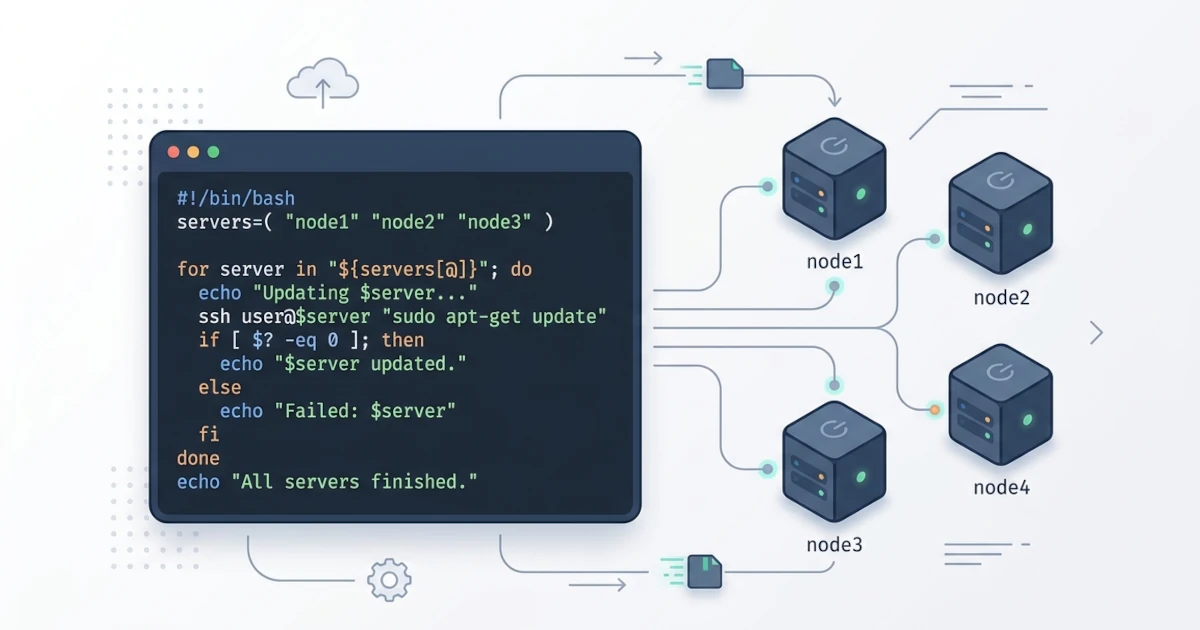
Chapter 27 concluded with a decision checklist on when a Bash toolkit is ready to "graduate" to Python or Go, followed by a case study of laporan.py connected to ops.sh via an orchestrator pattern. This chapter closes the entire series, not with new material, but by reuniting what was written in the previous 27 chapters into two complete projects. Part 1 (Chapters 1-12) built the foundations from variables to script arguments, Part 2 (Chapters 13-16) guided daily desktop automation for individual Users, Part 3 (Chapters 17-24) guided server administration for Sysadmins from monitoring to DevOps, and Part 4 (Chapters 25-27) organized everything through debugging habits, project structures, and knowing when to switch languages. This chapter reassembles the scripts scattered across those four parts into two final projects: an automation suite for personal desktops (28.1), and a mini server administration toolkit that incorporates logging, alerting, and security simultaneously (28.2), before closing with a "production-ready" checklist reusable for any Bash project (28.3) and a series conclusion containing further learning resources (28.4).
28.1 End-User Project: Automation Suite for Personal Desktop
A User who followed Part 2 from the beginning now has more than five scripts scattered across $HOME: rapikan-downloads.sh (Chapter 13.3.2), organizer-media.sh (Chapter 14.3.2), snippets of rsync/tar for backups (Chapter 13.2), reminders via notify-send (Chapter 15.1), and laptop setup scripts (Chapter 15.4.2), not including dotfiles/ managed separately via Git and stow (Chapters 15.3, 16.4). The problem is no longer writing new scripts, but remembering which script does what and where it is located. This section unifies everything into a single automation suite with a single entry point, following the exact wrapper script principle discussed in Chapter 24.3.1 for Sysadmin teams, except this time the benefits are enjoyed by a single User working alone, recalling their own favorite commands.
28.1.1 Automation Suite Design
The design mimics the toolkit-ops/ pattern from Chapter 26.1.4: one lib.sh containing shared functions, one dispatcher as a single entry point following the case pattern from Chapter 24.3.2, and existing scripts simply invoked from that dispatcher without needing to rewrite their contents. The main difference from toolkit-ops/ lies in the notification side: servers use alert-notifikasi.sh (Chapter 20.4.2) to send messages via email, Telegram, or Slack, whereas relevant notifications for a desktop User work sufficiently via notify-send (Chapter 15.1.1), instantly visible on screen without requiring external service connections. Dotfiles in ~/dotfiles/ are intentionally kept separate rather than merged into this automation suite because they solve different problems: dotfiles personalize the shell itself, while the automation suite executes tasks on top of that personalized shell.
28.1.2 Directory Structure and Shared Modules
The directory structure follows the pattern from Chapter 26.1.4, tailored for desktop needs.
automation-suite/
├── lib.sh
├── suite.sh
├── rapikan-downloads.sh
├── organizer-media.sh
├── backup-dokumen.sh
└── README.md
rapikan-downloads.sh and organizer-media.sh are copied directly from Chapter 13.3.2 and Chapter 14.3.2 without modification, only relocated. backup-dokumen.sh is a new wrapper around the rsync synchronization technique from Chapter 13.2.2; previously a set of loose command snippets, it is now structured into a single permanent script. lib.sh uses the exact pattern from Chapter 26.1.2, adding only one new function, notify(), which wraps notify-send with a command -v check as practiced in Chapter 27.2.3. This ensures the automation suite continues to run without errors on machines that might not have the appropriate libnotify package installed for their distro (Chapter 15.1.1), merely omitting popup notifications.
#!/bin/bash
# lib.sh - shared functions for automation-suite, contains definitions only

: "${LOG_FILE:=$HOME/.automation-suite.log}"

log() {
    local level="$1"
    shift
    printf '[%s] [%s] %s\n' "$(date '+%Y-%m-%d %H:%M:%S')" "$level" "$*" >> "$LOG_FILE"
}

error() {
    printf 'Error: %s\n' "$1" >&2
}

die() {
    error "$1"
    exit "${2:-1}"
}

notify() {
    log INFO "$*"
    command -v notify-send &> /dev/null && notify-send "Automation Suite" "$*"
}
The log(), error(), and die() functions above are intentionally duplicated verbatim from toolkit-ops/'s lib.sh (Chapter 26.1.2), proving why all three belonged in a shared library from the start: the same pattern is equally useful for server toolkits and desktop automation suites without rewriting from scratch. notify() logs the same message via log INFO while simultaneously displaying it as a popup notification if notify-send is available, preserving execution history in ~/.automation-suite.log even if the User happens to miss the popup notification at that moment.
28.1.3 Implementation of the suite.sh Dispatcher
suite.sh implements the dispatcher case pattern from Chapter 24.3.2 and the SCRIPT_DIR/BASH_SOURCE pattern from Chapter 26.1.3 to ensure it successfully locates lib.sh and neighboring scripts regardless of the working directory when suite.sh is invoked, including when scheduled via cron in section 28.1.4 later.
#!/bin/bash
set -uo pipefail

SCRIPT_DIR="$(cd "$(dirname "${BASH_SOURCE[0]}")" && pwd)"
source "${SCRIPT_DIR}/lib.sh"

tampilkan_bantuan() {
    cat <<'USAGE'
Usage: suite.sh <subcommand>

Available subcommands:
  rapikan     Organize Downloads folder based on file extension
  organizer   Organize and convert media folder (-s FOLDER -a)
  backup      Backup ~/Documents to ~/Backup using rsync
  help        Display this help message
USAGE
}

cmd_rapikan() {
    "${SCRIPT_DIR}/rapikan-downloads.sh" && notify "Downloads folder organized"
}

cmd_organizer() {
    "${SCRIPT_DIR}/organizer-media.sh" "$@" && notify "Media folder organized"
}

cmd_backup() {
    "${SCRIPT_DIR}/backup-dokumen.sh" && notify "Document backup completed"
}

case "${1:-help}" in
    rapikan)   cmd_rapikan ;;
    organizer) shift; cmd_organizer "$@" ;;
    backup)    cmd_backup ;;
    help|*)    tampilkan_bantuan ;;
esac
Quotes around the delimiter <<'USAGE' follow the practice in Chapter 26.2.1: this help text is purely static with no variables to expand, making the quoted form the safest choice. All three cmd_*() functions call existing scripts without altering their contents, invoking notify() only if the script succeeds (the && operator from Chapter 6.4.2), preventing "completed" notifications from appearing for tasks that failed midway. The organizer subcommand uses shift from Chapter 12.1.2 so options like -s ~/Downloads -a belonging to organizer-media.sh (Chapter 14.3.1) pass through to the target script rather than being intercepted as dispatcher arguments.
To enable calling suite.sh from anywhere without typing full paths, add a new alias to ~/dotfiles/shell/common.sh built in Chapter 16.4.2, connecting both Part 2 projects via a single configuration line.
alias suite="$HOME/automation-suite/suite.sh"28.1.4 Verification and Further Development
Grant execution permissions to all scripts at once, then execute each subcommand sequentially prior to automated scheduling.
chmod +x automation-suite/*.sh
suite rapikan
suite backup
suite organizer -s ~/Downloads -a

cat ~/.automation-suite.log
The contents of ~/.automation-suite.log should display an INFO line for every successfully executed subcommand, matching the log() format in 28.1.2. Run shellcheck (Chapter 25.4.1) against all files prior to routine usage, a habit equally vital for personal scripts as it is for team toolkits.
shellcheck automation-suite/*.shOnce confident that all three subcommands function correctly, schedule suite rapikan and suite backup via cron using techniques from Chapter 15.1.2, and initialize automation-suite/ as a standalone Git repository according to Chapter 26.3.2, separate from the dotfiles/ repository. Logical subsequent developments include adding a --dry-run option to backup-dokumen.sh following Chapter 13.1.4, or adding a setup subcommand that invokes the laptop setup script from Chapter 15.4.2 whenever this automation suite needs relocation to a clean laptop installation. The next section applies this identical pattern to higher-risk production environments: Sysadmin server administration.
28.2 Sysadmin Project: Mini Server Administration Toolkit
toolkit-ops/ from Chapter 26.1.4 already consolidated five core scripts (lib.sh, ops.sh, deploy-pipeline.sh, provision-server.sh, toolkit-keamanan.sh, alert-notifikasi.sh) plus laporan.py added in Chapter 27.3.2. Three additional sysadmin scripts remained outside this structure: audit-server.sh (Chapter 17.4.2), dashboard-server.sh (Chapter 19.4.2), and cek-konektivitas.sh (Chapter 22.4.2). All three were written prior to the shared lib.sh in Chapter 26, so their logging operated independently using direct printf calls. This section completes that consolidation while linking audit results and connectivity checks into kirim_alert() (Chapter 20.4.2), a connection previously suggested in Chapter 23.4.4 troubleshooting but never fully implemented.
28.2.1 Design Scope of the Toolkit
Of the three remaining scripts, two—audit-server.sh and cek-konektivitas.sh—are ideal candidates to become subcommands inside ops.sh due to their single-run nature (one execution, one report, then exit), matching the cmd_*() pattern established in Chapter 24.3.3. dashboard-server.sh is intentionally not migrated: it functions as a live interactive UI that refreshes continuously until Ctrl+C is pressed (Chapter 19.4.1), an interactive state unsuitable for execution via ops.sh's jalankan_jauh() (Chapter 24.3.3), which invokes ssh without pseudo-terminal allocation. This dashboard remains executed directly via ssh -t when interactive views are needed and is documented as a standalone tool in toolkit-ops/'s README.md rather than forced into a dispatcher model ill-suited for its operational nature. Technical accuracy regarding design pattern limitations proves far more beneficial than forcing single patterns across all scenarios.
28.2.2 Unifying Logging and Security
The Chapter 17.4.2 implementation of audit-server.sh printed results via printf directly to stdout or manual output files (the -o option), bypassing lib.sh's log() method. Integrating it into toolkit-ops/ requires appending logic inside cek_disk(): whenever the exit status is non-zero (disk usage exceeds the threshold), trigger kirim_alert() from Chapter 20.4.2 instead of merely printing a [WARNING] line easily missed if no terminal session is actively monitored.
cek_disk() {
    local status=0
    local fs pct target angka_pct kunci

    while read -r fs pct target; do
        [[ "$fs" == "Filesystem" ]] && continue
        angka_pct=${pct%\%}
        if (( angka_pct >= THRESHOLD )); then
            kunci="disk_${fs//\//_}"
            kirim_alert "$kunci" "Disk $fs on $(hostname) has $((100 - angka_pct))% remaining"
            status=1
        fi
    done < <(df -h --output=source,pcent,target)

    return "$status"
}
Two essential details must be maintained for proper execution. First, kirim_alert() accepts two parameters per Chapter 20.4.2: kunci (key) for cooldown tracking via sudah_cooldown() (Chapter 20.4.3), followed by the alert message string. A separate log WARN statement is unnecessary because kirim_alert() executes log WARN "$pesan" on its primary line. Second, sudah_cooldown() uses kunci directly as a file path under $STATE_DIR/$kunci. Because $fs values from df typically contain paths like /dev/sda1, using raw strings causes slashes to be interpreted as directory separators, failing file creation. The parameter expansion ${fs//\//_} from Chapter 9.4 (substituting all / instances with _) prevents this bug, an issue absent in Chapter 20.4.2 where examples evaluated static root keys like disk_root rather than iterating over dynamic filesystems.
Identical modifications apply to cek-konektivitas.sh (Chapter 22.4.2): whenever cek_port() or cek_endpoint() (Chapter 22.2) reports a connection failure, invoke kirim_alert() with unique keys per target server (e.g., conn_app1) to keep cooldown timers isolated across targets rather than outputting red terminal text alone. toolkit-keamanan.sh (Chapter 23.4.3) requires no internal code modifications, as it was designed around lib.sh and integrated into kirim_alert() as noted in Chapter 23.4.4. Unifying these tools under a centralized alerting path enables Sysadmins to monitor a single notification channel (Telegram or Slack, Chapter 20.3) for three distinct failure categories: storage depletion, unresponsive services, and unauthorized port states.
28.2.3 Expanding the Dispatcher Implementation
The toolkit-ops/ directory structure adds two refactored files from 28.2.2 along with the tests/ directory from Chapter 26.4.
toolkit-ops/
├── lib.sh
├── ops.sh
├── deploy-pipeline.sh
├── provision-server.sh
├── toolkit-keamanan.sh
├── alert-notifikasi.sh
├── audit-server.sh
├── cek-konektivitas.sh
├── laporan.py
├── tests/
└── README.md
ops.sh adds three additional conditions inside its case block, extending the Chapter 24.3.3 base structure that gained the report subcommand in Chapter 27.3.2. SCRIPT_DIR, source lib.sh, and jalankan_jauh() remain identical to Chapters 26.1.3 and 24.3.3. Paths executed across these three new functions intentionally target /usr/local/bin/ on remote destination servers rather than /opt/toolkit-ops/: /opt/toolkit-ops/ represents local repository storage on control nodes running ops.sh, whereas /usr/local/bin/ serves as the standard destination directory for custom system binaries on target nodes, adhering to conventions set in Chapter 18.4.1. Scripts must be synchronized to this destination path on target nodes during server provisioning via provision-server.sh (Chapter 24.4.2) before remote subcommands can execute.
cmd_audit() {
    jalankan_jauh "/usr/local/bin/audit-server.sh"
}

cmd_cek() {
    jalankan_jauh "/usr/local/bin/cek-konektivitas.sh"
}

cmd_keamanan() {
    jalankan_jauh "sudo /usr/local/bin/toolkit-keamanan.sh -h $HOST"
}

case "${1:-help}" in
    deploy)   cmd_deploy ;;
    rollback) cmd_rollback ;;
    status)   cmd_status ;;
    logs)     cmd_logs "${2:-50}" ;;
    audit)    cmd_audit ;;
    cek)      cmd_cek ;;
    keamanan) cmd_keamanan ;;
    report)   python3 "${SCRIPT_DIR}/laporan.py" --minggu-ini | jq -r '.ringkasan' ;;
    help|*)   tampilkan_bantuan ;;
esac
cmd_keamanan() prepends sudo to remote commands, aligning with Chapter 23.4.3 requirements that toolkit-keamanan.sh execute as root to modify iptables configurations. To prevent execution stalls, one critical constraint must be satisfied: jalankan_jauh() invokes ssh without -t, meaning no pseudo-terminal is allocated (28.2.1), leaving sudo unable to prompt for interactive password input. A specific sudoers rule must be deployed on target servers following privilege minimization principles from Chapter 23.3.4.
deploy ALL=(root) NOPASSWD: /usr/local/bin/toolkit-keamanan.sh -h app.example.comThe -h app.example.com parameter is declared explicitly rather than wildcarded, utilizing the fixed $HOST defined in ops.sh (Chapter 24.3.3). Per standard sudoers specifications, entries configured without arguments permit execution with any trailing arguments. Omitting -h app.example.com would allow the deploy user to execute toolkit-keamanan.sh as root against arbitrary hostnames outside target scopes, violating security constraints similarly highlighted during cmd_rollback() argument locking in Chapter 24.3.3. Without this explicit sudoers entry, running ops.sh keamanan results in indefinite hanging without diagnostic error outputs, waiting on password input that cannot be supplied over non-interactive SSH channels. Once configured, operators invoking ops.sh keamanan execute security tasks seamlessly without managing elevation mechanics directly, hiding underlying execution complexity behind clean interfaces per Chapter 24.3.1.
28.2.4 Verification, Testing, and Scheduling
Validate each newly added subcommand across arbitrary directory paths to verify path-resolution independence from Chapter 26.1.3.
cd /tmp && /opt/toolkit-ops/ops.sh audit
/opt/toolkit-ops/ops.sh cek
/opt/toolkit-ops/ops.sh keamanan
Execute bats tests/ (Chapter 26.4.3) to confirm refactored code in audit-server.sh and cek-konektivitas.sh preserves legacy functional behaviors. Add new test cases verifying that kirim_alert() fires correctly when cek_disk() breaches defined thresholds using standard run patterns from Chapter 26.4.2. Run shellcheck (Chapter 25.4.1) against modified scripts, preferably through automated CI/CD pipelines detailed in Chapters 24.1 and 25.4.3, ensuring validation occurs automatically on code push.
shellcheck toolkit-ops/*.sh
bats tests/
Following successful test runs, schedule daily executions of ops.sh audit using systemd timer configurations (Chapter 18.4.2), commit code changes with standard structured commit messages (Chapter 26.3.3), and tag release versions (e.g., v1.1.0) per Chapter 26.3.4. These workflows demonstrate that the core components introduced throughout early chapters integrate naturally into robust, production-ready operational environments.
28.3 "Production-Ready" Checklist for Bash Scripts
Combining techniques across 27 preceding chapters into practical applications can make it easy to overlook vital scripting practices when building new toolkits. This checklist serves as an operational reference categorized into five core domains: security & input validation, reliability & error handling, observability via logging & alerting, documentation & collaboration, and testing & CI/CD automation. It provides a quick reference to evaluate script readiness for autonomous production deployment.
28.3.1 Security and Input Validation
- Variables storing file paths or user arguments are double-quoted, and dynamic command invocations utilize arrays rather than
evalor string interpolation (Chapter 23.1) - External inputs (arguments, environment variables, API responses) are sanitized via regular expressions or
casematches before execution (Chapter 23.2.1) - State-altering scripts execute idempotently without adverse side effects using pre-execution state checks (Chapter 23.2.3) and file locking via
flockto block concurrent execution (Chapter 23.2.4) - Credentials and secrets are managed outside script repositories rather than hardcoded directly (Chapters 23.4.3, 24.1.4)
28.3.2 Reliability and Error Handling
set -euo pipefailis declared at script headers, with explicit and intentional exceptions documented where necessary (Chapter 25.1.5)trap ... EXITroutines clean up temporary files or release lock resources prior to termination, including signal-induced terminations (Chapter 25.2)- Error messages include diagnostic context (filenames, hostnames, exit codes) rather than generic error strings (Chapter 25.3.1)
- Exit codes are consistent and meaningful across the entire toolkit ecosystem (Chapter 25.3.3, Appendix B)
28.3.3 Observability: Logging and Alerting
- All scripts within a toolkit share a standardized
log()implementation imported from a commonlib.shlibrary (Chapters 19.2.2, 26.1.2) - Actionable failures trigger alerting integrations (email, Telegram, or Slack) configured with cooldown mechanisms to prevent notification fatigue (Chapter 20.4.3)
- Log files are routinely rotated to prevent disk space exhaustion over time (Chapter 19.2.4)
28.3.4 Documentation and Collaboration
- Scripts contain header documentation detailing functionality, dependencies, usage examples (Chapter 26.2.2), and standard
-h/--helpflags (Chapter 26.2.3) - Repository root
README.mdfiles describe setup prerequisites, installation steps, and command inventories, updated alongside feature changes (Chapter 26.2.4) - Projects are tracked in Git with structured commit histories and appropriate
.gitignorefiles preventing secret leaks (Chapters 26.3.2, 26.3.3)
28.3.5 Testing and CI/CD Automation
shellcheckpasses clean without unhandled static analysis warnings (Chapter 25.4.2)- Critical logic functions maintain coverage through
batstest cases verifying both success and failure execution paths (Chapter 26.4.2) - Linting and unit tests execute automatically within automated CI/CD pipelines on every code change (Chapters 24.1, 25.4.3, 26.4.3)
The following table summarizes these five operational categories into single key evaluation questions per domain.
| Category | Key Question | Reference Chapter |
|---|---|---|
| Security & Validation | Is the script secure against malformed or malicious inputs? | 23 |
| Reliability & Error Handling | Does the script fail safely with clear context when errors occur? | 25.1-25.3 |
| Observability | Can failures be detected and diagnosed without manual server logins? | 19, 20, 26.1.2 |
| Documentation & Collaboration | Can secondary maintainers operate and modify the code unassisted? | 26.2, 26.3 |
| Testing & CI/CD | Do automated test suites catch regressions prior to deployment? | 24.1, 25.4, 26.4 |
28.4 Conclusion and Further Learning Resources
This series progressed from fundamental shell concepts (Chapter 1.1) to constructing production server administration toolkits unifying deployment, monitoring, alerting, and security under safe multi-user execution interfaces (Chapter 28.2). Mastering this domain involves more than learning syntax; it requires a shift in engineering mindset: moving from manual command-line execution to designing maintainable toolkits that are validated for safety (Chapter 23), clear in failure states (Chapter 25), and reliable for teams through test coverage and documentation (Chapter 26). The checklists in section 28.3 reflect these core engineering practices.
28.4.1 Next Steps Beyond This Series
The four appendices ending this series provide quick operational references: command and syntax cheat sheets (Appendix A), exit code dictionaries (Appendix B), practical code snippet collections (Appendix C), and technical term glossaries (Appendix D). These resources are designed for quick reference during active script development.
For deeper technical studies, consult official GNU Bash Reference Manuals and POSIX Shell Command Language specifications when resolving shell behavior ambiguities. Cross-reference system manual pages and utilize the ShellCheck wiki to understand static analysis warnings. Complete reference materials consulted across this series are detailed in the Reference section. When script requirements expand to involve complex signals (Chapter 27.1), nested data structures, granular unit testing, or wide cross-platform distribution, review the evaluation criteria in Chapter 27.3.3 to determine when to maintain Bash scripts or transition core modules into Python or Go.
While core Bash standards remain stable over time, infrastructure environments continuously evolve with new distributions, updated systemd releases, and shifting operational workflows. The most durable skill built throughout this course is the engineering approach: validating technical assumptions against primary documentation, writing software that communicates risks transparently, and building toolkits that remain maintainable over their lifecycle.