
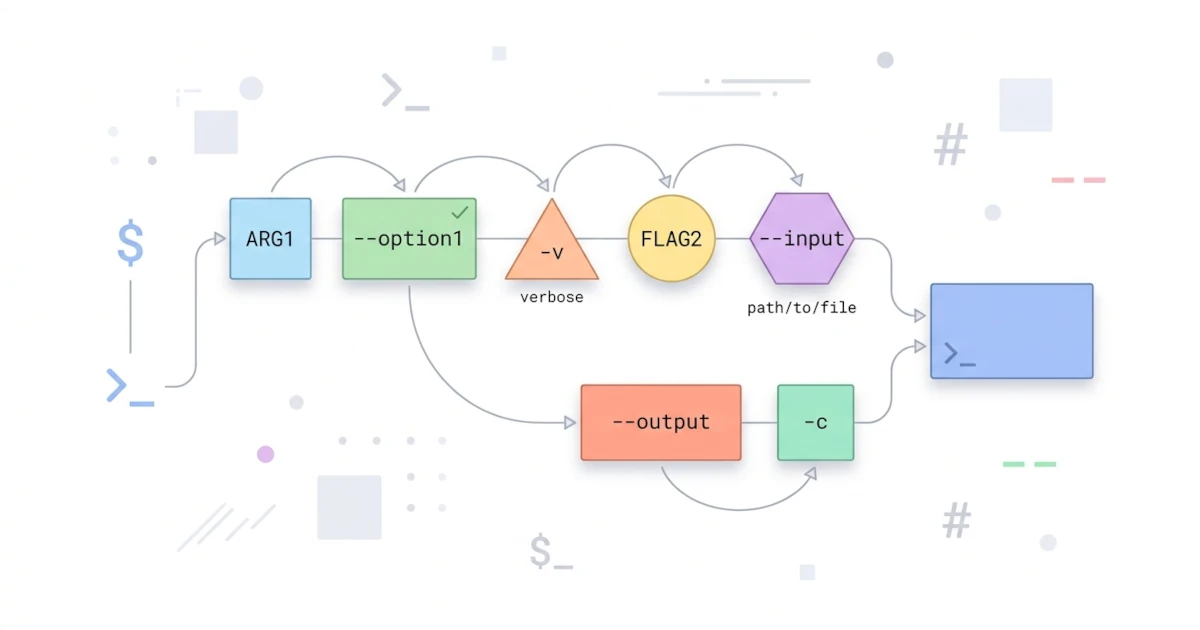
Chapters 9 through 11 focused on text processing tools such as grep, sed, and awk, but Chapter 12 brings us back to the heart of Bash scripting itself: how a script receives instructions from the outside via arguments typed on the command line. The basic mechanisms, namely $1, $2, $@, and $#, were actually touched upon in Chapter 8.2 when discussing function arguments. The difference is that at the script level, these arguments become the main entry point for Users, Developers, and Sysadmins to interact with the scripts we write, whether executed directly from the terminal, called from another script, or scheduled via cron which will be discussed in Chapter 18. A script that can only be run in one way without any options quickly feels rigid as requirements grow, whereas a script supporting flags such as -v or --verbose is far more flexible and feels like a standard tool in Linux systems generally. This chapter thoroughly covers three layers of argument handling capability: raw positional parameters along with the shift command, structured option parsing via getopts, handling long options of the --verbose style that are not supported by getopts, and concludes with a case study of building a simple CLI tool that combines them all.
12.1 Positional Parameters and Shift
This section discusses script arguments in their rawest form, positional parameters that are automatically available as soon as the script runs, along with the shift command to shift their positions one by one.
12.1.1 $0 and Script Positional Parameters
As soon as a script is executed with arguments, Bash automatically saves each argument into a numbered variable corresponding to its position, called a positional parameter, exactly the same concept as function arguments in Chapter 8.2.1, except now the scope is the entire script, not just a single function.
#!/bin/bash
echo "Script name: $0"
echo "First argument: $1"
echo "Second argument: $2"
Running the script above with ./info.sh nginx restart displays First argument: nginx and Second argument: restart. The variable $0 itself is not an argument, but rather the name of the script itself, exactly as typed when invoking it. A critical detail to understand: the content of $0 follows precisely how the script was invoked, not always the plain filename. Running ./info.sh causes $0 to contain ./info.sh, whereas running via a full path like /opt/scripts/info.sh causes $0 to contain that full path as well. If only the filename is needed without path prefixes, combine it with the basename command whose concept was briefly touched upon in Chapter 2.
echo "Invoked as: $(basename "$0")"To access the tenth argument and beyond, curly braces are mandatory, written as ${10}, not $10. Without curly braces, Bash interprets $10 as $1 followed by a literal 0 character, not as the tenth argument, a small trap that rarely appears in daily scripts but remains important to know if a script receives a large number of arguments.
12.1.2 $# and $@ for Flexible Arguments
$# and $@ at the script level behave identically to their function counterparts covered in Chapters 8.2.2 and 8.2.3: $# contains the total number of arguments received by the script, while quoted "$@" expands each argument as a separate word, ideal for use inside a for loop. The same rule applies here: always quote "$@", never plain $@, so arguments containing spaces are not split into multiple items.
#!/bin/bash
echo "Total arguments: $#"
for argument in "$@"; do
    echo "Item: $argument"
done
Running the script above with ./list.sh "january report.txt" restart still displays exactly two Item lines, even though its first argument contains a space, because "$@" preserves each argument as an intact entity.
12.1.3 The shift Command Shifts Argument Positions
The shift builtin shifts all positional parameters one position to the left: the value of $2 moves to $1, $3 moves to $2, and so on, while the former first argument is discarded. $# decreases by one each time shift runs. This command is very useful when a script needs to process arguments one by one without knowing in advance how many exist, a pattern that forms the foundation of getopts in 12.2 and manual parsing in 12.3.
#!/bin/bash
while [[ $# -gt 0 ]]; do
    echo "Processing: $1"
    shift
done
Running the script above with ./process.sh nginx mysql redis displays three Processing lines, one for each argument, because the while loop keeps running as long as $# is greater than zero, and each iteration processes $1 then shifts it out via shift. shift also accepts an optional numeric argument to shift more than one position at a time, for example shift 2 discards the first two arguments immediately, a combination used later in 12.2.4 to clean up options processed by getopts.
12.1.4 Troubleshooting: Argument Validation Before Processing
The same habit discussed in Chapter 8.2.4 for functions applies at the script level: accessing $1 without checking first whether the argument was actually passed does not produce an error, but silently holds an empty string. If the script assumes a specific argument is present, this validation failure can spread into confusing bugs in subsequent lines.
#!/bin/bash
if [[ $# -lt 1 ]]; then
    echo "Error: script requires at least 1 argument (service name)" >&2
    echo "Usage: $(basename "$0") SERVICE_NAME" >&2
    exit 1
fi

systemctl is-active "$1"
The error message and usage instructions above are intentionally directed to stderr via >&2 instead of standard stdout, a redirection concept covered in Chapters 5.2 and 5.3, so error messages remain visible in the terminal even when script stdout is redirected to a file or piped to another command. The exit status 1 on the exit 1 line is also important: scripts or other callers inspecting $?, a concept discussed in Chapter 6.4.1, will know explicitly that argument validation failed, rather than simply stopping without any indication.
12.2 Option Parsing with getopts
Reading raw arguments via $1, $2, and shift as in 12.1 is sufficient for simple scripts, but becomes tedious when scripts need to support options in the style of -v, -f filename, or combinations of both simultaneously in arbitrary order. The getopts builtin is specifically designed for this need: parsing single-character options in a structured manner, complete with handling option arguments and validating unrecognized options.
12.2.1 Basic Syntax: optstring and OPTARG
getopts is invoked using the pattern getopts optstring name, usually inside a while condition so all options are processed one by one until exhausted.
while getopts ":d:ah" opt; do
    case "$opt" in
        d) directory="$OPTARG" ;;
        a) show_all=1 ;;
        h) show_help; exit 0 ;;
    esac
done
The optstring, in the example above represented by ":d:ah", contains the list of option characters recognized by the script. Any character followed by a colon indicates that option requires an accompanying argument, while a character without a colon means the option stands alone as a flag without an additional value, discussed further in 12.2.2. Each time it is invoked, getopts places the discovered option letter into a user-specified variable, named opt in the example above, and places the index of the next unprocessed argument into the shell variable OPTIND. If the option found requires an argument, its value is automatically made available in the builtin variable OPTARG. The following table summarizes the built-in variables involved.
| Variable | Meaning |
|---|---|
OPTARG | Argument value of the option currently being processed, if that option requires an argument |
OPTIND | Index of the next argument to be processed; initialized to 1 each time the shell or script executes |
OPTERR | If set to 0, getopts never prints any error messages, even if optstring does not begin with a colon |
One critical detail to remember, especially when getopts is called more than once in the same shell session (for example inside a script that is sourced repeatedly during interactive testing): Bash does not reset OPTIND automatically between calls. If getopts needs to process a new set of arguments in the same shell session, OPTIND=1 must be reset manually beforehand, otherwise subsequent parsing might start from the wrong position.
12.2.2 Options with Mandatory Arguments
As a complete example, let us build a script snippet that calculates directory size while supporting a -d option to specify the target directory (requires an argument) and an -a option as a standard argumentless flag.
#!/bin/bash
show_all=0
directory="."

while getopts "d:a" opt; do
    case "$opt" in
        d) directory="$OPTARG" ;;
        a) show_all=1 ;;
    esac
done

echo "Target directory: $directory"
echo "Show all: $show_all"
Running ./size.sh -d /var/log -a displays Target directory: /var/log and Show all: 1. Official Bash documentation recommends separating an option's argument from its option letter using whitespace such as -d /var/log above, the most common and readable writing style. Nevertheless, per the POSIX Shell Command Language specification, getopts still accepts attached forms without spaces like -d/var/log: once option letter d is recognized as requiring an argument, the remaining characters directly attached in the same argument are automatically read as OPTARG, a pattern also commonly used by tools like grep -A3 to display three lines of context after a match. Get into the habit of separating options and values with spaces in production scripts for consistency and readability, even though both forms are technically valid. Wrapping the du tool featured in this example will be discussed further as part of system administration in Chapter 17.
12.2.3 Error Modes: Verbose vs Silent
The first character of optstring determines how getopts behaves when encountering an unknown option or an option missing its argument. If optstring does not begin with a colon, mode is set to verbose (default behavior): it prints an error message directly to stderr and populates the opt variable with ? for both types of errors, making it impossible to distinguish inside the script whether the error was an unknown option or a missing argument. Adding a leading colon to optstring activates silent mode, suppressing automatic messages and distinguishing between the two error types via the values of opt and OPTARG, allowing scripts to construct custom, clear error messages consistent with the rest of the script.
| Situation | Verbose Mode (default) | Silent Mode (optstring begins with :) |
|---|---|---|
| Unrecognized option | opt contains ?, OPTARG is unset, error message printed | opt contains ?, OPTARG contains the unknown option character, no message printed |
| Missing mandatory argument | opt contains ?, OPTARG is unset, error message printed | opt contains :, OPTARG contains the option character missing its argument, no message printed |
while getopts ":d:ah" opt; do
    case "$opt" in
        d) directory="$OPTARG" ;;
        a) show_all=1 ;;
        h) show_help; exit 0 ;;
        :) echo "Error: option -$OPTARG requires an argument" >&2; exit 1 ;;
        \?) echo "Error: unknown option: -$OPTARG" >&2; exit 1 ;;
    esac
done
The pattern above, with optstring prefixed by a colon plus two case branches for : and \?, is a standard idiom very common in production-ready Bash scripts because silent mode provides total control over error formatting, maintaining consistency with custom script messages rather than relying on default getopts message formatting.
12.2.4 Preserving Remaining Arguments via OPTIND
After getopts finishes processing all recognized options, it stops as soon as it encounters an argument that is not an option, or when encountering the -- delimiter explicitly marking the end of options. At that point, OPTIND points to the index of the first remaining unprocessed argument. Because positional parameters ($1, $2, etc.) do not automatically update when getopts completes, we must shift them manually using shift as discussed in 12.1.3, making remaining arguments accessible via $1 again.
#!/bin/bash
verbose=0

while getopts ":v" opt; do
    case "$opt" in
        v) verbose=1 ;;
        \?) echo "Error: unknown option: -$OPTARG" >&2; exit 1 ;;
    esac
done
shift $((OPTIND - 1))

echo "Verbose: $verbose"
echo "Remaining arguments: $*"
Running ./deploy.sh -v staging displays Verbose: 1 and Remaining arguments: staging, because shift $((OPTIND - 1)) discards all arguments consumed by getopts (in this case just -v, one argument), leaving staging as the new $1. The shift $((OPTIND - 1)) pattern appears right after the getopts loop in almost every production script, because combining leading options with trailing positional arguments (such as environment names, file paths, or service names) is the most standard command-line pattern in real-world applications.
12.3 Adding Flags: -v, --verbose, --help
getopts in 12.2 is reliable for single-letter options like -v, but modern command-line tools almost always provide long options as well, such as --verbose or --help, which are easier to remember and read within scripts or documentation. This section covers why getopts cannot handle such long options, and how to build a custom parser supporting both short and long options simultaneously.
12.3.1 Limitations of getopts for Long Options
getopts, by specification, is designed only to parse single-character options prefixed by a single hyphen, such as -v or -f filename. It lacks any support for long options, which consist of full words prefixed by two hyphens such as --verbose or --file filename. Passing --verbose to a script that relies purely on getopts is not merely ignored; it triggers confusing behavior: getopts interprets the second hyphen in --verbose as an unrecognized option letter, and then processes each remaining letter (v, e, r, b, o, s, e) individually as if each were a separate option. If the letter v happens to be valid in optstring, that letter inside --verbose triggers the -v flag unintentionally, while the rest of the letters trigger a series of invalid option errors. This behavior makes long options entirely incompatible with plain getopts, rather than just being skipped like standard arguments.
| Approach | Short Option (-v) | Long Option (--verbose) | Notes |
|---|---|---|---|
getopts (Bash builtin) | Fully supported | Not supported | Portable, available automatically in every Bash shell without dependencies |
Manual parsing (while + case) | Supported, custom written | Supported, custom written | Requires more lines of code, but highly flexible and portable |
External command getopt (not getopts) | Supported | Supported via --long option | System-dependent implementation (GNU getopt vs util-linux), portable history is complex |
There is also a separate external command named getopt (without the trailing s) that supports long options via the --long parameter, but its behavior varies across operating systems and is omitted here due to less consistent portability compared to builtin getopts. The most common and portable approach used in practice, which we will write in 12.3.2, is manual parsing using a combination of while and case as covered since Chapters 6.3 and 7.2.
12.3.2 Manual Parsing with while and case
The manual parsing pattern resembles the while [[ $# -gt 0 ]] loop discussed in 12.1.3, except the case statement matches option string patterns directly, supporting short and long forms concurrently using the | (OR) operator within case.
#!/bin/bash
verbose=0

while [[ $# -gt 0 ]]; do
    case "$1" in
        -v|--verbose)
            verbose=1
            shift
            ;;
        -h|--help)
            echo "Usage: $(basename "$0") [-v|--verbose] [-h|--help]"
            exit 0
            ;;
        -*)
            echo "Error: unknown option: $1" >&2
            exit 1
            ;;
        *)
            echo "Error: unexpected argument: $1" >&2
            exit 1
            ;;
    esac
done

echo "Verbose: $verbose"
The -v|--verbose) branch above captures both option forms in a single block, and because this option takes no extra arguments, a single shift removes it from the positional parameter list. The two catch-all branches, -*) and *), act as safety nets: -*) catches anything starting with a hyphen that failed to match preceding options (unknown options), while *) catches any argument lacking a hyphen when the script expects no positional arguments. Branch order is crucial: -*) must precede *) because case evaluates patterns top-to-bottom and stops at the first match, as detailed in Chapter 6.3.2.
12.3.3 Handling the --option=value Format
Long options requiring values, such as --file, commonly support two syntax styles: space-separated (--file access.log) or joined with an equals sign (--file=access.log). Supporting the second style relies on a form of parameter expansion introduced in Chapter 9.4: ${var#pattern}, which strips the shortest match of pattern from the beginning of var's value. Unlike ${var/pattern/replacement} in Chapter 9.4.3 which substitutes text, ${var#pattern} purely trims leading text.
--file=access.logTo extract access.log from the option above, we use ${1#*=}: the pattern *= matches any characters up to and including the equals sign, stripping them from the start of the string and leaving the text following the first = sign.
#!/bin/bash
file=""

while [[ $# -gt 0 ]]; do
    case "$1" in
        -f|--file)
            file="$2"
            shift 2
            ;;
        --file=*)
            file="${1#*=}"
            shift
            ;;
        *)
            echo "Error: unexpected argument: $1" >&2
            exit 1
            ;;
    esac
done

echo "File: $file"
Notice the two distinct --file branches above. The -f|--file) branch handles space-separated syntax, reading the value from $2 and consuming two arguments via shift 2 (the option flag and its value). The --file=*) branch handles joined syntax, extracting the value using ${1#*=}, requiring only a single shift since the flag and value reside in one argument. Both styles result in file="access.log", letting Developers or Sysadmins choose their preferred syntax.
12.3.4 Constructing --help Help Messages
The -h/--help option is a universal convention in Linux command-line tools: when passed, the script prints usage summary information and exits with status 0 without executing core logic. Best practice is placing help text into a dedicated function, a concept introduced in Chapter 8, allowing invocation from anywhere, including validation failures as seen in 12.1.4.
show_help() {
    cat <<EOF
Usage: $(basename "$0") [-v|--verbose] [-h|--help] FILE

Options:
  -v, --verbose   Show detailed processing information
  -h, --help      Display this help message and exit
EOF
}
Using a Heredoc via <<EOF ... EOF, a redirection concept touched upon in Chapter 5.3, provides a clean method for writing multiline text without multi-line echo statements. Storing help messages in a dedicated function also promotes consistency: the same message can be output whenever an unrecognized option is passed (see branch -*) in 12.3.2), immediately guiding users on valid options upon syntax errors.
12.4 Case Study: A Simple CLI Tool
This closing section combines techniques from 12.1 through 12.3 to build a complete CLI tool named search-log.sh, a wrapper around grep (discussed in Chapter 9.2) featuring short and long options, mandatory argument validation, and usage help. This scenario reflects common Sysadmin requirements: wrapping complex, repetitive grep commands into a clean, memorable wrapper script.
12.4.1 CLI Tool Specification: search-log.sh
Before writing code, define the specification first—a good habit for any script taking more than two or three options, ensuring no flags are missed or misinterpreted mid-development.
| Option | Long Form | Requires Argument | Description |
|---|---|---|---|
-f | --file | Yes (required) | Path to the target log file |
-p | --pattern | Yes (required) | Search pattern in ERE regex format (Chapter 9.3.3) |
-i | --ignore-case | No | Case-insensitive search, passed as -i to grep |
-c | --count | No | Display count of matching lines instead of contents, equivalent to grep -c |
-v | --verbose | No | Print execution info to stderr prior to running search |
-h | --help | No | Display help and exit |
An important naming note: the -v option in search-log.sh represents verbose output, not invert match as it does in native grep (Chapter 9.2.3). Naming overlaps like this are common because single-letter options are limited. When a wrapper script passes raw options to an underlying utility, clearly document options via --help to prevent user confusion regarding tool behavior.
12.4.2 Complete Script Implementation
Here is the full implementation of search-log.sh, integrating manual parsing from 12.3 (required for long options per 12.4.1), argument validation from 12.1.4, and arrays from Chapter 4 to build grep options dynamically.
#!/bin/bash

show_help() {
    cat <<EOF
Usage: $(basename "$0") -f FILE -p PATTERN [OPTIONS]

Search for PATTERN (ERE regex) inside FILE and display matching lines.

Required options:
  -f, --file FILE       Log file to examine
  -p, --pattern PATTERN Search pattern (ERE regex)

Additional options:
  -i, --ignore-case     Ignore case distinctions
  -c, --count           Print count of matching lines instead of contents
  -v, --verbose         Print processing info to stderr
  -h, --help            Display this help message and exit
EOF
}

file=""
pattern=""
ignore_case=0
count_only=0
verbose=0

while [[ $# -gt 0 ]]; do
    case "$1" in
        -f|--file)
            file="$2"
            shift 2
            ;;
        --file=*)
            file="${1#*=}"
            shift
            ;;
        -p|--pattern)
            pattern="$2"
            shift 2
            ;;
        --pattern=*)
            pattern="${1#*=}"
            shift
            ;;
        -i|--ignore-case)
            ignore_case=1
            shift
            ;;
        -c|--count)
            count_only=1
            shift
            ;;
        -v|--verbose)
            verbose=1
            shift
            ;;
        -h|--help)
            show_help
            exit 0
            ;;
        --)
            shift
            break
            ;;
        -*)
            echo "Error: unknown option: $1" >&2
            show_help >&2
            exit 1
            ;;
        *)
            echo "Error: unexpected argument: $1" >&2
            exit 1
            ;;
    esac
done

if [[ -z "$file" || -z "$pattern" ]]; then
    echo "Error: --file and --pattern are required" >&2
    exit 1
fi

if [[ ! -f "$file" ]]; then
    echo "Error: file not found: $file" >&2
    exit 1
fi

grep_options=(-E)
[[ "$ignore_case" -eq 1 ]] && grep_options+=(-i)
[[ "$count_only" -eq 1 ]] && grep_options+=(-c)

if [[ "$verbose" -eq 1 ]]; then
    echo "Searching for pattern '$pattern' in file '$file'..." >&2
fi

grep "${grep_options[@]}" "$pattern" "$file"
The grep_options array dynamically constructs grep flags based on user input using array appending (+=()) as detailed in Chapter 4.3. This method is far safer than building options as a concatenated string, because array elements remain distinct when expanded via "${grep_options[@]}", consistent with quoting "$@" in 12.1.2. The --) branch explicitly marks the end of options, a standard convention allowing scripts to accept positional arguments that happen to start with hyphens.
12.4.3 Testing and Verifying the Script
Once written, test the script across multiple scenarios to verify functionality. Grant execution permissions as shown in Chapter 1.4, then run sample combinations.
chmod +x search-log.sh

./search-log.sh --help
./search-log.sh -f /var/log/app.log -p "error"
./search-log.sh --file=/var/log/app.log --pattern="error" --ignore-case --count
./search-log.sh -p "error"
The first two commands display the help output and log lines containing error. The third command verifies that --option=value syntax from 12.3.3 works alongside flag options like --ignore-case and --count, returning a line match count. The fourth command omits --file to trigger validation logic from 12.4.2, exiting with Error: --file and --pattern are required and exit status 1, verifiable via echo $? (Chapter 6.4.1).
12.4.4 Troubleshooting: Arguments Containing Spaces
A common mistake when running CLI tools is failing to quote arguments containing spaces, especially paths with space-containing directory names like /home/user/My Documents/app.log.
./search-log.sh -f /home/user/My Documents/app.log -p "error"The command above fails with unexpected argument: Documents/app.log because the shell splits /home/user/My Documents/app.log into two distinct arguments before passing them to search-log.sh—a classic example of word splitting (Chapter 3.4). /home/user/My is assigned to -f, leaving Documents/app.log unhandled by the case statement. The solution relies on proper quoting: enclose arguments containing spaces in double quotes when invoking scripts.
./search-log.sh -f "/home/user/My Documents/app.log" -p "error"Script authors must maintain the same standard: whenever variables holding parsed arguments are evaluated inside a script (such as "$file" and "$pattern" in search-log.sh), wrap them in double quotes. Omitting quotes reintroduces word splitting bugs during execution, even if parameters were parsed correctly.
Mastering argument handling from raw $1 parameters to complete CLI utilities like search-log.sh concludes Part 1 of this series. Part 2 begins in Chapter 13, applying core Bash concepts to automate daily desktop tasks, ranging from bulk file renaming to automated folder backups.