
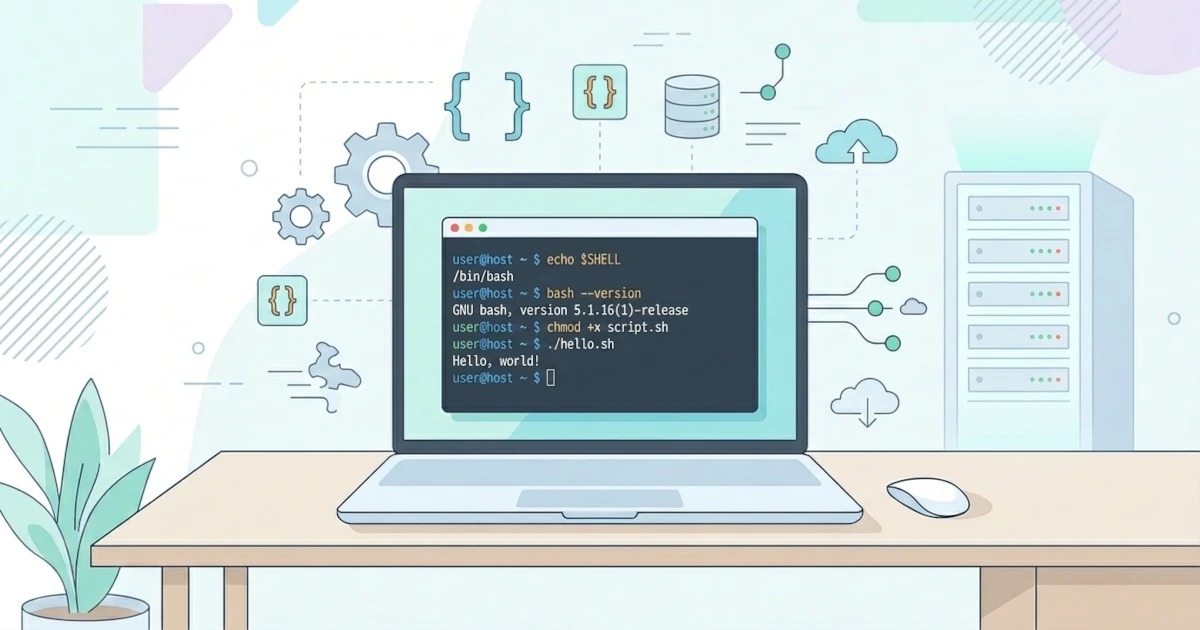
Every time we type a command on a black screen with a blinking cursor, several system layers are actually working together behind the scenes. This chapter opens the "Bash Scripting Guide: For Users & Sysadmins" series by clarifying the fundamental concepts that are most frequently confused: what a shell, terminal, and Bash are, why the ability to write Bash scripts is so valuable on both desktops and servers, how to set up a working environment on Linux, macOS, and WSL, and how to run our first Bash script. After completing this chapter, we will have a solid foundation to move on to Chapter 2 on filesystem navigation.
1.1 Shell, Terminal, and Bash: What is the Difference?
These three terms are often used interchangeably, although their meanings differ. This misunderstanding is common because all three are closely related and appear on the same screen. Understanding their differences from the start will make it easier for us to read documentation and troubleshoot in subsequent chapters.
1.1.1 Kernel, Shell, and Terminal
Kernel is the core of the operating system that manages direct access to hardware: CPU, memory, disks, and other devices. The kernel does not have an interface that we can directly talk to by typing commands.
Shell is a command interpreter program between humans and the kernel. The shell reads the commands we type, interprets them, and then requests the kernel to execute the corresponding actions. Bash, zsh, and fish are all shells. Technically, a shell is just a regular program like any other on the system, except its specific function is to accept and execute commands.
Terminal (more precisely a terminal emulator) is a window application that displays text input and output from the shell. GNOME Terminal, Konsole, iTerm2, and Windows Terminal are examples of terminal emulators. The terminal itself does not process any commands; it merely acts as a container where the shell runs and displays its output to the screen.
In short, the workflow is as follows: we type in the terminal, the terminal passes that input to the shell running inside it, the shell interprets the command and communicates with the kernel to execute it, and the terminal displays the results back on the screen.
The term command-line interface (CLI) refers to the general concept of a text-based interface, where we interact with the system through written commands, as opposed to a graphical user interface (GUI) that relies on clicks and visuals. The shell is one of the most common implementations of a CLI in Linux and Unix environments.
1.1.2 Bash vs sh, zsh, and fish
Brian Fox developed Bash, short for Bourne Again SHell, for the GNU Project in 1989 as a free and open-source replacement for the earlier Bourne shell (sh). The name "Bash" itself is a pun on the name of its predecessor. Bash became the default shell in almost all Linux distributions as well as in WSL, following the POSIX (Portable Operating System Interface) standard while adding many extra features such as arrays, conditional testing with [[ ]], and brace expansion. sh is actually not the name of a single specific shell, but rather a generic term for a "POSIX shell" or a reference to the original Bourne shell created by Stephen Bourne in 1979. On many Debian-based distributions like Ubuntu, /bin/sh is a symlink to dash (Debian Almquist Shell), not Bash, because dash is lighter and faster for executing pure POSIX scripts. This is important to remember because scripts relying on Bash-specific features can fail if executed via sh.
Paul Falstad developed zsh (Z shell) in 1990. zsh is compatible with Bash at a basic level but offers many additional features for customization, such as a plugin system and themes via the popular framework Oh My Zsh. Since Apple released macOS Catalina (version 10.15) in 2019, zsh has been the default shell on macOS, replacing Bash.
Axel Liljencrantz created fish (Friendly Interactive Shell) in 2005 with a different philosophy: prioritizing out-of-the-box user experience, such as autosuggestions and syntax highlighting without extra configuration. As a consequence, fish syntax is intentionally not POSIX-compliant, so Bash scripts generally cannot run directly in fish without modifications.
1.1.3 Comparison Table of Popular Shells
| Shell | Origin & Year | Default In | POSIX Compliant | Key Features |
|---|---|---|---|---|
sh | Stephen Bourne, 1979 | Generic term, often a symlink to dash on Debian/Ubuntu | Yes (baseline) | Minimalist, serves as the POSIX baseline standard |
bash | Brian Fox (GNU Project), 1989 | Almost all Linux distros, WSL | Yes, plus GNU extensions | Arrays, [[ ]], comprehensive scripting features |
zsh | Paul Falstad, 1990 | macOS (since Catalina, 2019) | Yes, plus extensions | Highly customizable, Oh My Zsh ecosystem |
fish | Axel Liljencrantz, 2005 | None by default, manually installed | No | Built-in autosuggestions & syntax highlighting |
For quick verification, we can check the currently active shell and the installed Bash version using the following two commands.
echo $SHELL
bash --version
The echo $SHELL command displays the path to the registered login shell for the current user, while bash --version displays the Bash version installed on the system. This series focuses on Bash due to its status as the most universal shell for scripting: almost every Linux server has Bash installed, and most tutorials and official sysadmin documentation are written assuming Bash as the shell.
1.2 Why Learning Bash Scripting Matters
Bash is not just a cool way to look proficient with computers. The ability to write Bash scripts is a practical skill that directly impacts how much repetitive work we can delegate to machines, whether we are a Sysadmin managing dozens of servers, a Developer needing helper tools within a workflow, or a regular User looking to clean up a Downloads folder without clicking file by file.
1.2.1 Bash as the Foundation of Linux/Unix Systems
Almost every Linux distribution, macOS (via Homebrew), and various Unix-based embedded devices have Bash available or easily installable. Many popular infrastructure tools, ranging from installer scripts and init systems to CI/CD pipelines, are written as shell scripts because they are lightweight and do not require compilation or additional runtimes. Understanding Bash means understanding the native language of most Linux/Unix-based systems.
1.2.2 Benefits of Bash for Sysadmins
For Sysadmins, Bash is a daily tool for automating tasks that could take hours if performed manually: routine backups, server health monitoring, application deployments, and basic security audits. A single Bash script scheduled via cron can replace tasks that would otherwise require daily manual effort. In practice, this capability also differentiates a Sysadmin who must stay up late during every incident from one who has an automated alerting system notifying them before an issue escalates. This topic will be covered in greater detail in Part 3.
1.2.3 Benefits of Bash for Developers
Developers often use Bash not as the primary application language, but as a glue script that ties various tools together into a single workflow, for example, running tests, building Docker images, and deploying the results in a single command. Most CI/CD pipelines such as GitHub Actions and GitLab CI also execute their steps as shell commands behind the scenes, so understanding Bash directly helps Developers debug failed pipelines.
1.2.4 Benefits of Bash for Users/Clients
For Users who interact with Linux/macOS desktops or laptops daily, Bash scripting opens up ways to automate repetitive tasks without installing extra applications: batch renaming hundreds of photo files, creating scheduled backups of important folders, or setting up short aliases for frequently used long commands. These topics will be the focus of Part 2 of this series.
As a simple illustration, the following single line of command can count the number of files in the active directory without opening a file manager at all.
ls -1 | wc -lThis small example is just scratching the surface. As we progress deeper into this series, it will become increasingly clear that Bash scripting is a skill investment with daily tangible benefits, whether working on a personal laptop or holding sudo access to production servers.
1.3 Setting Up the Bash Working Environment
Before writing a single line of script, we need to ensure our environment is ready. This section guides the setup of the terminal and Bash across the three main platforms used by readers of this series: Linux, macOS, and Windows via WSL.
1.3.1 Setting Up the Terminal on Linux
On Linux, Bash is almost always pre-installed by default as part of the core system, so we generally do not need to install it manually. Opening a terminal varies depending on the desktop environment being used. In Ubuntu with GNOME, we can use the keyboard shortcut Ctrl+Alt+T or search for "Terminal" in the application menu. On KDE Plasma-based distros like Kubuntu, the default terminal is named Konsole. If the desktop environment used does not provide a dedicated terminal, xterm is usually available as a minimal fallback option.
To verify that the installed Bash version is sufficiently up-to-date, we can check it before upgrading if necessary.
bash --versionIf the installed version is too old for the features discussed in this series (such as associative arrays, which require Bash 4 or higher), perform an upgrade using the package manager of your distribution. Commands vary by distro.
# Ubuntu/Debian
sudo apt update && sudo apt install --only-upgrade bash

# Fedora
sudo dnf upgrade bash

# Arch Linux
sudo pacman -Syu bash
1.3.2 Setting Up Bash on macOS with Homebrew
macOS includes Terminal.app by default, but the system version of Bash included in macOS has long been stuck at version 3.2.57. Apple stopped updating the built-in Bash after that version because subsequent Bash releases transitioned to the GPLv3 license, whose terms do not align with Apple policies. Since version 3.2 lacks support for modern features like associative arrays, we should install the latest version of Bash via the Homebrew package manager.
If Homebrew is not yet installed, run its official installer first.
/bin/bash -c "$(curl -fsSL https://raw.githubusercontent.com/Homebrew/install/HEAD/install.sh)"Once Homebrew is ready, install the latest Bash using the following command.
brew install bashNote that Homebrew's installation directory varies depending on the Mac architecture: on Apple Silicon Macs (M1/M2/M3 and later), Homebrew installs to /opt/homebrew, whereas on Intel-based Macs, the path is /usr/local. The new Bash installed via Homebrew does not automatically replace the system default Bash, nor is it automatically registered as a valid login shell. Register it first in /etc/shells, then set it as the default shell if desired.
echo "$(brew --prefix)/bin/bash" | sudo tee -a /etc/shells
chsh -s "$(brew --prefix)/bin/bash"
The chsh -s command changes the default login shell for the active user and will prompt for a password. The full effect takes place after opening a new terminal window.
1.3.3 Setting Up WSL on Windows
For Windows users, WSL (Windows Subsystem for Linux) is the most practical way to get a native Linux environment complete with Bash, without needing dual-boot configurations or separate virtual machines. To install it, open PowerShell or Command Prompt as Administrator, then run the following command.
wsl --installThis command requires Windows 10 version 2004 (build 19041) or higher, or Windows 11. By default, this command installs WSL 2 along with the Ubuntu distribution. Once the process completes and the system restarts if prompted, Ubuntu will open automatically and prompt you to create a username and password for the Linux environment, which operates independently from your Windows account credentials.
1.3.4 Installation Verification and Troubleshooting
Across all three platforms, the basic verification steps are identical: ensure Bash can be invoked and that its version meets requirements.
bash --version
echo $SHELL
If the command bash --version on macOS still displays version 3.2 after installation via Homebrew, the terminal is likely still using the built-in system Bash because the session was not restarted or the login shell was not updated. Open a new terminal window, or run the full binary path directly to confirm.
/opt/homebrew/bin/bash --versionOn WSL, if the wsl --install command fails with a feature unsupported message, verify your installed Windows version via the "Winver" menu, and ensure the "Virtual Machine Platform" and "Windows Subsystem for Linux" features are enabled under "Turn Windows features on or off".
1.4 Understanding Shebang and Running Scripts
Now that our environment is ready, it is time to write and execute our first Bash script. This section covers two mandatory concepts before moving forward: the shebang line at the beginning of a script, and how to grant execution permissions so the script can be run directly.
1.4.1 What is a Shebang?
A shebang consists of the two characters #! followed by the path to an interpreter program, written as the very first line of a script file, for example #!/bin/bash. When a file is executed as an executable program, the kernel reads this line to determine which interpreter to use to execute the contents of the file. Without a shebang, the system will attempt to run the file using whichever shell is currently active, which can vary depending on who invokes it and potentially lead to execution failures due to feature differences across shells.
The shebang must reside on the very first line of the file, with no empty lines or spaces preceding it. Two common syntax styles are used:
#!/bin/bash#!/usr/bin/env bashThe first form points directly to the absolute path of Bash on the system. The second form utilizes the env command to locate Bash via the $PATH environment variable, making it more portable on systems where the Bash path differs from /bin/bash, such as on macOS using a newer Homebrew Bash located at /opt/homebrew/bin/bash as discussed in subsection 1.3.2. In practice, the #!/usr/bin/env bash format is generally recommended for scripts intended to run across diverse platforms, whereas #!/bin/bash is preferred when the exact target environment is known, such as on self-managed servers.
1.4.2 Writing Your First Bash Script
Create a new file named hello.sh using your text editor of choice, then add the following three lines.
#!/bin/bash
# Our first simple script
echo "Hello, Bash scripting world!"
The second line starting with a hash symbol (#) is a comment, so Bash ignores it during execution. The first line is an exception because the #! combination at the start of a file holds special meaning as a shebang rather than a standard comment.
1.4.3 Granting Execution Permissions with chmod +x
Creating a file containing commands is not enough on its own. By default, newly created files lack execution permissions (execute permission), causing the operating system to reject executing them as programs. We can inspect the current file permissions using ls -l.
ls -l hello.shAn output such as -rw-r--r-- indicates the file only has read and write permissions, lacking execute permissions (indicated by the letter x) for any user class. Add execution permissions using the chmod command.
chmod +x hello.shAfter running this command, ls -l hello.sh will display updated permissions such as -rwxr-xr-x, with the letter x appearing to indicate the file is executable.
1.4.4 Two Ways to Execute a Script
With execution permissions set, the script can be executed by specifying its path explicitly, using the ./ prefix to indicate that the file resides in the active directory.
./hello.shThe ./ prefix is required because, for security reasons, the active directory (.) is typically not included in $PATH by default. If you type hello.sh without ./, the shell will search for an executable by that name across directories listed in $PATH, usually resulting in a command not found error.
An alternative method to run a script without altering file permissions beforehand is to invoke the interpreter directly while passing the script filename as an argument.
bash hello.shThis approach causes Bash to read the contents of hello.sh as a list of commands regardless of the shebang line or file execution permissions, because the interpreter is explicitly specified via the bash command itself. Understanding this distinction is helpful when debugging scripts that fail to execute via ./script.sh but run successfully via bash script.sh, which typically points to permission issues or invalid shebang lines.
1.4.5 Troubleshooting Common Errors
The most common beginner error when executing scripts is a Permission denied message when trying ./hello.sh without granting execution permissions first. The solution, as discussed in subsection 1.4.3, is simply running chmod +x on the target file.
Another frequent pitfall, particularly when scripts are written in Windows-based text editors and transferred to Linux or WSL, is the error bad interpreter: No such file or directory despite a correctly written shebang. This is usually caused by Windows line endings (CRLF, \r\n characters) instead of Unix line endings (LF, \n characters), causing the shebang to be interpreted as #!/bin/bash\r, which the system fails to locate. You can verify line endings using cat -A, which reveals ^M characters at the end of lines if CRLF line endings are present.
cat -A hello.shIf ^M characters are present, fix the file using the dos2unix utility if available, or use sed to strip \r characters from line endings.
sed -i 's/\r$//' hello.shA fundamental security principle to remember from the outset: granting execution permissions and running a script allows its content to perform any action authorized for the executing user account. Never execute scripts from untrusted sources without inspecting their contents first, as malicious commands could be embedded. Habitually reviewing script contents prior to execution is a foundational security practice that remains relevant throughout this series, especially when approaching Chapter 23 on Bash security.