
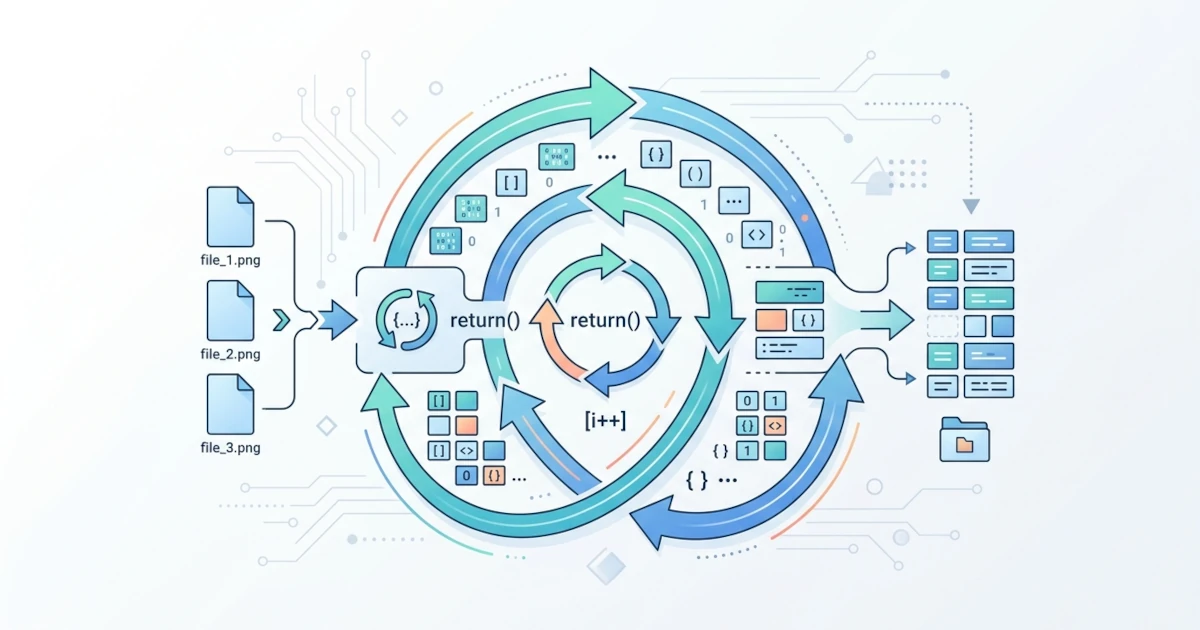
Chapter 6 equipped us with the ability to make decisions using branching, but many daily tasks for Sysadmins and Users are highly repetitive: checking dozens of services one by one, renaming hundreds of vacation photos, or reading thousands of log lines to find specific patterns. Writing the same command repeatedly by hand is clearly unrealistic. This chapter covers loops, structures that allow Bash to execute a block of commands repeatedly without us having to write them multiple times. We will start with the for loop for iterating over lists, number ranges, and arrays, move on to while and until loops that rely on conditions, delve into break and continue to control flow within loops, and conclude with a practical case study on processing multiple files simultaneously, a pattern we will continuously use in subsequent practical chapters.
7.1 for Loop: Iterating Lists, Ranges, and Arrays
This section covers the for loop, the loop structure most commonly used when the number of items to process is known beforehand or can be generated before the loop runs, whether it is a list of words, a range of numbers, or array elements.
7.1.1 Basic for...in Syntax
The most basic form of the for loop takes each item from a list (a space-separated list of words) one by one, stores it in a variable, and then runs the command block for each item.
for service in nginx mysql redis; do
    echo "Checking status of $service..."
    systemctl is-active "$service"
done
The keyword do marks the beginning of the command block, and done closes it, similar to the roles of then and fi in if statements covered in Chapter 6.1.1. The variable service in the example above changes value with each iteration, starting from nginx, then mysql, and finally redis, and the do...done block is fully executed as many times as there are items in the list.
The for loop can also directly accept the output of command substitution ($(), discussed in Chapter 3.4) as its list, which is useful when the list of items comes from another command rather than being written manually.
for user in $(cut -d: -f1 /etc/passwd); do
    echo "Registered user: $user"
done
7.1.2 Range Iteration with Brace Expansion and seq
To iterate over a range of numbers, Bash provides brace expansion, a shell feature that expands the pattern {start..end} into a sequence of numbers before the command is actually executed.
for count in {1..5}; do
    echo "Attempt #$count"
done
Brace expansion supports step increments via the syntax {start..end..step}, but this step feature is only available starting from Bash 4.0. Make sure the target Bash version meets the requirement (check with bash --version, discussed in Chapter 1.3) before using it in scripts that might run in older environments.
for even in {0..10..2}; do
    echo "Even number: $even"
done
Brace expansion can also produce numbers with automatic zero-padding if one of the boundaries is written with a leading zero, which is useful when file numbering requires a uniform format, such as backup_01.log to backup_10.log.
for number in {01..10}; do
    echo "backup_${number}.log"
done
One important limitation to keep in mind from the start: brace expansion is processed by the shell before variable expansion, so range boundaries cannot be populated directly from a variable.
limit=5
for i in {1..$limit}; do
    echo "$i"
done
The script above does not produce a number range from 1 to 5 as expected. Because brace expansion completes processing before $limit gets expanded, Bash treats {1..$limit} as a literal string because the pattern is invalid as a numeric range. As a result, the loop runs only once with the value of i as the text {1..5} as-is. For ranges whose limits originate from variables, use the external seq command, which is evaluated at runtime via command substitution, or a C-style for loop discussed in the next section.
limit=5
for i in $(seq 1 "$limit"); do
    echo "$i"
done
seq accepts one, two, or three arguments: seq end, seq start end, or seq start step end. This mirrors the flexibility of brace expansion but accepts dynamic values from variables because it is evaluated as a standard command rather than syntax pre-expanded by the shell.
7.1.3 C-style for Loop
In addition to the for...in syntax, Bash also provides a C-style for loop, syntax similar to loops in C, Java, or JavaScript, with three parts separated by semicolons inside double parentheses: initialization, condition, and increment step.
for (( i=1; i<=5; i++ )); do
    echo "Attempt #$i"
done
All three parts use the same arithmetic expansion as (( )) mentioned in Chapter 3.3 and Chapter 6.2.1, so variables inside do not require a dollar sign ($) and support standard mathematical operators. Because the limit is evaluated as an arithmetic expression rather than brace expansion, the C-style for loop can freely use variables as range limits without the traps discussed in the previous section.
limit=5
for (( i=1; i<=limit; i++ )); do
    echo "$i"
done
This form is not part of the POSIX shell standard, just like [[ ]] discussed in Chapter 6.1.4, so it can only be used in scripts written specifically for Bash (or other supporting shells like ksh and zsh), not in scripts with a #!/bin/sh shebang targeting pure POSIX shells. Any of the three parts can be left empty to create an unconstrained loop, a pattern commonly used to create an infinite loop: a loop intentionally left without a termination condition and controlled manually using break within its block (discussed in Section 7.3).
for (( ; ; )); do
    echo "Infinite loop, exit manually with Ctrl+C"
done
7.1.4 Array Iteration
Arrays, thoroughly discussed in Chapter 4, are frequently paired with for loops to process each element one by one. The safest pattern uses the expansion "${array_name[@]}", which is always quoted for the exact same reasons as "$@" in Chapter 5: without quotes, elements containing spaces can split into multiple separate arguments due to word splitting.
service_list=("nginx" "mysql" "redis" "docker")

for service in "${service_list[@]}"; do
    echo "Checking status of $service..."
done
If element indices are also required, for example to display sequential numbers or access another array with the same index, use the "${!array_name[@]}" expansion, which yields the list of indices rather than the values.
service_list=("nginx" "mysql" "redis" "docker")

for i in "${!service_list[@]}"; do
    echo "Service #$i: ${service_list[$i]}"
done
This pattern also applies to associative arrays (declare -A, Chapter 4.2), with the important caveat that "${!array_name[@]}" on associative arrays produces a list of keys rather than numeric indices, and their order is not guaranteed to match the insertion order.
declare -A server_status=(
    [web1]="active"
    [web2]="down"
    [db1]="active"
)

for server_name in "${!server_status[@]}"; do
    echo "$server_name: ${server_status[$server_name]}"
done
7.1.5 Troubleshooting: Word Splitting and Unmatched Globs
The following two traps are most commonly encountered when using for loops in practice. The first trap relates to word splitting mentioned repeatedly since Chapter 3.4: using an unquoted regular string variable (not an array) as a list when its content contains items with spaces.
file_list="january report.txt february report.txt"

for f in $file_list; do
    echo "Processing: $f"
done
The loop above runs four times instead of the expected two times because the unquoted $file_list undergoes word splitting based on spaces, splitting january report.txt into two separate items. The correct solution is to store the list of files as an array from the start rather than a single long string, adhering to the recommendations in Chapter 4.4.
file_list=("january report.txt" "february report.txt")

for f in "${file_list[@]}"; do
    echo "Processing: $f"
done
The second trap occurs when using a glob pattern (wildcard pattern like *.log, touched upon in Chapter 6.3.2) as the list, but no files in the working directory match the pattern.
for f in *.log; do
    echo "Processing file: $f"
done
By default, if a glob pattern finds no matching files, Bash does not remove it. Instead, it passes the pattern as a literal string. Consequently, in a directory without any .log files, the loop still runs once with the value of f set literally to *.log, rather than zero times as many might assume. This can be fatal if the loop block directly processes $f as a filename assumed to exist. Bash provides the shopt -s nullglob option to modify this behavior, causing unmatched glob patterns to expand into nothing so that the loop is automatically skipped.
shopt -s nullglob

for f in *.log; do
    echo "Processing file: $f"
done

shopt -u nullglob
In practice, enabling nullglob at the beginning of a script relying on glob patterns for for loops and disabling it afterward is a common Sysadmin practice to prevent scripts from mistaking pattern strings for actual filenames.
7.2 while and until Loops
Unlike for loops which suit known item lists, this section discusses while and until loops. These two conditional loop constructs continue running while (or until) a condition changes, making them ideal when the exact number of iterations is unknown at the outset.
7.2.1 Basic while Syntax
while repeatedly executes a command block as long as its condition evaluates to success (exit status 0, covered in Chapter 6.4.1). Once the condition fails, the loop terminates and execution continues to the line following done.
attempt=1

while [ "$attempt" -le 3 ]; do
    echo "Attempt #$attempt"
    attempt=$((attempt + 1))
done
Conditions in while loops use the same syntax as if conditions, supporting [ ], [[ ]], (( )), or standard commands evaluated by exit status. The while true or while : pattern (using the builtin : which always returns exit status 0 while doing nothing) is frequently used to create infinite loops controlled internally within the block - such as monitoring scripts that check service status every few seconds until manually stopped or meeting a specific condition.
while true; do
    if ! systemctl is-active --quiet nginx; then
        echo "nginx is inactive, attempting restart..."
        systemctl restart nginx
    fi
    sleep 10
done
7.2.2 Basic until Syntax
until is the logical inverse of while: its command block runs repeatedly until its condition succeeds, rather than while it succeeds. In other words, until continues running as long as the condition evaluates to failure.
attempt=1

until [ "$attempt" -gt 3 ]; do
    echo "Attempt #$attempt"
    attempt=$((attempt + 1))
done
The example above produces identical output to the while example in the previous section because the condition [ "$attempt" -gt 3 ] in until is logically equivalent to the negated condition [ "$attempt" -le 3 ] in while. In practice, until is less commonly used than while, but it is handy for cases naturally expressed as "wait until condition X is met," such as waiting for a service to become ready to accept connections before proceeding with deployment.
until curl -s -o /dev/null "http://localhost:8080/health"; do
    echo "Service not ready, waiting..."
    sleep 2
done

echo "Service is ready to accept connections"
This waiting pattern is frequently used by Sysadmins in deployment scripts to ensure one service is fully active before starting dependent services, a topic explored further in Chapter 21.
7.2.3 Reading Files Line by Line with while read
Combining while with the read builtin (mentioned in Chapter 5.1) is the safest and most standard way to process a file line by line in Bash. It is far more reliable than using a for loop, which is vulnerable to word splitting on every word within a line rather than iterating line by line.
while IFS= read -r line; do
    echo "Line: $line"
done < /etc/hosts
Two specific details in the while line above avoid common traps. The -r flag on read prevents backslashes from being interpreted as escape characters, keeping paths like Windows C:\Users\budi intact instead of joining lines. Clearing IFS (Internal Field Separator, the shell variable defining word delimiters) before read prevents leading and trailing whitespace from being trimmed, as read defaults to stripping whitespace at both ends of the input.
The redirection < /etc/hosts at the end of the done line feeds the file contents as stdin to the entire loop, a concept introduced in Chapter 5.3. This pattern can be combined with branching structures from Chapter 6 to process lines selectively, such as skipping comment lines in configuration files.
while IFS= read -r line; do
    if [[ "$line" =~ ^#.*$ || -z "$line" ]]; then
        continue
    fi
    echo "Configuration line: $line"
done < /etc/app/app.conf
A subtle trap to watch out for: if the input file does not end with a trailing newline on its final line (common in manually edited files or tool outputs), read populates the variable with the last line's content but returns a failed exit status due to the missing newline. As a result, the last line is skipped by the loop. The standard idiom to handle this adds a check with || (Chapter 6.4.2) to verify if the variable still holds content.
while IFS= read -r line || [ -n "$line" ]; do
    echo "Line: $line"
done < /etc/app/app.conf
7.2.4 Troubleshooting: Subshell Trap in Piped while Loops
A common trap for beginners and experienced developers alike is piping the output of a command into while read (|, Chapter 5.3) and expecting variable changes inside the loop to persist after the loop finishes.
line_count=0

grep "error" /var/log/app.log | while IFS= read -r line; do
    line_count=$((line_count + 1))
done

echo "Total error lines: $line_count"
The script above always prints Total error lines: 0 regardless of how many lines contain the word "error". This occurs because each command in a Bash pipeline runs inside a separate subshell - a child shell process with its own copy of variables isolated from the parent shell. Changes to line_count inside the while block apply only within the pipeline subshell and disappear once it terminates, leaving line_count in the main shell at zero.
The most common and portable solution is replacing the pipe with process substitution (<(...)), a Bash feature that runs a command and presents its output as a file without executing the loop in a subshell.
line_count=0

while IFS= read -r line; do
    line_count=$((line_count + 1))
done < <(grep "error" /var/log/app.log)

echo "Total error lines: $line_count"
Note the syntax < <(...): the first < redirects stdin to the loop as usual, while <(...) is process substitution generating a temporary file path (typically a named pipe under /dev/fd/) containing the output of grep. Because while is no longer part of a pipeline, it executes in the main shell, allowing changes to line_count to persist.
An alternative starting in Bash 4.2 is enabling shopt -s lastpipe, which executes the last command of a pipeline in the main shell provided job control is inactive (a condition typically met in non-interactive scripts, though not in interactive terminal sessions).
shopt -s lastpipe

line_count=0

grep "error" /var/log/app.log | while IFS= read -r line; do
    line_count=$((line_count + 1))
done

echo "Total error lines: $line_count"
Because lastpipe behavior depends on job control state, process substitution remains the more consistent and recommended solution for scripts requiring execution context portability.
7.3 break and continue
This section discusses two builtins that control execution flow from inside a loop (whether for, while, or until) without waiting for loop conditions to change naturally.
7.3.1 Terminating Loops Early with break
break immediately terminates the current loop entirely, jumping to the first line after done without processing remaining items or evaluating loop conditions again. It is useful when a search target is found and remaining iterations are unnecessary.
server_list=("web1" "web2" "web3" "db1")
problematic_server=""

for server in "${server_list[@]}"; do
    if ! ping -c 1 -W 2 "$server" > /dev/null 2>&1; then
        problematic_server="$server"
        break
    fi
done

if [ -n "$problematic_server" ]; then
    echo "First unreachable server: $problematic_server"
else
    echo "All servers reachable"
fi
Without break, the loop above would check all remaining servers even after finding the first failure, wasting execution time - especially if the server list is long and each connection attempt has a multi-second timeout.
7.3.2 Skipping Iterations with continue
continue does not terminate the entire loop; instead, it skips remaining commands in the current iteration and moves directly to the next iteration (re-evaluating loop conditions for while/until, or grabbing the next item for for).
for file in /var/log/*.log; do
    if [ ! -s "$file" ]; then
        echo "Skipping $file, size is zero"
        continue
    fi
    echo "Processing $file..."
    gzip -k "$file"
done
The -s operator used above was covered in Chapter 6.2.3, checking if a file's size is greater than zero. Empty log files are skipped early via continue, avoiding the need to wrap the remaining processing commands in an additional nested if block that deepens indentation and degrades readability. This pattern of checking skip conditions early and invoking continue is known as a guard clause, a practice that keeps main loop blocks clean and focused on core logic.
7.3.3 break N and continue N in Nested Loops
Both break and continue accept an optional numeric argument specifying how many levels of nested loops to affect, rather than applying only to the innermost loop. By default, without arguments, both affect only the single nearest loop level, equivalent to break 1 or continue 1.
server_list=("web1" "web2")
service_list=("nginx" "mysql" "redis")

for server in "${server_list[@]}"; do
    echo "Checking server: $server"
    for service in "${service_list[@]}"; do
        echo "  Checking service: $service"
        if [ "$service" = "mysql" ] && [ "$server" = "web2" ]; then
            echo "  Critical condition found, stopping all checks"
            break 2
        fi
    done
done

echo "Checks completed"
In the example above, break 2 terminates not only the inner service loop but also the outer server loop, jumping straight to echo "Checks completed". Without the numeric argument 2, a plain break would only terminate the inner service loop while the outer server loop continued processing remaining servers - a behavior that may be undesirable when attempting to halt execution completely upon discovering critical issues.
continue N operates with similar logic: continue 2 inside a two-level nested loop skips the remainder of the inner loop and immediately proceeds with the next iteration of the outer loop. The break N and continue N features are part of the POSIX shell standard, making them safe to use even in scripts targeting sh or dash, unlike some Bash-specific features in this chapter.
7.4 Case Study: Batch Processing Multiple Files
This closing section combines for, while, break, continue, and file test operators from Chapter 6.2.3 into a concise script representing real-world Sysadmin tasks: batch compressing old log files with error handling and summary reporting.
7.4.1 Scenario and Requirements
Long-running servers accumulate many log files in directories like /var/log/app/. Sysadmins must periodically compress old files to prevent disk space exhaustion, a task typically scheduled via cron (covered in Chapter 18). The script we build must meet several requirements: process only uncompressed regular files, skip empty files, track successful and failed counts, and terminate early if failures exceed a specified threshold - indicating underlying issues such as directory permissions that require manual inspection.
7.4.2 Building the Script Step-by-Step
We begin by defining configuration variables at the top of the script, a good practice to ensure key parameters can be modified easily without searching through script logic. The log directory path uses the parameter expansion pattern ${log_dir:-/var/log/app} (similar to ${1:-status} in Chapter 6.4.4): if log_dir is set externally (e.g., via environment variables), that value is used; otherwise, it defaults to /var/log/app. This enables easy testing across different directories without altering script contents.
#!/bin/bash

log_dir="${log_dir:-/var/log/app}"
max_failures=3
success_count=0
skipped_count=0
failure_count=0
Next, enable nullglob (discussed in Section 7.1.5) so that the for loop does not process the literal pattern *.log if the target directory is empty. Then construct the main loop using continue to skip ineligible files and break to abort processing if failures hit the maximum limit.
shopt -s nullglob

for log_file in "$log_dir"/*.log; do
    if [ ! -f "$log_file" ]; then
        continue
    fi

    if [ ! -s "$log_file" ]; then
        echo "Skipping $log_file: zero file size"
        skipped_count=$((skipped_count + 1))
        continue
    fi

    echo "Compressing $log_file..."
    if gzip "$log_file"; then
        success_count=$((success_count + 1))
    else
        echo "Failed to compress $log_file" >&2
        failure_count=$((failure_count + 1))

        if [ "$failure_count" -ge "$max_failures" ]; then
            echo "Failures reached $max_failures times, aborting process" >&2
            break
        fi
    fi
done

shopt -u nullglob
Finally, display execution results at the end of the script - information useful for manual execution or automated cron log output.
echo "----------------------------------------"
echo "Log compression process summary:"
echo "Successful : $success_count"
echo "Skipped    : $skipped_count"
echo "Failed     : $failure_count"

if [ "$failure_count" -gt 0 ]; then
    exit 1
fi

exit 0
7.4.3 Verification and Error Handling
Save the snippet into a file named compress_logs.sh, make it executable, and run it.
chmod +x compress_logs.sh
./compress_logs.sh
echo "Exit status: $?"
Test the script in a temporary test directory containing dummy .log files (including an empty file) before targeting production directories, ensuring logic functions properly without risk to live data (by default, gzip without -k removes original uncompressed files after compression).
mkdir -p /tmp/test_log
touch /tmp/test_log/app1.log /tmp/test_log/app3.log
echo "sample log line" > /tmp/test_log/app2.log

log_dir="/tmp/test_log" ./compress_logs.sh
Expected result: app1.log and app3.log are skipped because they are empty, while app2.log is compressed into app2.log.gz. Check summary numbers at the end of the output to confirm accuracy. If the script reports more failures than expected, the most common real-world cause is directory write permissions - gzip must be able to write output .gz files into the directory. Verify permissions using the -w operator from Chapter 6.2.3 before running the main loop if this error occurs frequently, allowing the script to fail early with a descriptive message rather than failing per-file inside the loop. Combining for loops, file checks, continue for filtering, and break for early termination will be used throughout future chapters, including function reusable definitions in Chapter 8 and daily task automation in Chapter 13.