
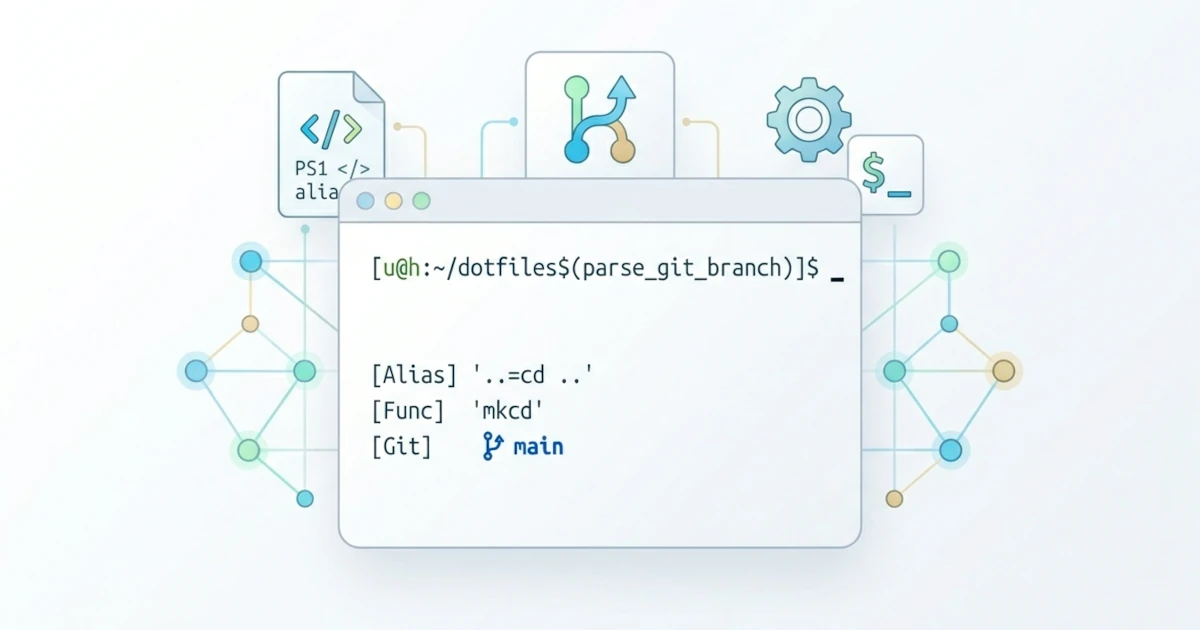
Chapter 15 closed the discussion on productivity with automated reminders, clipboard/screenshot integration, and basic Git-based dotfiles plus symlinks. This chapter dives deeper into a layer that has only been briefly touched upon: the appearance and behavior of the shell itself. The plain default Bash prompt, which only displays the username and working directory, can actually be completely transformed into a much more informative interface, for example, directly showing the active Git branch without needing to type git status repeatedly. Aliases and functions from Chapter 13.4 can also be expanded into a collection of shortcuts that truly accelerate the user's daily workflow, rather than just two or three basic examples. This chapter covers four topics: prompt customization via the PS1 variable and terminal themes, a set of useful aliases/functions/shortcuts, a brief introduction to other shells (zsh and fish) along with their implications for script compatibility, and concludes with a case study on building a personal dotfile setup that is portable across shells.
16.1 Prompt Customization (PS1) and Terminal Themes
This section discusses how to modify the Bash prompt appearance using the PS1 variable, starting from basic escape sequences to adding colors and Git branch information automatically.
16.1.1 PS1 Anatomy and Basic Escape Sequences
PS1 (Primary Prompt String) is a shell variable that determines the visual layout of the main Bash prompt, the line that appears every time the shell waits for a new command to be entered. According to the GNU Bash Reference Manual under the "Controlling the Prompt" section, the value of PS1 is not merely plain text; it supports a series of backslash-escaped escape sequences that Bash evaluates into dynamic information every time the prompt is redrawn.
echo "$PS1"The command above displays the current active PS1 value in our session, which usually consists of a combination of default escape sequences provided by the distribution. The following table summarizes the most frequently used escape sequences, sourced from the complete list in the official Bash documentation.
| Escape | Meaning |
|---|---|
\u | Username of the currently logged-in user |
\h | Hostname, up to the first dot |
\w | Current working directory, $HOME abbreviated as ~ |
\W | Basename of the current working directory only |
\t | Current time in 24-hour format HH:MM:SS |
\d | Date in "Day Month Date" format |
\n | Newline |
\$ | Symbol $, automatically changes to # when running as root |
The simplest example combines several of these escape characters into a single custom prompt.
PS1='\u@\h:\w\$ 'The prompt above displays the pattern user@hostname:/path/directory$, similar to the default look of most distributions but written explicitly so that we thoroughly understand where each component originates. Type this line directly in the terminal to observe its immediate effect; this change remains temporary and vanishes once the shell session is closed, just like unsaved aliases in Chapter 13.4.2.
16.1.2 Adding Colors with ANSI Escape Codes
Modern terminals interpret special character sequences called ANSI escape codes to alter text color rather than rendering raw text characters alone. This code starts with an escape character (\033 in octal notation) followed by a square bracket and color codes, then terminates with the letter m.
PS1='\[\033[01;32m\]\u@\h\[\033[00m\]:\[\033[01;34m\]\w\[\033[00m\]\$ 'The code 01;32 represents bright green (bold), 01;34 signifies bright blue, and 00 resets the color back to standard default. The part that is easiest to overlook, and is strictly required according to official Bash documentation, is wrapping those color codes with \[ at the beginning and \] at the end. These two delimiters inform Bash that the enclosed text consists of non-printing characters that occupy zero visual width on the screen, allowing Bash to calculate the real prompt length accurately. Without \[ and \], Bash counts the color codes as standard characters, causing visible glitches when typed commands extend long enough to wrap to the next line: the cursor position becomes misaligned, rendering the command history recalled via the up-arrow key jumbled on screen.
Memorizing raw ANSI codes can be cumbersome, so a more portable alternative is using tput, a standard tool that reads the terminfo database and translates color requests into appropriate terminal control codes.
hijau=$(tput setaf 2)
reset=$(tput sgr0)
PS1="\[${hijau}\]\u@\h\[${reset}\]:\w\$ "
tput setaf 2 outputs green text color (standard ANSI color index 0-7: black, red, green, yellow, blue, magenta, cyan, white), and tput sgr0 restores standard formatting. Because both values are stored in standard variables using command substitution (Chapter 3.4.4), the \[ and \] delimiters must still be manually wrapped around variable references inside PS1, as shown above, so that prompt length calculation rules remain intact.
16.1.3 Displaying Git Branch in Prompt
One of the most practical customizations for developers and users working with Git repositories is showing the active branch name directly inside the prompt, eliminating the need to execute git status repeatedly to confirm the current context. First, encapsulate this logic into a function.
parse_git_branch() {
    local branch
    branch=$(git symbolic-ref --short HEAD 2>/dev/null)
    [[ -n "$branch" ]] && echo " ($branch)"
}

PS1='\u@\h:\w$(parse_git_branch)\$ '
git symbolic-ref --short HEAD retrieves the short branch name according to official Git documentation; this command exits with an error if the working directory is not a Git repository, which is why 2>/dev/null from Chapter 5.3.3 is used to silence error output, and the conditional test [[ -n "$branch" ]] from Chapter 6.2.2 guarantees that parenthesized branch text appears only when residing inside a Git working tree. A crucial detail often missed: the function call $(parse_git_branch) is embedded directly inside the PS1 string, rather than evaluated once to assign static text. According to official Bash documentation, the value of PS1 undergoes command substitution every time the prompt is re-rendered, allowing displayed branches to update automatically as directory or branch switches occur, without requiring manual execution.
In practice, this approach carries a trade-off worth noting: because parse_git_branch runs every time the prompt prints, extremely large repositories might introduce a slight rendering delay before the prompt appears, though for normal repository sizes the performance impact is negligible.
16.1.4 Persisting Prompts and Instant Theme Alternatives
Just like aliases and functions in Chapter 13.4.2, custom PS1 strings must be placed in ~/.bashrc to persist automatically across new terminal sessions instead of being re-typed manually every time.
echo 'PS1="\u@\h:\w\$ "' >> ~/.bashrc
source ~/.bashrc
Beyond setting PS1 manually, the PROMPT_COMMAND variable is available for requirements more complex than simple string evaluation. According to official Bash documentation, the contents of PROMPT_COMMAND are executed immediately before each primary prompt is printed, making it suitable for additional tasks such as updating terminal window titles dynamically based on the current directory path.
PROMPT_COMMAND='echo -ne "\033]0;${PWD##*/}\007"'The pattern ${PWD##*/} above utilizes greedy parameter expansion from Chapter 13.1.2 to extract the trailing folder name from $PWD. It should be noted that the sequence \033]0;...\007 adheres to xterm control conventions supported across many xterm-derived terminal emulators (GNOME Terminal, Konsole, iTerm2, and similar applications), though support ultimately depends on the specific emulator used, so verify behavior in your terminal before relying on it.
Building custom prompts manually takes effort, but it is not the only approach. Starship is a cross-shell prompt framework (supporting Bash, zsh, fish, and others) that provides ready-to-use themes and automatic project context detection (programming language versions, Git status, and similar details) without writing custom functions like section 16.1.3. According to official documentation at starship.rs, installation is typically performed via distribution package managers or the official setup script.
curl -sS https://starship.rs/install.sh | shAs a security best practice, any installation script executed via curl | sh should be audited beforehand (for instance, opened in a browser first) prior to execution, adhering to basic safety principles applicable to running external code with user privileges. Once installed, activating Starship in Bash requires adding a single line to ~/.bashrc, per official documentation.
eval "$(starship init bash)"Starship configurations are managed through a dedicated file, ~/.config/starship.toml, separate from Bash's built-in PS1 covered in this section. For straightforward requirements, the manual approach in 16.1.1 through 16.1.3 remains sufficient without introducing external dependencies beyond Bash itself; Starship becomes relevant when desired prompt configurations grow complex or need to be shared consistently across multiple shells, a topic addressed further in 16.3.
16.2 Useful Aliases, Functions, and Shortcuts
Chapter 13.4 explained fundamental differences between aliases and shell functions, along with methods for persisting them in .bashrc. This section goes further: a collection of practical shortcuts worth incorporating into daily shell configurations, organized by use case.
16.2.1 Navigation and Safety Aliases
Navigating up to parent directories is one of the most frequent operations in terminal usage; short aliases condense these commands down to two or three characters.
alias ..='cd ..'
alias ...='cd ../..'
alias ....='cd ../../..'
For navigating multiple directory levels dynamically, simple aliases fall short because aliases cannot accept dynamic command arguments, as detailed in Chapter 13.4.1. The following up function accepts the target level count as an argument.
up() {
    local n=${1:-1}
    local path=""
    for ((i = 0; i < n; i++)); do
        path="../$path"
    done
    cd "$path" || return 1
}
${1:-1} uses default value expansion from Chapter 6.4.4, enabling up without arguments to ascend one level like the .. alias, while up 3 ascends three levels simultaneously. The for ((...)) construction uses C-style loops from Chapter 7.1.3 to construct the target path ../../../ repeatedly before performing cd.
Safety aliases add interactive confirmation prompts to three potentially destructive commands when typos occur, using the -i flag introduced in Chapter 13.1.4.
alias rm='rm -i'
alias cp='cp -i'
alias mv='mv -i'
An important limitation of these aliases must be acknowledged: aliases only trigger when commands are invoked explicitly by name in interactive sessions. If the same command is executed inside an automated script (Chapter 8), or invoked using absolute paths like /bin/rm, aliases do not apply because, according to official Bash documentation, alias expansion is explicitly designed for interactive shells and is not inherited by non-interactive execution contexts. These aliases serve well as safety nets for daily manual interactions, but should never be relied upon as sole safety measures inside automated scripts; scripts must explicitly specify flags like -i or -n as demonstrated in Chapter 13.1.4, rather than assuming interactive aliases are active.
16.2.2 Git Aliases
Developers and users regularly working with Git can streamline repetitive input using the following concise alias definitions.
alias gs='git status'
alias ga='git add'
alias gc='git commit -m'
alias gp='git push'
alias gl='git log --oneline --graph --decorate'
The gc alias above functions with the syntax pattern gc "commit message" because aliases operate via pure text substitution as described in Chapter 13.4.1: gc "Fix validation bug" expands directly to git commit -m "Fix validation bug". The gl alias incorporates --graph and --decorate options for git log to present branch history as a compact graphical structure according to official Git documentation, making it significantly easier to inspect compared to raw git log output that prints full commit metadata.
16.2.3 Managing Command History
A well-maintained command history is an integral component of shell customization that is often overlooked. The following three variables, defined per the official Bash documentation section on "Bash History Facilities", control how command history entries are retained and managed.
HISTSIZE=10000
HISTFILESIZE=20000
HISTCONTROL=ignoredups:erasedups
shopt -s histappend
HISTSIZE constrains the number of history entries remembered in memory during active sessions, whereas HISTFILESIZE limits total lines stored permanently within the ~/.bash_history file. Setting HISTCONTROL=ignoredups:erasedups prevents identical sequential commands from creating duplicate entries (ignoredups) and clears older matching instances across the history list when commands are re-executed later (erasedups). Enabling shopt -s histappend alters Bash's default behavior of overwriting history files on session exit, switching to appending new session logs onto existing file contents, an essential setting when running multiple concurrent terminal windows so that history from one terminal does not overwrite logs from another closed earlier.
Once these lines are appended to .bashrc and a fresh session is opened, history navigation via the up arrow or reverse searches via Ctrl+R (built-in readline features utilized by Bash) become significantly cleaner without duplicate command clutter.
16.2.4 Organizing Aliases in Modular Files
As user-defined aliases and functions grow in number, placing everything inside .bashrc makes the configuration file verbose and difficult to navigate. A standard practice, included in default .bashrc files across distributions like Debian and Ubuntu, involves isolating alias definitions inside a separate ~/.bash_aliases file, then sourcing it within .bashrc using conditional checks.
if [ -f ~/.bash_aliases ]; then
    . ~/.bash_aliases
fi
Check whether this block exists in your system's default .bashrc using grep bash_aliases ~/.bashrc, as not all distributions ship with it by default; if absent, append it manually as shown above. Once active, all aliases from 16.2.1 and 16.2.2 can reside cleanly inside ~/.bash_aliases, keeping .bashrc modular and focused on core shell configurations like PS1 and history settings from preceding sections.
16.3 Alternative Shells: zsh and fish
This section explores two popular alternative shells outside Bash, zsh and fish, alongside their compatibility implications regarding Bash scripts authored throughout this series.
16.3.1 Motivation Behind Alternative Shells
Bash is not the sole command-line shell available within Unix-like environments. Zsh (Z shell) was created as an extended superset of sh, incorporating enhanced features such as advanced tab completion, spelling correction algorithms, and widely adopted framework ecosystems like Oh My Zsh. Beginning with macOS Catalina (released in 2019), Apple adopted zsh as the system default interactive shell replacing Bash, which explains why macOS built-in Bash binaries remain pinned to older versions as noted in Chapter 1.3.2. Fish (Friendly Interactive Shell) adopts a more radical approach: according to official documentation at fishshell.com, fish was intentionally designed with a custom syntax that diverges from standard POSIX Shell specifications, prioritizing interactive usability features like real-time syntax highlighting and auto-suggestions without requiring external plugins.
To evaluate either shell directly, zsh and fish are available via standard package managers across most Linux distributions without requiring manual compilation from source code.
# Debian/Ubuntu
sudo apt install zsh fish

# Fedora
sudo dnf install zsh fish

# Arch Linux
sudo pacman -S zsh fish
On macOS, zsh is pre-installed starting with Catalina as noted above, whereas fish can be installed via Homebrew, introduced in Chapter 1.3.2.
brew install fishInstalling these packages simply makes alternative shells available on the system; it does not automatically switch your login shell, a process detailed in section 16.3.3. You can inspect which shell is registered as your default login shell via the $SHELL environment variable.
echo "$SHELL"Note that $SHELL reflects the default login shell configured in /etc/passwd, which does not necessarily match the shell interpreter currently executing your active session. If you start a Bash process manually from inside a zsh session by invoking bash, $SHELL continues to report zsh as the login default even though current input is processed by Bash. A more accurate method to determine the currently running shell process uses ps (covered in Chapter 17) or inspects shell-specific variables such as $BASH_VERSION and $ZSH_VERSION.
ps -p $$ -o comm=16.3.2 Critical Syntax Differences
Zsh maintains significant syntax compatibility with Bash compared to fish, yet possesses fundamental differences that can catch users off guard. According to official zsh documentation, array indexing in zsh starts at 1 by default, contrasting with Bash where array indices strictly start at 0 as discussed in Chapter 4.1.1. Fish departs even further: its syntax is fundamentally distinct rather than a minor variation of POSIX Shell constructs. The following table highlights core operational differences encountered when transitioning between these three shells.
| Aspect | Bash | zsh | fish |
|---|---|---|---|
| First array index | 0 | 1 (default) | 1 |
| Variable assignment | name=value | name=value | set name value |
| Condition evaluation | [[ ... ]] | [[ ... ]] | test ... / [ ... ] |
POSIX sh compatibility | Yes (via --posix) | Yes (emulation mode) | No |
Fish also dispenses with standard export syntax from Chapter 3.2.2; defining an environment variable uses flags passed directly to the set builtin per its official documentation.
# Bash
export EDITOR=vim

# fish
set -x EDITOR vim
Comprehensive coverage of fish syntax falls outside the scope of this Bash-focused series; if you choose fish as your primary interactive shell, official documentation at fishshell.com serves as the definitive reference for learning its syntax conventions.
16.3.3 Maintaining Portable Bash Scripts
The syntax differences described in 16.3.2 raise an important question: if your default login shell changes to zsh or fish, will Bash scripts written throughout this series continue to function? The answer is yes, provided the shebang line introduced in Chapter 1.4.1 is defined correctly. Including #!/bin/bash on the first line instructs the system kernel to process file execution through the specified Bash interpreter, regardless of which shell manages the interactive session. The default login shell only governs interactive command-line environments; once a script is executed via ./script-name.sh, the kernel evaluates the shebang path and delegates execution entirely to that binary, ignoring the active interactive shell.
Consequently, changing login shells using chsh (change shell) does not alter how executable Bash scripts run, as long as their shebang lines explicitly point to /bin/bash.
cat /etc/shells
chsh -s /bin/zsh
The /etc/shells file enumerates valid shell binaries available on the system, and chsh -s updates the user's registered login shell within /etc/passwd according to the chsh manual page. Note that this change takes effect during subsequent login sessions rather than immediately within active terminal windows. A common pitfall occurs when scripts omit shebang lines entirely and are executed via sh script-name.sh or sourced directly inside non-Bash interactive sessions: Bash-specific features utilized across this series, such as arrays (Chapter 4), extended tests [[ ]] (Chapter 6.1.3), or case modification parameters ${var,,} (Chapter 9.4.4), may fail or exhibit unexpected behavior under different interpreters. The rule introduced in Chapter 1.4.1 remains critical: explicitly include the #!/bin/bash shebang line and execute scripts directly via ./script-name.sh rather than relying on sh script-name.sh, guaranteeing that execution is consistently handled by Bash.
16.4 Case Study: Cross-Shell Portable Dotfiles
Chapter 15.3 established a Git and symlink dotfile management workflow utilizing GNU Stow. This concluding case study expands that structure so that custom aliases and functions remain accessible across both Bash and zsh sessions, without maintaining duplicate, out-of-sync configuration files.
16.4.1 Design Architecture: Shared Configurations Across Shells
Standard aliases and basic shell functions, such as those presented in 16.2.1 and 16.2.2, are natively compatible across Bash and zsh due to zsh's broad backward compatibility with Bash syntax outlined in 16.3.2. What remains non-portable is PS1 syntax: escape sequences like \u, \h, and \w from 16.1.1 are Bash-specific, whereas zsh utilizes percent-based expansions (%n for username, %m for hostname, and %~ for current working directory) according to the zsh documentation on "Prompt Expansion". A practical design structure isolates portable aliases and functions into a common source file, while keeping shell-specific PS1 definitions within their respective startup files.
16.4.2 Implementing Shared Configuration Files
Create a shell/ subdirectory within the dotfiles directory structure established in Chapter 15.3.2, containing a single common.sh script with portable aliases and functions.
# ~/dotfiles/shell/common.sh

alias ..='cd ..'
alias ...='cd ../..'
alias gs='git status'
alias gl='git log --oneline --graph --decorate'

mkcd() {
    mkdir -p "$1" && cd "$1" || return 1
}

up() {
    local n=${1:-1}
    local path=""
    for ((i = 0; i < n; i++)); do
        path="../$path"
    done
    cd "$path" || return 1
}
This file contains function and alias definitions without executing tasks directly; it must be sourced by individual shell startup scripts. For Bash, append the following logic to ~/.bashrc, placed after existing .bash_aliases logic from section 16.2.4 if present.
# ~/.bashrc
if [ -f ~/dotfiles/shell/common.sh ]; then
    . ~/dotfiles/shell/common.sh
fi

PS1='\u@\h:\w$(parse_git_branch)\$ '
For zsh, include equivalent sourcing logic inside ~/.zshrc, the interactive startup file corresponding to .bashrc according to zsh documentation on "Startup/Shutdown Files".
# ~/.zshrc
if [ -f ~/dotfiles/shell/common.sh ]; then
    . ~/dotfiles/shell/common.sh
fi

setopt PROMPT_SUBST
PS1='%n@%m %~ %# '
Adding setopt PROMPT_SUBST is mandatory if zsh's PS1 includes dynamic function calls like parse_git_branch from 16.1.3. Per official zsh documentation, command substitution and function evaluation within prompts do not execute automatically unless this option is explicitly enabled, unlike Bash which enables prompt command evaluation by default as described in 16.1.3. Because both configuration files source common.sh, aliases like gs and gl alongside functions like mkcd and up become available identically across both shells, while prompt configurations remain tailored to each shell's native syntax.
It must be clarified that this shared file approach does not apply to fish, as discussed in 16.3.2, because fish does not parse standard alias name='command' statements or name() { ... } function definitions. Fish uses its own built-in alias mechanisms that internally map to fish functions, and requires functions to be wrapped inside function ... end blocks rather than curly braces. To support fish within dotfiles, the safest approach involves creating a dedicated configuration file, such as ~/.config/fish/config.fish, using native fish syntax rather than sourcing common.sh directly, avoiding syntax errors or unexpected behavior.
16.4.3 Verifying Portability
Once the file layout is configured, update GNU Stow symlinks from Chapter 15.3.2 to include the new shell/ directory package.
cd ~/dotfiles
stow shell
Verify functionality inside a Bash session using the type command covered in Chapter 13.4.4.
type mkcd
type up
alias gs
If zsh is installed on the system (available through distribution package managers or pre-installed on macOS), launch a zsh session by entering zsh, then repeat verification steps.
zsh
type mkcd
type up
alias gs
When common.sh is properly sourced from .zshrc, all three commands are recognized identically as in Bash, with PS1 rendering zsh's native prompt formatting from section 16.4.2. Exit the zsh session using exit to return to the original Bash prompt. This architecture unifies the core topics covered across this chapter, prompts, aliases, alternative shells, and portable dotfiles, into a cohesive workflow across environments regardless of which shell manages the interactive session. Part 2 of this series officially concludes here; Part 3 begins in Chapter 17, shifting focus from personal desktop automation to server administration, starting with essential system monitoring tools.