
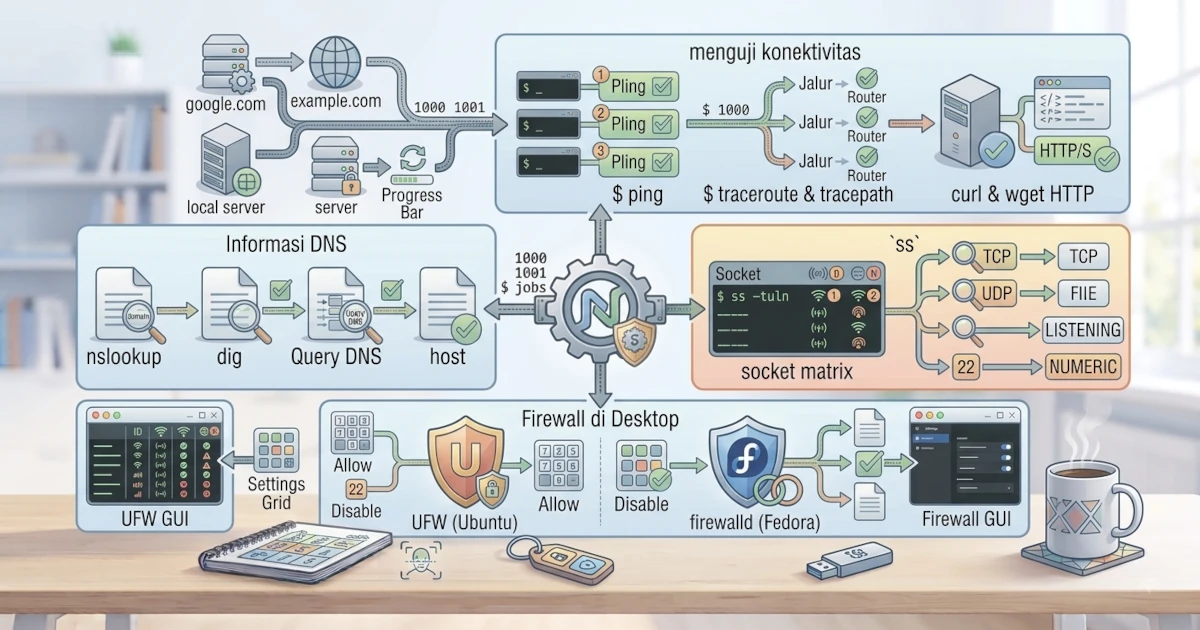
When internet connectivity encounters issues, the ability to diagnose the root cause is a highly valuable skill. Linux provides a variety of commands to test connectivity, check DNS, test web services, view active connections, and manage firewalls. This chapter equips us with basic network troubleshooting steps using these commands on Ubuntu 26.04 LTS and Fedora Workstation 44.
33.1 Systematic Approach: Bottom-Up
Instead of guessing, network troubleshooting is most effective when done step by step, from the layer closest to the hardware up to the farthest service on the internet. The following sequence serves as the framework we will use throughout this chapter.
- Check whether the network interface is active, using
ip linkornmcli device status(covered in Chapter 31). - Check whether the interface has the correct IP address and gateway, using
ip addrandip route. - Test basic connectivity to the local network and internet, using
pingandtracepath. - Check whether DNS resolution is working, using
dig,host, orresolvectl. - Test specific services such as web servers, using
curlorwget. - Finally, ensure the firewall is not blocking connections that should be allowed.
This framework saves troubleshooting time. As soon as the first step fails, there is no need to rush into checking DNS or the firewall right away.
33.2 Testing Connectivity
The first step in troubleshooting is to ensure the computer can reach other devices on the network or the internet.
33.2.1 ping: Test Reachability
The ping command sends small packets (ICMP echo request) to a destination address and waits for a response to test if the destination is reachable.
ping example.comThis command runs continuously until we press Ctrl+C. To send a specific number of packets, use the -c option.
ping -c 4 example.comIf we receive replies, basic connectivity is working. If there is no reply, the problem could lie with the connection, the destination, or the firewall. Keep in mind that some servers or networks intentionally block ICMP as a security policy, so the absence of a ping reply does not always mean the server is down. In such cases, proceed to test with curl or dig to be certain. In the field, this symptom often causes novice sysadmins to panic thinking the server is down, when in fact the server is intentionally configured to reject ICMP while its HTTP or SSH services continue to run normally.
33.2.2 traceroute / tracepath: Packet Path to Destination
To view the path packets take to a destination, use traceroute or tracepath.
tracepath example.comThis command displays every router the packet passes through. tracepath is available on almost all systems, whereas traceroute may need to be installed first via sudo apt install traceroute or sudo dnf install traceroute.
33.2.3 mtr: Combination of ping and traceroute
mtr (My Traceroute) combines the functionality of ping and traceroute into a single real-time updating display, showing latency and packet loss at every hop toward the destination. This tool needs to be installed first.
sudo apt install mtr-tiny   # Ubuntu
sudo dnf install mtr        # Fedora
Once installed, run it with:
mtr example.comThe mtr display continuously updates statistics until we press q to exit, making it extremely useful for diagnosing unstable or slow connections at specific hops.
33.3 DNS Information
Network problems are frequently caused by DNS resolution failures. Several commands help us inspect this. In practice, the most common symptom is a domain failing to open in a browser even though a ping to the target IP address succeeds, a clear sign that the issue lies in DNS resolution rather than the network itself.
33.3.1 nslookup and dig: DNS Queries
nslookup and dig are used to query DNS information for a domain.
nslookup example.comdig example.comdig displays more comprehensive information and is widely used for advanced diagnostics. If you only need the IP address without other details, use the +short option.
dig +short example.com33.3.2 host: Simple DNS Lookup
host is a concise command for retrieving basic DNS information.
host example.comThis command displays the IP address associated with a domain.
33.3.3 resolvectl: DNS via systemd-resolved
Both Ubuntu 26.04 LTS and Fedora Workstation 44 run systemd-resolved as their DNS resolver, as mentioned in Chapter 32 when discussing /etc/resolv.conf. The resolvectl command provides a direct way to check the status of this resolver without going through nslookup or dig.
resolvectl statusThis command displays the DNS servers currently in use per interface, including whether DNSSEC and DNS over TLS are active. To test domain resolution directly through systemd-resolved:
resolvectl query example.comIf resolvectl status shows no listed DNS servers, it is a strong indication that the connectivity issue experienced originates from domain name resolution, not the network infrastructure itself.
33.4 curl and wget: File Downloads and HTTP Testing
curl and wget are useful for downloading files as well as testing HTTP connections.
curl -I https://example.comThe -I option in curl fetches only the HTTP response headers, which is useful for verifying whether the web server is reachable and checking the returned HTTP status code (such as 200 OK or 404 Not Found). If you need to view the connection process in greater detail, add the -v (verbose) option.
curl -v https://example.comwget https://example.comwget downloads files from a given URL. Both tools help verify that the target web service is functioning.
33.5 ss: Viewing Active Sockets and Connections
ss is the replacement for netstat (an older tool from the net-tools package that is no longer installed by default) used to display active sockets and network connections on the system.
ss -tulnThe -t option displays TCP connections, -u displays UDP, -l displays listening sockets, and -n displays numerical values instead of service names. This command is useful for seeing which services are running and listening on specific ports. To determine which process (program) is using a port, add the -p option and run it with sudo.
sudo ss -tulnpThis command is also helpful when a service fails to start with an error message like address already in use. Run sudo ss -tulnp to identify the other process occupying that port before modifying the service configuration.
33.6 Desktop Firewalls
Firewalls control incoming and outgoing network traffic. Ubuntu and Fedora each use different firewall management tools.
33.6.1 UFW (Uncomplicated Firewall) on Ubuntu
Ubuntu provides UFW as a straightforward interface for managing the firewall. To check its status, use:
sudo ufw statusTo enable or disable the firewall, use enable and disable.
sudo ufw enablesudo ufw disableTo allow traffic on a specific port, such as SSH on port 22:
sudo ufw allow 2233.6.2 firewalld on Fedora
Fedora uses firewalld, which operates based on the concept of zones. To check its status:
sudo firewall-cmd --stateTo view rules in the active zone:
sudo firewall-cmd --list-allTo allow traffic on a specific port, such as SSH on port 22, use the --add-port option alongside --permanent so the rule persists after a reboot, then reload the configuration with --reload.
sudo firewall-cmd --add-port=22/tcp --permanent
sudo firewall-cmd --reload
Without the --permanent option, added rules apply only temporarily to the runtime configuration and will be lost after firewalld reloads or the system reboots. firewalld configuration can also be performed via a graphical interface using the Firewall application available in Settings.
A common pitfall in real-world scenarios is hastily blaming the firewall when the target service is not actually running or is not listening on the correct interface. Before adding rules in UFW or firewalld, first verify with sudo ss -tulnp that the service is indeed listening on the intended port.
33.6.3 Basic Configuration via GUI and Terminal
Both firewalls can be managed via the terminal as shown in the examples above. Additionally, Ubuntu offers GUFW, a graphical interface for UFW, while Fedora includes the Firewall app in Settings. For beginners, a graphical interface is easier, but understanding basic terminal commands provides complete control.
Network troubleshooting is a step-by-step process, ranging from testing connectivity and inspecting DNS to verifying services and checking firewalls. Through commands like ping, tracepath, mtr, dig, resolvectl, curl, and ss, we can systematically trace the source of issues layer by layer. Mastering these commands will build confidence in resolving daily network issues on Linux.