
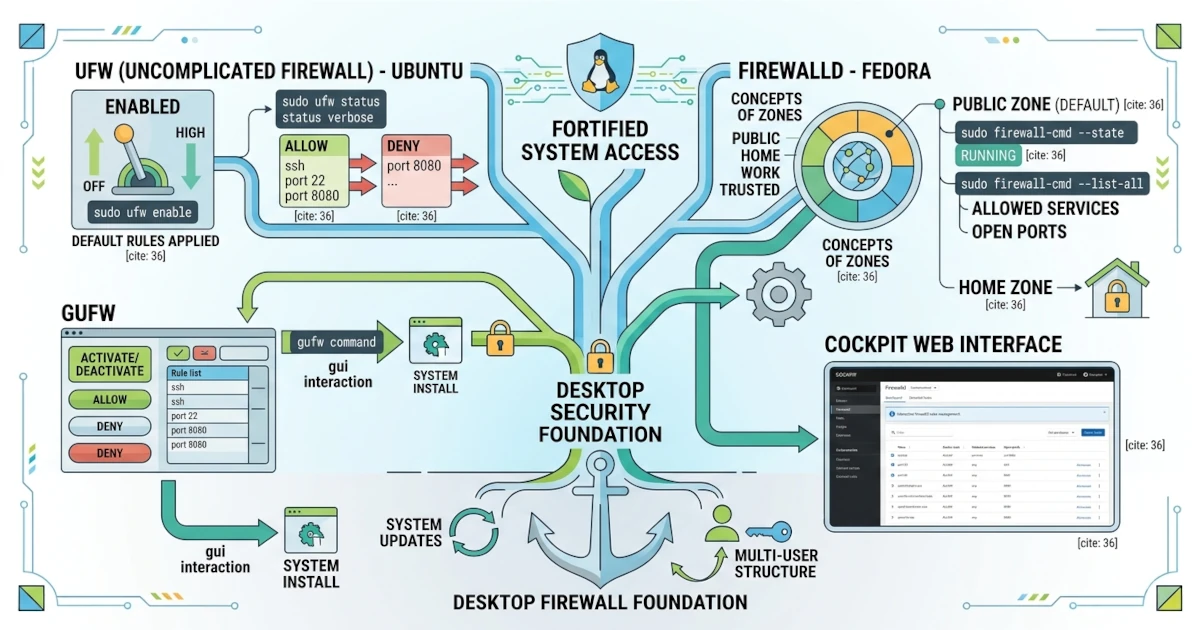
Firewall is a security layer that regulates network traffic entering and leaving our computer. Although the Linux desktop is relatively secure, properly enabling and managing a firewall still strengthens defenses, especially when connected to public networks such as cafe or airport Wi-Fi. In Chapter 33, we briefly touched upon ufw and firewall-cmd while discussing network troubleshooting. This chapter explores both in greater depth: UFW in Ubuntu and firewalld in Fedora, two built-in firewall tools that can be managed via the terminal or a graphical interface.
36.1 Why Is a Firewall Important on the Desktop?
A firewall works by filtering connections based on rules that we define. The firewall prevents unnecessary services from being exposed to the network, thereby reducing potential vulnerabilities that an attacker could exploit. On a desktop, most outgoing traffic is allowed to flow freely, while incoming traffic is restricted only to specific services that we explicitly authorize.
A common scenario encountered by Sysadmins in the field: a laptop connected to public Wi-Fi without an active firewall risks exposing services such as file sharing or SSH to other users on the same network. An active firewall with a default deny policy closes this gap without requiring complex configurations.
36.2 UFW (Uncomplicated Firewall): Ubuntu
Ubuntu 26.04 LTS includes UFW, short for Uncomplicated Firewall, which is designed to be easy to use. UFW provides simple commands for managing the firewall.
36.2.1 sudo ufw enable/disable
UFW is not enabled by default. Enable it using the following command.
sudo ufw enableOnce enabled, UFW immediately applies its default policy: denying all incoming connections (deny incoming) and allowing all outgoing connections (allow outgoing), and then runs automatically every time the computer boots up. To disable it again, use:
sudo ufw disable36.2.2 sudo ufw status
To view the firewall status along with its list of rules, use:
sudo ufw statusAdd the verbose option to display more detailed information, including the default policy line mentioned earlier.
sudo ufw status verboseThe output looks approximately as follows.
Status: active
Logging: on (low)
Default: deny (incoming), allow (outgoing), disabled (routed)
New profiles: skip

To                         Action      From
--                         ------      ----
22/tcp                     ALLOW IN    Anywhere
22/tcp (v6)                ALLOW IN    Anywhere (v6)
The Default line above confirms the policy described earlier, while the table at the bottom displays the additional rules we have created, in this example, a rule allowing SSH.
36.2.3 sudo ufw allow/deny
We can allow or deny connections to specific services using allow and deny, by specifying the service name or its port number.
sudo ufw allow sshThe command above allows connections to the SSH service, equivalent to allowing port 22. To block a port, use deny.
sudo ufw deny 8080This command denies all incoming connections to port 8080. By default, both allow and deny rules apply to both TCP and UDP protocols simultaneously. To restrict the rule to only one of them, add the protocol suffix, for example, sudo ufw allow 8080/tcp.
If a rule needs to be removed, first check its number using status numbered, then delete it based on that number instead of retyping the full rule.
sudo ufw status numberedsudo ufw delete 336.2.4 GUFW: UFW Graphical Interface
GUFW is suitable if you are more comfortable working with a graphical interface rather than typing commands one by one. Install it with sudo apt install gufw, then open the application from the application menu (usually listed as "Firewall Configuration"). GUFW provides buttons to enable or disable the firewall as well as panels to add and manage rules without typing commands.
36.3 firewalld: Fedora
Fedora Workstation 44 uses firewalld, a more flexible firewall manager that is active by default.
36.3.1 The Concept of Zones
firewalld manages rules through the concept of zones. A zone determines the trust level of the network to which the computer is connected. firewalld provides many built-in zones, ranging from the most restrictive like drop and block, to common ones like public, home, work, and trusted. It should be noted that the default zone automatically used in a Fedora Workstation installation is not public, but rather a dedicated zone named FedoraWorkstation. This zone is essentially similar to public, but it already allows several additional services commonly required on a desktop: SSH, device discovery via mDNS, and Samba client connections. We can check which zone is currently active using the following command.
sudo firewall-cmd --get-active-zones36.3.2 sudo firewall-cmd --state
To check whether firewalld is currently running, use:
sudo firewall-cmd --stateIf running, this command will output running.
36.3.3 sudo firewall-cmd --list-all
To view the active zone along with all of its rules, use:
sudo firewall-cmd --list-allThis command displays the zone currently in use, allowed services, and open ports. Note that by default, the above command displays the active runtime configuration. To view the stored permanent configuration that remains effective after a reboot, add the --permanent option.
sudo firewall-cmd --list-all --permanentFedora, like Ubuntu with GUFW, also provides a graphical interface for managing firewalld, namely the firewall-config package. Install it with sudo dnf install firewall-config, then launch it from the application menu under the name "Firewall". This application visually displays the list of zones, services, and ports, allowing you to add or remove rules without typing the firewall-cmd command.
36.3.4 Cockpit as a Web Interface (Optional)
Fedora offers Cockpit, a web-based interface for managing the system, including the firewall. Install and enable it using the following commands.
sudo dnf install cockpit
sudo systemctl enable --now cockpit.socket
Once active, open https://localhost:9090 in a browser on the same computer, or replace localhost with the IP address or hostname of the target machine if accessing it from another computer on the network. Through Cockpit, we can manage firewalld rules visually, which is quite helpful for Sysadmins who need to manage firewalls across multiple machines simultaneously from a single browser.
The firewall is a vital aspect of desktop security that is worth understanding early on. Through UFW on Ubuntu or firewalld on Fedora, we can easily control incoming connections to our computer while closing potential security gaps that could be exploited by an attacker on the same network. In the next chapter, we will move on to customization, starting from organizing the shell and terminal to make daily use more comfortable.