
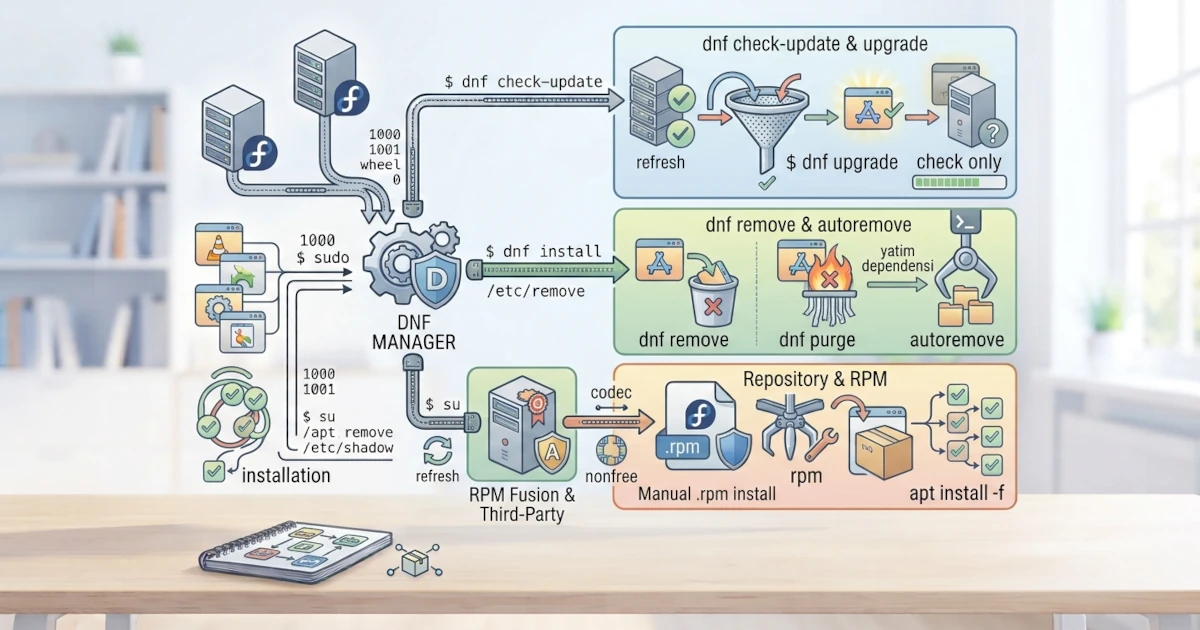
After learning APT for Ubuntu, it is now time for DNF (Dandified YUM), the package manager used by Fedora Workstation 44. DNF is the successor to YUM, offering faster performance and greater accuracy when resolving dependencies. Through DNF, we can easily install, update, search for, and remove packages from Fedora repositories. This chapter guides us through the basic operations of DNF, how to manage repositories, and how to manually install .rpm files.
Note that in Fedora Workstation 44, the dnf command we type is actually executed by a new engine called DNF5, a rewrite of DNF in C++ that replaces the older Python-based version (sometimes referred to as DNF4). This change has been in effect since Fedora 41, and starting with Fedora 44, even graphical applications like GNOME Software use this same engine. The good news is that almost all basic commands discussed in this chapter work exactly the same; there is only one small but important difference mentioned in the "List of Installed Packages" section.
26.1 Basic DNF Operations
Here are the most commonly used DNF operations.
26.1.1 Checking for Updates
To see which packages have available updates, use dnf check-update.
sudo dnf check-updateThis command only checks for updates without making any changes, allowing us to review the packages to be updated beforehand.
26.1.2 Updating the System
To update all installed packages to their latest versions, use dnf upgrade.
sudo dnf upgradeThis command updates all packages that have newer versions in the repositories, including handling any required dependency changes.
26.1.3 Installing Packages
Use dnf install to install a package along with all of its dependencies.
sudo dnf install vlcWe can install multiple packages at once by separating package names with spaces.
If the error message Error: Unable to find a match appears, it is usually caused by a typo in the package name or unsynchronized repository metadata. Double-check the spelling of the package name using dnf search, or refresh the repository metadata with sudo dnf clean all before trying again.
To verify that a package is properly installed, run rpm -q vlc. This command displays the full package name along with its version if installed, or the message package vlc is not installed if it is not.
26.1.4 Removing Packages
Use dnf remove to remove a package from the system.
sudo dnf remove vlcDNF will remove the package along with any dependencies no longer required by other packages.
26.1.5 Cleaning Up Dependencies
To clean up dependencies that are no longer used by any package, use dnf autoremove.
sudo dnf autoremoveDNF displays a list of packages to be removed before prompting for confirmation. Read through this list first, especially if old kernel images are present; by default, Fedora retains only a few of the latest kernels via the installonly_limit setting in dnf.conf.
26.1.6 Searching for Packages
To find packages based on keywords, use dnf search.
dnf search video playerThis command displays a list of packages whose names or descriptions match the entered keywords.
26.1.7 Viewing Package Details
Use dnf info to display the description, version, and other details of a package.
dnf info vlc26.1.8 List of Installed Packages
To view all packages installed on the system, use dnf list --installed.
dnf list --installedNote that the --installed option is written with two hyphens before the word "installed". This is one of the noticeable differences between DNF5 (used in Fedora Workstation 44) and legacy DNF: previously, writing dnf list installed without hyphens was sufficient. In DNF5, writing it without hyphens causes the command to be interpreted as a search for a package named "installed", returning empty results instead of the list of installed packages. Therefore, always make sure to include the double hyphen before installed.
Because this list can be very long, it is often combined with grep to filter the results, such as dnf list --installed | grep vlc.
26.2 Managing Repositories
DNF retrieves packages from repositories registered on the system. On Fedora, each repository is defined in a separate file.
26.2.1 .repo Files in /etc/yum.repos.d/
Fedora repositories are defined in files with the .repo extension stored in the /etc/yum.repos.d/ directory. Fedora main repositories are typically divided into several files, such as fedora.repo for official packages and fedora-updates.repo for updates. The format of these .repo files remains unchanged even though the underlying engine has transitioned to DNF5, so the explanations in this section fully apply.
We can view the list of active repositories using:
dnf repolistEach .repo file contains configuration parameters such as the name, base URL, and active/disabled status of the repository.
26.2.2 Enabling RPM Fusion (free and nonfree)
RPM Fusion is a third-party repository providing packages that Fedora does not ship due to licensing reasons, such as multimedia codecs and proprietary drivers. RPM Fusion is split into two sections: free for open-source software and nonfree for proprietary software.
To enable both, run:
sudo dnf install https://mirrors.rpmfusion.org/free/fedora/rpmfusion-free-release-$(rpm -E %fedora).noarch.rpm https://mirrors.rpmfusion.org/nonfree/fedora/rpmfusion-nonfree-release-$(rpm -E %fedora).noarch.rpmThe $(rpm -E %fedora) expression is automatically substituted with the running Fedora version number, ensuring that the installed RPM Fusion packages always match the system's Fedora release. Once the command completes, RPM Fusion free and nonfree are enabled and ready to use immediately.
Since Fedora 41, the Cisco H.264 codec (fedora-cisco-openh264) resides in a separate repository owned by Fedora that is disabled by default, independent of RPM Fusion. Enable it with the following command before installing codecs or plugins that require it, such as for H.264 video playback in VLC or WebRTC video calls in Firefox.
sudo dnf config-manager setopt fedora-cisco-openh264.enabled=126.3 Manually Installing .rpm Files with rpm
Software is sometimes distributed as .rpm files downloaded directly from developer websites. These files can be installed manually using the rpm tool.
sudo rpm -ivh paket.rpmThe -i option stands for install, -v displays verbose output, and -h shows a progress bar. However, rpm does not automatically resolve dependencies. If the installation fails due to missing dependencies, a better approach is to run DNF directly on the .rpm file.
sudo dnf install ./paket.rpmUsing this method, DNF automatically resolves dependencies from the Fedora repositories. The ./ prefix before the filename is essential so DNF interprets it as a local file path rather than a package name to search for in the repositories. Whenever possible, prioritize installing from official repositories over manual .rpm files because official repositories provide better security guarantees.
DNF is our main gateway for managing software in Fedora Workstation 44. Mastering dnf check-update, upgrade, install, remove, and autoremove covers most daily requirements. In the next chapter, we will explore Flatpak and Snap, universal formats that complement traditional package managers for installing modern desktop applications.