
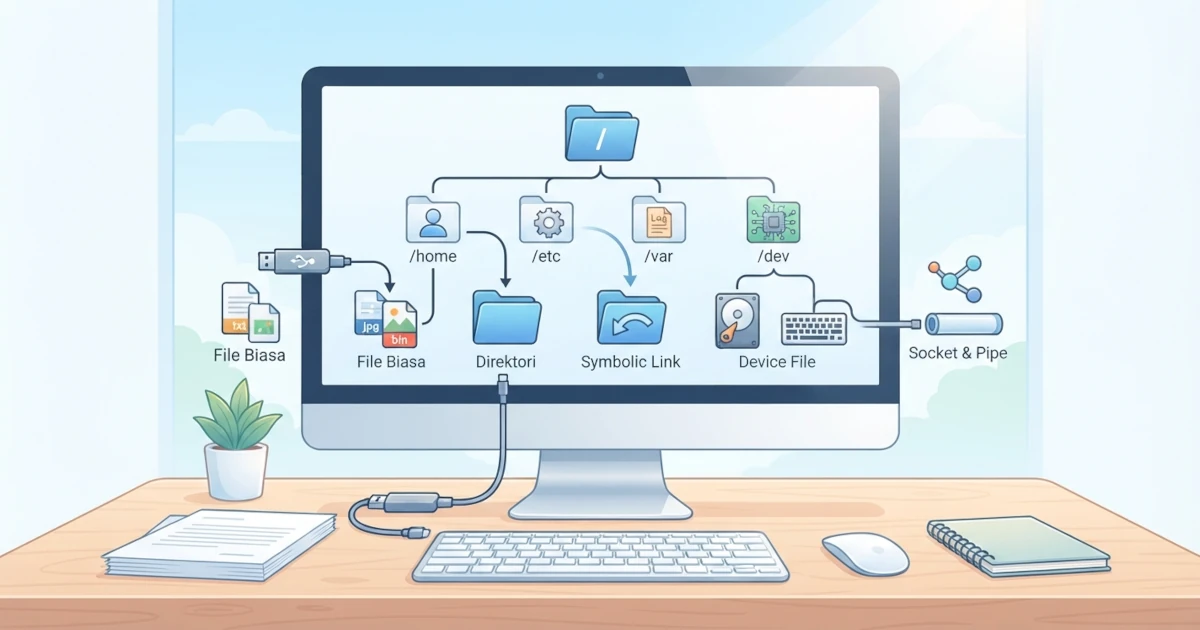
In the previous chapter, we explored default GNOME applications and how to install additional software. Now, we are entering a new section that will serve as an essential foundation for understanding how Linux operates as a whole: the filesystem. Before learning directory structures and how to manage files via the terminal, we need to understand the fundamental concepts of files and directories in Linux. This chapter explains the "everything is a file" philosophy, key differences between Linux and Windows filesystems, file naming rules, hidden files, file types, and the concept of inodes as file metadata. Understanding these concepts will make it easier to follow subsequent chapters.
11.1 Everything Is a File in Linux
One of the most fundamental design principles in Linux and Unix is the philosophy "everything is a file". This principle states that in a Linux system, almost everything that can be read or written by the system is represented as a file within the filesystem.
What is meant by "file" here goes beyond text documents, images, or videos. In Linux, the following objects are also treated as files:
- Regular data, such as documents, photos, programs, and configuration files.
- Directories, which are actually special types of files containing lists of other files or directories.
- Hardware devices, such as hard drives, keyboards, and terminals, which are represented as special files inside the
/devdirectory. - System and process information, such as kernel data and process statuses exposed through the virtual
/procand/sysdirectories. - Network connections and inter-process communication, such as sockets and pipes.
Because all objects are treated uniformly as files, programs can use the exact same operations: open, read, write, and close against any object. This design makes Linux simple, consistent, and modular: a utility designed to read text files can just as easily read data from another device or process.
For example, the command used to display file contents, cat, can be used to read standard files, but it can also read raw data directly from a specific hardware device. This uniformity is one of the core strengths of Linux architecture.
In practice, system administrators leverage this philosophy directly. For instance, laptop screen brightness can be adjusted without any graphical tools simply by writing a numerical value to a special file in /sys/class/backlight/ using a command like echo 50 | sudo tee /sys/class/backlight/*/brightness. There is no complex API to learn, as the underlying hardware is exposed as a standard writable file.
11.2 Linux vs Windows Filesystem Differences
For users accustomed to Windows, several key differences in how Linux handles files and directories must be understood. These distinctions are often a common source of confusion for beginners transitioning from Windows to Linux.
11.2.1 No Drive Letters (C:, D:)
In Windows, each partition or storage device is assigned a drive letter like C:, D:, or E:, each maintaining its own isolated directory structure. For example, C:\Users\Name\Documents and D:\Backup\Photos reside on two separate directory trees.
Linux does not use the concept of drive letters at all. Linux features a single unified directory tree rooted at the root directory, represented by a forward slash /. All partitions, hard drives, USB flash drives, and network storage locations are mounted into specific directories within this single hierarchy.
Therefore, instead of accessing a flash drive as E:\, it appears in Linux as a directory, such as /media/username/drive-name. The entire filesystem functions as one cohesive tree regardless of how many physical storage devices are attached. This mounting concept, known as mount, will be covered in detail in Chapter 13.
11.2.2 Case-Sensitivity
The Linux filesystem is case-sensitive, meaning uppercase and lowercase characters are distinct. As a result, Document.txt, document.txt, and DOCUMENT.TXT are three separate files that can co-exist within the same directory.
This contrasts with Windows, which is generally case-insensitive and treats those names as references to the same file. For new users, case-sensitivity requires precision when typing file names and commands, as capitalization errors will lead to file not found errors.
11.2.3 Allowed Characters in File Names
Linux offers significant flexibility in file naming, though certain rules apply:
- The only prohibited character in a filename is the forward slash
/, as it functions as a directory separator. The null character (byte value zero) is also forbidden. - Spaces are allowed, but require careful handling. A filename like
Meeting Notes.txtis technically valid, but typing it in a terminal requires quotes or escape characters so the shell does not interpret the space as an argument delimiter. - Periods (.) are allowed and do not hold special system significance like extensions in Windows. Extensions such as
.txt,.jpg, or.share simply naming conventions for human convenience rather than binding system rules. - Special characters such as
*,?,[,],!,",', and\should be avoided because they carry special meaning in shell environments and can lead to unexpected behavior.
As a best practice, many Linux users recommend using lowercase letters, numbers, underscores (_), and hyphens (-) when naming files, while avoiding spaces and special characters to simplify command-line management.
A frequent trap for system administrators is dealing with filenames that begin with a hyphen, such as -report.txt. Running rm -report.txt causes the shell to misinterpret the filename as command options because of the leading dash, resulting in confusing error messages. The solution is to use double dashes -- to signify the end of options, such as rm -- -report.txt, or specify a relative path like rm ./-report.txt.
11.3 Hidden Files (Dotfiles)
In Linux, a file or directory is considered hidden if its name begins with a period (.). These are commonly referred to as dotfiles, and by default, they are hidden from standard output in the ls command as well as graphical file managers like Files.
Dotfiles are primarily used to store user configurations and application state data. Common examples found in user home directories include:
.bashrc: Bash shell configuration..profile: Environment settings loaded at login..config: Directory containing configuration files for various applications..local: Application local data directory..ssh: Directory holding SSH keys for remote access..gitignore: File listing path patterns ignored by Git.
To list hidden files in the terminal, pass the -a option to the ls command, running ls -a. In graphical file managers, toggle hidden files through the application menu or using the keyboard shortcut Ctrl+H. These commands will be discussed further in Chapters 15 and 16.
11.4 Linux File Types
When executing the ls -l command, the first character of each line indicates the file type. Contrary to common assumptions, Linux files fall into several distinct types, and understanding them is essential for proper system administration.
11.4.1 Regular Files, Directories, and Symbolic Links
The three most frequently encountered file types are:
- Regular file, denoted by
-. This file type stores data, including text, images, videos, executables, or binary data. - Directory, denoted by
d. A directory is a special file that contains a mapping of filenames to corresponding inode numbers (detailed in the Inode section). - Symbolic link (also called symlink), denoted by
l. A symlink is a file pointing to another file or directory, similar to a Windows shortcut. Symlinks allow a single file to be referenced across multiple locations and names.
Symbolic links are created using the ln -s command, which will be covered in Chapter 16. Symlinks are useful for pointing to software library versions under generic names or creating shortcuts to deeply nested file paths.
It is important not to confuse symbolic links with hard links, a concept discussed later in this chapter. A symbolic link is an independent file with its own file type and inode (marked by l in ls -l), containing only the target file path. Therefore, a symlink becomes broken (a broken link) if its target file is moved or deleted. A hard link is not a separate file; it is an additional directory entry pointing directly to the existing target's inode, meaning it will remain valid as long as at least one link name remains.
11.4.2 Device Files, Sockets, and Pipes
Beyond these three main types, Linux utilizes special file types to represent system resources:
- Block device, denoted by
b, represents hardware devices that handle data in structured blocks, such as hard drives and SSDs. These entries reside in/dev, such as/dev/sda. - Character device, denoted by
c, represents devices that stream data character by character, such as keyboards and serial terminals, e.g.,/dev/tty. - Socket, denoted by
s, facilitates inter-process communication (IPC), including network connections. - Named pipe (or FIFO), denoted by
p, enables inter-process communication on a single machine, where data written to one end is read sequentially from the other.
These specialized file types reinforce the "everything is a file" philosophy: hardware devices and IPC mechanisms are uniformly exposed through standard filesystem interfaces.
| File Type | Character | Example |
|---|---|---|
| Regular file | - | documents, photos, executables |
| Directory | d | /home, /etc |
| Symbolic link | l | shortcut to another file |
| Block device | b | /dev/sda (hard drive) |
| Character device | c | /dev/tty (terminal) |
| Socket | s | communication endpoint |
| Named pipe (FIFO) | p | inter-process channel |
11.5 Inode: File Metadata
When a file is saved, the filesystem writes both its actual data contents and a set of administrative attributes. This metadata is stored inside a structured data object called an inode (index node).
An inode holds metadata about a file rather than its raw data payload. Attributes stored within an inode include:
- File type (regular file, directory, symlink, etc.).
- Permissions: access rights controlling read, write, and execute capabilities.
- Owner and group: ownership IDs for user and primary group.
- File size in bytes.
- Timestamps: last access time, last modification time, and last metadata change time.
- Link count: the total number of hard links pointing to the inode.
- Data block pointers: physical block locations on disk where file content resides.
An important detail to remember: filenames are not stored inside the inode. Filenames reside separately inside directory structures, which map string names to inode numbers. A directory is essentially a lookup table of filenames matched to inode numbers, while the inode contains metadata and pointers to the physical data blocks.
Every inode is identified by a unique integer number within its filesystem. File inode numbers can be viewed using ls -i, while comprehensive metadata (including permissions, owner, size, and all three timestamps) can be examined using the command stat filename. Decoupling filenames from inodes allows a file to have multiple names (via hard links) pointing to the same underlying inode, and permits renaming files instantaneously without modifying their data payload or metadata.
Understanding inodes clarifies why renaming files is an instant operation (updating only a directory entry) and why an open file can be unlinked without interrupting active reading processes.
A classic issue system administrators encounter is a No space left on device error message when df -h shows available disk capacity. The root cause is often inode exhaustion rather than lack of storage space, as filesystems allocate a fixed number of inodes upon creation. This situation typically occurs on servers hosting millions of small files, such as cached data or session stores. Inode utilization can be verified using df -i instead of df -h.
In this chapter, we covered the foundational concepts of Linux files and directories: the "everything is a file" philosophy, key structural differences between Linux and Windows filesystems regarding drive letters, case-sensitivity, naming constraints, hidden files, file types, and the role of inodes in managing metadata. These concepts form the bedrock for subsequent subjects.
In the next chapter, we will build upon this knowledge by analyzing the Linux directory layout in detail according to the Filesystem Hierarchy Standard (FHS), explaining the primary roles of key directories such as /home, /etc, and /var.