
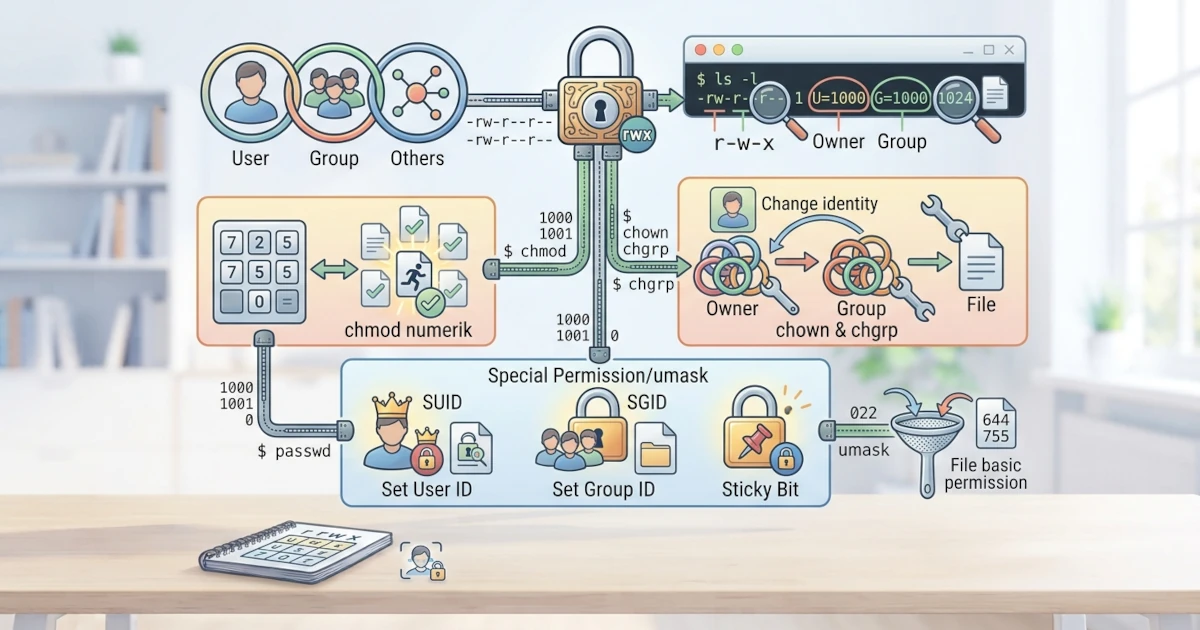
Every file and directory in Linux has an owner and access permission rules that determine who can read, modify, or execute them. This is one of the pillars of Linux security that distinguishes it from many other systems. After understanding users, groups, and sudo in the previous two chapters, we will now learn how to read ls -l output, change ownership using chown and chgrp, configure access permissions with chmod, understand default values via umask, and get to know special permissions such as SUID, SGID, and sticky bit.
It is worth noting that starting with Ubuntu 26.04 LTS, the core commands used in this chapter such as ls, chmod, chown, and chgrp are actually executed by a new implementation named uutils coreutils, which is a rewrite of GNU coreutils in Rust installed by default for better memory safety. This implementation is designed to be a full drop-in replacement for the original GNU version, so all commands and sample outputs in this chapter remain valid without changes in Ubuntu 26.04 LTS. Fedora Workstation 44 in this release still uses GNU coreutils as usual.
23.1 Reading ls -l Output
The easiest way to view the access permissions of a file is to run ls -l. Consider the following example.
ls -l catatan.txt
-rw-r--r-- 1 budi budi 1024 Jul 20 09:00 catatan.txt
The leftmost column, -rw-r--r--, is the core of this entire chapter. That column consists of ten characters that can be broken down into several parts.
23.1.1 File Types
The first character indicates the file type.
| Character | File Type |
|---|---|
- | Regular file |
d | Directory |
l | Symbolic link |
b | Block device |
c | Character device |
s | Socket |
p | Named pipe (FIFO) |
Specifically for symbolic links, we will always see the access permission lrwxrwxrwx on ls -l, regardless of the permissions we actually set on it. This is not an error: the Linux kernel explicitly ignores the access permissions on the symlink itself, and what actually applies are the access permissions of the file or directory it points to (the target).
23.1.2 Permission Bits: rwxrwxrwx
We can divide the next nine characters into three groups consisting of three characters each, which are for the owner, group, and others.
| Character | Meaning | On Files | On Directories |
|---|---|---|---|
r | Read | Read file content | List directory content |
w | Write | Modify file content | Add or remove directory content |
x | Execute | Execute file | Traverse into directory |
Therefore, -rw-r--r-- means the owner can read and write to this regular file, while group members and other users can only read it. This pattern is the most common pattern for private files.
23.2 Changing Ownership
File ownership includes the owner and the group. We use the following two commands to change them.
23.2.1 chown: Changing Owner
The chown (change owner) command changes the file owner, and can simultaneously change its group.
sudo chown budi catatan.txt
sudo chown budi:developer catatan.txt
sudo chown -R budi /home/budi
The -R option is useful for recursively changing ownership across all contents of a directory. Changing the owner generally requires sudo because only root can perform it. In the field, sysadmins always verify that the target path is correct before running chown -R or chmod -R on large directories, as target errors can change the ownership or permissions of thousands of files at once and are difficult to recover without backups.
23.2.2 chgrp: Changing Group
The chgrp (change group) command changes the file owner group. Regular users can use this command as long as they are members of the target group.
chgrp developer catatan.txt23.3 Changing Permissions
The chmod (change mode) command changes access permissions of a file or directory. There are two notation methods: the numeric (octal) method and the symbolic method.
23.3.1 Numeric Method (Octal)
In this method, each permission has a specific numeric value that we sum up to form the permission code.
| Permission | Value |
|---|---|
r (read) | 4 |
w (write) | 2 |
x (execute) | 1 |
| No permission | 0 |
Three digits represent the owner, group, and others sequentially. The most common examples are 755 and 644.
chmod 755 skrip.sh
chmod 644 catatan.txt
chmod -R 755 /path/direktori
A value of 755 means the owner gets read, write, and execute permissions (4+2+1), while group and others only get read and execute (4+1). A value of 644 means the owner gets read and write, while group and others only get read access. Just like chown, the -R option in chmod is useful for recursively changing access permissions for the entire contents of a directory.
23.3.2 Symbolic Method
The symbolic method is easier to understand because we explicitly specify the target entity and the permissions to change.
| Symbol | Meaning |
|---|---|
u | Owner (user) |
g | Group |
o | Others |
a | All |
+ | Add permission |
- | Remove permission |
= | Set permission |
chmod u+x skrip.sh
chmod go-w catatan.txt
chmod a+r dokumen.txt
The first command adds execute permission for the owner, the second command removes write permission for group and others, while the third command adds read permission for all parties.
23.4 Default Permission: umask
When we create a new file or directory, the system sets default permissions automatically. umask controls this default value, which is a value that subtracts from the base permissions. Run umask to view its value.
umaskA common umask value is 022. This means the base permission for files (666) is reduced by 022 to 644, while the base permission for directories (777) is reduced by 022 to 755. Technically, the actual operation that occurs is not simple subtraction, but a bitwise operation that strips permission bits according to the umask mask; however, for common umask values like 022, the result is identical to simple subtraction. We can temporarily change this value by running umask 077, or permanently by putting it in a shell configuration file like ~/.bashrc. In the field, sysadmins often set umask 077 on servers storing sensitive data, so new files created by anyone on that server cannot be read by other users by default.
23.5 Special Permissions
In addition to the three basic permission groups, there are three special permissions with distinct functions.
23.5.1 SUID (Set User ID)
SUID (Set User ID) is applied to executable files and makes the program run with the permissions of the file owner, rather than the permissions of the executing user. A classic example is the passwd command, which requires access to the /etc/shadow file. Thanks to SUID, regular users can change their own passwords without being granted direct access to that file. SUID uses the value 4, which we prepend to other permission values, such as 4755.
chmod u+s program
chmod 4755 program
In the field, sysadmins must be careful when granting SUID to custom scripts or binaries, because if the file has security vulnerabilities, an attacker could exploit it to gain root privileges.
23.5.2 SGID (Set Group ID)
SGID (Set Group ID) has two roles. On executable files, SGID makes the program run with the permissions of the file owner group. On directories, SGID ensures that new files created inside automatically inherit the group of that directory. SGID uses the value 2, such as 2755.
chmod g+s /path/direktori
chmod 2755 /path/direktori
In the field, SGID on directories is extremely useful for shared team project folders, as every new file created by team members automatically inherits the directory group without requiring manual chgrp execution each time.
23.5.3 Sticky Bit
Sticky bit is applied to shared directories, such as /tmp. Thanks to the sticky bit, any user can place files in that directory, but only the file owner (or root) is allowed to delete or rename them. Sticky bit uses the value 1, so the /tmp directory has permissions of 1777.
chmod +t /path/direktori
chmod 1777 /path/direktori
23.6 Verification and Troubleshooting
After changing ownership or permissions, the simplest step to verify that the change succeeded is to re-run ls -l on the affected file or directory.
chmod 750 skrip.sh
ls -l skrip.sh
-rwxr-x--- 1 budi budi 512 Jul 20 09:00 skrip.sh
Compare the permission and ownership columns in the output with what you want to achieve. To view permission details in octal and symbolic formats in a single command, use stat.
stat skrip.shSeveral common issues are often encountered when working with file permissions and ownership.
- Permission denied when accessing a directory. This message usually appears because the directory lacks execute permissions (
x), not due to a lack of read permissions (r). As explained at the start of this chapter, on directoriesxrepresents permission to enter, so a directory withoutxcannot be traversed even if it hasrpermissions. chmod 777as a shortcut. In the field, many beginners are tempted to runchmod 777whenever encountering permission errors, without investigating the root cause. This habit grants read, write, and execute permissions to anyone, including other users on the same system, so it should be avoided, especially on servers or multi-user systems. First identify which party (owner, group, or others) actually lacks permission, then grant the minimum necessary permissions following the principle of least privilege.- Operation not permitted during
chown. This message appears if we runchownwithoutsudo. Only root can transfer file ownership to another user, even if we are the owner of that file.
Access permissions and file ownership are the foundation of Linux security that we will continue to use, both as desktop users and later when managing servers. Having understood ls -l, chown, chgrp, chmod, umask, as well as the special permissions SUID, SGID, and sticky bit, we have mastered one of the most fundamental concepts in Linux system administration. The next chapter will lead us to an equally important topic: managing software using package managers.