
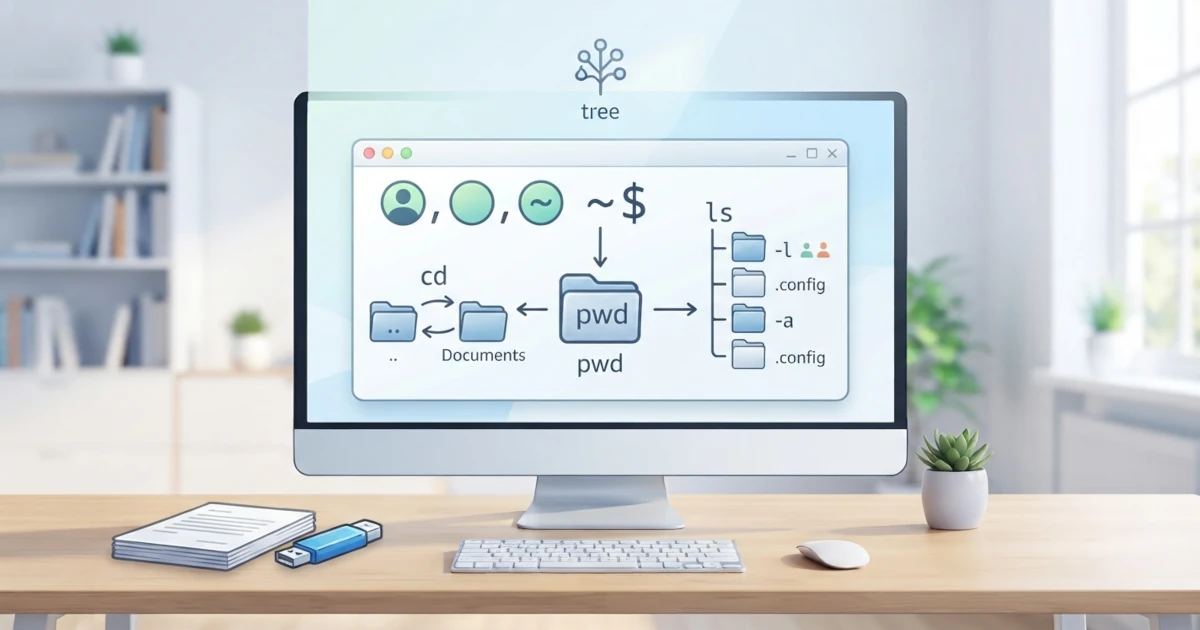
In the previous chapter, we introduced the terminal, the shell, and the basic structure of Linux commands. Now it is time to put that knowledge into practice. This chapter covers the three most fundamental commands for navigating the filesystem from the terminal: pwd to check our current location, ls to view directory contents, and cd to change directories. We will also learn the difference between absolute paths and relative paths, the meaning of the . and .. symbols, and the tree command for visually displaying directory structures. Mastering this navigation is essential preparation before moving on to more complex commands.
15.1 pwd: Print Working Directory
When working in the terminal, we are always located in a specific directory. This directory is called the current working directory. All relative paths we type are resolved from this location, so it is important to always know where we currently are.
The pwd command (short for print working directory) displays the full path of our current directory. Run this command:
pwdIf you have just opened the terminal, the output will likely be your home directory, for example /home/username. Using pwd, you will never get lost while exploring the Linux directory tree.
15.2 ls: List Directory Contents
ls (short for list) is the command used to display the contents of a directory. Without any additional arguments, ls lists the contents of the current working directory:
lsThis command shows a simple list of file and subdirectory names. However, ls becomes much more useful when combined with options. The three most commonly used options are:
15.2.1 ls -l: Long Format
The -l (long) option displays detailed information for each file and directory, such as permissions, ownership, file size, and modification timestamp:
ls -lThe output provides one line per entry, for example drwxr-xr-x 2 username username 4096 Jan 1 09:00 Documents. Briefly, the column order is: file type and permissions, number of hard links, owner, group, size in bytes, last modification date, and the file or directory name. Complete details regarding permission bits (rwx) will be covered in depth in Chapter 23 (File Permissions and Ownership).
15.2.2 ls -a: Display Hidden Files
By default, ls does not display hidden files, which are files starting with a dot (dotfiles). The -a (all) option lists all entries, including hidden files:
ls -aAfter running this command, you will see entries such as .bashrc and .config that were previously invisible.
15.2.3 ls -lh: Human-Readable Sizes
The -h (human-readable) option formats file sizes into readable units such as KB, MB, or GB. This option is typically combined with -l:
ls -lhYou can also combine multiple options at once, such as ls -la to list all files, including hidden ones, in long format. The ls command also accepts directory names as arguments, such as ls /etc to list the contents of the /etc directory.
15.2.4 Colorized Output in ls
Both Ubuntu 26.04 LTS and Fedora Workstation 44 enable automatic colored output for ls by default (via the --color=auto option configured in the default shell settings). Colors help identify entry types at a glance without needing to run ls -l:
- Blue: Directories.
- White or default text color: Regular files.
- Green: Executable files.
- Cyan: Symbolic links.
- Yellow with black background (depending on terminal color scheme): Device files in
/dev.
The exact color scheme may vary slightly depending on your terminal theme and dircolors configuration, but the underlying pattern remains consistent across distributions. If you want to disable colors, such as when piping the output of ls into another command, use ls --color=never.
15.3 cd: Change Directory
cd (short for change directory) is the command used to navigate between directories. Usage is simple: type cd followed by the target path:
cd /home/username/DocumentsAfter executing this command, your current working directory changes to /home/username/Documents. You can verify this by running pwd.
15.3.1 Absolute Paths vs. Relative Paths
When specifying a target directory with cd, you can use either an absolute path or a relative path.
An absolute path is specified fully from the root directory /, such as /home/username/Documents. Absolute paths always start with a slash and point to the exact same location regardless of your current directory.
A relative path is calculated relative to your current working directory. If you are currently in /home/username and want to move to /home/username/Documents, simply type:
cd DocumentsThis command translates to "move into the Documents directory located within the current working directory." Relative paths are shorter to type, but they depend entirely on your current location.
15.3.2 . and ..: Special Directories
Two special entries exist within every directory and are essential for navigation:
.(single dot) refers to the current directory. Typingcd .does not change your location because you are switching to the directory you are already in...(double dot) refers to the parent directory, one level above the current directory.
To move up one directory level, use:
cd ..You can chain these symbols to move up multiple levels at once, for example cd ../.. to move up two levels. This concept makes it easy to move up and down the directory tree without typing full paths.
15.3.3 cd ~ and cd -
In addition to . and .., two additional shortcuts are useful:
cd ~takes you directly to your home directory. The tilde symbol~represents your home directory path, makingcd ~equivalent tocd /home/username. Runningcdwithout arguments also returns you to your home directory.cd -returns you to the previous working directory. This is useful when toggling back and forth between two directories.
cd ~
cd -
By combining cd ~, cd -, cd .., absolute paths, and relative paths, you can quickly navigate anywhere in the filesystem.
15.3.4 Handling Directory Names with Spaces
As mentioned in Chapter 11, file and directory names in Linux can contain spaces, such as Team Meeting. However, the shell treats spaces as argument delimiters. Typing cd Team Meeting passes two separate arguments to the command, resulting in an error. You can handle spaces in paths using two common methods:
- Using quotes, such as
cd "Team Meeting"orcd 'Team Meeting'. - Using an escape character
\before each space, such ascd Team\ Meeting.
The easiest way to avoid space formatting issues is to type the beginning of the directory name and press Tab to trigger auto-completion (covered in Chapter 14). The shell will automatically escape spaces for you.
15.4 tree: Displaying Directory Structure
The ls command only displays the contents of a single directory at a time. To view a directory tree along with all its nested subdirectories, use the tree command:
treeThis command outputs the structure of the current directory as a visual tree diagram, including all subdirectories and files. tree provides an overview of directory hierarchies at a glance.
Note that tree may not be pre-installed by default on Ubuntu or Fedora systems. If the command is not found, install it using your system package manager:
sudo apt install tree        # on Ubuntu
sudo dnf install tree        # on Fedora
Once installed, useful options for daily workflow include:
tree -L 2: Restricts display depth to 2 levels, preventing excessive output in large directories.tree -d: Displays directories only, hiding files. Ideal for inspecting structural layouts.tree -a: Includes hidden files and dotdirectories in the output, similar tols -a.
Avoid running tree in your home directory without depth limits, as configuration folders like .config and .cache often contain thousands of files, causing verbose and unreadable output. Using tree -L 2 is generally sufficient for most use cases.
15.5 Command Summary
The following table summarizes the key navigation commands and options covered in this chapter for quick reference:
| Command | Function |
|---|---|
pwd | Displays the current working directory |
ls | Lists contents of the current directory |
ls -l | Lists contents in long format (permissions, owner, size, date) |
ls -a | Lists all entries, including hidden files |
ls -lh | Long format with human-readable file sizes (KB/MB/GB) |
cd <path> | Navigates to specified directory (absolute or relative path) |
cd .. | Moves up one level to parent directory |
cd ~ | Returns to current user home directory |
cd - | Switches back to the previous directory |
tree | Displays directory hierarchy as a tree diagram |
In this chapter, we covered the core commands for navigating the Linux filesystem: pwd for checking our active directory, ls alongside its options -l, -a, and -lh for listing contents, and cd for switching directories. We also explored absolute vs. relative paths, the . and .. syntax, shortcuts like cd ~ and cd -, escaping spaced directory names, and visualizing directory trees using tree.
In the next chapter, we will expand on these skills by learning how to create, copy, move, and remove files and directories using commands such as touch, mkdir, cp, mv, and rm.