
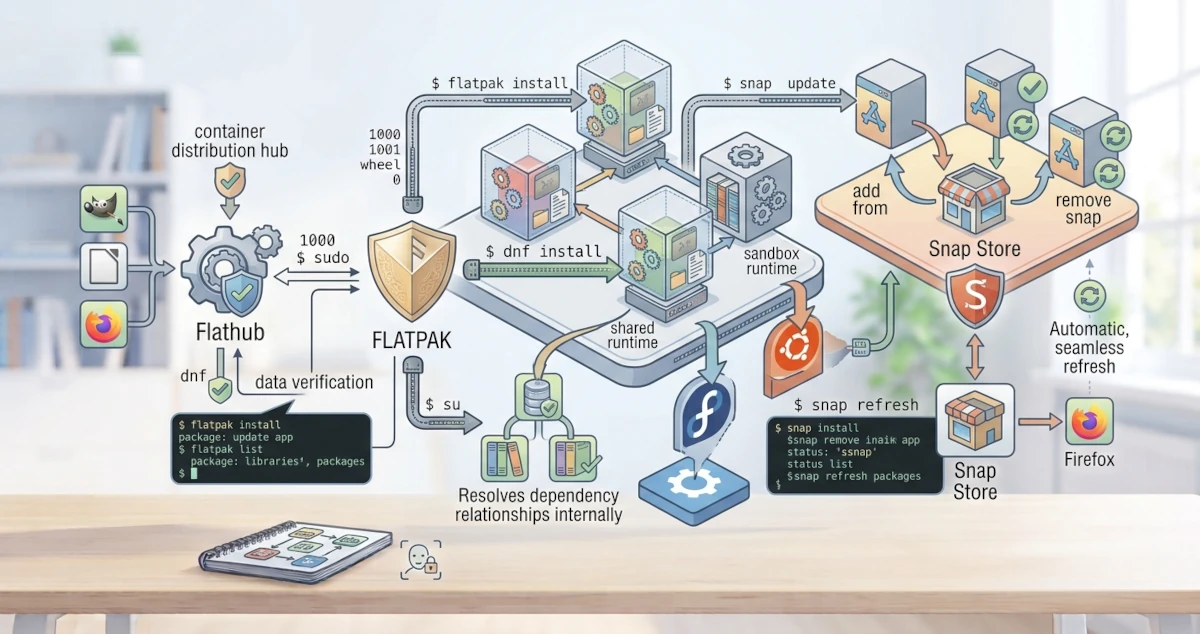
Besides APT and DNF which manage classic packages, the Linux world now has a modern approach to installing desktop applications: Flatpak and Snap. Both are universal formats that bundle an application along with all of its dependencies into a single isolated package, allowing it to run on almost any distribution. This chapter explains the concept of Flatpak, its advantages and disadvantages, the use of Flathub, and an introduction to Snap, which is a staple in Ubuntu.
27.1 What Are Flatpak and Software Containers?
Flatpak is a desktop application distribution system that uses a container approach. This means each application is packaged together with all its dependencies and runtime in a single unit that runs separately from the main system. A runtime is a set of basic libraries needed by many applications, and multiple applications can share the same runtime.
Because Flatpak applications bring their own dependencies, they do not rely on the library versions available in the distribution you are using. The same single package can be run on Ubuntu, Fedora, and other distributions without needing to be recompiled.
27.2 Advantages and Disadvantages of Flatpak
Flatpak offers a number of advantages, but it also comes with consequences that need to be understood.
Advantages:
- Universal. A single package runs on various Linux distributions.
- Isolated. Applications run inside a sandbox, keeping their system access more restricted and more secure.
- Latest Versions. Developers can release updates without waiting for distributions to update their repositories.
- Stable. Applications are not easily broken by changes to system libraries.
Disadvantages:
- Larger Size. Each application brings its runtime and dependencies, consuming more storage space.
- Theme Integration. Application appearance does not always match the desktop theme perfectly.
- Slower Startup. Applications can feel slightly slower when opened for the first time.
27.3 Flathub: The Largest Flatpak Repository
Flathub is the main repository where Flatpak applications are distributed. Almost all popular desktop applications, from LibreOffice and GIMP to Firefox, are available on Flathub.
On Fedora Workstation 44, Flathub is active by default as long as you accept the Third-Party Repositories option offered during the initial installation (or via a notification when opening the Software app for the first time). Starting from Fedora 38, the Flathub remote enabled through this option is no longer filtered (no hidden apps), giving you full access to Flathub. If this option was skipped during installation, it can still be enabled at any time via the terminal.
On Ubuntu 26.04 LTS, you need to enable it first by installing Flatpak and then adding Flathub as a remote.
sudo apt install flatpakflatpak remote-add --if-not-exists flathub https://dl.flathub.org/repo/flathub.flatpakrepoMake sure Flathub was successfully added by checking the list of remotes registered on the system.
flatpak remote-listIf Flathub appears in the list, the repository is ready to be used to install applications. It should be noted that Flatpak applications installed via the terminal will not automatically appear in App Center, the default software store application in Ubuntu 26.04 LTS, because App Center is specifically designed to manage Snap and .deb packages only, without Flatpak support. If you want to manage Flatpak applications through a graphical interface in Ubuntu, install gnome-software-plugin-flatpak so that the GNOME Software application (separate from App Center) can display and manage your Flatpak applications.
27.4 Using Flatpak
Here are the most frequently used Flatpak commands.
27.4.1 Installing Applications
Use flatpak install followed by the repository name and application ID.
flatpak install flathub org.videolan.VLCEvery Flatpak application has a unique ID, for example, org.videolan.VLC for VLC and org.gimp.GIMP for GIMP.
27.4.2 Updating Applications
To update all installed Flatpak applications, use flatpak update.
flatpak update27.4.3 Removing Applications
Use flatpak uninstall followed by the application ID to remove it.
flatpak uninstall org.videolan.VLC27.4.4 List Installed Applications
To view installed Flatpak applications, use flatpak list.
flatpak list27.4.5 Verification and Troubleshooting
After installation, run flatpak list to ensure the application is properly recorded as installed. You can also run the application directly from the terminal using its ID to verify that it opens normally.
flatpak run org.videolan.VLCSome common issues encountered in practice when using Flatpak:
- Error message
error: No remote refs found similar to 'flathub'. This message appears when the Flathub remote has not been added yet, causing Flatpak to treat "flathub" as a search term that was not found. Add the remote first usingflatpak remote-addas shown in the previous step. - Application ID not found. Check the correct spelling of the ID using
flatpak search <application_name>before installing. - Application cannot access files outside the Home directory. This is part of Flatpak's sandbox mechanism, not a bug. Install Flatseal from Flathub to review and adjust each application's permissions as needed.
27.5 Snap (Ubuntu specific)
Snap is a software distribution format developed by Canonical, the company behind Ubuntu. The concept is similar to Flatpak: bundling an application along with its dependencies into a single package, but with a centralized distribution and update system via the Snap Store. The Snap Store plays a role similar to Flathub for Flatpak, serving as a central catalog where publishers upload snaps and users search for them, both via the command line and through the snapcraft.io/store website. On Ubuntu, several applications like Firefox are already distributed by default as Snaps; even the firefox package in the official APT repository is now just an empty transition package that automatically redirects installation to the Snap version.
27.5.1 Installing Applications
Use snap install to install applications from the Snap Store.
sudo snap install vlc27.5.2 Removing Applications
Use snap remove to remove an application.
sudo snap remove vlc27.5.3 Updating Applications
Use snap refresh to update all Snap applications.
sudo snap refreshSnaps are generally updated automatically in the background, but you can still run the command above to check for updates manually.
27.5.4 Verification and Troubleshooting
After installation, run snap list to ensure the application is recorded along with its version and revision.
snap listSome common issues encountered in practice when using Snap:
- Error message regarding classic confinement. Several snaps, especially development tools like
code(VS Code), require full access to the system outside the standard sandbox. Snap rejects this with the messageerror: This revision of snap "code" was published using classic confinement.... Add the--classicflag during installation, such assudo snap install code --classic. - Application does not run as expected. Check the application logs with
snap logs <snap_name>to view error messages from the underlying service.
Flatpak and Snap complement APT and DNF as modern ways to install desktop applications. Through both, we can obtain the latest application versions without worrying about breaking the base system. In the next chapter, we will transition to the topic of processes, learning how programs run on Linux and how to manage them.