
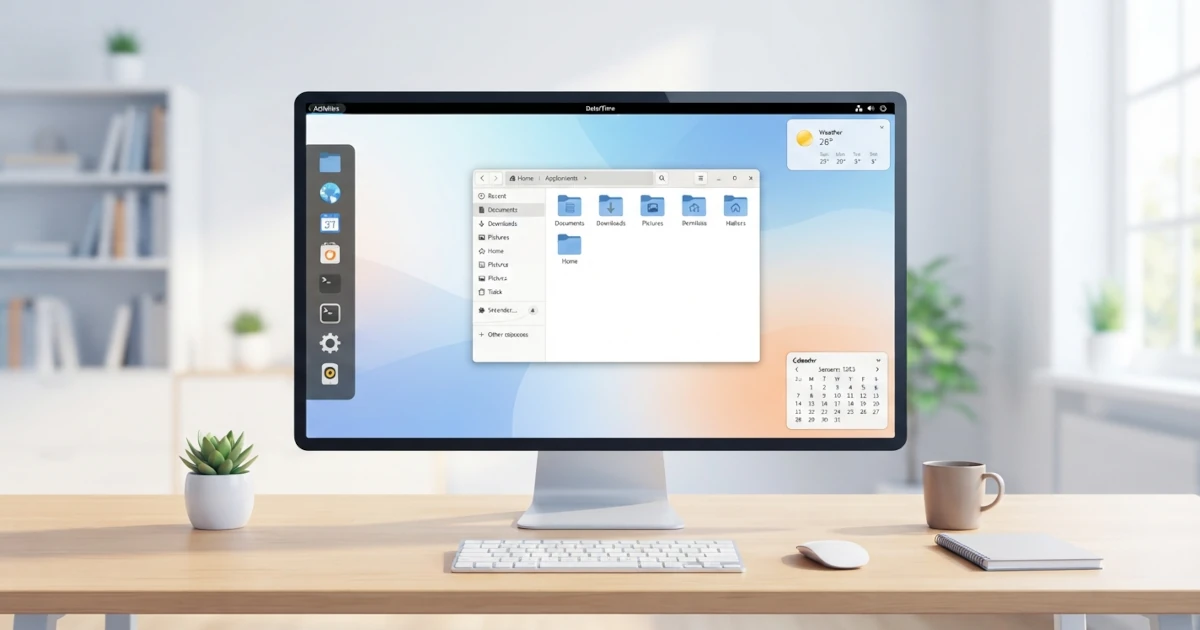
After successfully installing Ubuntu 26.04 LTS and Fedora Workstation 44 in the previous two chapters, we have now reached the most exciting part of this journey, which is getting to know the Linux desktop we will use every day firsthand. Both distributions share one important similarity, which is that both use GNOME as their default desktop environment. This chapter will help us understand what a desktop environment is, why GNOME is the choice for Ubuntu and Fedora, and how to explore and operate its interface. In the final section, we will also see how GNOME looks different in Ubuntu and Fedora despite being essentially the same environment.
8.1 What is a Desktop Environment?
When we turn on a computer and see a graphical interface containing windows, icons, panels, and menus, what we actually see is not the operating system itself, but a software layer called a desktop environment (DE). Simply put, a desktop environment is a collection of programs working together to provide a complete graphical interface, allowing users to operate the computer without having to type commands in a terminal.
A complete desktop environment generally consists of several complementary components:
| Component | Function |
|---|---|
| Window manager | Manages the opening, placement, moving, and closing of application windows |
| Panel and dock | Bars containing menus, system indicators, and application launchers |
| App launcher | Displays and launches installed applications |
| System settings | Settings center for changing system configurations |
| File manager | Manages files and directories graphically |
| Default applications | Text editor, terminal, image viewer, and others |
It is important to understand that a desktop environment is different from just a window manager. A window manager is merely a single component that manages windows, whereas a desktop environment is a complete package that includes a window manager along with all its supporting applications and utilities. This is what distinguishes GNOME or KDE Plasma from minimalist window managers like Openbox or i3.
One of the main strengths of Linux is the freedom of choice. Unlike Windows or macOS, which offer only one official interface, Linux has many desktop environments to choose from based on personal preference and needs. Some popular ones include:
- GNOME: A modern desktop environment with a simple design focused on productivity.
- KDE Plasma: Highly feature-rich and easy to customize.
- Xfce: Lightweight and suitable for computers with limited resources.
- Cinnamon and MATE: An experience similar to traditional Windows desktops or classic GNOME.
- LXQt: Lightweight and resource-efficient.
Among them all, GNOME is the most widely used default by major distributions, including Ubuntu and Fedora. This chapter will focus entirely on GNOME because it is the desktop environment we will use throughout this series.
8.2 Why Do Ubuntu and Fedora Use GNOME?
GNOME was not chosen randomly by Ubuntu and Fedora. There are several reasons why both made GNOME their default interface.
A simple and productive design philosophy. GNOME is designed around the principle of reducing distractions (distraction-free). There are no desktop icons, layered menus, or stacked panels cluttering the screen. Instead, GNOME hides most of its interface and displays it only when needed through the Activities Overview. The goal is to keep users focused on one task at a time and then switch quickly using workspaces.
A mature and fully supported project. GNOME is developed by the GNOME Project under the umbrella of the GNOME Foundation, a non-profit organization funded by various technology companies and community donations. GNOME has a regular release cycle, comprehensive documentation, and a strong focus on accessibility for users with special needs. All of this makes GNOME a stable and reliable choice for major distributions.
Adoption of modern technologies. GNOME is a pioneer in adopting Wayland, a modern display server protocol replacing X11. Starting with GNOME 50, X11 sessions have been completely removed from GNOME Shell, meaning GNOME sessions now run exclusively on Wayland, although individual applications that still rely on X11 can run via the XWayland compatibility layer. GNOME also supports touchpad gestures, and starting in GNOME 50, fractional scaling and variable refresh rate (VRR) are enabled by default without needing manual activation through experimental settings. For Ubuntu and Fedora, which aim to deliver the latest technologies to their users, GNOME is the right partner.
However, the paths Ubuntu and Fedora took toward GNOME were not identical.
Fedora has used GNOME as its default desktop environment since Fedora 15 in 2011, when GNOME 3 was first released. Fedora is known for always shipping GNOME in a "vanilla" state, almost completely unmodified from the upstream version, and is often the first major distribution to deliver the latest GNOME release. The close relationship between the Fedora Project and the GNOME community makes Fedora the best way to experience GNOME in its purest form.
Ubuntu, on the other hand, has a more winding history. For many years, Ubuntu used its own interface called Unity. In 2017, specifically with Ubuntu 17.10, Canonical decided to drop Unity and return to GNOME. However, instead of using pure GNOME, Ubuntu presented GNOME customized to Ubuntu's taste using several built-in extensions, such as Ubuntu Dock and AppIndicator, so its appearance remained familiar to long-time Ubuntu users. This approach will be discussed in more detail at the end of this chapter.
Both Ubuntu 26.04 LTS and Fedora Workstation 44 ship with GNOME 50, the GNOME release codenamed "Tokyo".
8.3 Getting to Know the GNOME Interface
When first logging into the GNOME desktop, we might be surprised to see how "empty" the screen appears. There is only a thin bar at the top and a background wallpaper, no desktop icons, no Start button, and no permanent dock (especially in Fedora). This is the result of GNOME's philosophy of minimizing distractions. All essential functions are actually centralized in one place called the Activities Overview.
To understand GNOME, we need to know its four main elements: Activities Overview, Top Bar, Dash, and Workspace.
8.3.1 Activities Overview: Super Key
The Activities Overview is the heart of GNOME. From here, we initiate almost all activities: searching for and opening applications, viewing all open windows, and switching between workspaces.
To open it, we can:
- Press the Super key on the keyboard, which is the key with the Windows logo on most PC keyboards or the Command key (⌘) on Apple keyboards. In Linux terminology, this key is referred to as the Super key or Meta key.
- Click the Activities label in the top-left corner of the Top Bar.
- Swipe up with three fingers on the touchpad (if using a laptop).
When open, the Activities Overview displays four areas at once:
- Search bar at the top to search for applications, files, settings, and even simple calculations.
- Window overview in the middle, displaying all currently open windows on the active workspace as thumbnails.
- Dash at the bottom (or on the left side, depending on configuration) containing favorite applications and running applications.
- Workspace switcher on the right side, showing a list of available workspaces.
We can exit the Activities Overview at any time by pressing the Esc key or pressing Super once more.
8.3.2 Top Bar and System Status Area
The Top Bar is a thin bar stretching across the top of the screen. Although simple, this bar holds important information and controls:
- Far left: Activities button. When an application is in focus, its name along with its menu will appear next to the Activities button.
- Middle section: Date and time. Clicking it opens a monthly calendar along with a notification list.
- Far right (system status area): A collection of icons showing system status, such as network connections, volume, battery power, and the power button. Clicking this area opens the Quick Settings panel containing toggles for Wi-Fi, Bluetooth, dark mode, brightness and volume controls, as well as buttons to lock, log out, and restart.
Unlike the Windows system tray located in the bottom-right corner, all of GNOME's status icons and quick settings are centralized in this top bar.
8.3.3 Dash (App Launcher)
The Dash is GNOME's application launcher. In pure GNOME (such as in Fedora), the Dash only appears when opening the Activities Overview, usually at the bottom of the screen. The Dash displays a row of icons consisting of:
- Favorite applications: Applications pinned intentionally for easy access.
- Running applications: Indicated by a small dot under the icon.
- Show Apps button (nine-dot grid icon) at the end of the Dash: Opens a grid of all installed applications.
To add an application to the Dash, right-click on the application icon (either in the Dash or in the app grid), then select Add to Favorites. To remove it, select Remove from Favorites.
In Ubuntu, the Dash appears as the Ubuntu Dock located on the left side of the screen and is always visible (unless configured to auto-hide). This difference will be discussed further in the section "Differences in GNOME on Ubuntu vs Fedora".
8.3.4 Workspace (Virtual Desktop)
A Workspace is GNOME's built-in virtual desktop feature that allows us to divide work across multiple separate "screens". Think of workspaces as multiple work desks: on the first desk we write a document, on the second desk we open a browser, and on the third desk we run a terminal. We move between desks without having to close or minimize anything.
Several characteristics of workspaces in GNOME:
- Workspaces are arranged horizontally, with the first workspace on the left, the next on the right, and so on (since GNOME 40).
- By default, GNOME displays workspaces dynamically as needed. The last empty workspace is automatically closed, and a new workspace appears when an application is added to it.
- In the Activities Overview, the list of workspaces appears as a row of vertical thumbnails on the right side of the screen. From here, we can drag windows from one workspace to another.
- A window can be moved to a new workspace by dragging it to an empty area in the workspace switcher, or using keyboard shortcuts.
Using workspaces is one of the most important habits to cultivate when using GNOME, as its entire design is built around working with multiple workspaces rather than stacking many windows on a single screen.
8.4 Basic Navigation
After getting acquainted with GNOME's interface elements, it is time to practice navigating through them. Two approaches can be used: via the mouse and via the keyboard. Although GNOME can be fully operated with a mouse, maximum efficiency is achieved by combining both, especially using the Super key and its various shortcuts.
8.4.1 Opening Applications
There are several ways to open applications in GNOME:
- Through the Activities Overview. Press Super to open the Activities Overview, then:
- Click a favorite application icon in the Dash, or
- Click the Show Apps button (nine-dot grid) to see all applications, then click the desired application icon.
- Through search. Press Super, then type the name of the application directly. GNOME will display search results instantly. Press Enter to open the top result.
- Through the terminal. For applications whose executable names are known, they can be launched from the terminal, for example typing
firefoxand pressing Enter. However, for everyday use, the first and second methods are far more practical.
To open a terminal, the most universal way is pressing Super, typing Terminal, and pressing Enter. In Ubuntu, the shortcut Ctrl+Alt+T is active by default to open a terminal directly. In Fedora, which ships GNOME in a vanilla state, this shortcut is not configured by default, so it needs to be added manually via Settings > Keyboard > Keyboard Shortcuts > Custom Shortcuts if desired.
8.4.2 Switching Between Windows and Workspaces
When many applications are open, quick navigation between them is necessary. Here are some common methods:
- Alt+Tab: Switches between open windows. Hold Alt and press Tab repeatedly to select the desired window.
- Alt+` (the key above Tab): Switches between windows of the same application.
- Super+Tab: Switches between applications (rather than individual windows).
- Super: Opens the Activities Overview to view all windows at once, then click the desired window.
To switch between workspaces:
- Super+Page Up and Super+Page Down: Moves to the next or previous workspace.
- Super+Shift+Page Up and Super+Shift+Page Down: Moves the active window to the next or previous workspace.
- In the Activities Overview, click a workspace thumbnail on the right side, or drag a window to another workspace.
8.4.3 Searching Applications and Files
The search bar in the Activities Overview is one of GNOME's most useful features. It is not merely an application launcher, but a system-integrated search engine. When typing in the search bar, GNOME searches for:
- Installed applications.
- Files in the home directory.
- System settings, for example typing
Wi-Fito directly open network settings. - Simple mathematical calculations, for example typing
12*7instantly displays the result. - Simple terminal commands (within certain limits).
The habit of pressing Super and typing is the fastest way to open almost anything in GNOME, greatly speeding up workflow once mastered.
Here is a summary of the most frequently used GNOME keyboard shortcuts:
| Shortcut | Function |
|---|---|
Super | Opens or closes the Activities Overview |
Super + A | Displays the full application grid (app grid) |
Super + Tab | Switches between applications |
Alt + Tab | Switches between windows |
Super + Page Up / Page Down | Switches between workspaces |
Super + Shift + Page Up / Page Down | Moves windows between workspaces |
Super + Up / Down | Maximizes or restores windows |
Super + Left / Right | Tiles windows to the left or right side of the screen |
Super + H | Hides the active window |
Super + D | Hides all windows (shows desktop) |
Super + L | Locks the screen |
Super + V | Opens the notification list |
Alt + F2 | Runs a command |
Ctrl + Alt + T | Opens terminal (active by default only in Ubuntu; requires manual setup in Fedora) |
Besides the keyboard, GNOME also supports touchpad gestures for laptops. Swiping up with three fingers opens the Activities Overview, swiping left or right with three fingers switches workspaces, and scrolling with two fingers scrolls pages.
8.5 Differences in GNOME on Ubuntu vs Fedora
Although Ubuntu and Fedora both use GNOME 50, their visual appearances are not completely identical. This difference stems from each distribution's philosophy toward GNOME: Fedora keeps GNOME in its pure (vanilla) state, while Ubuntu tailors it with built-in extensions to create a signature Ubuntu user experience.
8.5.1 GNOME on Ubuntu: Pre-installed Extensions
Since returning to GNOME in 2017, Ubuntu has shipped a modified GNOME through the GNOME Shell Extension mechanism. Extensions are code snippets written in JavaScript to add or alter GNOME Shell behavior. Ubuntu includes several extensions by default:
Ubuntu Dock. This is the most noticeable modification. Unlike pure GNOME, which shows the Dash only inside the Activities Overview, the Ubuntu Dock is a dock that is always visible on the left side of the screen. Its function is equivalent to the Windows taskbar. From the Ubuntu Dock, one can:
- Launch favorite applications.
- See running applications (indicated by a dot next to the icon).
- Add or remove favorites via right-click.
- Open the app grid using the Show Apps button at the bottom of the dock.
- Access Trash and mounted media.
The Ubuntu Dock is actually a customized version of the popular Dash to Dock extension. Its settings can be tweaked via Settings > Ubuntu Desktop, including changing its position to the right or bottom, enabling auto-hide, and adjusting icon sizes.
AppIndicator. Pure GNOME removed the classic system tray where background application icons ran (such as cloud storage or chat applications). Ubuntu includes the AppIndicator and KStatusNotifierItem Support extension to bring back this support, enabling apps like Telegram, Dropbox, or third-party utilities to display their icons in the system status area on the Top Bar.
Desktop Icons NG (DING). Pure GNOME displays no icons on the desktop. Ubuntu pre-installs the DING extension, bringing back desktop icons such as Home, Trash, and mounted storage devices, similar to a traditional Windows desktop. This helps users transitioning from Windows feel more at home.
In addition to extensions, Ubuntu brings its own visual identity through the Yaru theme with Ubuntu's signature orange accents, alongside minor performance tweaks such as triple buffering in Mutter for smoother animations.
The end result is a GNOME that feels more beginner-friendly because familiar elements like a dock, desktop icons, and a system tray are available out of the box.
8.5.2 "Vanilla" GNOME on Fedora
Fedora, on the other hand, chooses to ship GNOME in a state closest to the upstream version, often called vanilla GNOME. There are no major modifications by Fedora: no permanent dock, no desktop icons, and no classic system tray.
Consequently, upon logging into Fedora for the first time, the desktop screen looks completely clean. The only visible element is the Top Bar. The Dash only appears when opening the Activities Overview, and all work is centralized there.
This choice is deliberate. Fedora holds a "First" philosophy within its Fedora Foundations, aiming to deliver the latest technology without delay or modification. By shipping vanilla GNOME, Fedora ensures users get the GNOME experience exactly as intended by its developers, while being among the first to experience new features with every GNOME release.
In practice, the most noticeable consequence of this vanilla approach is the absence of tray icons for applications running in the background, such as chat clients or cloud storage synchronization services. Without the AppIndicator and KStatusNotifierItem Support extension pre-installed as it is in Ubuntu, such applications continue to run normally in Fedora, but do not display any status indicators in the Top Bar. Sysadmins or users accustomed to monitoring application status via the tray will need to manually install the extension themselves, a topic covered further in the chapter on GNOME customization.
Another noticeable difference is theme styling. Fedora uses the default Adwaita theme with Fedora's signature blue accents, whereas Ubuntu uses the Yaru theme with orange accents.
The following table summarizes the main differences between GNOME on Ubuntu and Fedora:
| Aspect | Ubuntu 26.04 LTS | Fedora Workstation 44 |
|---|---|---|
| GNOME Version | GNOME 50 | GNOME 50 |
| Dock | Ubuntu Dock, always visible on the left | Dash appears only in Activities Overview |
| Desktop icons | Present (DING) | None |
| Classic system tray | Present (AppIndicator) | None |
| Theme | Yaru (orange accent) | Adwaita (blue accent) |
| Modification level | Substantial (default extensions) | Minimal (vanilla) |
| GNOME releases | Follows Ubuntu release cycle | First to deliver new releases |
It is important to understand that these differences only affect the default appearance and behavior. Technically, both run the same GNOME, so the knowledge learned in this chapter applies equally to both distributions. If one day we want to make Ubuntu look like pure GNOME or vice versa, it can all be done by adding or removing extensions, a topic that will be explored further in the customization chapter.
GNOME is a desktop environment designed with a clear philosophy: simple, focused, and efficient. Having covered the Activities Overview, Top Bar, Dash, and Workspaces, we have mastered navigation on the desktop that will accompany us through the remainder of this series. The difference between GNOME on Ubuntu and Fedora is not a hindrance, but rather a reflection of two distinct software philosophies: beginner-friendly stability on one side, and pure, cutting-edge technology on the other.
Now that we are comfortable with the GNOME desktop, in the next chapter we will step further by studying Basic System Configuration, covering display settings, keyboards, languages, and network connections, ensuring the Linux system is tailored comfortably to our needs.