
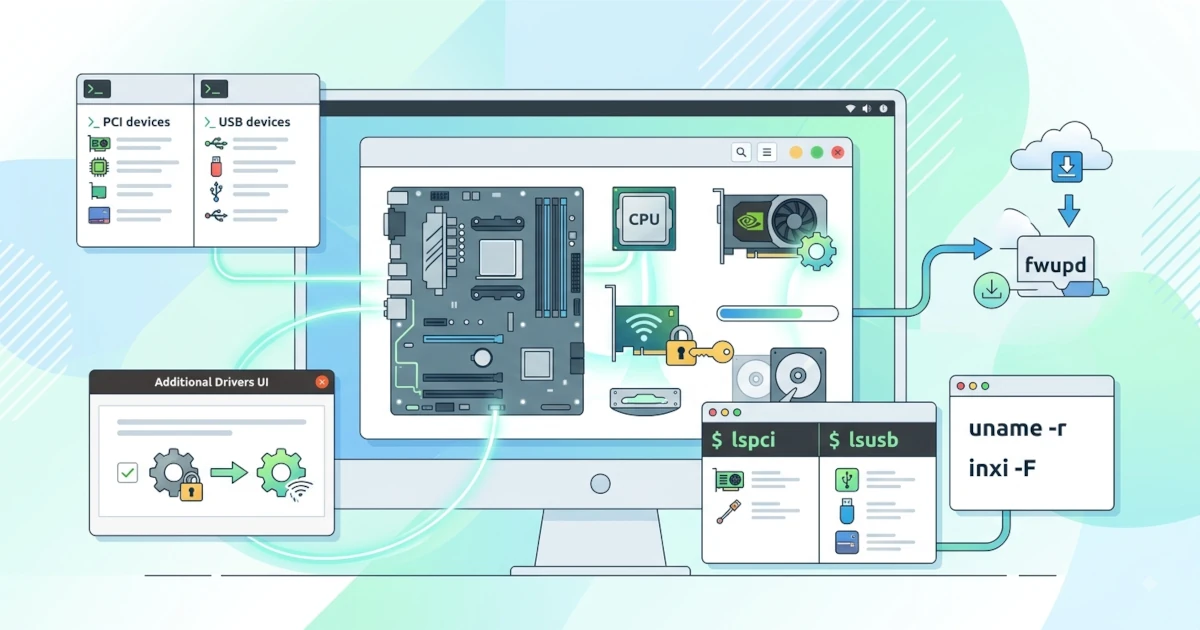
One of the advantages of Linux is its broad hardware support. Most devices work out of the box without needing to install additional drivers because the drivers are already integrated into the kernel. However, there are times when we need to inspect installed devices or install proprietary drivers. This chapter covers hardware support in Linux, checking hardware information, installing proprietary drivers (NVIDIA, AMD, Wi-Fi), and updating firmware and CPU microcode.
41.1 Hardware Support in Linux
Unlike Windows, which often requires installing drivers from manufacturer websites, most drivers in Linux are readily available in the kernel. Ubuntu 26.04 LTS uses Linux kernel 7.0, while Fedora Workstation 44 also uses a newer kernel series; the newer the kernel used, the broader the coverage of modern hardware (latest graphics cards, Wi-Fi, and Bluetooth chips) automatically recognized from day one.
41.1.1 Why Is Some Hardware Unsupported?
Some devices do not work on Linux because their manufacturers do not release specifications or open source drivers. As a result, kernel developers must perform reverse engineering, which takes time and is not always successful. Devices that most frequently encounter issues are certain Wi-Fi cards, printers, and discrete graphics cards (especially NVIDIA).
41.1.2 Open Source Driver vs Proprietary Driver
- Open source driver is a driver whose code is open and usually included in the kernel. This driver is installed automatically and well maintained. Examples include
amdgpufor AMD graphics cards andnouveaufor NVIDIA (open source version with limited performance). - Proprietary driver is a closed-source driver from the manufacturer. This driver is sometimes required for full performance or features, such as official NVIDIA drivers. In recent years, NVIDIA has also released open kernel modules (packages ending in
-open) for Turing series GPUs and newer; its kernel modules are open source, but it still relies on proprietary firmware and userspace libraries.
In general, use open source drivers if they meet your needs, and switch to proprietary drivers only when necessary (gaming, GPU rendering, CUDA, or high-performance multi-monitor setups).
41.2 Checking Hardware Information
To inspect installed devices, Linux provides several commands.
41.2.1 lspci: List PCI Devices
lspci displays all devices connected via the PCI bus, such as graphics cards, network cards, and disk controllers.
lspciAdd the -k option to view the kernel driver currently used by each device, which is useful for verifying whether a graphics card is using the nvidia/amdgpu driver or still using a generic open source driver.
lspci -k41.2.2 lsusb: List USB Devices
lsusb displays devices connected via USB.
lsusb41.2.3 lshw: Complete Hardware Information
lshw provides comprehensive hardware information, ranging from CPU and memory to storage devices.
sudo lshwOn Ubuntu, lshw is generally installed by default. On Fedora Workstation, this package is not included in the default installation, so it needs to be installed first:
sudo dnf install lshw41.2.4 inxi: System Hardware Summary
inxi displays a hardware and system summary in an easy-to-read format. If it is not available yet, install it first using sudo apt install inxi or sudo dnf install inxi.
inxi -FFor quick diagnostics of graphics cards and active drivers, use:
inxi -G41.2.5 uname -r: Kernel Version
To check the currently running kernel version, use uname -r.
uname -rThe kernel version is important because it determines the available hardware support.
41.3 Installing Proprietary Drivers
Proprietary drivers are generally required for NVIDIA graphics cards and certain Wi-Fi devices.
41.3.1 NVIDIA Drivers on Ubuntu
On Ubuntu 26.04 LTS, the most reliable way to install NVIDIA drivers is through the ubuntu-drivers command line tool. First, check the recommended drivers for your graphics card:
ubuntu-drivers devicesThen install the recommended driver automatically:
sudo ubuntu-drivers installUbuntu typically recommends the open kernel module variant for modern GPUs (for example, the nvidia-driver-xxx-open package). After the installation completes, reboot the system, then verify that the driver is active with:
nvidia-smiAnother alternative is the Software & Updates application under the Additional Drivers tab, which detects the graphics card and offers drivers graphically (select the recommended driver, click Apply Changes, then reboot). However, this GUI method has been reported several times to not display NVIDIA driver options properly in early releases of Ubuntu 26.04, so the command line path above is more recommended if the driver list does not appear in the GUI.
41.3.2 NVIDIA Drivers on Fedora
On Fedora, NVIDIA drivers are available through the RPM Fusion repository (see how to enable it in Chapter 9). Once RPM Fusion is active, install the driver with:
sudo dnf install akmod-nvidia xorg-x11-drv-nvidia-cudaThe akmod process builds the NVIDIA kernel module in the background, so wait a few minutes before rebooting the system. After waiting, you can verify that the module build has finished by checking its version:
modinfo -F version nvidiaIf the command above displays an error message such as modinfo: ERROR: Module nvidia not found, it means the akmod build process is not complete yet. Wait a few more minutes and repeat the command, or monitor the process via journalctl -u akmods.
Secure Boot Caution: if UEFI Secure Boot is enabled (the default condition on most Fedora installations), you need to enroll the akmod-nvidia module as a Machine Owner Key (MOK) so that the bootloader allows it to load. Run the following commands:
sudo dnf install kmodtool akmods mokutil openssl
sudo kmodgenca -a
sudo mokutil --import /etc/pki/akmods/certs/public_key.der
The kmodgenca -a command will inform you if a signing key pair has already been generated previously; choose not to overwrite it, as previously built modules were signed with that key. The mokutil --import command will prompt you to create a temporary password. When the system reboots, the blue MOK Manager screen will appear; select Enroll MOK, enter the temporary password, and confirm. Without this step, the NVIDIA driver will fail to load silently, and the system will automatically fall back to using the nouveau driver. Alternatively, Secure Boot can also be disabled in UEFI/BIOS settings, but enrolling the MOK is recommended so that Secure Boot security features remain active.
41.3.3 AMD and Intel Drivers
For AMD and Intel graphics cards, additional driver installation is generally not required. The open source drivers amdgpu (AMD) and i915/xe (Intel) are built into the kernel and active automatically, including Vulkan support and basic video acceleration. If you require maximum gaming performance or additional video codec packages, the latest Mesa packages can be installed via standard repositories (mesa-vulkan-drivers on Ubuntu, or equivalent mesa packages on Fedora).
41.3.4 Proprietary Wi-Fi Drivers
Some Wi-Fi cards, especially older chipsets from Broadcom, still require proprietary drivers. The bcmwl-kernel-source package previously common in Ubuntu is now just a dummy transitional package; install its replacement directly with:
sudo apt install broadcom-sta-dkmsOn Fedora, Broadcom drivers are available through RPM Fusion via the akmod-wl package:
sudo dnf install akmod-wlIn practice, most modern Broadcom chipsets are actually supported by the open source brcmfmac driver built into the kernel without additional installation. The proprietary drivers above are generally only needed for older chipsets such as the BCM43xx series that are not fully supported by brcmfmac.
41.4 Firmware and Microcode
In addition to drivers, hardware also requires firmware, which is low-level software embedded into devices, as well as microcode, which consists of internal updates for the CPU itself.
41.4.1 fwupd: Firmware Updates via Linux Vendor Firmware Service (LVFS)
fwupd is a tool to update device firmware for motherboards, SSDs, and other peripherals via the Linux Vendor Firmware Service (LVFS). This tool is installed by default on Ubuntu and Fedora.
sudo fwupdmgr refreshsudo fwupdmgr get-devicessudo fwupdmgr get-updatessudo fwupdmgr updateThe refresh command updates metadata, get-devices lists devices whose firmware can be updated via LVFS, get-updates checks available firmware, and update installs firmware updates. Firmware updates can also be performed via GUI, for example through the Firmware tab in the GNOME Software/App Center application. Updating firmware is important for stability, security, and hardware bug fixes.
41.4.2 CPU Microcode
Microcode consists of low-level updates for processors (Intel or AMD) that fix internal CPU bugs and patch security vulnerabilities such as Spectre/Meltdown. On Ubuntu, microcode packages (intel-microcode for Intel CPUs or amd64-microcode for AMD CPUs) are generally installed by default and updated automatically via sudo apt upgrade. On Fedora, Intel microcode updates are delivered through the microcode_ctl package, which is also updated via sudo dnf upgrade alongside kernel updates. On both distributions, new microcode updates take full effect only after the system is rebooted.
Understanding hardware and drivers makes us more independent in managing devices on Linux. Through commands like lspci, lsusb, and inxi, we can inspect installed devices and then install appropriate drivers when necessary. In the next chapter, we will cover general troubleshooting to resolve various issues you might encounter.