
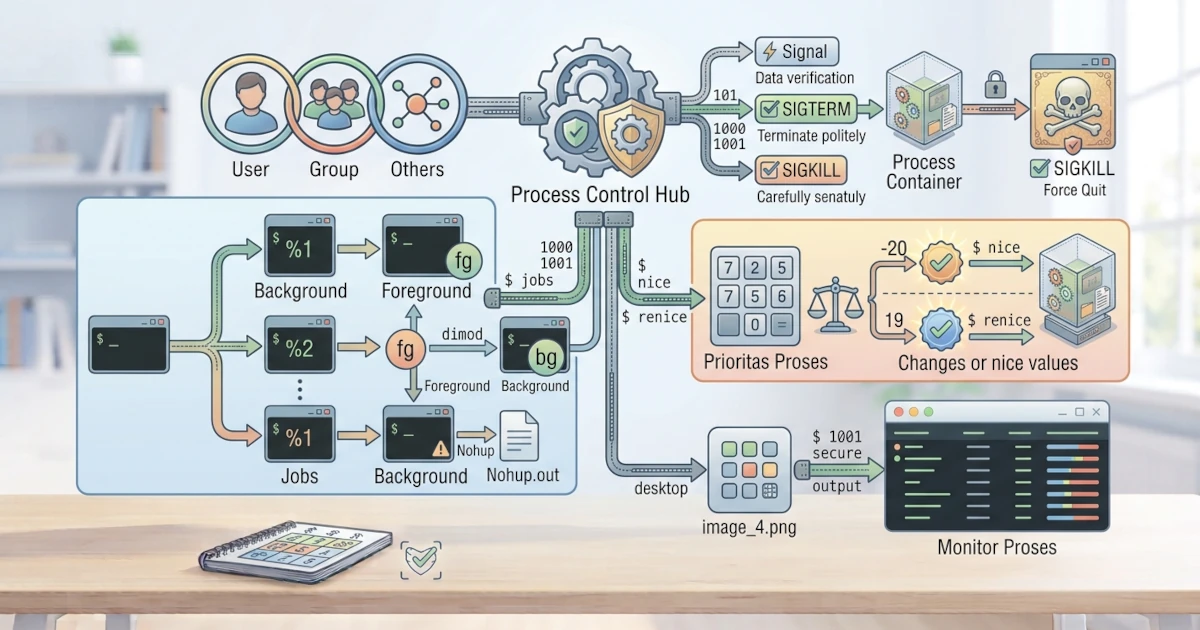
In the previous chapter, we learned how to understand processes, from PIDs to viewing currently running processes. Now, we will learn how to manage and control these processes. This capability is essential when an application stops responding, when a sysadmin needs to run tasks in the background, or when adjusting process priorities. This chapter covers three primary capabilities: sending signals to stop processes, running processes in the background, and managing process priority.
29.1 Sending Signals to Processes
Processes in Linux can receive signals, which are small messages sent by the kernel or user to instruct a process to perform an action, such as terminating. Signals have standard numbers and names, although we most frequently use only a few of them.
| Signal | Number | Description |
|---|---|---|
| SIGHUP | 1 | Notifies a process that its controlling terminal has closed; often used to request services to reload configurations |
| SIGINT | 2 | Interrupt signal, equivalent to pressing Ctrl+C |
| SIGKILL | 9 | Forces a process to terminate immediately and cannot be ignored |
| SIGTERM | 15 | Requests a process to terminate gracefully (default signal for kill) |
| SIGSTOP | 19 | Temporarily pauses a process (cannot be ignored) |
| SIGCONT | 18 | Resumes a temporarily paused process |
To view the full list of all signals along with their numbers, use kill -l.
kill -lThe main commands for sending signals are kill, killall, and pkill.
29.1.1 kill: Sending Signals (Default: SIGTERM)
The kill command sends a signal to a process based on its PID. By default, kill sends the SIGTERM (terminate) signal, requesting the process to stop gracefully.
kill 1234SIGTERM gives the process an opportunity to clean up, such as saving data or closing open files, before fully exiting. Therefore, SIGTERM is the safest method to terminate a process.
To find the PID of a process, we can use ps as covered previously, or pidof, which directly returns the PID based on the program name.
pidof firefoxThe PID returned by pidof can be directly passed as an argument to kill.
29.1.2 kill -9 (SIGKILL): Forceful Process Termination
When a process does not respond to SIGTERM, we can force it to stop using the SIGKILL signal, commonly executed as kill -9.
kill -9 1234SIGKILL cannot be ignored by the process and immediately terminates it by force. Because the process is given no opportunity to clean up, use kill -9 only as a last resort when SIGTERM fails. Unsaved data associated with the process will likely be lost.
In practice, sysadmins frequently encounter two error messages when sending signals. The message kill: (1234): No such process indicates that the PID no longer exists, usually because the process has already terminated. The message kill: (1234): Operation not permitted indicates that the process belongs to another user, requiring the kill command to be run with sudo. To verify that a process has indeed stopped after sending a signal, execute ps -p 1234; if no output lines appear, the process is no longer running.
kill -9 is also ineffective against processes in a zombie state because these processes have already finished execution and are simply waiting for their parent process to read their exit status (refer to the process state discussion in the previous chapter). Accumulating zombies are typically resolved by terminating or restarting their parent process, rather than sending signals to the zombie process itself.
29.1.3 killall and pkill: Terminating Processes by Name
If we do not want to look up the PID first, use killall or pkill to terminate processes by name.
killall firefoxpkill firefoxkillall terminates all processes matching the exact name, whereas pkill is more flexible because it supports pattern matching. Both make it convenient to stop applications without searching for their PIDs, and both accept the -9 option to send SIGKILL, such as pkill -9 firefox.
Use caution when using pkill, as pattern matching that is too broad may accidentally terminate unintended processes. A classic example: running pkill ssh on a remote server can disconnect your own SSH connection, because the sshd process servicing the current session also matches the pattern "ssh". Before executing pkill, check which processes match the pattern using pgrep -l, a command similar to pkill that list matching processes without sending signals, such as pgrep -l ssh.
29.2 Running Processes in the Background
By default, commands executed in the terminal run in the foreground and occupy the terminal until completion. We can run processes in the background to keep the terminal available for other commands.
29.2.1 &: Executing in the Background
Append an & symbol to the end of a command to run it in the background.
sleep 300 &The sleep 300 command above will run in the background for five minutes while the terminal immediately returns control to us.
29.2.2 Ctrl+Z: Suspending Foreground Processes
In addition to launching commands directly in the background with &, we can also move currently running foreground processes to the background. To do this, press Ctrl+Z while the process is running. This key combination sends a SIGTSTP signal, which temporarily stops the process (entering the Stopped state, as discussed in the previous chapter) and returns control of the terminal to us.
^Z
[1]+  Stopped                 nano catatan.txt
A process suspended with Ctrl+Z is not actively running in the background; it is merely paused. To resume execution in the background, use the bg command covered next.
29.2.3 jobs: Viewing Background Jobs
To view processes running in the background within our current terminal session, use jobs.
jobsThis command displays a list of jobs along with their job numbers and statuses, such as Running for active background jobs or Stopped for jobs paused with Ctrl+Z.
29.2.4 fg and bg: Moving Processes
We can move processes between the foreground and background. Use fg to bring a job back to the foreground, and bg to resume a Stopped job in the background.
fg %1bg %1The identifier %1 refers to the job number displayed by jobs. A common workflow involves executing a command, pressing Ctrl+Z when wanting to regain terminal control, and then entering bg to keep the process running in the background.
29.2.5 nohup: Keeping Processes Running After Logout
Normally, processes started in a terminal will terminate when closing the terminal session or logging out because they receive a SIGHUP signal. The nohup ("no hang up") command prevents this behavior, allowing processes to continue running even after logout.
nohup command &nohup redirects and saves process output to a file named nohup.out in the current directory. This command is particularly useful for long-running tasks that must persist after leaving the session.
29.3 Process Priorities
The kernel schedules CPU processing time for each process based on its priority level. We can adjust this priority using nice and renice.
29.3.1 nice: Running Processes with Specific Priority
The nice command executes a process with a specified niceness value. Niceness values range from -20 (highest priority) to 19 (lowest priority), with a default value of 0 for new processes. A higher niceness value means the process is more "nice" to other processes by yielding CPU time.
nice -n 10 commandStandard users can only increase niceness values (lowering process priority). Decreasing the niceness value to raise process priority requires administrative privileges.
29.3.2 renice: Altering Priority of Running Processes
To adjust the priority of an already running process, use renice.
sudo renice -n 5 -p 1234The command above changes the niceness value of the process with PID 1234 to 5. Priority management is helpful when a resource-heavy process needs to be throttled, or when giving higher priority to critical tasks. We can verify updated niceness values by checking the NI column in ps -eo pid,ni,comm or in top/htop views.
A practical use case: when a background backup or large compilation process causes high system load and sluggish responsiveness, a sysadmin can raise the niceness value of that process using renice. This allows the processor to prioritize active user applications without requiring the termination of the backup or build job itself.
Process management is a foundational skill that will be used frequently. By understanding signals, kill, killall, pkill, background job management, and priority adjustments, we can effectively control applications running on the system. In the next chapter, we will explore systemd, the modern init system responsible for service and log management in Ubuntu 26.04 LTS and Fedora Workstation 44.