
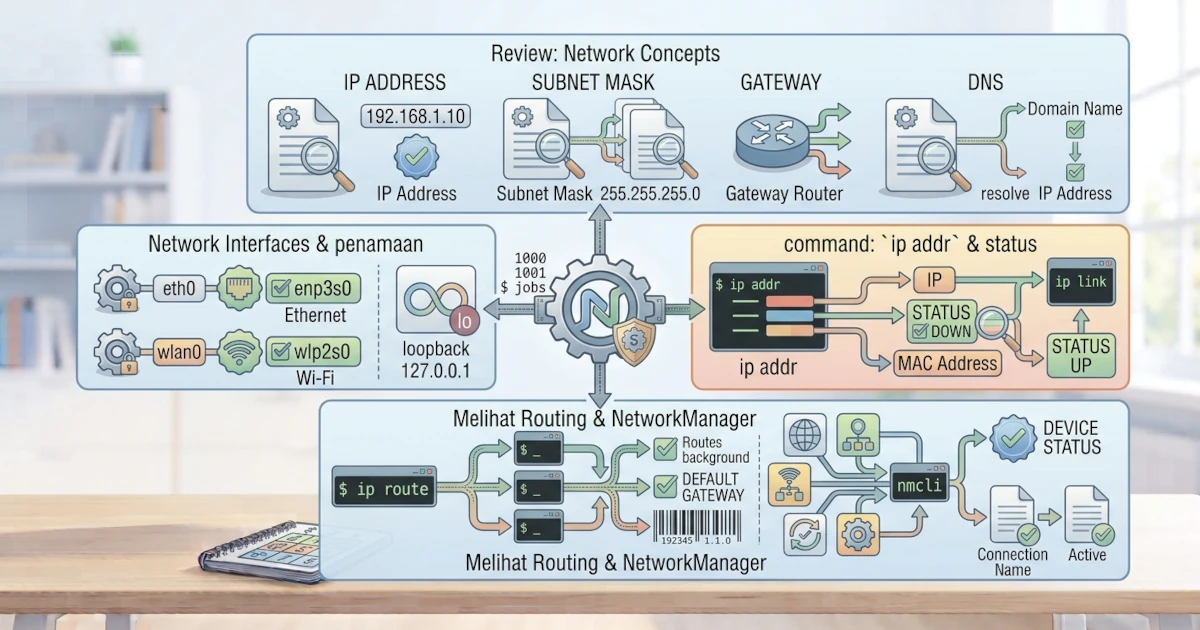
Networking is an essential part of modern computer usage, whether for browsing the web, downloading updates, or sharing files. This chapter lays the foundation for understanding networking in Linux. We will briefly review networking concepts such as IP, subnet, gateway, and DNS, then explore network interfaces in Linux and how to view network configurations using commands like ip and nmcli. This chapter is purely observational, meaning we will only examine the running network state. The next chapter will thoroughly cover how to modify these configurations.
31.1 Brief Review of Networking Concepts
Before diving into Linux commands, there are several networking concepts we need to keep in mind. These concepts are universally applicable, not just in Linux, but understanding them will be very helpful when reading the output of Linux networking commands.
- IP address is a numerical address that identifies each device on a network, for example,
192.168.1.10. This format is called IPv4 and remains the most common standard found in home and office networks. There is also IPv6, a newer and much longer address format (for example,2001:0db8:85a3::8a2e:0370:7334), created because the pool of IPv4 addresses globally has become increasingly limited. Modern Linux distributions, including Ubuntu and Fedora, support IPv4 and IPv6 simultaneously. - Subnet mask determines which part of the IP address represents the network identity and which part represents the device identity, for example,
255.255.255.0. In Linux, this subnet mask is more frequently written in CIDR (Classless Inter-Domain Routing) notation as a prefix number following a forward slash, for example,192.168.1.10/24. This/24prefix is equivalent to the subnet mask255.255.255.0and means that the first 24 bits of the address belong to the network identity. This CIDR notation is what we will see directly in the output of theip addrcommand. - Gateway is the device that serves as the exit point from one network to another, usually a router. This gateway is traversed every time a computer sends data outside the local network, such as to the internet.
- DNS (Domain Name System) translates domain names like
google.cominto machine-readable IP addresses.
Another useful thing to know is the difference between a private IP and a public IP. A private IP is only valid within a local network (such as a home network) and cannot be directly accessed from the internet; commonly used ranges are 192.168.0.0/16, 10.0.0.0/8, and 172.16.0.0/12. Conversely, a public IP is an address recognized globally on the internet, typically assigned to the router or modem connected to an Internet Service Provider (ISP). If a laptop displays an IP address in the format 192.168.x.x, it is a private IP, not an address visible to the outside world.
These four concepts of IP, subnet/CIDR, gateway, and DNS provide the knowledge base to understand the network configurations we will encounter in Linux.
31.1.1 Where This Configuration Comes From: DHCP vs Static IP
In practice, we do not need to manually type these four pieces of information one by one on every computer. Most networks, including home and office Wi-Fi, run a service called DHCP (Dynamic Host Configuration Protocol) on the router. As soon as a computer connects to the network, DHCP automatically provides an IP address, subnet/prefix, gateway, and DNS without requiring manual intervention. This is what happens every time we connect a laptop to a new Wi-Fi network and immediately start browsing without additional setup.
The alternative is a static IP, where we enter these four details manually and their values do not change. Sysadmins typically use static IPs for servers, network printers, or other devices whose addresses need to stay constant for easy access. The next chapter will discuss how to configure static IPs in Ubuntu and Fedora.
31.2 Network Interfaces in Linux
Network interface is the point of connection between the system and the network, whether via wired or wireless connection. Each interface has a name that we can view and use in network commands.
31.2.1 Interface Naming
Linux names network interfaces based on their type and location on the hardware. Common examples of names include the following.
| Name | Description |
|---|---|
eth0 | Ethernet interface, traditional naming style. |
enp3s0 | Ethernet interface, modern naming based on physical location on the bus. |
wlan0 | Wireless interface (Wi-Fi), traditional naming style. |
wlp2s0 | Wireless interface, modern naming based on physical location. |
Modern systems, including Ubuntu 26.04 LTS and Fedora Workstation 44, use new naming schemes like enp3s0 and wlp2s0 because they are more consistent and stable. This scheme is called predictable network interface names and has been the standard across almost all Linux distributions since the mid-2010s. A name like enp3s0 is actually not just a random code; each part has a meaning: en stands for ethernet, p3 indicates the PCI bus number where the network card is attached, and s0 indicates the slot number on that bus. This scheme ensures that interface names remain identical every time the system reboots, even if we add or remove other network cards. This differs from older naming like eth0 and eth1, whose order could swap between boots on computers with multiple network cards, which caused considerable confusion in the past. In practice, this difference in naming often confuses Sysadmins accustomed to older tutorials that still reference eth0; if a guide mentions eth0 but the output of ip addr displays enp3s0 instead, that is normal and not a sign that anything is wrong with the system.
31.2.2 Loopback Interface lo
In addition to physical interfaces, Linux has a special interface named lo (loopback). This interface allows the computer to communicate with itself and always holds the IP address 127.0.0.1 (as well as ::1 for IPv6). Loopback is useful for testing local services without involving an external network, such as when a web application currently under development is accessed via http://127.0.0.1:8000 or the alias http://localhost:8000 from a browser on the same computer. Developers frequently rely on loopback to test APIs or applications before publishing them to a live server; if a connection to 127.0.0.1 fails, the cause is almost always an application that is not running yet, rather than a network problem.
31.3 Viewing Network Configuration
The primary command to view and manage modern networking in Linux is ip, part of the iproute2 package installed by default on both Ubuntu and Fedora. Additionally, nmcli provides a command-line interface for NetworkManager, the default network manager service on both distributions.
31.3.1 ip addr: IP Address Information
To view the IP addresses assigned to each interface, use ip addr.
ip addrThe output of this command displays a list of interfaces along with their IP addresses, active status, and MAC addresses. Note that the output presents IP addresses in the CIDR notation discussed earlier, for example, inet 192.168.1.10/24, where the /24 prefix replaces the subnet mask. The ip addr command is frequently abbreviated to ip a. If the list of interfaces is extensive, add the -br (brief) option for a more concise view:
ip -br addrThis option displays the interface name, status, and IP address on a single line per interface, making it much easier to scan quickly. In practice, the output of ip addr on a daily-use laptop often shows additional interfaces such as docker0 or virbr0 if Docker or virtualization is installed; these interfaces are normal and should not be a concern as long as they do not interfere with the primary connection.
31.3.2 ip link: Interface Status
To view the status of each interface, use ip link.
ip linkThis command lists the interfaces alongside their status, showing whether they are active (UP) or inactive (DOWN), without displaying IP address information. Use ip addr if IP details are also required.
31.3.3 ip route: Routing Table
To view the routing table, which defines the rules determining data transmission paths, use ip route.
ip routeThe output of this command shows the default gateway and reachable networks. The line beginning with default points to the gateway that serves as the main egress route to the internet. This command is often abbreviated to ip r.
31.3.4 nmcli: NetworkManager Command-Line Interface
NetworkManager is the default network manager in Ubuntu 26.04 LTS and Fedora Workstation 44 for both wired and wireless connections. nmcli is its command-line interface and is particularly useful because it presents information in a more user-friendly format compared to the ip command.
nmcli device statusThe command above displays the status of all network devices along with active connections. To view a list of saved connections, use nmcli connection show. To view details of a specific connection, including the IP, gateway, and DNS currently in use, append its name, for example, nmcli connection show "Wired connection 1".
Understanding networking concepts and how to inspect their configuration is an essential first step. Through the ip addr, ip link, ip route, and nmcli commands, we can determine the system's network state, from IP addresses and interface statuses to routing paths and active connections. In the next chapter, we will explore how to configure the network, ranging from NetworkManager to configuration files such as /etc/hosts and /etc/resolv.conf.