
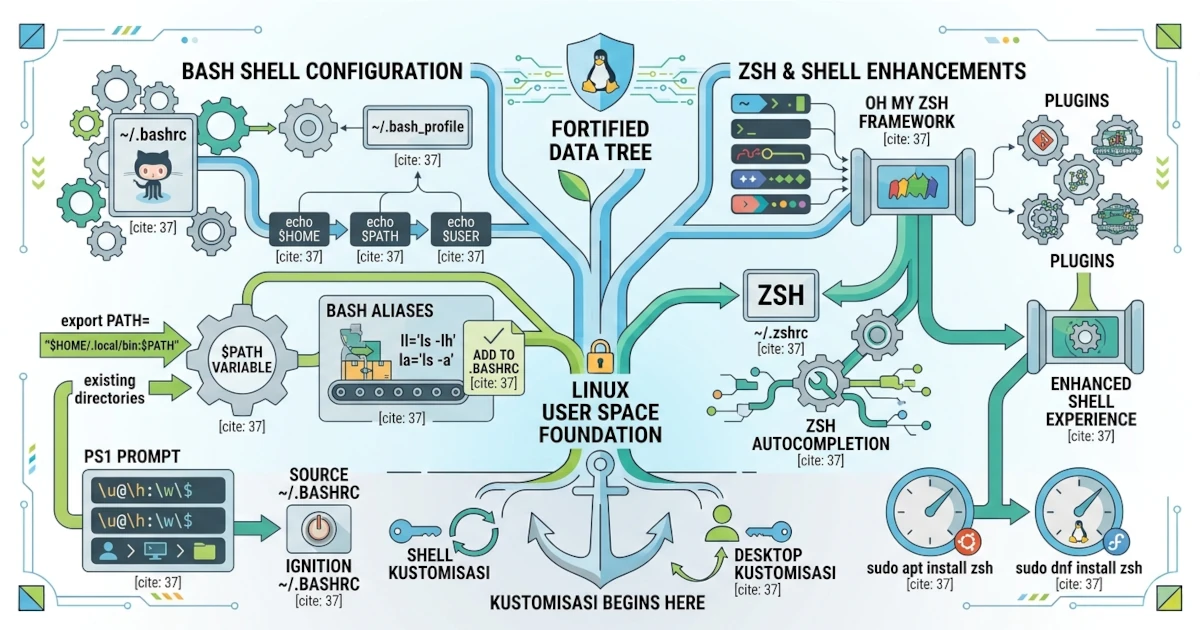
Terminals and shells are not merely tools for executing commands, but workspace environments that we can customize to become more comfortable and productive. Through changes to configuration files, adding environment variables, creating aliases, and customizing the prompt appearance, we can tailor the terminal workflow experience to our needs. This chapter discusses various ways to customize the shell in Ubuntu 26.04 LTS and Fedora Workstation 44, including several minor yet important differences between the two distributions that often confuse beginners.
37.1 Shell Configuration Files
Configuration files stored in our home directory determine the shell behavior. Before modifying these files, it is important to understand when Bash reads each file, as Ubuntu and Fedora have slightly different default behavior.
37.1.1 ~/.bashrc: Read Every Time a Terminal Opens
Bash reads the ~/.bashrc file every time we open an interactive non-login shell, which occurs whenever we open a new terminal window or tab from the GNOME desktop. Therefore, ~/.bashrc is the proper place to store aliases, functions, and settings that you want active in every terminal session.
We can view the contents of the file with:
cat ~/.bashrcAfter modifying this file, apply the changes without closing the terminal using the command:
source ~/.bashrc37.1.2 ~/.bash_profile and ~/.profile: The Difference Between Ubuntu and Fedora
Files read when logging in (such as logging into a desktop session or via SSH) are called login shell files. Here lies a difference that often causes confusion: Ubuntu and Fedora do not provide the same default login shell files.
- Ubuntu 26.04 LTS does not create
~/.bash_profilefor new users. Instead, Ubuntu provides~/.profile, which automatically sources~/.bashrcinternally. - Fedora Workstation 44 provides
~/.bash_profileby default (copied from/etc/skelwhen the account is created), which also sources~/.bashrc.
The following table summarizes the differences:
| File | Ubuntu 26.04 LTS | Fedora Workstation 44 |
|---|---|---|
~/.bashrc | Present, read on every terminal launch | Present, read on every terminal launch |
~/.bash_profile | Not created by default | Present by default |
~/.profile | Present, read at login | Not created by default |
In practice, because both files source ~/.bashrc, there is rarely a need to edit them directly. Simply store all aliases, functions, and environment variables in ~/.bashrc, and those settings will apply both at login and when launching new terminal instances.
37.1.3 ~/.zshrc (If Using Zsh)
If we switch to Zsh, its configuration file is ~/.zshrc. Its function is similar to ~/.bashrc, serving as the location for settings read every time Zsh runs as an interactive shell.
37.2 Environment Variables
Environment variables are variables that store system environment information and can be read by running processes and applications.
37.2.1 echo $HOME, $PATH, $USER
To inspect the value of an environment variable, use echo followed by the variable name prefixed with a dollar sign.
echo $HOMEecho $PATHecho $USER$HOME points to our home directory, $USER contains the current username, and $PATH holds a list of directories the shell searches through when executing commands. To view all active environment variables at once, run:
env37.2.2 Adding Directories to $PATH
To allow the shell to locate executables stored in custom directories, add that path to $PATH. For example, to add ~/.local/bin:
export PATH="$HOME/.local/bin:$PATH"This syntax places the new directory at the beginning of the list, giving its binaries execution priority. Save this line in ~/.bashrc to make it permanent across terminal sessions. To verify the change, run echo $PATH again and ensure ~/.local/bin appears at the very beginning of the output.
37.2.3 export: Setting Environment Variables
The export command makes a variable available to child processes spawned by the shell. Without export, the variable remains local to the current shell instance and is not inherited by executed subprograms.
37.2.4 Why GUI Applications Do Not See Variables in .bashrc
This is a common pitfall for beginners: environment variables appended to ~/.bashrc only apply to processes launched from within the terminal. Desktop applications launched via the Activities Overview or application dashboard do not parse ~/.bashrc at all, so they do not inherit those variables.
The modern approach applicable to both Ubuntu and Fedora (since both utilize GNOME and systemd) is creating configuration files in ~/.config/environment.d/. Variables defined there become available system-wide across all applications in the desktop environment, including GUI programs. Example:
mkdir -p ~/.config/environment.d
nano ~/.config/environment.d/10-custom.conf
The file structure simply requires VARIABLE=value pairs, such as:
PATH=${HOME}/.local/bin:${PATH}These environment changes take effect upon logging out and back in. To verify without closing the desktop session, launch a new terminal after logging back in and execute systemctl --user show-environment to confirm the new variable appears in the output list.
37.3 Aliases: Creating Command Shortcuts
Aliases allow us to define custom shortcuts for lengthy or frequently executed commands.
37.3.1 alias ll='ls -lh'
To create an alias, use the alias name='command' syntax.
alias ll='ls -lh'After executing this, entering ll is equivalent to executing ls -lh. To list all currently active aliases, run alias without arguments. To remove an active alias from the current session, run unalias name.
37.3.2 Persisting Aliases in .bashrc
Aliases defined directly in the terminal persist only for the current session. To retain them permanently, add the alias definition to ~/.bashrc and execute source ~/.bashrc to apply the changes.
37.4 Custom Shell Prompt (PS1)
The prompt displayed before command entry is controlled by the PS1 environment variable. We can modify it to display context such as username, hostname, and working directory.
The following example configures the prompt string:
export PS1='\u@\h:\w\$ 'In this string, \u represents the username, \h the short hostname, \w the current working directory, and \$ renders a dollar sign for regular users or a hash sign (#) for root. Save this configuration in ~/.bashrc for persistent sessions.
37.4.1 Colorizing PS1
Prompts can also be formatted with ANSI escape sequences. The following example styles the username and hostname in bold green:
export PS1='\[\033[01;32m\]\u@\h\[\033[00m\]:\w\$ '\033[01;32m shifts text formatting to bold green, while \033[00m resets text color to default attributes. Note that non-printing color escape codes must be wrapped with \[ and \]. These delimiters inform Bash that the enclosed sequences consume zero horizontal characters, allowing accurate terminal line wrapping calculation. Omitting these delimiters causes line wrap glitches during long command typing or history navigation via arrow keys.
37.5 Introduction to Zsh and Oh My Zsh
Beyond Bash, Zsh is a popular alternative shell offering enhanced auto-completion features and built-in command spell correction. Zsh can be installed via the system package manager.
sudo apt install zshOn Fedora, use:
sudo dnf install zshOnce installed, change the default user shell using chsh:
chsh -s $(which zsh)This change takes effect after logging out and re-authenticating. Note that both Ubuntu 26.04 LTS and Fedora Workstation 44 ship with Bash as the default system shell; Zsh remains optional and requires manual installation and configuration.
In practice, chsh may occasionally fail with a warning such as chsh: Warning, shell not listed in /etc/shells. This occurs when the binary path to Zsh is missing from /etc/shells, often due to manual custom installations outside official package repositories. To resolve this, run which zsh to identify the binary path, ensure that exact path is added to /etc/shells, then execute chsh again. Upon re-logging in, verify the active shell with echo $SHELL.
Since Ubuntu 26.04 and Fedora Workstation 44 both utilize Ptyxis as the default terminal emulator, you can test Zsh without modifying the system-wide shell settings: open Preferences in Ptyxis, select your active profile, and under the Command options, set custom command parameters to execute the Zsh binary. This allows per-profile testing prior to setting Zsh as the permanent system shell via chsh.
For simplified management, many users install Oh My Zsh, a community framework for managing Zsh configurations, themes, and plugins. Because of its extra overhead, Oh My Zsh is optional and recommended once comfortable with basic shell administration.
37.5.1 Starship: Modern Cross-Shell Prompt Alternative
If you want a modern prompt with contextual status indicators without changing your shell or deploying the full Oh My Zsh ecosystem, Starship provides a solid alternative. Starship is a lightweight prompt generator compatible with Bash, Zsh, and Fish, displaying context like Git status and active language environments directly in the prompt line.
Package availability for Starship varies across distribution releases, making the official install script the most consistent installation path for both Ubuntu and Fedora:
curl -sS https://starship.rs/install.sh | shAfter installation, initialize Starship by appending the following line to the end of ~/.bashrc:
eval "$(starship init bash)"Further configuration, such as toggling visible modules, is handled in ~/.config/starship.toml. To verify successful setup, open a new terminal session to confirm the new prompt layout; if unchanged, run which starship to ensure the executable is present in $PATH.
Shell customization is a useful step toward creating a personal and efficient terminal workflow. From configuration files and environment variables to aliases and custom prompts, every component can be tuned iteratively. In the next chapter, we will apply these customization principles to tailoring the GNOME desktop workspace.