
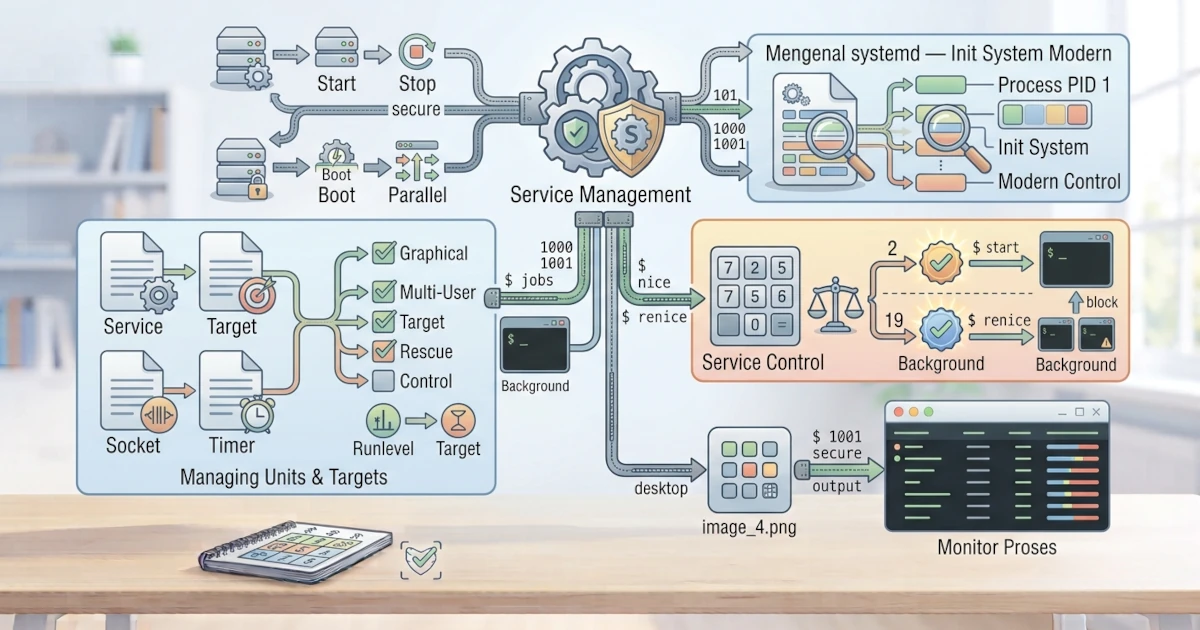
After understanding processes and how to manage them, we will now get to know systemd, the system that serves as the foundation for service management in Ubuntu 26.04 LTS and Fedora Workstation 44. systemd is responsible for starting the system at boot, managing services running in the background, and storing system logs. For a Sysadmin, the ability to control services via systemctl and read logs via journalctl is one of the most frequently used daily skills, ranging from ensuring web servers keep running to investigating why an application suddenly stopped. Mastering systemd means being able to control services, set services to be active at boot, and read logs to troubleshoot issues.
30.1 What Is an Init System?
When a computer is turned on, the Linux kernel is loaded first, and then an initial program is executed to start the entire system. This first program is called the init system. Its task is to prepare the system, start essential services, and manage services while the system is running. The init system is the first process that runs, so it has PID 1.
30.2 Getting to Know systemd: A Modern Init System
systemd is a modern init system used by almost all major Linux distributions, including Ubuntu 26.04 LTS and Fedora Workstation 44. systemd not only starts services, but also handles log management, task scheduling, network management, and many other functions. systemd operates faster than its predecessor init systems because it can start services in parallel.
30.3 Unit Files: Service, Target, Socket, Timer
systemd manages various system components in the form of units. Each unit is represented by a configuration file, and there are several types of units that are important to know.
| Unit Type | Function |
|---|---|
Service (.service) | Defines a service or background process. |
Target (.target) | Groups other units to achieve a specific system state. |
Socket (.socket) | Manages sockets for connection-based service activation. |
Timer (.timer) | Schedules tasks periodically, acting as a replacement for cron in systemd. |
For daily needs, service units and targets are the two types we encounter most often. The name of a unit can usually be written without its type extension, for example, ssh instead of ssh.service, because systemctl will automatically append the .service extension if it is omitted.
30.4 systemd Targets (Replacing Runlevels)
In older init systems, system states were represented by the concept of runlevels. systemd replaces them with targets. Here are several main targets that are essential to know first.
| Target | Function |
|---|---|
graphical.target | System with a full graphical interface, the default target for desktop installations. |
multi-user.target | System runs without a graphical interface, suitable for server usage. |
rescue.target | Rescue mode for repairing a problematic system. |
Besides the three targets above, systemd also provides emergency.target, which is more minimal than rescue.target. This target only mounts the root filesystem in read-only mode without mounting other units, and is typically only used when rescue.target itself fails to load.
On Ubuntu and Fedora desktop editions, the active default target is graphical.target. Check the currently active target with the command systemctl get-default.
30.5 Managing Services with systemctl
systemctl is the primary command for managing systemd services and units.
30.5.1 Finding the Unit Name of a Service
Before controlling a service, we first need to know its unit name, as this name is not always identical across distributions. To view all services currently known to systemd, use systemctl list-units.
systemctl list-units --type=serviceAdd the --all option to include inactive services, or pipe it to grep to search for a specific name, for example, systemctl list-units --type=service --all | grep ssh.
As an example throughout this section, we will use the SSH server service because it is a common and useful example in real-world practice. Please note that the unit name differs between Ubuntu and Fedora, following the naming conventions of their respective distribution lineages.
| Distro | SSH Unit Name |
|---|---|
| Ubuntu 26.04 LTS | ssh (ssh.service) |
| Fedora Workstation 44 | sshd (sshd.service) |
This difference is one example of why the systemctl list-units command mentioned above is useful: instead of memorizing unit names for every distro, we can directly verify them on the system currently in use. Keep in mind also that the SSH server (the openssh-server package) is not installed by default on either distro, so this unit will only appear after we install it, as discussed in Chapter 35. Before reaching Chapter 35, you can still practice the following commands by replacing ssh/sshd in the examples with a service that is active by default, such as cups (printing service) or NetworkManager.
30.5.2 systemctl status: Checking Service Status
To view the status of a service, use systemctl status.
# Ubuntu 26.04 LTS
systemctl status ssh

# Fedora Workstation 44
systemctl status sshd
This command displays whether the service is active, how long it has been running, and the last few log lines.
In practice, the Active: line in this output is what is checked first most often. A status of active (running) means the service is running normally, inactive (dead) means the service stopped without errors, and failed indicates that the process stopped due to an error and requires further investigation via logs. For automated scripts or quick checks without reading the complete output, use systemctl is-active ssh and systemctl is-enabled ssh, which respectively return concise statuses such as active or enabled.
30.5.3 systemctl start / stop / restart: Service Control
We can start, stop, and restart services using start, stop, and restart. These commands require administrative privileges.
# Ubuntu 26.04 LTS
sudo systemctl start ssh
sudo systemctl stop ssh
sudo systemctl restart ssh

# Fedora Workstation 44
sudo systemctl start sshd
sudo systemctl stop sshd
sudo systemctl restart sshd
30.5.4 systemctl enable / disable: Enable or Disable at Boot
start and stop apply only to the running session. To configure a service to automatically start or not at boot, use enable and disable.
# Ubuntu 26.04 LTS
sudo systemctl enable ssh
sudo systemctl disable ssh

# Fedora Workstation 44
sudo systemctl enable sshd
sudo systemctl disable sshd
An important distinction is that enable makes the service permanently active after boot, whereas start only runs it once in the current session. To immediately run and enable a service at boot in a single command, use the --now option.
sudo systemctl enable --now ssh30.5.5 systemctl reload: Reloading Configuration
When a service's configuration file changes and the service does not need to be stopped, use reload.
# Ubuntu 26.04 LTS
sudo systemctl reload ssh

# Fedora Workstation 44
sudo systemctl reload sshd
Not all services support reload. If a service does not support it, use restart to apply configuration changes.
A useful troubleshooting tip: if a service suddenly stops running when it should be active, run systemctl --failed to view a list of all failed units across the entire system, rather than just a single service. This approach is much faster than checking the status of each service one by one, especially when tracing the root cause of an inaccessible application or server.
30.6 Viewing System Logs with journalctl
systemd stores logs for the entire system in the journal, which can be read using journalctl. These logs are extremely helpful when diagnosing issues.
30.6.1 journalctl -u: Per-Service Logs
To view logs belonging to a specific service, use the -u option.
# Ubuntu 26.04 LTS
journalctl -u ssh

# Fedora Workstation 44
journalctl -u sshd
This command displays logs generated exclusively by the SSH service.
30.6.2 journalctl -f: Following Real-Time Logs
To follow logs in real time as new lines are written, use -f, similar to tail -f.
journalctl -fPress Ctrl+C to stop following the log.
30.6.3 journalctl -b: Logs Since Last Boot
To view logs generated since the last system boot, use the -b option.
journalctl -bLogs from previous boots can also be viewed by adding a number, for example, journalctl -b -1 for the previous boot. This option only shows results from previous boots if persistent log storage is active, which is enabled by default in both Ubuntu 26.04 LTS and Fedora Workstation 44.
30.6.4 Filtering by Time Range
Logs can also be filtered based on a time range using the --since and --until options.
journalctl --since "2026-08-18 10:00:00" --until "2026-08-18 12:00:00"In addition to full date formats, --since and --until also accept relative time formats that are more practical for daily use, such as --since "1 hour ago" or --since today. Time filtering is very useful for narrowing down searches to the moment an issue occurred, especially on long-running servers with large log volumes.
systemd is the heart of system management in Ubuntu 26.04 LTS and Fedora Workstation 44. After mastering systemctl to control services, including how to find the correct unit name for each distro, and journalctl to read logs, you have a solid foundation for maintaining Linux systems. In the next section, we will move on to basic networking topics, starting with networking concepts and how to view network configurations in Linux.