
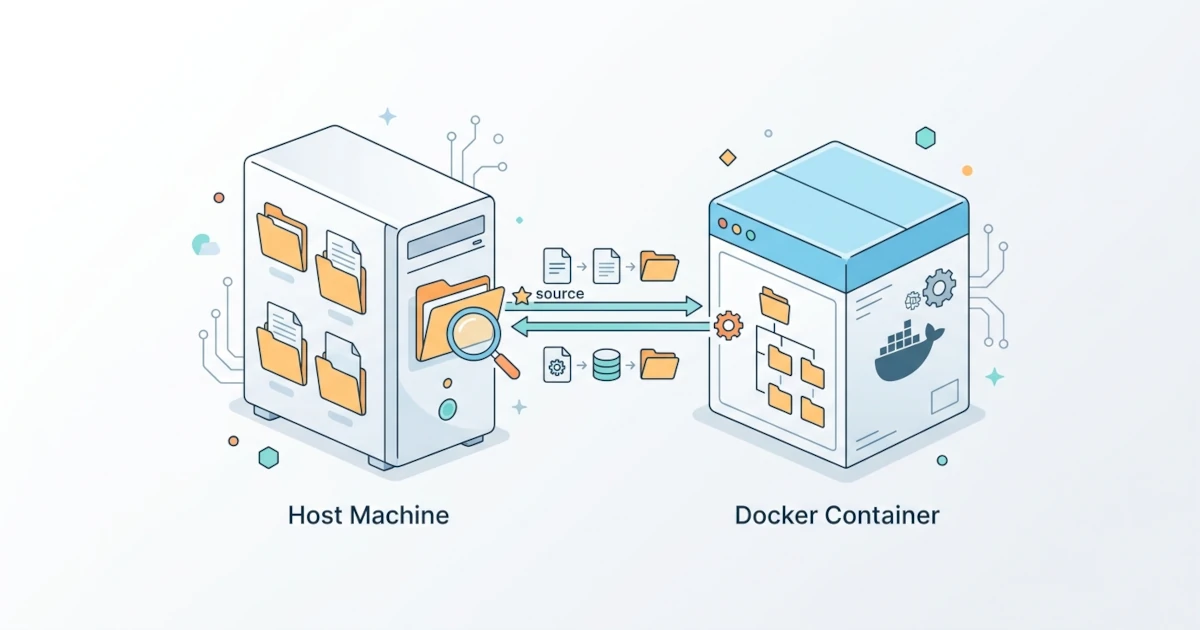
When building applications, Developers often want source code changes to be reflected immediately inside the container without having to rebuild the image every time a file is saved. On the other hand, Sysadmins or DevOps Engineers sometimes need to inject specific configuration files from the host, such as TLS certificates or an nginx.conf configuration file, into a container without bundling them into the image. Both needs share the same solution: a bind mount, a mechanism that connects a path on the host filesystem directly to a specific path inside the container. This chapter discusses how bind mounts work, how they differ from volumes, their practical use cases, and common permission issues encountered in production environments.
11.1 Differences Between Volumes and Bind Mounts
A bind mount is a mount mechanism that connects a specific file or directory on the host filesystem directly to a specific path inside the container, using the host exact absolute path as is. Unlike volumes whose storage location is fully managed by the Docker Engine, bind mounts rely entirely on the host directory structure where Docker is running.
11.1.1 How Bind Mounts Work
When a bind mount is attached, Docker does not copy any data. The container is simply given direct access to the exact host path, so changes made on either side (whether inside the container or from the host) are immediately visible on the other side in real time. This behavior differs from a volume, which, although it also persists beyond the container lifecycle, has its physical location stored in a dedicated area managed by Docker and is not meant to be accessed manually from the host.
A consequence of this mechanism is that bind mounts depend heavily on the filesystem structure of the host where they run. A docker run command using a bind mount to the path /home/user/project will only run correctly on a machine that actually has that directory; moving to another host with a different directory structure may cause the same command to fail or mount incorrectly.
11.1.2 When to Choose Bind Mounts vs. Volumes
Choosing between volumes and bind mounts depends on who needs to manage the data. If Docker needs to manage data storage independently and portably, such as database data in production, volumes are the better choice. If direct, two-way access to a specific path on the host is required, such as streaming development source code into a container in real time, bind mounts are the ideal solution.
| Aspect | Volume | Bind Mount |
|---|---|---|
| Storage location | Managed by Docker, dedicated host area | Arbitrary path, manually defined on host |
| Portability across hosts | Easier, independent of host directory structure | Fully dependent on the target host directory structure |
| Direct host access | Not recommended, best accessed via container | Freely accessible and editable directly from host |
| Volume driver support | Yes (local, NFS, third-party plugins) | No, host filesystem as is only |
| Common use cases | Persistent application/database data in production | Development live reload, mounting config files |
In practice, combining both within the same docker-compose.yml file is common: bind mounts for application source code under development, and named volumes for database data that must remain persistent and portable.
11.2 Using Bind Mounts
Docker provides two ways to attach bind mounts via docker run: the concise -v (or --volume) option, and the more explicit --mount option. Both options produce functionally identical mounts, but they exhibit slightly different behaviors that are important to understand.
11.2.1 Syntax -v for Bind Mounts
Attach a bind mount using the -v option with the format host-path:container-path. The path on the host side must be an absolute path; if the path provided is not absolute and is not a valid volume name, Docker treats it as a named volume name rather than a bind mount.
docker run -d --name demo-nginx -v /home/user/website:/usr/share/nginx/html nginx:alpineThe command above mounts the host directory /home/user/website to the path /usr/share/nginx/html inside the container. For relative paths based on the current working directory, use $(pwd) on Linux/macOS or the equivalent shell variable in Windows so the path resolves as an absolute path.
docker run -d --name demo-app -v $(pwd)/src:/app/src node:20-alpineIf the host path specified in the -v option does not yet exist on the filesystem, Docker automatically creates it as an empty directory before the container runs. This auto-creation behavior can sometimes be a trap: a typo in the source code directory name can cause Docker to silently create a new empty directory instead of throwing an error, leading to a running container missing its expected files.
11.2.2 Syntax --mount for Bind Mounts
The --mount option uses key-value pairs that are more verbose but clearer in intent, using type=bind to specify the mount type.
docker run -d --name demo-nginx2 --mount type=bind,source=/home/user/website,target=/usr/share/nginx/html nginx:alpineAn important difference between -v and --mount for bind mounts lies in handling host paths that do not exist. Unlike -v, which automatically creates a new directory, --mount generates an error and refuses to run the container if the source path on the host is missing. This --mount behavior is safer to prevent path typos from accidentally resulting in mounts to empty directories; therefore, official Docker documentation recommends --mount for scenarios requiring configuration certainty and precision, especially in production.
11.2.3 Read-Only Bind Mounts
Restrict container write access to a bind mount if the container only needs read access, such as when injecting configuration files that must not be modified from inside the container. Append the :ro suffix to the end of the -v option, or use the readonly flag with --mount.
docker run -d --name demo-conf -v /etc/app/config.yaml:/app/config.yaml:ro alpine:latest sleep 3600
docker run -d --name demo-conf2 --mount type=bind,source=/etc/app/config.yaml,target=/app/config.yaml,readonly alpine:latest sleep 3600
Verify that the mount is strictly read-only by attempting a write operation from inside the container; Docker will reject write attempts with a read-only filesystem error message.
docker exec demo-conf sh -c "echo test >> /app/config.yaml"sh: can't create /app/config.yaml: Read-only file system11.3 Bind Mount Use Cases
Bind mounts are most commonly used in two primary scenarios: accelerating development workflows via live reload, and injecting specific configuration files or host resources into containers without building them into images.
11.3.1 Live Reload for Development
Developers building applications generally do not want to rebuild container images every time a single line of code changes. With bind mounts, source code on the host is linked directly to the application working directory inside the container. As a result, file modifications in code editors are immediately detected by processes running inside the container, provided the application has an automatic reload mechanism such as nodemon for Node.js or the --reload flag in Uvicorn.
docker run -d --name dev-app -p 3000:3000 -v $(pwd):/app -w /app node:20-alpine sh -c "npm install && npm run dev"This pattern is also widely used in docker-compose.yml, where bind mounts are declared under the volumes key for active development services.
services:
  app:
    image: node:20-alpine
    working_dir: /app
    volumes:
      - .:/app
    ports:
      - "3000:3000"
    command: sh -c "npm install && npm run dev"
In production, this pattern is strictly avoided. Bind mounting source code directly from host to container should not be used in production environments, as production images should contain the final, immutable source code rather than depending on host filesystem structures.
11.3.2 Mounting Configuration Files and Host Resources
Another common scenario in production environments is injecting host configuration files, TLS certificates, or other host-specific resources directly into containers without baking them into images. This ensures sensitive files like private keys and certificates are not stored permanently inside images that might be distributed to registries.
docker run -d --name web-tls -p 443:443 \
  -v /etc/ssl/certs/mysite.crt:/etc/nginx/ssl/mysite.crt:ro \
  -v /etc/ssl/private/mysite.key:/etc/nginx/ssl/mysite.key:ro \
  nginx:alpine
Sysadmins and DevOps Engineers also frequently use bind mounts to access host system sockets from inside containers. A common example is mounting /var/run/docker.sock so a container can communicate with the Docker Engine running on its host, as seen in container management tools like Portainer.
docker run -d --name portainer -p 9000:9000 -v /var/run/docker.sock:/var/run/docker.sock portainer/portainer-ce:latestSecurity considerations must be highlighted here: granting a container access to host docker.sock effectively gives that container full control over the host Docker Engine, equivalent to root access on the host. If the container image originates from an untrusted source or contains vulnerabilities, an attacker who compromises the container can leverage access to docker.sock to create new containers with unrestricted permissions across the host filesystem. Mount docker.sock only into fully trusted and verified images.
11.4 Permissions and Troubleshooting
Bind mounts represent one of the most frequent sources of issues encountered by Developers, Sysadmins, and DevOps Engineers in field deployment, particularly regarding file permissions and differences in operating system host behaviors.
11.4.1 UID/GID Permission Issues
Bind mounts do not alter file ownership; permissions and file owners observed inside the container match those stored on the host, determined by numeric UID and GID rather than user names. The most common issue occurs when processes inside the container run under a UID different from the host file owner. For instance, a container might execute an application as a non-root user with UID 1000 while host files are owned by UID root (0). Consequently, container processes fail to read or write those files even if permissions appear reasonable from the host perspective.
docker exec demo-app whoami
docker exec demo-app id
Align the container process UID with the host file owner using the --user option when running containers, formatted as UID:GID.
docker run -d --name demo-app2 --user 1000:1000 -v $(pwd):/app node:20-alpine sh -c "npm run dev"Alternatively, adjust directory ownership on the host to match default UIDs expected by image processes via chown on the host side prior to execution. This approach is standard when images feature built-in non-root users with fixed UIDs that cannot be overridden easily via --user.
sudo chown -R 1000:1000 ./src11.4.2 SELinux and :z / :Z Label Options
On Linux distributions running SELinux by default, such as Fedora, RHEL, or CentOS, bind mount access may be denied by SELinux policies even when standard Unix permissions (UID/GID) are correct. Docker provides additional label options :z and :Z appended to the -v flag to resolve this.
docker run -d --name demo-selinux -v /home/user/data:/data:z alpine sleep 3600The lowercase :z label indicates that the target directory can be shared across multiple containers simultaneously. The uppercase :Z label marks the directory for exclusive use by the current container mount, blocking access from other containers. These options are relevant only on Linux hosts with active SELinux enforcement; on environments without SELinux, macOS, or Windows, these labels exert no effect.
11.4.3 General Troubleshooting
If containers fail to locate expected files over a bind mount, verify first that the host path provided in the -v flag points to the intended location, rather than an empty directory accidentally auto-created by Docker due to typos. Inspect mount contents directly from inside the container using docker exec.
docker exec demo-app ls -la /appTo confirm that mount parameters match expectations (including read-only modes and propagation options), inspect configuration details via docker inspect within the Mounts section.
docker inspect --format '{{json .Mounts}}' demo-appOn Docker Desktop for macOS and Windows, mounting directories outside user home folders or paths permitted by Docker Desktop file-sharing settings will trigger permission errors, even if Unix permissions seem valid. Add required paths through Docker Desktop Settings under Resources > File Sharing so bind mounts to those paths are allowed.
If host file modifications do not sync instantly with containers or vice versa, particularly under Windows with WSL2, ensure project directories reside within the WSL2 Linux filesystem (such as under /home/user/) rather than Windows partition mounts accessed via /mnt/c/. Docker Desktop documentation strongly recommends this practice because cross-filesystem I/O between Windows and Linux via WSL2 incurs substantially higher overhead compared to bind mounts operating entirely within the WSL2 Linux filesystem.
| Issue | Common Cause | Solution |
|---|---|---|
| Permission denied on read/write | Container process UID does not match host file owner | Align identities using --user or apply chown on the host |
| Access denied despite valid Unix permissions | Active SELinux policy enforcement on Linux host | Append :z or :Z labels to the -v option |
| Unexpected mount to an empty directory | Host path typo leading to auto-creation by -v | Verify host path accuracy; consider using --mount which fails fast |
| Bind mount rejected in Docker Desktop | Path not granted access under file sharing configuration | Add path via Settings > Resources > File Sharing |
| Slow I/O performance on Windows | Cross-filesystem bind mount between Windows and WSL2 | Relocate project directories inside the native WSL2 Linux filesystem |