
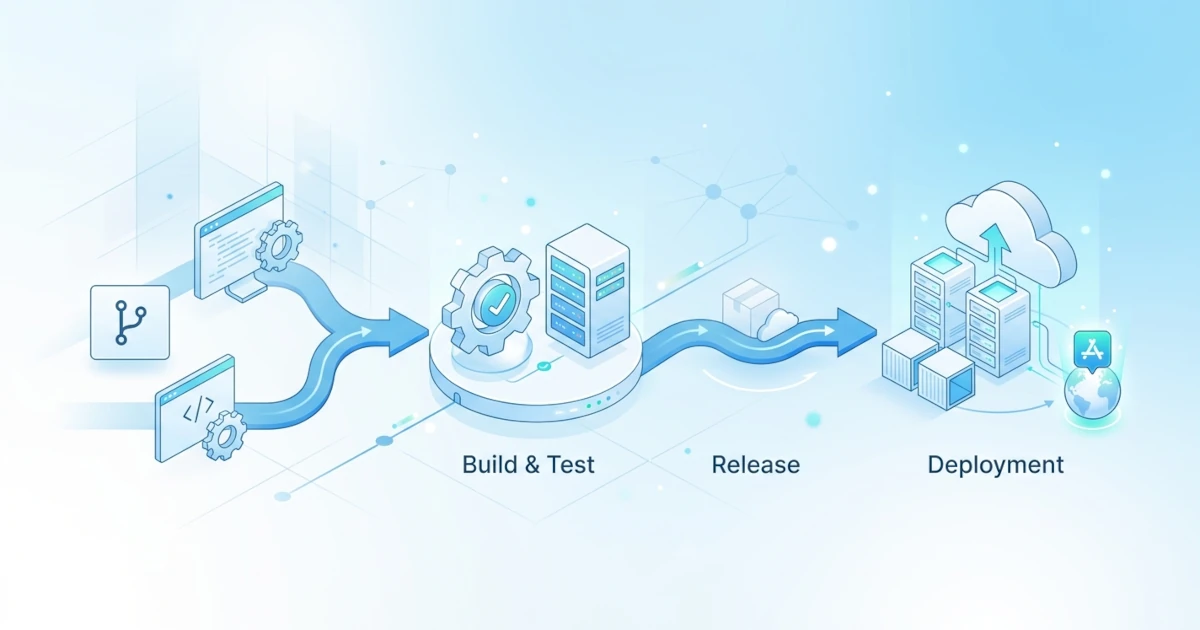
Continuous Integration and Continuous Deployment (CI/CD) transform how Developers and Sysadmins/DevOps Engineers deliver code changes to production. Without automation, every code change means someone has to manually log into the server, pull the latest code, rebuild images, and then run new containers one by one, a process prone to forgotten steps and difficult to reproduce consistently. Docker becomes a key component in modern CI/CD pipelines because the exact same image can be used from the testing process in the CI runner up to running in production, eliminating the "works on my machine, fails on the server" gap. This chapter discusses how image building, testing, pushing to registry, and deployment processes are automated through CI/CD pipelines, with concrete examples using GitHub Actions and GitLab CI as two of the most commonly used platforms.
26.1 Automated Image Building
Building images manually via docker build on a Developer laptop is sufficient for daily development, but cannot be relied upon as an official process that produces images for production. CI/CD pipelines take over this process so that every image is built from the exact same code present in the repository, through a consistent build environment with an auditable history.
26.1.1 Automated Build with GitHub Actions
GitHub Actions provides the official action docker/build-push-action that wraps the image build and push process into a single step within a workflow. The following workflow triggers a build whenever there is a push to the main branch.
name: Build Docker Image

on:
  push:
    branches: [main]

jobs:
  build:
    runs-on: ubuntu-latest
    steps:
      - name: Checkout code
        uses: actions/checkout@v4

      - name: Setup Docker Buildx
        uses: docker/setup-buildx-action@v3

      - name: Build image
        uses: docker/build-push-action@v6
        with:
          context: .
          push: false
          tags: payment-service:${{ github.sha }}
The docker/setup-buildx-action action sets up BuildKit via the docker-container driver, which is required for features like external cache and multi-platform builds in docker/build-push-action to function fully. The push: false option in the example above is deliberately used for the build stage only without sending the image to any registry, suitable for simply verifying that the image builds successfully before moving on to the testing phase.
26.1.2 Automated Build with GitLab CI
GitLab CI runs every job inside a container, so running docker build inside the job itself requires access to the Docker daemon through a Docker-in-Docker (dind) approach. The following configuration in .gitlab-ci.yml uses the official docker image along with the docker:dind service.
build:
  stage: build
  image: docker:27
  services:
    - docker:27-dind
  variables:
    DOCKER_TLS_CERTDIR: "/certs"
  script:
    - docker build -t payment-service:$CI_COMMIT_SHORT_SHA .
The DOCKER_TLS_CERTDIR variable enables TLS between the job and the dind service, following official GitLab documentation recommendations so that communication to the Docker daemon inside the service does not run unencrypted. The image tags for docker and docker:dind in the example above have their versions explicitly matched (27), as GitLab recommends keeping the dind client and daemon versions aligned to avoid API compatibility issues.
26.1.3 Layer Caching to Speed Up Builds
Every CI job generally runs on a clean runner without layer caches from previous builds, so without additional configuration, every build repeats the entire process from scratch even if only a single line of code changed. In GitHub Actions, docker/build-push-action supports the type=gha cache backend, which leverages the GitHub Actions cache API to store layers between runs.
- name: Build image with cache
  uses: docker/build-push-action@v6
  with:
    context: .
    push: false
    tags: payment-service:${{ github.sha }}
    cache-from: type=gha
    cache-to: type=gha,mode=max
The mode=max option in cache-to saves all intermediate layers from every stage, not just the final stage layers, making caching more effective for Dockerfiles using multi-stage builds. In practice, the impact of this caching is significant for projects with heavy dependency installation processes, because without caching, every build repeats downloads and compilations of dependencies that actually haven't changed from the previous build. Structure Dockerfile instructions in order from least frequently changing (dependency installation) to most frequently changing (copying application code), so that dependency layer caches remain valid even when application code changes with every commit.
26.2 Testing inside Containers
Running tests directly on the CI runner without containers carries the risk of passing even though the application actually relies on specific tool or library versions that happen to be available on the runner image but are not guaranteed to be the same in production. Running tests inside the exact container that will later be deployed ensures test results truly reflect the conditions of the application running in production.
26.2.1 Running Test Suites Inside Containers
The simplest pattern is to run test commands directly inside the newly built image using docker run after the build process completes.
docker build -t payment-service:test .
docker run --rm payment-service:test npm test
The --rm option is important to use in CI pipelines so test containers are removed immediately after completion, preventing CI runners from accumulating leftover containers from previous runs. For projects using multi-stage builds, the test stage can be explicitly separated in the Dockerfile so development dependencies like test runners are not carried over into the final production image.
FROM node:20-alpine AS base
WORKDIR /app
COPY package*.json ./
RUN npm ci

FROM base AS test
COPY . .
RUN npm test

FROM base AS production
COPY . .
RUN npm ci --omit=dev
CMD ["node", "server.js"]
Targeting the test stage explicitly via the --target option stops the build process at that stage, so test failures immediately fail the build process before producing a production image.
docker build --target test -t payment-service:test .26.2.2 Service Dependency Testing with Docker Compose
Many applications require dependencies like databases or caches to run integration tests, not just pure unit tests. Docker Compose makes it easy to provision these dependencies temporarily specifically for pipeline testing needs, without needing permanent database servers in the CI environment.
services:
  app:
    build: .
    depends_on:
      db:
        condition: service_healthy
    command: npm run test:integration
    environment:
      DATABASE_URL: postgres://postgres:postgres@db:5432/testdb

  db:
    image: postgres:16
    environment:
      POSTGRES_PASSWORD: postgres
      POSTGRES_DB: testdb
    healthcheck:
      test: ["CMD-SHELL", "pg_isready -U postgres"]
      interval: 5s
      timeout: 3s
      retries: 5
Run the entire test stack with a single command, then ensure the app service exit code is checked so the CI pipeline knows whether tests failed or succeeded.
docker compose up --abort-on-container-exit --exit-code-from appThe --abort-on-container-exit option stops all services as soon as any container stops, while --exit-code-from app makes docker compose exit with the same exit code as the app container, allowing subsequent CI steps to correctly detect test failures. Remember to clean up leftover containers and volumes from testing via docker compose down --volumes at the end of the job, so test data from one run does not leak into the next run if the CI runner happens to use a persistent environment.
26.3 Image Registries in Pipelines
Images that pass testing need to be distributed through a registry so they can be pulled by staging or production environments. This section focuses on how pushing to a registry is automated and securely authenticated directly from the CI/CD pipeline.
26.3.1 Automated Image Push to Registry
After builds and tests pass, the next step in the pipeline is sending the image to a registry like Docker Hub, GitHub Container Registry, or an organization's private registry. In GitHub Actions, the docker/login-action action handles authentication before docker/build-push-action runs the push.
- name: Login to registry
  uses: docker/login-action@v3
  with:
    registry: ghcr.io
    username: ${{ github.actor }}
    password: ${{ secrets.GITHUB_TOKEN }}

- name: Build and push image
  uses: docker/build-push-action@v6
  with:
    context: .
    push: true
    tags: ghcr.io/${{ github.repository }}:${{ github.sha }}
secrets.GITHUB_TOKEN is a built-in token automatically created by GitHub Actions for each run, which only needs packages: write permissions at the workflow level to push to GitHub Container Registry (ghcr.io) without needing to create additional credentials manually.
26.3.2 Tagging Strategies in Pipelines
Using the latest tag alone is insufficient for CI/CD pipelines because it provides no record of which commit an image originated from, complicating rollback processes when a specific version encounters issues. A common practice is tagging build output images with multiple tags simultaneously, usually combining a unique commit hash with human-readable labels.
tags: |
  ghcr.io/${{ github.repository }}:${{ github.sha }}
  ghcr.io/${{ github.repository }}:latest
For pipelines triggered by Git tags (for example, when releasing a new version), github.ref_name can be used so the image tag follows the release version instead of the commit hash.
tags: ghcr.io/${{ github.repository }}:${{ github.ref_name }}In GitLab CI, predefined variables like $CI_COMMIT_SHORT_SHA and $CI_COMMIT_TAG work similarly, available automatically in every job without extra configuration.
push:
  stage: push
  image: docker:27
  services:
    - docker:27-dind
  script:
    - docker build -t $CI_REGISTRY_IMAGE:$CI_COMMIT_SHORT_SHA .
    - docker push $CI_REGISTRY_IMAGE:$CI_COMMIT_SHORT_SHA
26.3.3 Registry Authentication in CI/CD
GitLab CI provides built-in variables CI_REGISTRY, CI_REGISTRY_USER, and CI_REGISTRY_PASSWORD that automatically populate for authenticating to the built-in GitLab Container Registry without needing to store separate credentials.
before_script:
  - docker login -u $CI_REGISTRY_USER -p $CI_REGISTRY_PASSWORD $CI_REGISTRY
For external registries like Docker Hub or private registries outside the platform, credentials must be stored explicitly using each platform's secret management feature. GitHub Actions uses encrypted secrets in repository settings, while GitLab CI uses CI/CD variables marked as Masked and Protected. Never write registry usernames or passwords directly as plain text in pipeline configuration files, because those files are usually committed to the repository and can be read by anyone with read access to the code. Attackers who successfully read public repository commit histories often find leaked registry credentials this way, rather than through complex attacks.
26.4 Deployment Strategies
Images stored in a registry do not automatically mean applications are updated in production; a deployment step is required to pull the new image and replace the old instance. This section discusses general deployment strategies via CI/CD pipelines along with ways to trigger them outside the build process.
26.4.1 Rolling Updates and Blue-Green
Rolling updates replace old instances with new versions gradually, a few instances at a time rather than all at once, keeping the service available throughout the update process. In environments using Docker Swarm, this strategy is default behavior through docker service update.
docker service update --image payment-service:${CI_COMMIT_SHORT_SHA} payment-apiAccording to its official documentation, Docker Swarm replaces tasks one by one (or based on the configured --update-parallelism amount) and waits for --update-delay between each batch, automatically rolling back to the previous version if --update-failure-action=rollback is enabled and new instances fail health checks.
Blue-green deployment takes a different approach: preparing a new environment ("green") alongside the old environment ("blue") which is still serving full traffic, then switching traffic all at once to the new environment after it is verified healthy. This approach requires double the resources during the transition period, but provides a faster rollback path because the old environment remains intact and ready to receive traffic at any time without needing a redeployment.
26.4.2 Triggering Deployment from Pipelines
Deployment jobs are usually separated from build and test jobs, running only after both jobs succeed and only for specific branches like main. The following example adds a deployment job in GitHub Actions that depends on the previous build job via needs.
deploy:
  needs: build
  runs-on: ubuntu-latest
  if: github.ref == 'refs/heads/main'
  steps:
    - name: Deploy to server
      uses: appleboy/ssh-action@v1
      with:
        host: ${{ secrets.DEPLOY_HOST }}
        username: ${{ secrets.DEPLOY_USER }}
        key: ${{ secrets.DEPLOY_SSH_KEY }}
        script: |
          docker pull ghcr.io/${{ github.repository }}:${{ github.sha }}
          docker service update --image ghcr.io/${{ github.repository }}:${{ github.sha }} payment-api
The condition if: github.ref == 'refs/heads/main' ensures deployment jobs only run for pushes to the main branch, preventing feature branch pushes or pull requests from triggering production deployments. In GitLab CI, similar controls are handled using the rules or only keywords, and the deployment stage can be set as a manual job using when: manual so it still requires explicit confirmation from a Sysadmin/DevOps Engineer before actually running to production, rather than executing automatically with every push to the main branch.
deploy:
  stage: deploy
  when: manual
  only:
    - main
  script:
    - docker pull $CI_REGISTRY_IMAGE:$CI_COMMIT_SHORT_SHA
    - docker service update --image $CI_REGISTRY_IMAGE:$CI_COMMIT_SHORT_SHA payment-api
In practice, deciding between fully automated deployment and semi-manual deployment via approvals usually depends on team confidence in the existing test suite. Teams with mature test coverage proven to catch regressions consistently tend to be comfortable with full continuous deployment to production, while teams whose test suites are not yet fully reliable are safer using manual approval gates as an extra security layer before changes reach end users.