
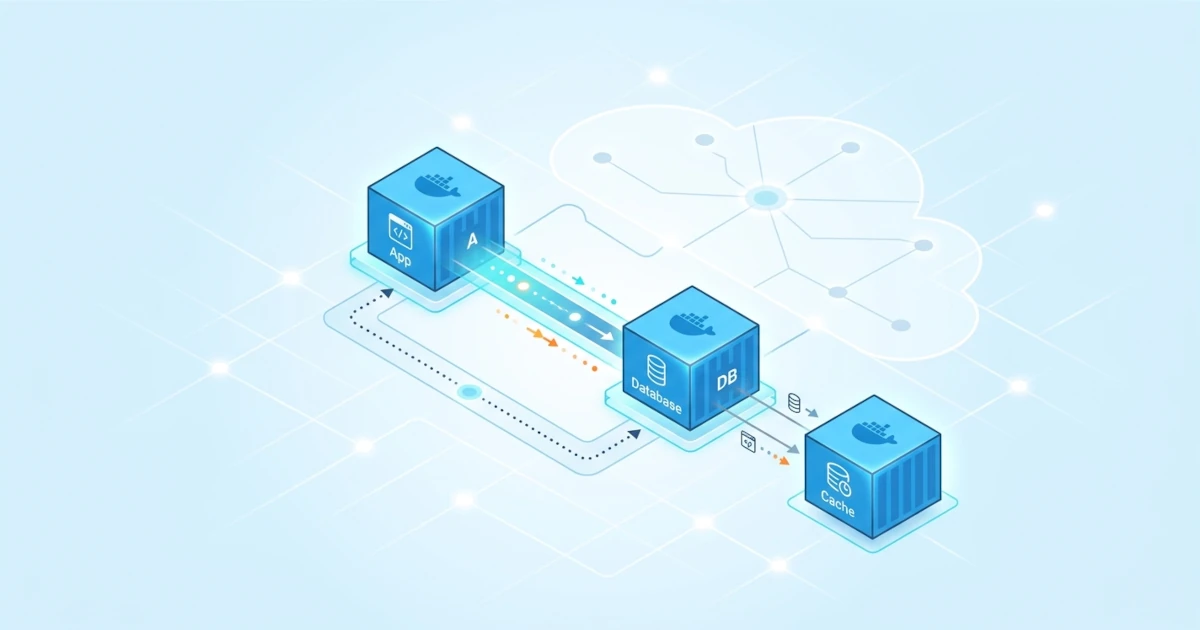
Having multiple containers connected to a single custom bridge network solves only half the problem. Once containers can see each other, the next questions are how that communication actually works behind the scenes, how Docker translates container names into reachable addresses, and how the ports used by applications inside containers can (or cannot) be accessed from the outside. Developers building multi-container applications need to understand these mechanisms so that services connect properly, while Sysadmins/DevOps Engineers need to understand them to configure safe port exposures in production. This chapter discusses how container-to-container communication works in depth, Docker's built-in DNS and service discovery mechanisms, the deprecated --link option, and the fundamental differences between exposing and publishing ports, which are often confused.
14.1 Inter-Container Communication
Custom bridge networks have been discussed as the primary solution for connecting containers to one another, but there are several technical details that need to be understood further so that communication between containers remains stable, especially as application topologies begin to involve more than two containers or more than one network simultaneously.
14.1.1 Prerequisites for Inter-Container Communication
Two containers can only communicate directly using their names if they meet two conditions: both are connected to the same network, and that network is not the default bridge network. Prove this again by running an application container and a database container on the same app-net.
docker network create app-net
docker run -d --name db --network app-net -e POSTGRES_PASSWORD=secret postgres:16-alpine
docker run -d --name api --network app-net alpine sleep 3600
docker exec api ping -c 2 db
The api container successfully reaches db simply using its name because both are on the same custom bridge network. If one of the containers is run without the --network option, that container automatically joins the default bridge network and will not be reachable by name from other containers in app-net, even though technically both are still running on the same physical host.
14.1.2 Cross-Network Communication
A container can be connected to more than one network simultaneously, a pattern useful when certain services need to be isolated from other services. A common scenario in the field: a reverse proxy container needs to reach both frontend and backend application containers, but the frontend and backend themselves do not need to reach each other directly.
docker network create frontend-net
docker network create backend-net
docker run -d --name proxy --network frontend-net alpine sleep 3600
docker network connect backend-net proxy
docker run -d --name app-backend --network backend-net alpine sleep 3600
docker exec proxy ping -c 2 app-backend
The proxy container above becomes a member of both frontend-net and backend-net using docker network connect, allowing it to reach containers in both networks. Conversely, a container that is only a member of backend-net (such as app-backend) cannot reach any container in frontend-net. This pattern becomes a simple way to implement network segmentation without needing extra firewall rules, because isolation occurs automatically as long as a container is not registered as a member of the network to be isolated.
docker rm -f proxy app-backend api db
docker network rm frontend-net backend-net app-net
14.2 DNS and Service Discovery
Service discovery is a mechanism that allows a service to locate the address of another service without needing to hardcode IP addresses manually. Docker provides this mechanism out of the box through an embedded DNS server that runs automatically on every custom network.
14.2.1 Embedded DNS Server
Every time a container connects to a custom bridge network, the Docker daemon automatically directs that container's DNS resolution to its own embedded DNS server running at the internal address 127.0.0.11. Check the contents of /etc/resolv.conf directly inside a container connected to a custom network.
docker network create app-net
docker run -d --name db --network app-net alpine sleep 3600
docker exec db cat /etc/resolv.conf
nameserver 127.0.0.11
options ndots:0This 127.0.0.11 address is not a real DNS server accessible from outside the container, but an internal proxy managed by the Docker daemon to resolve container names and network aliases into corresponding IP addresses within that network. Any unrecognized DNS query (such as public domains like docker.com) is forwarded by this embedded DNS server to the DNS resolver used by the host, so the container can still perform name resolution to the internet as usual.
14.2.2 Service Discovery via Container Names and Aliases
Docker's service discovery mechanism is basically simple: the container name and network aliases discussed serve as the sole catalog used by the embedded DNS server for name resolution. No additional configuration is required; once a container connects to a custom network with a specific name, that name automatically becomes usable by other containers on the same network.
docker run -d --name api --network app-net --network-alias backend alpine sleep 3600
docker run -d --name web --network app-net alpine sleep 3600
docker exec web nslookup backend
The nslookup command above proves that the alias backend is successfully resolved to the api container's IP address by the embedded DNS server. This pattern makes inter-service connection configuration in many applications as simple as using the service name (for example, DATABASE_HOST=db) without needing to know the actual container IP address, because Docker Compose (which covers multi-container orchestration in greater detail) relies on the exact same embedded DNS mechanism under the hood. In practice, name resolution failures between containers almost always stem from one of two causes: the containers are on different networks, or there is a typo in the container name or alias.
docker rm -f api web db
docker network rm app-net
14.3 Linking Containers (Deprecated)
Before custom bridge networks and embedded DNS servers were available, Docker provided the --link option as the only way to explicitly connect containers while obtaining simple name resolution. This option is now deprecated according to official Docker documentation and remains important to understand merely to recognize legacy patterns in older codebases or tutorials, not for use in new configurations.
14.3.1 How Legacy Links Work
The --link option is used alongside docker run to connect a new container to another running container using the syntax --link <container>:<alias>.
docker run -d --name db-legacy alpine sleep 3600
docker run --rm --link db-legacy:db alpine ping -c 2 db
Internally, --link works by adding static entries to the /etc/hosts file of the newly started container, rather than using a DNS server that can update name mappings dynamically. This approach has many limitations: /etc/hosts entries are not automatically updated if the target container restarts and receives a new IP, it only works in one direction (the target container cannot automatically reach back to the container using --link), and it does not support scenarios where containers are spread across multiple networks simultaneously.
14.3.2 Reasons for Migrating to Custom Networks
Custom bridge networks replace all functions of --link in a much more reliable way: name resolution via the embedded DNS server updates automatically if a container restarts and changes IP addresses, works bi-directionally among all members of the network, and supports network aliases that are much more flexible than static links aliases. Therefore, official Docker documentation explicitly recommends using user-defined networks as a replacement for --link for all container communication needs, including on modern versions of Docker Engine and Docker Desktop.
docker rm -f db-legacy14.4 Exposing vs Publishing Ports
Two terms frequently confused by beginners are exposing and publishing ports. Both sound similar but have very different effects on a container's accessibility from outside the host.
14.4.1 EXPOSE in Dockerfile
The EXPOSE instruction inside a Dockerfile functions purely as documentation, informing anyone reading the image that the application inside the container listens on a specific port. This instruction does not open the port to be accessible from outside the container or from the host.
FROM nginx:alpine
EXPOSE 80
The practical effect of EXPOSE is felt in only two ways: image metadata displays the port via docker inspect or docker image inspect, and the -P option (capital letter) in docker run utilizes this list of exposed ports to automatically publish them to random ports on the host. Other than these two things, a container whose port is exposed but run without any publish option remains completely inaccessible from outside the container.
14.4.2 Publishing Ports with -p
Publishing is the actual action that opens an access path from outside the host to a port inside the container, executed using the -p or --publish option when running docker run.
docker run -d --name web -p 8080:80 nginx:alpine
curl http://localhost:8080
The syntax -p 8080:80 above maps port 8080 on the host to port 80 inside the container. Docker configures this mapping using NAT rules at the host kernel level (using iptables on Linux), so incoming traffic to the host port is forwarded to the corresponding container. Without publishing, a port opened by an application inside the container can only be accessed by other containers on the same network and cannot be reached from outside the host at all.
The -P option (capital letter, without specifying a target port) publishes all ports exposed in the Dockerfile to random ports selected by Docker on the host.
docker run -d --name web2 -P nginx:alpine
docker port web2
The docker port command above shows the random port mapping chosen by Docker for the web2 container, which is particularly useful when running multiple instances of the same container without needing to manually specify each host port one by one.
14.4.3 When Expose Alone Is Sufficient
In container-to-container communication scenarios on the same network, publishing ports from the host is completely unnecessary. A database container, for example, only needs to be exposed (or even left unexposed entirely, as it is not strictly required) and connected to the same custom network as the application container, without needing any -p option.
docker network create app-net
docker run -d --name db --network app-net -e POSTGRES_PASSWORD=secret postgres:16-alpine
docker run -d --name api --network app-net -p 3000:3000 node-app:latest
In the example above, the db container only needs to connect to app-net to be reachable by the api container using the name db and PostgreSQL's default port (5432), without publishing to the host at all. Conversely, the api container does need to be published via -p 3000:3000 because it must be accessible from outside the host, such as by a user's browser. Sysadmins/DevOps Engineers managing containers in production need to strictly apply this principle: publish ports only for services that genuinely need to be accessed from the outside, while internal services like databases or caches can simply be connected via networks without publishing, keeping the attack surface as minimal as possible. An attacker performing a port scan from outside the host will not find a database port that was never published, even though that container is running and accessible normally by the application container that requires it.
docker rm -f db api web web2
docker network rm app-net