
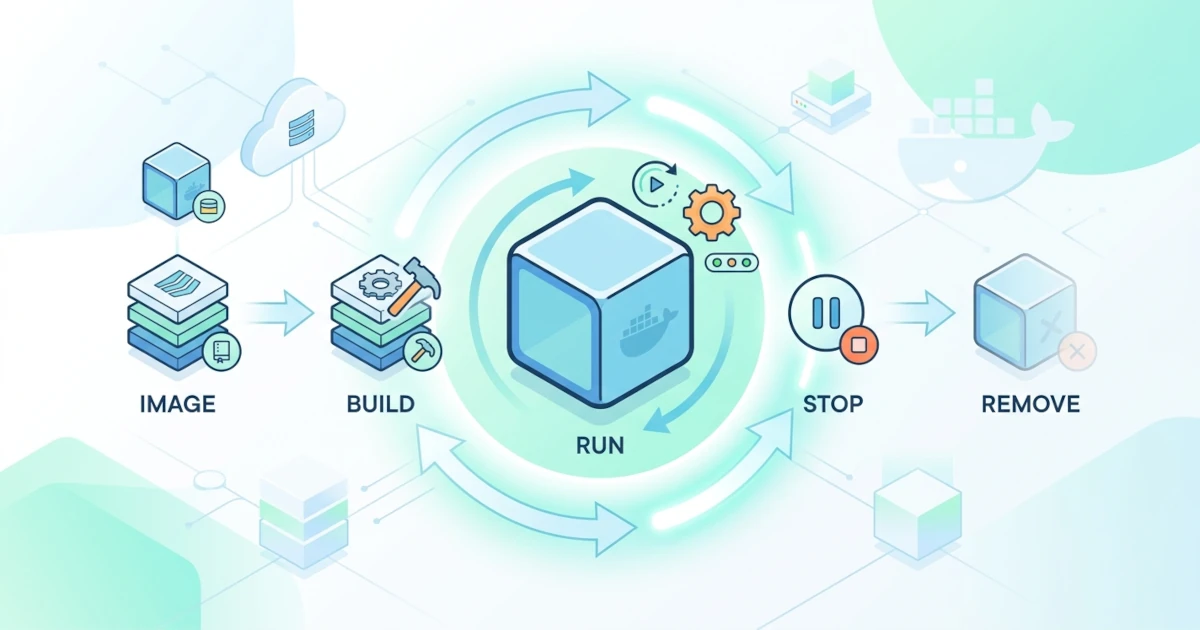
Once created, containers do not remain in a single state forever. Throughout their lifecycle, containers can be started, paused, completely stopped, automatically restarted via restart policies, and eventually removed when they are no longer needed. Sysadmins and DevOps Engineers who manage containers in production must thoroughly understand each of these transitions. Stopping a container incorrectly can lead to data corruption in stateful applications, while choosing the wrong restart policy might cause a container that should remain stopped to continuously restart indefinitely. Developers also need to know how to clean up leftover testing containers so that their development machine's disk does not become cluttered with accumulated container waste. This chapter covers how to safely stop and start containers, the pause and unpause mechanisms, methods and variations for removing containers, available restart policy choices, and operational container cleanup strategies.
9.1 Starting and Stopping Containers
Stopping a container sounds simple, but there is a major difference between stopping a container gracefully (giving the application time to shut down properly) and forcing it to stop. This distinction is especially important for applications actively processing database transactions, writing files, or holding network connections that need to be closed correctly before the process terminates.
9.1.1 Docker Stop and Termination Signals
The docker stop command stops a container gracefully by sending a SIGTERM signal to the main process (PID 1) inside the container. This gives the application an opportunity to catch the signal and clean up after itself (closing database connections, finishing ongoing requests, and flushing file buffers) before actually exiting. Set up a sample container to practice.
docker run -d --name demo-app nginx:1.27Stop the container using docker stop.
docker stop demo-appIf the main process fails to stop within a specific grace period after receiving SIGTERM, the Docker daemon automatically sends a SIGKILL signal, which forcibly terminates the process immediately. By default, this timeout period is 10 seconds for Linux containers and 30 seconds for Windows containers, unless configured otherwise. Change this grace period using the --timeout option when a container requires more time to shut down gracefully, such as an application processing a long queue job.
docker start demo-app
docker stop --timeout 30 demo-app
The --timeout option replaces the older --time option (abbreviated as -t), which has been deprecated since Docker Engine version 28.0, although --time still functions for backward compatibility. If a container requires a termination signal other than SIGTERM, such as an application that only responds to SIGINT, specify it using the --signal option in docker stop, or set it permanently in the image using the STOPSIGNAL instruction in the Dockerfile.
docker stop --signal SIGINT demo-app9.1.2 Docker Kill and Restarting Containers
For emergency scenarios requiring a container to stop immediately without any graceful shutdown process, use docker kill, which directly sends a SIGKILL signal (or another signal specified via the --signal option) without a waiting period.
docker start demo-app
docker kill demo-app
In practice, docker kill should only be used if docker stop fails or if a container must be terminated immediately, such as when it causes host system resource usage to spike out of control. Under normal conditions, always prioritize docker stop so that the application inside has time to clean up. Restarting a stopped container (whether stopped via stop or kill) simply requires docker start, without needing to create a new container.
docker start demo-app
docker ps --filter name=demo-app
A common pitfall that frequently trips up Developers: docker start launches the container with the exact same configuration used when it was originally created via docker run or docker create, including its port mappings and environment variables. To modify those configurations, the old container must first be removed and recreated with the new options; docker start alone cannot alter the parameters of an existing container.
9.2 Pausing and Unpausing
In addition to stopping completely, a container can also be temporarily frozen without actually terminating its processes. This state is useful when you need to freeze a container momentarily, such as taking a snapshot of its filesystem without interference from ongoing write operations, all while preserving its in-memory state, unlike a full container stop.
The docker pause command freezes all processes within a container using the Linux kernel's cgroup freezer, a mechanism that temporarily halts process scheduling without sending any signals to the processes. Because no signal is sent, the application inside the container is unaware that it has been paused, allowing its in-memory state to remain intact exactly as it was before freezing.
docker run -d --name demo-pause nginx:1.27
docker pause demo-pause
Check the status of the paused container using docker ps; the STATUS column will display (Paused) next to its uptime duration.
docker ps --filter name=demo-pauseCONTAINER ID IMAGE STATUS
8f3a1b2c4d5e nginx:1.27 Up 2 minutes (Paused)While paused, the container will not respond to any requests, including docker exec commands, because CPU scheduling for all internal processes is suspended. Unfreeze and resume normal operation using docker unpause.
docker unpause demo-pauseIn production environments, docker pause is rarely used for daily operations because freezing all processes indiscriminately is quite aggressive compared to docker stop, which gives the application a chance to respond. The most common use case for docker pause is on the Developer side or within automated tooling, such as temporarily pausing a container when host resources are urgently needed by higher-priority tasks, without losing the state of the paused container.
Clean up the sample containers before proceeding to the next section.
docker rm -f demo-app demo-pause9.3 Removing Containers
Stopped containers are not automatically removed from the system unless they were initially started with the --rm flag. A stopped container's writable layer remains stored on the host's disk space, continuing to consume storage. Therefore, removing unused containers is a routine part of Docker operations.
9.3.1 Docker RM and Its Variations
The basic docker rm command removes one or more containers simultaneously, but it only succeeds on containers that are currently in a stopped status.
docker create --name demo-rm-1 alpine sleep 300
docker create --name demo-rm-2 alpine sleep 300
docker rm demo-rm-1 demo-rm-2
Try removing a running container without additional flags to see the error behavior.
docker run -d --name demo-rm-running nginx:1.27
docker rm demo-rm-running
Docker rejects the request with the message: Error response from daemon: cannot remove container "/demo-rm-running": container is running: stop the container before removing or force remove. This safety mechanism prevents accidental deletion of containers actively handling traffic. To force the removal of a running container, add the -f (--force) option, which internally sends a SIGKILL signal to the container prior to deletion.
docker rm -f demo-rm-runningBecause docker rm -f uses SIGKILL instead of SIGTERM like docker stop does, the application inside has no time to clean up before termination. In production environments, avoid relying on docker rm -f for containers serving active traffic; execute a docker stop first so the application can gracefully close connections and complete ongoing requests, followed by a standard docker rm.
Containers created with an anonymous volume (a volume created without an explicit name) leave that volume behind on the host disk even after the container is deleted, unless the -v flag is passed to docker rm to delete the associated anonymous volume alongside the container.
docker run -d --name demo-rm-vol -v /data nginx:1.27
docker rm -fv demo-rm-vol
This -v flag only removes anonymous volumes, not named volumes. If a container relies on a named volume, that volume remains safely preserved even if the container is removed using the -v flag, as named volumes are explicitly designed to persist independently of any container lifecycle.
9.3.2 Removing Multiple Containers at Once
To delete multiple stopped containers at once, combine docker rm with docker ps -aq, which outputs container IDs. Adding the --filter status=exited filter ensures that only stopped containers are selected.
docker rm $(docker ps -aq --filter status=exited)While this approach is common, using docker container prune (discussed in the cleanup section) is safer and more concise. However, the manual command above remains useful when specific filters are needed, such as deleting stopped containers associated with a particular image.
9.4 Container Restart Policies
A restart policy defines whether the Docker daemon should automatically restart a container when it stops, whether due to an internal process exit, a crash, or a daemon restart. Restart policies are crucial for Sysadmins and DevOps Engineers to ensure that production services recover automatically without requiring manual intervention during outages.
9.4.1 Restart Policy Options
Docker offers four restart policy choices set via the --restart flag during docker run.
| Restart Policy | Behavior |
|---|---|
no | Never restarts the container automatically. This is the default value if --restart is omitted. |
on-failure[:max-retries] | Restarts only if the container exits with a non-zero exit code (indicating an error), with an optional retry limit. |
always | Always restarts the container if it stops, including after the Docker daemon restarts, unless the container was manually stopped prior to the daemon restart. |
unless-stopped | Similar to always, except that containers stopped manually (via docker stop) will not restart after a daemon reboot until manually started again. |
Apply a restart policy when creating a container using the --restart option.
docker run -d --name demo-restart --restart on-failure:3 alpine sh -c "exit 1"Inspect the restart history using docker inspect, which displays the attempt count in the RestartCount field.
docker inspect --format '{{.RestartCount}}' demo-restartFor existing containers running without a restart policy or needing a policy change, use docker update without recreating the container from scratch.
docker run -d --name demo-web nginx:1.27
docker update --restart unless-stopped demo-web
9.4.2 Production Pitfalls with Restart Policies
A frequent trap for Sysadmins and DevOps Engineers: applying always to a container stuck in a crash loop (repeatedly failing to start due to misconfiguration) causes Docker to attempt restarts continuously. This consumes host resources and complicates debugging as logs rotate rapidly. For services susceptible to misconfiguration crashes, on-failure with a reasonable max-retries limit (such as 5) is safer than an unrestricted always policy, providing a natural pause to detect issues before exhausting host resources.
Note that restart policies do not apply to containers stopped manually via docker kill or docker stop, unless the policy is set to always and the Docker daemon is subsequently restarted. This behavior is intentional, ensuring Sysadmins and DevOps Engineers retain manual control to shut down containers without them being immediately restarted by the policy engine.
9.5 Container Cleanup
Accumulating unused containers gradually fills host disk space, especially on development systems where new containers are created daily for testing. Docker provides several commands to safely clean up leftover containers.
9.5.1 Docker Container Prune
The docker container prune command removes all stopped containers at once, making it far more concise than chaining manual commands with docker ps -aq.
docker container pruneWARNING! This will remove all stopped containers.
Are you sure you want to continue? [y/N] y
Deleted Containers:
7a1b2c3d4e5fbb1a1c2d3e4f5a6b7c8d9e0f1a2b3c4d5e6f7a8b9c0d1e2f3a4b
Total reclaimed space: 12.4MBDocker prompts for confirmation because this operation is destructive and irreversible; pruned containers cannot be recovered. For automation contexts like CI scripts where interactive input is not possible, append the -f (--force) flag to bypass the prompt.
docker container prune -fThe --filter flag narrows down which containers get removed. For example, filtering for stopped containers created more than 24 hours ago prevents recently stopped containers (which might still be needed for debugging) from being deleted.
docker container prune --filter "until=24h" -fThe label filter is also useful to restrict cleanup to containers containing specific labels, such as test containers explicitly tagged to distinguish them from core services.
docker container prune --filter "label=env=testing" -f9.5.2 Docker System Prune
When a comprehensive system cleanup is required beyond just containers, docker system prune deletes all stopped containers, networks not used by any container, dangling images (untagged images no longer referenced), and unused build caches in one operation.
docker system pruneWARNING! This will remove:
- all stopped containers
- all networks not used by at least one container
- all dangling images
- unused build cache
Are you sure you want to continue? [y/N] yBy default, docker system prune does not delete volumes, ensuring data stored in named or anonymous volumes remains safe. Adding the --volumes flag will only purge anonymous volumes not currently used by any container; named volumes remain unaffected even with this option.
docker system prune --volumes -fTo remove unused named volumes, use the separate docker volume prune command. By default, docker volume prune also targets only anonymous volumes; unattached named volumes are only deleted if the --all option is explicitly included.
docker volume prune --all -fCaution regarding this command is critical: docker volume prune --all can cause permanent data loss if an unattached named volume contains essential data, such as when its container was deleted prior to execution. Docker intentionally avoids automatic volume deletion to guard against accidental data loss. Before executing docker volume prune --all on production servers, always review existing volumes using docker volume ls and confirm no critical data is lost.
In production environments, Sysadmins and DevOps Engineers routinely schedule docker system prune -f (without --volumes) via cron jobs on build servers with high image turn-over. This prevents disks from filling up with accumulated dangling images and build caches while protecting persistent data volumes from automated removal.
| Command | Function |
|---|---|
docker stop --timeout <seconds> <container> | Stops a container gracefully (SIGTERM, then SIGKILL if timeout is exceeded) |
docker kill <container> | Stops a container immediately via SIGKILL without a waiting period |
docker pause / docker unpause <container> | Freezes and unfreezes all processes within a container |
docker rm -f <container> | Forcibly removes a container even if it is currently running |
docker update --restart <policy> <container> | Updates the restart policy of an existing container |
docker container prune | Removes all stopped containers |
docker system prune --volumes | Cleans up unused containers, networks, images, build caches, and anonymous volumes |
docker volume prune --all | Removes unused anonymous and named volumes not attached to any container |