
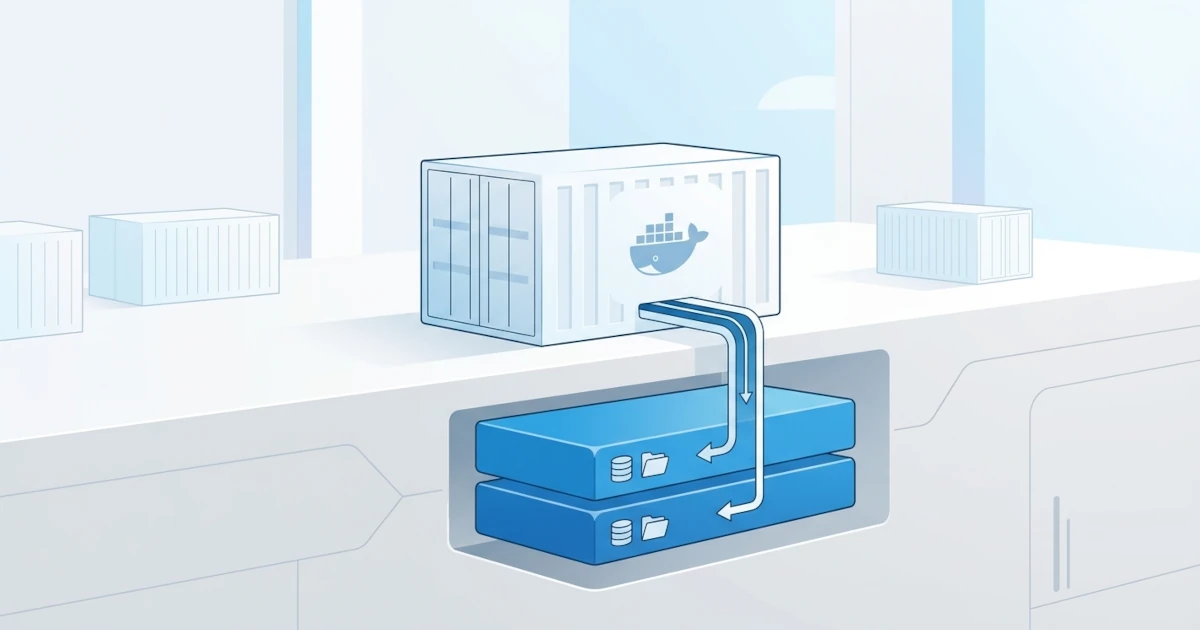
Containers are essentially ephemeral; all data written to their writable layer vanishes as soon as the container is removed. This behavior is ideal for stateless processes, but it poses a major issue for applications that store critical data, such as databases whose data must persist even when the container is replaced with a new image version. Sysadmins and DevOps Engineers managing databases or stateful services in production must understand how to store data so that it is not lost every time a container is restarted, updated, or even migrated to another host. Developers also need to grasp this concept so that development data, such as a local database for testing, does not have to be rebuilt from scratch every time a container is removed. This chapter covers volumes, Docker's official data persistence mechanism designed to exist independently of the lifecycle of any container using them.
10.1 Volume Concepts
A volume is a data storage mechanism managed directly by Docker, completely decoupled from the container's writable layer, ensuring that data persists even after the container using it is removed. Docker stores volumes in a dedicated location on the host filesystem, typically under /var/lib/docker/volumes/ on Linux, and manages the entire lifecycle of creation, storage, and cleanup via the Docker Engine.
10.1.1 Why Volumes Are Needed
Every container runs on top of its own writable layer, a thin layer built on top of read-only image layers. All changes occurring while the container is running, including files written by the application, are saved in this layer. The issue is that the writable layer is tightly coupled with the container lifecycle: as soon as the container is removed via docker rm, the entire contents of its writable layer are lost permanently and cannot be recovered.
For stateless applications such as web servers that do not store critical data inside the container, this ephemeral nature is not a problem. However, for databases like PostgreSQL or MySQL, losing data every time a container is updated to a new image version is unacceptable. Volumes address this issue: data written to a volume remains stored on the host disk independently, allowing containers to be deleted and recreated repeatedly without sacrificing data.
10.1.2 Volumes vs Bind Mounts vs Container Writable Layer
Docker provides three distinct ways to handle data in containers, and it is crucial to understand where volumes fit among them before diving into practice. A bind mount directly maps a specific file or directory from the host into the container, making its path fully dependent on the host filesystem structure. Volumes differ: Docker manages the storage location itself, eliminating the need (and recommended practice) to directly know or rely on the host directory structure.
| Aspect | Volume | Bind Mount | Container Writable Layer |
|---|---|---|---|
| Managed by | Docker Engine | Host directory structure, manual | Docker, tied to container |
| Storage location | Dedicated Docker area on host | Custom path on host filesystem | Part of the container itself |
| Persists after container removal | Yes | Yes (data remains on host) | No |
| Portability across hosts | Easier to manage via volume drivers | Depends on destination host filesystem structure | Not applicable |
In general, volumes are recommended by Docker for most use cases because Docker itself manages their lifecycle and storage location, making them easier to back up, migrate, or manage via the Docker CLI without needing to know details of the host directory structure. Bind mounts still have their place, especially when direct access to a specific host path is required, such as mounting development source code into a container in real time.
10.2 Named Volumes vs Anonymous Volumes
Volumes in Docker are categorized into two types based on how they are named: named volumes, which are given an explicit name by the user, and anonymous volumes, whose names are automatically generated by Docker as random strings. While this distinction may seem minor, it significantly impacts the long-term ease of managing data.
10.2.1 Creating and Using Named Volumes
Named volumes are created with a user-specified name, making them easy to reference whenever needed, whether for mounting to another container or for backup operations. Explicitly create a named volume using docker volume create.
docker volume create data-dbMount an existing volume into a container using the -v (or --volume) option with docker run, using the syntax volume-name:path-in-container.
docker run -d --name demo-db -v data-db:/var/lib/postgresql/data postgres:16Named volumes do not need to be created manually beforehand. If the volume name specified in the -v flag does not exist, Docker automatically creates it when the container runs.
docker run -d --name demo-app -v app-cache:/root/.cache alpine sleep 3600Docker also provides the --mount option as an alternative to -v with a more explicit and verbose syntax using key=value pairs. Official Docker documentation recommends --mount for scenarios requiring precise control, such as configuring volume drivers, subdirectories within a volume, or mounts on Docker Swarm services.
docker run -d --name demo-db2 --mount type=volume,src=data-db,dst=/var/lib/postgresql/data postgres:16For named volumes, both -v and --mount automatically create the volume if its name is not yet registered, so there is no difference in auto-creation behavior between the two specifically for volumes. For most day-to-day use cases, -v remains sufficient and concise; --mount is more relevant in production scenarios requiring higher configuration precision.
Restrict write access to a volume if it is not required by appending the :ro (read-only) suffix to the end of the -v option. This practice is relevant for utility containers that only need to read volume contents, such as containers scanning or copying volume contents for auditing purposes, thereby reducing the risk of accidental data modification.
docker run --rm -v app-cache:/root/.cache:ro alpine ls -la /root/.cache10.2.2 Anonymous Volumes and Their Risks
An anonymous volume is created when a volume is mounted to a container path without specifying a volume name, supplying only the target destination path.
docker run -d --name demo-anon -v /data alpine sleep 3600Docker assigns a random long hash string as the name for this volume. Inspect the generated random name using docker inspect.
docker inspect --format '{{json .Mounts}}' demo-anonAnonymous volumes persist even after the container using them is removed, just like named volumes, unless the container was executed with the --rm flag from the start. The difference is that because their names are random strings, anonymous volumes are much harder to identify and reference later. This is a common pitfall for developers: running multiple test containers with anonymous volumes, then becoming confused about which volume contains critical data when cleaning up, because all names are merely meaningless random character strings.
Docker does not automatically share or reuse anonymous volumes across containers. Every container executed with the same anonymous volume option (for example, -v /data without a name) creates a new, separate anonymous volume rather than reusing an existing one. If data sharing between containers is required, use named volumes or explicitly reference the anonymous volume by its random ID.
In practice, the best approach is to always use named volumes for data that must be preserved, and avoid anonymous volumes unless working with temporary data that does not need tracking. If a VOLUME instruction in a base image Dockerfile (such as official PostgreSQL or MySQL images) automatically creates an anonymous volume when run without an explicit -v option, manually override that path with a named volume to keep the data identifiable and manageable.
10.3 Volume Management
The Docker CLI provides the docker volume subcommand to manage the complete lifecycle of volumes, from listing and inspecting details to deleting them.
10.3.1 Listing and Inspecting Volumes
List all volumes present on the host using docker volume ls.
docker volume lsDRIVER VOLUME NAME
local data-db
local app-cache
local a1b2c3d4e5f6...The first column displays the driver used by the volume; local is Docker's default driver that stores data directly on the host disk. To inspect volume details, including its physical storage path on the host, use docker volume inspect.
docker volume inspect data-db[
{
"Driver": "local",
"Labels": {},
"Mountpoint": "/var/lib/docker/volumes/data-db/_data",
"Name": "data-db",
"Options": {},
"Scope": "local"
}
]The Mountpoint field indicates the actual host filesystem location where the volume data is stored. Although technically accessible directly via this path, Docker strongly advises against manually modifying contents from outside the container, as it risks causing data inconsistency with active containers accessing it.
10.3.2 Removing Volumes
Remove unused volumes using docker volume rm. A volume can only be removed if it is not attached to any container, whether running or stopped.
docker volume rm app-cacheIf a volume is still in use by a container, Docker rejects the removal with an error message stating that the volume is in use. Remove or detach the container using it before attempting to delete the volume.
To clean up accumulated unused volumes, use docker volume prune. By default, this command only removes anonymous volumes not attached to any container; named volumes remain safe even if currently unused.
docker volume pruneWARNING! This will remove anonymous local volumes not used by at least one container.
Are you sure you want to continue? [y/N] yTo also remove unused named volumes, add the --all option.
docker volume prune --allExercising caution with this command is critical: docker volume prune --all can permanently delete data if an unattached named volume contains critical information, such as when its container was accidentally removed. Docker intentionally avoids automatically deleting volumes specifically to prevent accidental data loss. Before executing this command on a production server, always inspect the volume list via docker volume ls and ensure no critical data is lost.
10.4 Volume Drivers
A volume driver determines how and where volume data is physically stored. The default Docker driver is local, which stores data directly on the host disk where Docker Engine is running. For complex requirements, such as storing data on network storage systems or cloud storage, third-party volume drivers can be installed as plugins.
10.4.1 Local Driver and Options
By default, docker volume create uses the local driver without requiring explicit definition. This driver accepts additional mount options via the --opt flag, such as mounting an NFS directory as a volume data source.
docker volume create --driver local \
  --opt type=nfs \
  --opt o=addr=192.168.1.100,rw \
  --opt device=:/path/to/share \
  data-nfs
This configuration is useful for Sysadmins and DevOps Engineers managing multiple Docker hosts who want to ensure volume data remains accessible when containers are migrated across hosts, because the actual data resides on dedicated network storage rather than local host disks.
10.4.2 Third-Party Volume Driver Plugins
Beyond the built-in local driver, Docker supports an ecosystem of third-party volume driver plugins that extend storage capabilities to various backend systems, such as cloud object storage or distributed filesystems. Create a volume using a specific driver plugin by specifying the --driver option.
docker volume create --driver=plugin-name volume-name
docker run -it --volume volume-name:/data alpine sh
Before installing third-party volume driver plugins in production environments, verify the source and reputation of the plugin, as volume plugins run with direct access to container data and could present a security risk if obtained from untrusted sources. For most daily development needs, the default local driver is sufficient without extra plugins.
10.5 Sharing Data Between Containers
One of the primary uses of volumes is sharing data across multiple containers simultaneously, such as an application container writing log files and a separate container reading those logs for processing.
10.5.1 Mounting the Same Volume to Multiple Containers
The most direct way to share data is mounting the same named volume to multiple containers simultaneously using the -v option.
docker volume create shared-logs
docker run -d --name app-writer -v shared-logs:/var/log/app alpine sh -c "while true; do date >> /var/log/app/app.log; sleep 5; done"
docker run -d --name app-reader -v shared-logs:/var/log/app alpine sh -c "tail -f /var/log/app/app.log"
Both containers above access the exact same data directory via the shared-logs volume, even though mount paths inside each container can differ if necessary. Verify that written data is readable by the second container using docker logs.
docker logs app-reader10.5.2 Volumes-From for Inheriting Mount Configurations
The --volumes-from option copies all volume mount configurations from another container, which is useful when a container needs to inherit identical volume setups without retyping mount parameters manually.
docker run -d --name data-holder -v shared-data:/data alpine sleep 3600
docker run --rm --volumes-from data-holder alpine ls /data
This pattern is common for one-off utility containers, such as backup containers that need to access a database container's volume without needing to know the exact volume name, simply by referencing the container currently mounting it.
docker run --rm --volumes-from demo-db -v $(pwd)/backup:/backup alpine tar czf /backup/db-backup.tar.gz /var/lib/postgresql/dataIn practice, sharing volumes between containers using this pattern is helpful for sidecar scenarios, such as a primary container running the application and a separate container monitoring or processing the same data without storage duplication. Note that if multiple containers write to the same volume concurrently without proper locking mechanisms, race condition risks persist; volumes themselves do not provide automated locking mechanisms, so maintaining data consistency remains the application's responsibility.
Clean up all sample containers and volumes used throughout this chapter to avoid accumulating leftover test data on your system.
docker rm -fv demo-db demo-app demo-anon demo-db2 app-writer app-reader data-holder
docker volume rm data-db app-cache shared-logs shared-data data-nfs
The -v flag in docker rm removes anonymous volumes attached to the deleted containers, such as the anonymous volume belonging to demo-anon. Named volumes like data-db and app-cache must still be removed separately using docker volume rm because, as discussed in the volume management section, the -v flag does not apply to named volumes.
| Command | Function |
|---|---|
docker volume create <name> | Creates a new named volume |
docker run -v <name>:<path> image | Mounts a volume to a specific container path |
docker volume ls | Lists all available volumes |
docker volume inspect <name> | Displays detailed information and physical storage location of a volume |
docker volume rm <name> | Removes a volume that is no longer used by any container |
docker volume prune --all | Removes all unused volumes (including named volumes) |
docker run --volumes-from <container> | Inherits all volume mount configurations from another container |