
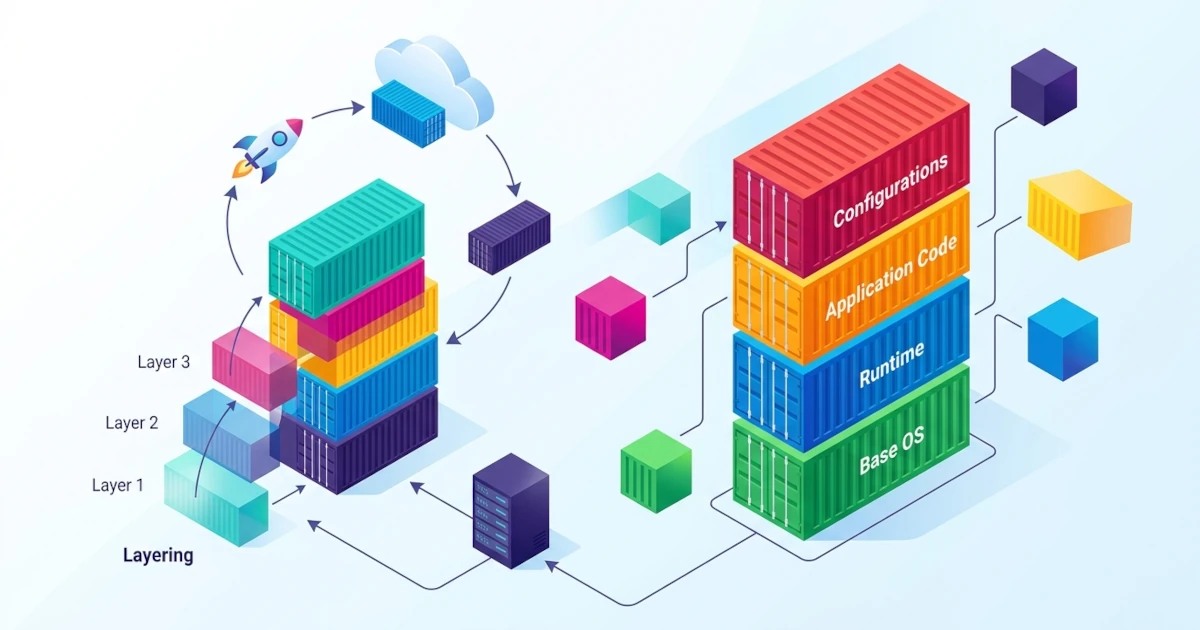
Before we can build our own Dockerfile effectively, it is helpful to understand what actually happens behind a Docker image. This chapter examines images in greater depth from the perspective of structure and naming: how images are composed of multiple reusable layers, why the chosen base image significantly determines the size and security of our application later, and how the tag and digest system ensures we run the exact intended image version. This understanding serves as essential knowledge, both for Developers who want lightweight application images that build quickly, and for Sysadmins/DevOps Engineers who must ensure that images deployed to production are consistent and traceable back to their origin.
4.1 What is a Docker Image?
A Docker image is a standalone package containing everything needed to run an application: program code, runtime, libraries, environment variables, and default configurations such as the command executed when the container starts. Images are read-only and immutable, meaning that once an image is built, its contents never change. If changes are required, such as updating dependencies, the result is a new image with a different identity, rather than modifying the old image directly.
Format-wise, Docker images adhere to the OCI (Open Container Initiative) Image Format specification, an open standard that ensures images can be read by various container runtimes without being locked into Docker. Each image consists of two main parts: a manifest, which is a JSON file listing all layers composing the image along with their configuration (such as CMD, ENTRYPOINT, and default environment variables), and the collection of layers themselves, each containing filesystem diffs stored as compressed archives.
We can inspect the contents of an image directly from the command line without needing to run its container. Pull the stable version of the nginx image, then inspect its configuration details using docker image inspect.
docker pull nginx:1.27
docker image inspect nginx:1.27
The output of docker image inspect presents a complete JSON structure: Id containing the unique image digest, Config containing environment variables and default commands, RootFS.Layers listing all layers composing the image from bottom to top, and Architecture along with Os indicating the target platform of the image. The Architecture section requires careful attention, especially for users on Apple Silicon machines (arm64 architecture), because not all images are available for all architectures, and running an image with an incompatible architecture can cause container errors or slow performance due to emulation.
If the docker pull command above fails with a "manifest unknown" or "not found" message, the most common cause is a typo in the image name or a tag that is not available in the registry; recheck the spelling and the list of available tags on that image's Docker Hub page before trying again.
4.2 Image Layers and Layering Concept
Every instruction in a Dockerfile that modifies the filesystem, such as RUN, COPY, or ADD, creates a new layer. Docker stacks these layers using a union filesystem, a mechanism that combines multiple separate filesystems into a single unified filesystem view from the container's perspective. The most common storage driver used to implement this union filesystem is overlay2, which is default in modern Docker Engine for Linux systems.
The primary advantage of this layered approach is layer caching. If two different images share the same base image and identical initial instructions, Docker only needs to store those layers once on disk and reuses them for both images, saving storage space while speeding up the pull process because layers already present on our machine do not need to be downloaded again. The same cache mechanism applies during the build process: Docker compares each Dockerfile instruction against previous layer caches and only re-executes the instruction if there is a change to the instruction itself or to its input files.
Let us demonstrate this concept through hands-on practice. Create a new working directory and a simple Dockerfile containing several separate RUN steps.
mkdir layer-demo && cd layer-demoFROM alpine:3.20
RUN echo "langkah pertama" > /tmp/step1.txt
RUN echo "langkah kedua" > /tmp/step2.txt
COPY . /appSave the above content as a Dockerfile, then build the image for the first time while taking note of the execution time.
docker build -t layer-demo:1.0 .Observe the build output; each instruction is recorded as an individual step. Now view the list of generated layers using docker image history.
docker image history layer-demo:1.0The output displays the layer hierarchy from newest (top) to oldest (bottom), complete with the size of each layer and the Dockerfile instruction that created it. Next, modify only the last line of the Dockerfile, for instance by adding a new RUN instruction at the bottom, and build again.
FROM alpine:3.20
RUN echo "langkah pertama" > /tmp/step1.txt
RUN echo "langkah kedua" > /tmp/step2.txt
RUN echo "langkah ketiga" > /tmp/step3.txt
COPY . /app
docker build -t layer-demo:2.0 .Notice the "CACHED" line in the build output for the first three instructions; Docker recognizes that these instructions have not changed at all from the previous build, so it directly reuses the existing layers without re-executing the commands. Conversely, if an instruction in the middle of the Dockerfile is modified rather than at the end, all subsequent layers are invalidated from the cache and must be rebuilt, because each layer depends on the output of the preceding layer. This is why instruction ordering in a Dockerfile significantly impacts build speed: placing rarely changed instructions (such as system dependency installation) near the top and frequently changed instructions (such as copying application source code) near the bottom is a standard pattern used by Developers to maximize cache hits.
In practice, Sysadmins/DevOps Engineers managing multiple similar images (for example, several microservices sharing a specific Node.js base image) will observe substantial disk space savings, as the base image layers are stored only once on the host despite being used by dozens of different images. Clean up the test images when finished so they do not accumulate on disk.
docker rmi layer-demo:1.0 layer-demo:2.04.3 Base Images and Parent Images
A base image is the initial image serving as the foundation for a new image, specified via the FROM instruction in a Dockerfile. The term parent image is often used interchangeably with base image to refer to the same thing: the image acting as the starting point before additional layers are stacked on top of it. The only image that truly has no parent is the scratch image, an empty image containing no filesystem, typically used to build minimal images containing only a single static binary.
Base image selection directly impacts three aspects: the final image size, the security attack surface, and compatibility with application dependencies. A base image fully loaded with distro tools and packages is practical for debugging since many utilities are available out of the box, but it also introduces more potential vulnerabilities that must be monitored. Conversely, a minimal base image reduces these security risks, but may require extra effort to install dependencies required by the application.
Let us directly compare the sizes of several popular base images commonly used for similar needs.
docker pull ubuntu:24.04
docker pull debian:12-slim
docker pull alpine:3.20
docker pull scratch 2>/dev/null || echo "scratch bukan image yang bisa di-pull terpisah"
The docker pull scratch command will indeed fail because scratch is not a real image stored in a registry, but rather an empty image concept directly recognized by BuildKit when used in a FROM instruction. Now compare the sizes of the other three successfully pulled images. The docker image ls command accepts only a single REPOSITORY[:TAG] argument, so inspect them individually, or list all local images without filtering since only these three images were pulled recently.
docker image lsAlpine Linux is typically much smaller than Ubuntu or Debian because it uses musl libc and busybox instead of GNU libc and standard coreutils, allowing its total size to remain around a few megabytes compared to tens of megabytes for fuller distributions. This libc difference is not merely a matter of size; in certain cases, particularly for applications compiled and dynamically linked against glibc, behavior may differ or execution may fail on Alpine due to C library incompatibility. In production environments, such cases frequently trap Developers: an image becomes significantly smaller after switching to Alpine, but the application encounters unexpected errors that never occurred on Debian or Ubuntu base images. Therefore, thorough testing remains mandatory whenever changing base images, rather than relying solely on smaller size as the only criteria.
In addition to general distributions, many programming languages provide official base images with different size variants, such as python:3.12 (full), python:3.12-slim (more compact, with most build tools removed), and python:3.12-alpine (minimal, based on Alpine). Selecting the appropriate variant should align with actual application needs rather than simply choosing the smallest one; Sysadmins/DevOps Engineers maintaining production stability often prefer Debian-based slim variants over alpine specifically to avoid glibc compatibility issues, particularly for applications with heavy native dependencies.
Clean up the test images after finishing the comparison.
docker rmi ubuntu:24.04 debian:12-slim alpine:3.204.4 Image Naming and Tagging
Every Docker image is identified by a combination of repository and tag, formatted as [HOST[:PORT]/]PATH[:TAG]. The PATH component can consist of one or more slash-separated segments, such as namespace/repository. If the registry host is not explicitly specified, the Docker CLI assumes the image comes from Docker Hub (docker.io). If the namespace is also omitted, as with nginx or alpine, the Docker CLI assumes it is an official image under the library namespace, making nginx:1.27 fully equivalent to docker.io/library/nginx:1.27.
A tag is a label identifying a specific version of an image repository. Tag names must consist of ASCII characters, including uppercase and lowercase letters, digits, underscores, periods, and hyphens, up to a maximum length of 128 characters, and must not start with a period or hyphen. If no tag is specified when executing docker pull or docker run, Docker defaults to using the latest tag.
An important point to note: latest is merely an ordinary tag name, not an automatic marker for the "most recent version" as is commonly misunderstood. If an image maintainer does not update the latest tag along with new releases, that tag can lag far behind the current version, or even never be updated again. Consequently, using the latest tag for production images is strongly discouraged; Sysadmins/DevOps Engineers managing production deployments should always pin to specific version tags (such as nginx:1.27.1) to ensure deployments remain predictable and do not unexpectedly change behavior simply because a maintainer updated the latest tag in the registry.
Let us practice tagging images using docker tag. First, pull the alpine image with its default tag.
docker pull alpine:3.20Create a new tag pointing to the same image, as if it belonged to a private registry under our own namespace.
docker tag alpine:3.20 registry.contoh-internal.local/tim-backend/alpine:3.20The docker tag command does not duplicate any image data; it merely adds a new reference pointing to the same image ID, similar to creating a symbolic link. Verify this using docker image ls filtered by the same image ID.
docker image ls --filter reference="*alpine*"Both rows will display identical IMAGE IDs despite having different repository names and registries, proving that both refer to the exact same physical data on disk. This naming pattern is standard practice before running docker push to a private registry, as Docker requires the image name to contain the target registry address prior to pushing.
In addition to tags, every image has a digest, an immutable SHA-256 hash of the image manifest that remains unique and permanent as long as the image contents are identical. Unlike tags, which can be moved by maintainers to point to different images at any time, a digest always refers to one exact image payload. Referencing by digest provides maximum security and determinism when absolute certainty is required that the pulled image is identical to what was previously tested, such as in CI/CD pipelines demanding high reproducibility.
docker image inspect --format='{{index .RepoDigests 0}}' alpine:3.20The command above outputs the full digest of the alpine:3.20 image in the format alpine@sha256:..., which can be used directly as a pull reference immune to future tag changes.
docker pull alpine@sha256:<digest_hasil_perintah_sebelumnya>If the docker tag command returns an "invalid reference format" error, the most common cause is using uppercase letters in the repository name (repository names must be lowercase) or starting a tag with prohibited characters like periods or hyphens; correct the naming format according to the rules above before trying again. Clean up test tags when completed.
docker rmi registry.contoh-internal.local/tim-backend/alpine:3.20 alpine:3.20| Term | Explanation |
|---|---|
| Repository | A collection of related images, distinguished by tags (e.g., nginx) |
| Tag | A version label within a repository (e.g., 1.27, latest), which can be moved to point to another image |
| Digest | A SHA-256 hash of the image manifest, unique and permanent for a specific image payload |
| Base/parent image | The starting image serving as a foundation via the FROM instruction |