
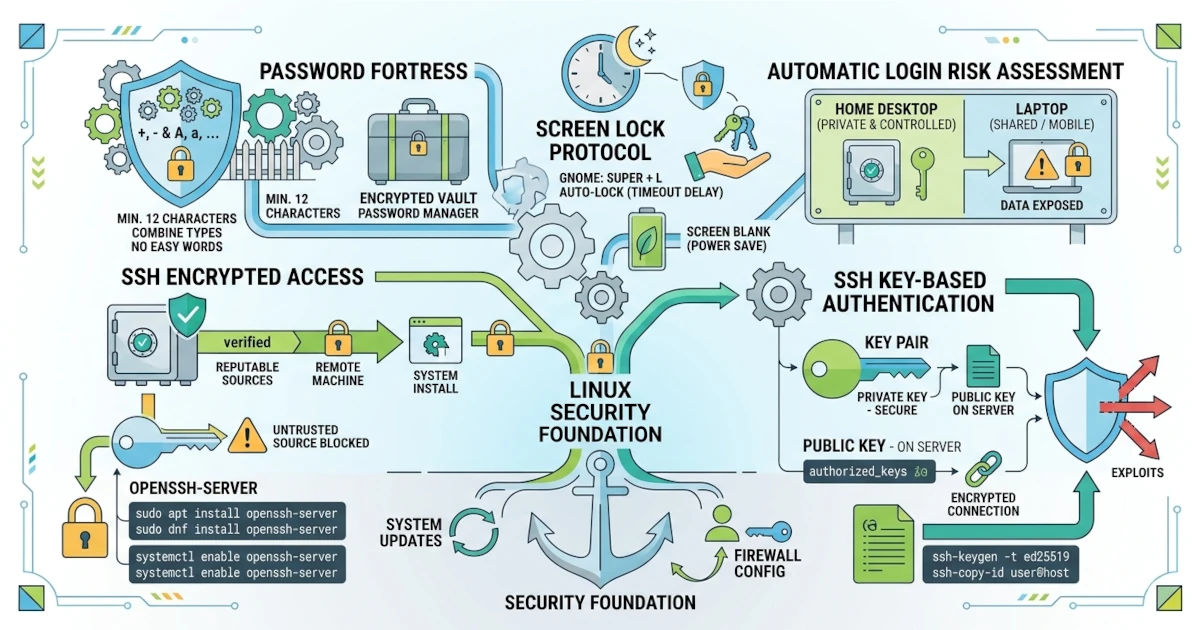
Linux system security does not depend only on software updates, but also on your habits in protecting accounts and access. This chapter discusses fundamental account security practices, from choosing strong passwords, locking the screen, understanding the risks of automatic login, to using SSH to securely access machines remotely.
Strong Passwords
A password is the first line of defence for your account. A weak password is easy to guess or crack with brute‑force attacks. The following are principles for creating a strong password.
- Use a long password, ideally at least 12 characters.
- Combine uppercase letters, lowercase letters, numbers, and symbols.
- Do not use easily guessable words, such as names, birth dates, or "password".
- Use a different password for each account or service.
Given the many passwords you have to remember, consider using a password manager that stores passwords in an encrypted database.
Locking the Screen and Auto‑Lock
Locking the screen is a simple habit that is very effective at preventing others from accessing your computer when you step away. On GNOME, press the Super + L keys to lock the screen immediately.
Auto‑lock automatically locks the screen after a period of inactivity. You can set this up in Settings > Privacy & Security > Screen Lock, by enabling Automatic Screen Lock and specifying the delay duration before the screen locks.
Screensaver and Timeout
In addition to auto‑lock, the Blank Screen Delay setting determines when the screen goes blank after inactivity. On GNOME, set this in Settings > Power. There you can adjust Screen Blank to turn off the display after a few minutes, which also saves power. Make sure the Automatic Screen Lock option is on so that a blank screen immediately locks.
Automatic Login: When Safe and When Not
Automatic login allows the computer to boot directly to the desktop without asking for a password. This saves time, but carries a security risk because anyone who turns on the computer can immediately access your account.
- Safe to use on a computer that is entirely under your control and in a secure location, for example a personal desktop computer at home.
- Not safe to use on a laptop that is often carried around or on a shared computer, because your data can be exposed.
You can set up automatic login in Settings > Users, but use this feature with caution.
Basic SSH: Secure Login to Remote Machines
SSH (Secure Shell) is a protocol for accessing another machine remotely over an encrypted connection. Through SSH, you can log in to a server or another computer and run commands as if you were right in front of it.
Installing and Enabling the SSH Server
To accept SSH connections, the target machine must be running an SSH server. On Ubuntu 26.04 LTS, install and enable it with:
sudo apt install openssh-serverOn Fedora Workstation 44, use:
sudo dnf install openssh-serverOnce installed, enable and start the service so it starts automatically at boot.
sudo systemctl enable --now sshOn Fedora, the service name is sshd, so the command becomes sudo systemctl enable --now sshd. After the server is active, another computer can connect using the ssh username@address command.
As a terminal‑free alternative, GNOME 50 (used by both Ubuntu 26.04 and Fedora 44) provides a built‑in toggle in Settings > System > Secure Shell. Once the openssh-server package is installed, you simply turn on the Secure Shell switch in that panel to enable SSH access, complete with a ready‑to‑use ssh command displayed on screen according to your device name.
SSH Key‑Based Authentication vs Password
By default, SSH asks for a password when logging in. However, a more secure method is key‑based authentication, which uses a pair of cryptographic keys: a private key that you keep secret and a public key that you place on the server.
The advantages of key‑based authentication are that there is no password to guess or steal, and it makes logging in easier without repeatedly typing a password. You can even disable password‑based login after the key is installed for even higher security.
In addition to key‑based authentication, the SSH connection itself is also strengthened at the protocol level. Ubuntu 26.04 LTS includes OpenSSH version 10.2, which by default already uses a post‑quantum hybrid key exchange (mlkem768x25519-sha256). In simple terms, when two modern systems with the latest OpenSSH version connect to each other, their SSH session automatically gains an extra layer of protection designed to be resistant to future quantum computers, without any configuration needed from you.
ssh-keygen: Generating an SSH Key Pair
To generate a key pair, use ssh-keygen. The currently recommended algorithm is Ed25519.
ssh-keygen -t ed25519This command will ask for the key storage location and a passphrase. By default, the private key is stored in ~/.ssh/id_ed25519 and the public key in ~/.ssh/id_ed25519.pub. The passphrase you provide serves as an additional security layer on the private key.
ssh-copy-id: Copying the Public Key to the Server
After the key is created, copy the public key to the target server using ssh-copy-id.
ssh-copy-id username@server-addressThis command adds your public key to the ~/.ssh/authorized_keys file on the server. After that, you can log in without a password.
Keeping your account secure is a daily responsibility that should not be neglected. Strong passwords, a consistently locked screen, wise use of automatic login, and SSH key‑based authentication will protect your system from unauthorised access. In the next chapter, you will complete this security layer by configuring the firewall on the desktop.