
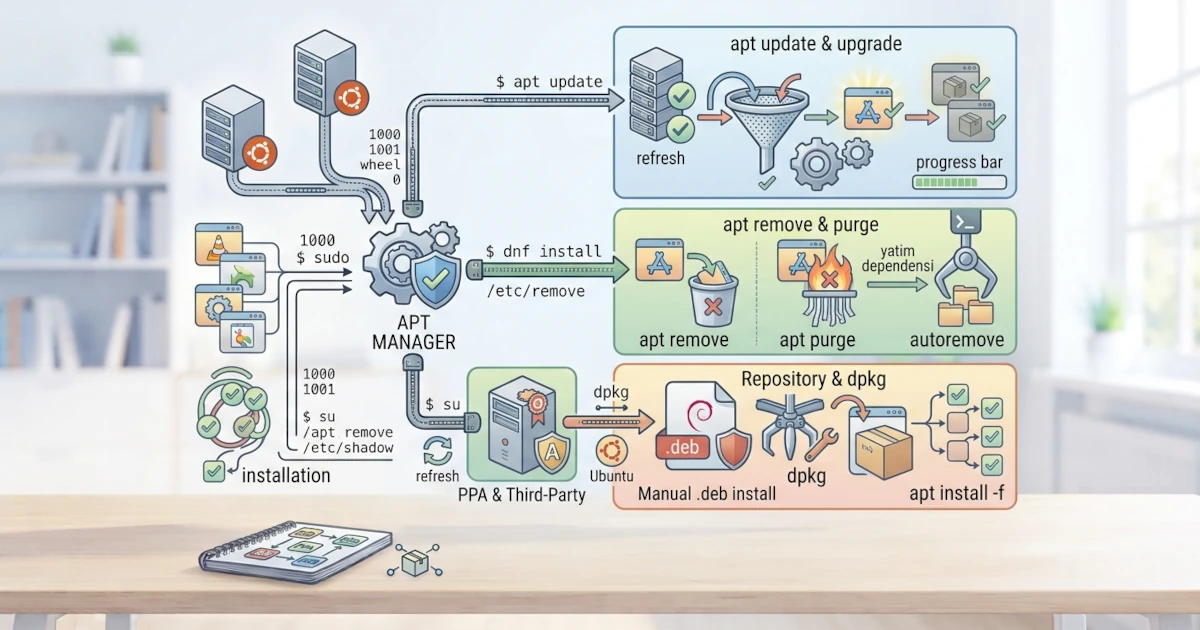
After understanding the concept of package management in the previous chapter, it is now time to practice it directly on Ubuntu 26.04 LTS. Ubuntu, which is a Debian derivative, uses APT (Advanced Package Tool) as its main package manager. Through APT, you can install, update, search for, and remove software from the official repositories safely and easily. This chapter guides you through basic APT operations, how to manage repositories, and how to manually install .deb files.
apt vs apt-get: Differences and When to Use Them
You may come across two commands that appear similar: apt and apt-get. Both are part of the same ecosystem, but they have different purposes.
aptis a modern interface designed for interactive day‑to‑day use. This command is simpler, displays a progress bar, and consolidates commands that were previously spread across several tools, such asapt-cacheandapt-get.apt-getis a lower‑level tool that is more stable for use in scripts and automation because its output format does not change as frequently.
For everyday beginner needs, use apt. You only need to remember one command for almost all package management tasks. Ubuntu 26.04 LTS includes APT version 3.1, which brings a new dependency solver engine called solver3 as the default. This engine works faster and produces more predictable results than the previous version, and it also includes new diagnostic commands such as apt why package_name to find out why a particular package was installed.
Basic APT Operations
The following are the most frequently used APT operations.
Updating the Package List
Before installing or updating anything, run apt update. This command fetches the latest list of available packages from the repositories.
sudo apt updateThis command does not change any packages on your system; it only refreshes the package list so that APT knows about the latest available versions.
Upgrading Installed Packages
After the list has been updated, use apt upgrade to update all installed packages to their latest versions.
sudo apt upgradeFor a more thorough upgrade, including handling dependency changes, sudo apt full-upgrade is available. For everyday use, apt upgrade is sufficient for most needs.
Installing a Package
Use apt install to install a package along with all its dependencies automatically.
sudo apt install vlcYou can install more than one package at a time by separating package names with spaces.
Removing a Package
There are two levels of removal. apt remove removes the program but leaves its configuration files, while apt purge removes the program along with its configuration files.
sudo apt remove vlcsudo apt purge vlcUse remove if you want to keep the configuration files just in case, and purge if you want to clean them out completely.
Cleaning Up Unused Dependencies
When a package is removed, dependencies that were only required by that package may become orphaned. Clean them up with apt autoremove.
sudo apt autoremoveThis command helps keep your system lean and free of packages that are no longer needed.
Searching for Packages
To find packages by keyword, use apt search.
apt search video playerThis command displays a list of packages whose names or descriptions match the keyword you provide.
Viewing Detailed Package Information
Before installing, you can view the description, version, and other information about a package using apt show.
apt show vlcManaging Repositories
APT retrieves packages from repositories that are registered on your system. The list of these repositories is stored in configuration files.
The /etc/apt/sources.list and /etc/apt/sources.list.d/ Directories
Historically, the main Ubuntu repository was defined in a single file called /etc/apt/sources.list, with one line per repository. Since Ubuntu 24.04 LTS and continuing into Ubuntu 26.04 LTS, the default configuration has moved to a new format called DEB822, which is stored as a file /etc/apt/sources.list.d/ubuntu.sources. As a result, on a fresh installation of Ubuntu 26.04 LTS, the old /etc/apt/sources.list file is usually empty or not used at all, and it is the .sources file that is actually read by APT.
cat /etc/apt/sources.list.d/ubuntu.sourcesThe DEB822 format writes each repository as a block of key: value pairs, which is easier to read than the old one‑line format, and each block can directly include the location of its signing key via the Signed-By field. This file still contains the main repository, universe (community software), and security repositories, only written in a different format. Both the old one‑line format and the new DEB822 format are still understood by APT, and third‑party additional repositories may still use either of them.
Adding a PPA (Personal Package Archive)
A PPA (Personal Package Archive) is a third‑party repository hosted on Launchpad, commonly used to obtain the latest version of an application that is not yet available in the official repositories. Adding a PPA is done with add-apt-repository, and the method does not change even though the storage format has changed.
sudo add-apt-repository ppa:developer-name/app-nameAfter adding a PPA, run sudo apt update so that the package list from that PPA is also loaded. On Ubuntu 26.04 LTS, add-apt-repository will write the PPA as a .sources file in DEB822 format inside /etc/apt/sources.list.d/, complete with the GPG signing key embedded directly via the Signed-By field. This replaces the old method of storing keys separately with the apt-key command, which is no longer included in Ubuntu. Be careful when adding PPAs because third‑party repositories do not go through the same level of curation as the official repositories.
Manually Installing a .deb File with dpkg
Sometimes software is distributed as a .deb file downloaded directly, for example from the developer's official website. Such a file can be installed manually using dpkg.
sudo dpkg -i package.debHowever, dpkg does not resolve dependencies automatically. If installation fails because of unmet dependencies, fix them by running APT to complete the missing dependencies.
sudo apt install -fThe apt install -f command will fix broken or unmet dependencies. As much as possible, prefer installing from the official repositories rather than manual .deb files because the official repositories offer better security guarantees.
APT is your primary gateway for managing software on Ubuntu 26.04 LTS. Once you have mastered apt update, upgrade, install, remove, and purge, you are already able to handle most day‑to‑day needs. In the next chapter, you will learn about DNF, the package manager used by Fedora Workstation 44, so that you are also proficient in managing software on that distribution.