
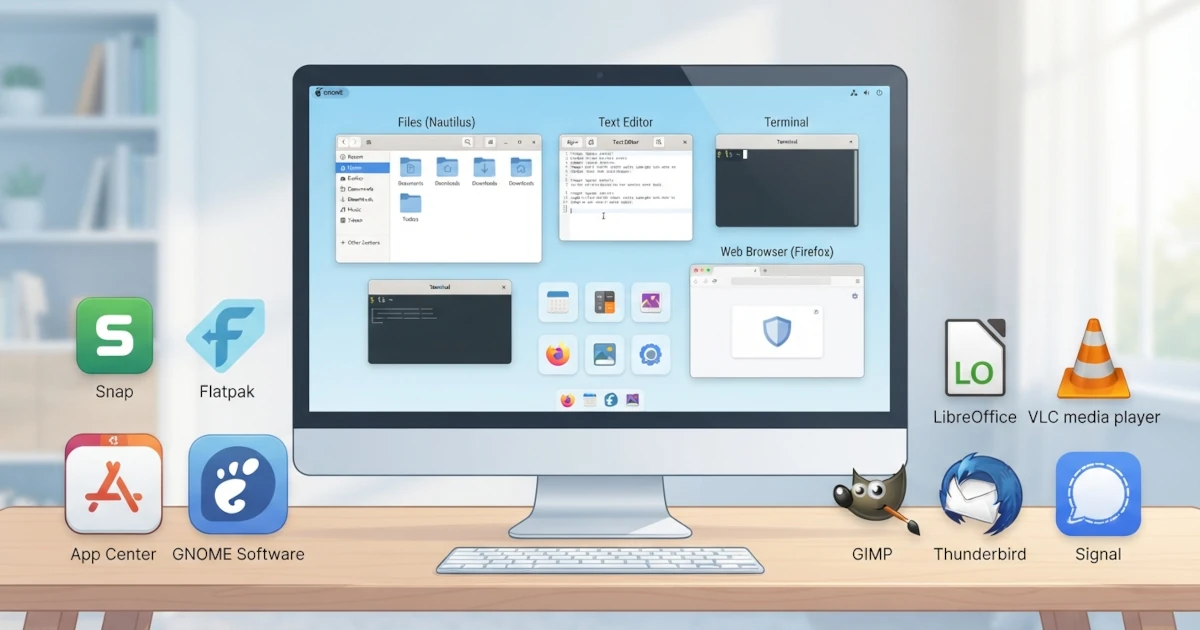
After your Linux system has been installed and properly configured in the previous chapters, it is now time to get to know the software that will accompany you in your daily work. Ubuntu and Fedora come with a reasonably complete set of built‑in applications for basic needs: browsing files, writing text, opening a terminal, and surfing the web. This chapter introduces those GNOME built‑in applications, then discusses how to install additional software through the software center, Flatpak, and Snap. At the end, you will find recommendations for essential software that you should install right away after setup, so that your Linux experience becomes more complete and productive.
GNOME Built‑in Applications
GNOME does not only provide a desktop environment, but also includes a set of core applications designed with the same design language: simple, clean, and easy to use. These applications are known as the GNOME Core Apps and are generally available on both Ubuntu and Fedora, although there are slight differences because each distribution may add or replace certain applications. The following are the most important built‑in applications for you to know.
Files (Nautilus): File Manager
Files, technically known as Nautilus, is GNOME's built‑in file manager. It is equivalent to File Explorer on Windows or Finder on macOS, and is your primary tool for managing files and directories graphically.
Some of Files' main capabilities include:
- Browsing directories via the sidebar on the left, which shows important locations such as Home, Documents, Downloads, as well as storage devices and the trash.
- Copying, moving, renaming, and deleting files and folders via right‑click or drag and drop.
- Searching for files quickly using the search box at the top.
- Sorting and grouping files by name, size, type, or date.
- Starring files as favourites so they are easy to find later.
- Accessing remote locations via network protocols such as SFTP, SMB, and WebDAV, making servers or network shares appear as regular folders.
The concepts of file management on Linux will be covered in much more depth in Part IV of this book, including how directories work and the filesystem structure.
Text Editor (Gedit / GNOME Text Editor)
For writing notes, editing configuration files, or just jotting down ideas, GNOME provides Text Editor. Historically, GNOME used an editor called gedit, which for many years was the default graphical text editor. However, since GNOME 42, gedit has been gradually replaced by GNOME Text Editor, a newer, more modern application that appears as Text Editor in the application list.
This modern Text Editor offers enough features for daily writing needs, including:
- Syntax highlighting for various programming languages and file formats.
- Dark mode support that follows the system theme.
- Line numbering and indentation settings.
- Spell checking.
- Automatic saving and support for opening multiple files in tabs.
It is important to understand that Text Editor is a plain text editor, not a word processor. It is not designed for creating formatted documents like reports or letters; for those needs, you will use LibreOffice, which is covered in the software recommendations section.
Terminal (GNOME Terminal / Ptyxis)
Terminal is the application that brings the command line interface (CLI) to the graphical desktop. Through the terminal, you can type commands to operate the system directly. The terminal will be one of the applications you use most often throughout this book, especially in later parts that cover the command line.
There are two terminal applications you should know:
- GNOME Terminal is the classic terminal that has been the default in GNOME for a long time. Although still widely used, it is now being gradually phased out.
- Ptyxis is a modern GTK4‑based terminal that is its successor. Ptyxis offers richer features such as container support (for development environments), tabs, profiles, and a look that integrates with GNOME.
Since Ubuntu 25.x, Ubuntu has replaced its default terminal with Ptyxis, and Fedora Workstation has done the same. Therefore, on Ubuntu 26.04 LTS and Fedora Workstation 44, the application you find named Terminal is Ptyxis. However, all the basic principles of using the terminal that you will learn in this book apply equally to GNOME Terminal and Ptyxis, because both run the same shell behind the scenes.
Web Browser (Firefox)
A browser is the main gateway to the internet, and both Ubuntu and Fedora choose Mozilla Firefox as the default web browser. Firefox is an open source browser developed by Mozilla, known for its commitment to user privacy and its wide customisability.
Although the application is the same, the way it is distributed differs on the two systems:
- On Ubuntu, Firefox is distributed as a Snap package. This means that Firefox runs in an isolated environment managed by the Snap system.
- On Fedora, Firefox is distributed as an RPM package from the official Fedora repository (or as a Flatpak).
This difference in distribution does not affect how you use Firefox. The interface, features, and Firefox account synchronisation remain the same. You can synchronise history, bookmarks, and passwords across devices using your Mozilla account.
Other Built‑in Applications
In addition to the applications above, GNOME also includes a number of complementary applications useful for everyday needs:
| Application | Function |
|---|---|
| Image Viewer (Loupe) | Displays images and photos, replacing the older Eye of GNOME |
| Document Viewer (Papers) | Reads PDF documents and other formats, the successor to Evince |
| Calendar | Manages schedules, integrated with Online Accounts |
| Calculator | A calculator with simple to advanced modes |
| Contacts | Manages contacts, synced with online accounts |
| Maps | Displays maps and navigation |
| Weather | Shows weather forecasts |
| Videos (Showtime) | Plays videos; since GNOME 49/50, Showtime replaces Totem as the default video player, with a more modern GTK4/libadwaita interface |
| Music | Plays your music collection |
It should be noted that GNOME previously had a Photos application for managing and editing photos, but its development was discontinued from the GNOME Core Apps lineup since GNOME 45 with no official replacement. Therefore, on Ubuntu 26.04 LTS and Fedora Workstation 44 you will no longer find it as a built‑in application; simple photo management can be done through Files and Image Viewer (Loupe), or by installing a third‑party photo gallery application from Flathub if you need more complete features.
Note that the list of built‑in applications may differ slightly between Ubuntu and Fedora, and also depends on the type of installation you chose (for example, a minimal installation will include fewer applications).
Installing Additional Software
The built‑in applications are just the starting point. The real power of Linux lies in the ease of adding new software from trusted sources. Unlike the habit of downloading installers from websites on Windows, on Linux you install software through a software center or package manager that connects to official repositories. This section covers the main ways to install additional software.
GNOME Software / App Center
The most beginner‑friendly way to install applications is through the graphical software center. Here, applications are displayed like an app store with categories, search, and descriptions.
- GNOME Software is the default GNOME software center used by Fedora Workstation. It is a single gateway for installing, updating, and removing software from various sources, including RPM repositories and Flatpak.
- App Center is the software center used by Ubuntu. Since Ubuntu 23.10, App Center (built with the Flutter framework) replaced the old Ubuntu Software based on GNOME Software. App Center presents Snap applications and packages from the Ubuntu repository in a single interface, and starting with Ubuntu 26.04 LTS, App Center has been expanded to be the single place for managing any application, including installing and removing
.debpackages directly without opening the terminal.
Using it is simple: open the application, search for the software you want, and click the Install button. Once installed, the application will appear in the application list and can be launched as usual. System and application updates can also be managed through this software center.
Flatpak and Flathub
Flatpak is a modern package format that is distro‑agnostic, meaning Flatpak applications can run on almost any Linux distribution without modification. Flatpak applications run in an isolated environment (sandbox) for increased security, and each application carries all its own dependencies so it does not depend on the system library versions.
Flathub is the largest Flatpak repository, functioning like an "app store" for Linux software. Flathub is the primary source for Flatpak applications, from popular open source applications to those published directly by their developers.
The way Flatpak is handled differs between Ubuntu and Fedora:
Enabling Flathub on Ubuntu. Ubuntu uses Snap by default, not Flatpak, so Flatpak and Flathub need to be enabled first. The steps are to install the flatpak package and then add the Flathub repository:
sudo apt install flatpak
flatpak remote-add --if-not-exists flathub https://dl.flathub.org/repo/flathub.flatpakrepo
After that, you may need to log out and log back in for the integration with App Center to become active, after which Flatpak applications from Flathub can be installed.
Flathub is already active on Fedora. Unlike Ubuntu, Fedora enables Flatpak and Flathub by default. This means that on Fedora Workstation 44, you can install Flatpak applications from Flathub directly through GNOME Software without any additional setup.
Snap (Ubuntu only)
Snap is a package format developed by Canonical, the company behind Ubuntu. Conceptually, Snap is similar to Flatpak: applications run in a sandbox, carry their own dependencies, and update automatically in the background.
The main difference is that Snap is a Canonical‑centered ecosystem with the Snap Store managed by Canonical, while Flatpak is an open project that can run on various distributions. For this reason, Snap is primarily used on Ubuntu and its derivatives.
On Ubuntu, several built‑in applications, including Firefox, are distributed as Snap packages. You can manage Snap applications through App Center, or use the snap command in the terminal, for example:
sudo snap install application-name
sudo snap remove application-name
sudo snap refresh
The command sudo snap refresh updates all installed Snap applications. A more detailed explanation of Snap and Flatpak will be given in Part VIII of this book.
Software Recommendations for Beginners
After understanding how to install software, here are some essential applications recommended to complete your system. All of these applications are available on both Ubuntu and Fedora, through the official repositories, Flathub, or Snap.
Office: LibreOffice
LibreOffice is the open source office suite that is the standard on Linux. It is equivalent to Microsoft Office and includes several applications in one package:
- Writer: word processor (equivalent to Microsoft Word).
- Calc: spreadsheet (equivalent to Microsoft Excel).
- Impress: presentations (equivalent to Microsoft PowerPoint).
- Draw, Base, and Math: for vector graphics, databases, and mathematical formulae.
LibreOffice can open and save documents in Microsoft Office formats (.docx, .xlsx, .pptx), so you can still exchange documents with Windows or macOS users. On Ubuntu, LibreOffice is usually included in a full installation; if not, you can install it through App Center or the command sudo apt install libreoffice. On Fedora, LibreOffice is available from the official repository.
Multimedia: VLC and GIMP
VLC is a versatile media player capable of playing almost any audio and video format without needing additional codecs. VLC is a must‑have for users who frequently play a variety of media files. VLC is available on Ubuntu, Fedora, and Flathub.
GIMP (GNU Image Manipulation Program) is a powerful open source image editor, often referred to as an alternative to Photoshop. GIMP is suitable for editing photos, creating graphics, and even simple design work. Like VLC, GIMP is available on both distributions and on Flathub.
Communication: Thunderbird and Signal
Thunderbird is an open source email client developed by Mozilla. Thunderbird supports many email accounts, calendars, and contacts in one application, and can be connected to Google and Nextcloud accounts. It is an ideal choice for managing email on the desktop.
Signal is an instant messaging application that strongly emphasises privacy and security, with end‑to‑end encryption as a built‑in feature. Signal is available for the Linux desktop, allowing you to stay connected from your computer without compromising your conversation privacy.
In this chapter, you have learned about GNOME's built‑in applications, from Files, Text Editor, Terminal, to Firefox, and you have understood how to install additional software through the software center, Flatpak, and Snap. You have also received recommendations for essential software for office work, multimedia, and communication.
Once the required software is installed and configured, you now have a strong foundation to start working with Linux. In the next chapter, we will move on to a deeper topic: understanding the concepts of files and directories in Linux, which form the basis of all system operations.