
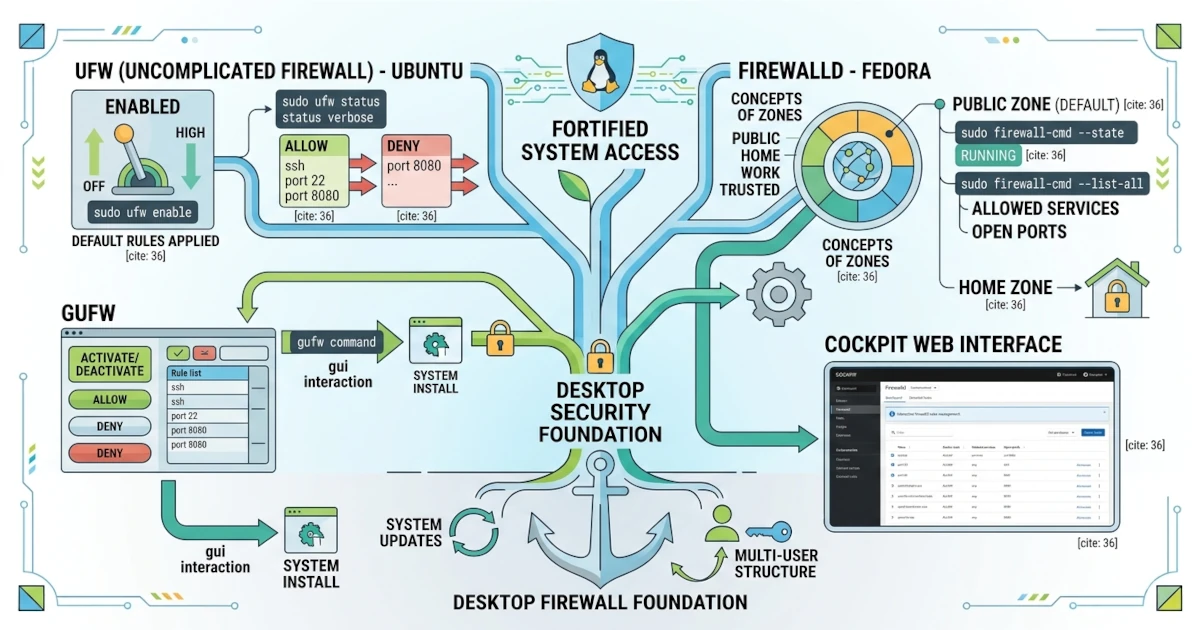
A firewall is a security layer that regulates network traffic coming in and out of your computer. Although the Linux desktop is relatively secure, enabling and managing the firewall correctly will strengthen your defences, especially when connected to public networks. This chapter covers UFW on Ubuntu and firewalld on Fedora, two built‑in firewall tools that you can control from the terminal as well as from graphical interfaces.
Why Is a Firewall Important on the Desktop?
A firewall works by filtering connections based on rules you define. It prevents services you do not need from being exposed to the network, thereby reducing the gaps that irresponsible parties could exploit. On the desktop, most outgoing traffic is allowed, while incoming traffic is restricted only to certain services that you explicitly permit.
UFW (Uncomplicated Firewall): Ubuntu
Ubuntu 26.04 LTS includes UFW, short for Uncomplicated Firewall, which is designed to be easy to use. UFW provides simple commands for managing the firewall.
sudo ufw enable/disable
UFW is not active by default. Enable it with the following command.
sudo ufw enableTo disable it again, use:
sudo ufw disableOnce enabled, UFW will apply the default rules and start automatically when the computer boots.
sudo ufw status
To see the firewall status along with the list of rules, use:
sudo ufw statusAdd the verbose option to display more complete information.
sudo ufw status verbosesudo ufw allow/deny
You can allow or deny connections to specific services using allow and deny. You can specify the service name or its port number.
sudo ufw allow sshThe command above allows connections to the SSH service, equivalent to allowing port 22. To deny a port, use deny.
sudo ufw deny 8080This command denies all incoming connections to port 8080.
GUFW: Graphical Interface for UFW
If you prefer a graphical interface, use GUFW. Install it with sudo apt install gufw, then open the application from the application menu (usually displayed as "Firewall Configuration"). GUFW provides a button to enable or disable the firewall and a panel to add and manage rules without typing commands.
firewalld: Fedora
Fedora Workstation 44 uses firewalld, a more flexible firewall manager that is already active by default.
The Concept of Zones
firewalld manages rules through the concept of zones. A zone defines the level of trust for the network you are connected to. firewalld provides many built‑in zones, ranging from the most restrictive such as drop and block, to commonly used ones such as public, home, work, and trusted. It is worth noting that the default zone automatically used on a Fedora Workstation installation is not public, but a special zone named FedoraWorkstation. This zone is essentially similar to public, but already allows several additional services commonly needed on the desktop, such as SSH, device discovery via mDNS, and Samba client connections. You can check which zone is currently active on your system with the command sudo firewall-cmd --get-active-zones.
sudo firewall-cmd --state
To check whether firewalld is running, use:
sudo firewall-cmd --stateIf it is running, this command will display running.
sudo firewall-cmd --list-all
To view the active zone along with all its rules, use:
sudo firewall-cmd --list-allThis command displays the zone currently in use, the allowed services, and the open ports.
If you prefer a graphical interface like GUFW on Ubuntu, Fedora provides the firewall-config package. Install it with sudo dnf install firewall-config, then open the application from the application menu under the name "Firewall". This application displays the list of zones, services, and ports in a visual format, making it easy to add or remove rules without typing firewall-cmd commands.
Cockpit as a Web Interface (Optional)
Fedora offers Cockpit, a web‑based interface for managing the system, including the firewall. You can install it with sudo dnf install cockpit, then enable it and open it through a browser. Through Cockpit, you can manage firewalld rules in a more visual way, which is especially useful if you want to manage the firewall from another computer over the network.
A firewall is an important part of desktop security that is worth understanding from the start. Through UFW on Ubuntu or firewalld on Fedora, you can easily control the connections coming into your computer. In the next chapter, you will enter the customisation section, starting with arranging the shell and terminal to make them more comfortable for daily use.