
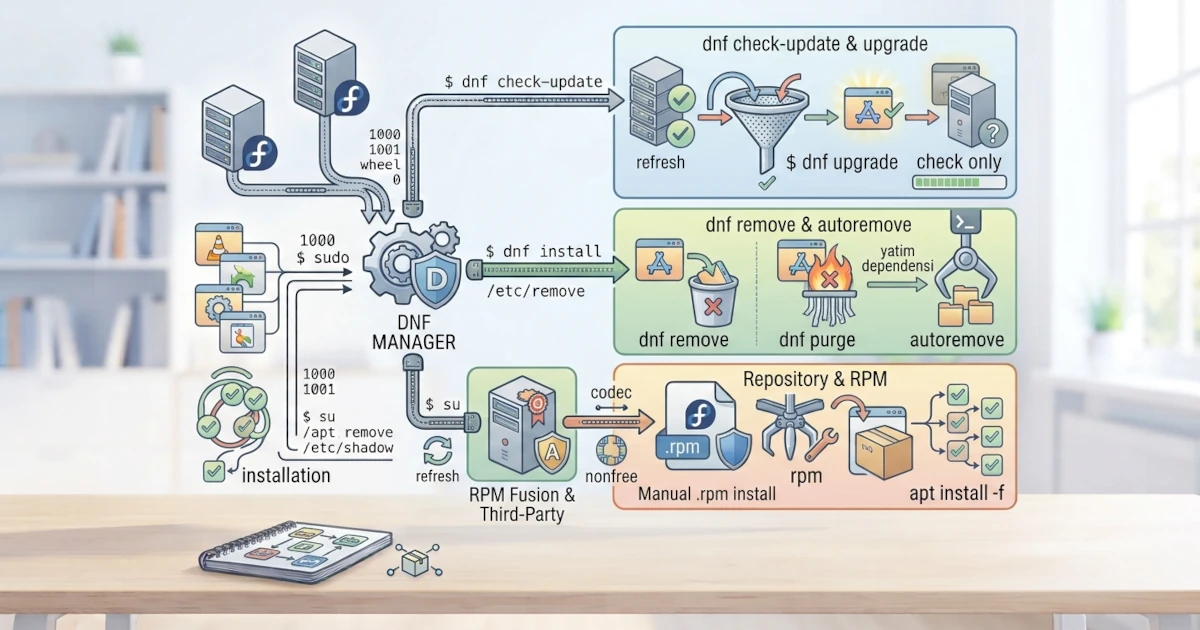
After studying APT for Ubuntu, it is now time for DNF (Dandified YUM), the package manager used by Fedora Workstation 44. DNF is the successor to YUM that is faster and more accurate in handling dependencies. Through DNF, you can install, update, search for, and remove packages from the Fedora repositories with ease. This chapter guides you through basic DNF operations, how to manage repositories, and how to manually install .rpm files.
It is worth noting that on Fedora Workstation 44, the dnf command you type is actually powered by a new engine called DNF5, a rewrite of DNF in C++ that replaces the older Python‑based version (sometimes referred to as DNF4). This change has been in place since Fedora 41, and since Fedora 44 even graphical applications like GNOME Software use the same engine. The good news is that almost all the basic commands discussed in this chapter work exactly the same way; there is only one small but important difference, which will be mentioned in the "List Installed Packages" section.
Basic DNF Operations
The following are the most frequently used DNF operations.
Checking for Updates
To see which packages have updates available, use dnf check-update.
sudo dnf check-updateThis command only checks without making any changes, so you can review the packages that will be updated first.
Upgrading the System
To update all installed packages to their latest versions, use dnf upgrade.
sudo dnf upgradeThis command updates all packages that have newer versions in the repositories, including handling any necessary dependency changes.
Installing a Package
Use dnf install to install a package along with all its dependencies.
sudo dnf install vlcYou can install more than one package at a time by separating package names with spaces.
Removing a Package
Use dnf remove to remove a package from the system.
sudo dnf remove vlcDNF will remove the package as well as any dependencies that are no longer required by other packages.
Cleaning Up Dependencies
To clean up dependencies that are no longer used by any package, use dnf autoremove.
sudo dnf autoremoveSearching for Packages
To find packages by keyword, use dnf search.
dnf search video playerViewing Detailed Package Information
Use dnf info to display the description, version, and other information about a package.
dnf info vlcListing Installed Packages
To see all packages installed on the system, use dnf list --installed.
dnf list --installedNote that the --installed option is written with two hyphens in front of the word "installed". This is one of the real differences between DNF5 (used by Fedora Workstation 44) and the older DNF version: previously, you could simply write dnf list installed without the hyphens. In DNF5, if you write it without the hyphens, the command is interpreted as a search for a package named "installed" and will show empty results, not the list of installed packages. So make sure you always include the double hyphen before installed.
This list can be very long, so you will often combine it with grep to filter the results, for example dnf list --installed | grep vlc.
Managing Repositories
DNF retrieves packages from repositories registered on the system. On Fedora, each repository is defined in a separate file.
.repo Files in /etc/yum.repos.d/
Fedora repositories are defined in files with the .repo extension, stored in the /etc/yum.repos.d/ directory. The main Fedora repositories are usually split into several files, such as fedora.repo for official packages and fedora-updates.repo for updates. The format of these .repo files has not changed even though the underlying engine has moved to DNF5, so the explanation in this section remains fully valid.
You can see the list of active repositories with:
dnf repolistEach .repo file contains settings such as the name, base URL, and whether the repository is active or disabled.
Enabling RPM Fusion (free and nonfree)
RPM Fusion is a third‑party repository that provides packages not included in Fedora for licensing reasons, such as multimedia codecs and proprietary drivers. RPM Fusion is split into two: free for open‑source software and nonfree for software with closed licenses.
To enable both, run:
sudo dnf install https://download1.rpmfusion.org/free/fedora/rpmfusion-free-release-$(rpm -E %fedora).noarch.rpm https://download1.rpmfusion.org/nonfree/fedora/rpmfusion-nonfree-release-$(rpm -E %fedora).noarch.rpmAfter the above command finishes, both RPM Fusion free and nonfree are immediately active and ready to use.
Manually Installing an .rpm File with rpm
Sometimes software is distributed as an .rpm file downloaded directly from the developer's website. Such a file can be installed manually using the rpm tool.
sudo rpm -ivh package.rpmThe -i option means install, -v shows the process in detail, and -h displays a progress bar. However, rpm does not resolve dependencies automatically. If installation fails because of unmet dependencies, a better approach is to use DNF directly on the .rpm file.
sudo dnf install ./package.rpmUsing this method, DNF will resolve dependencies from the Fedora repositories automatically. As much as possible, prefer installing from the official repositories rather than manual .rpm files because the official repositories offer better security guarantees.
DNF is your primary gateway for managing software on Fedora Workstation 44. Once you have mastered dnf check-update, upgrade, install, remove, and autoremove, you are already able to handle most day‑to‑day needs. In the next chapter, you will learn about Flatpak and Snap, universal formats that complement traditional package managers for installing modern desktop applications.