
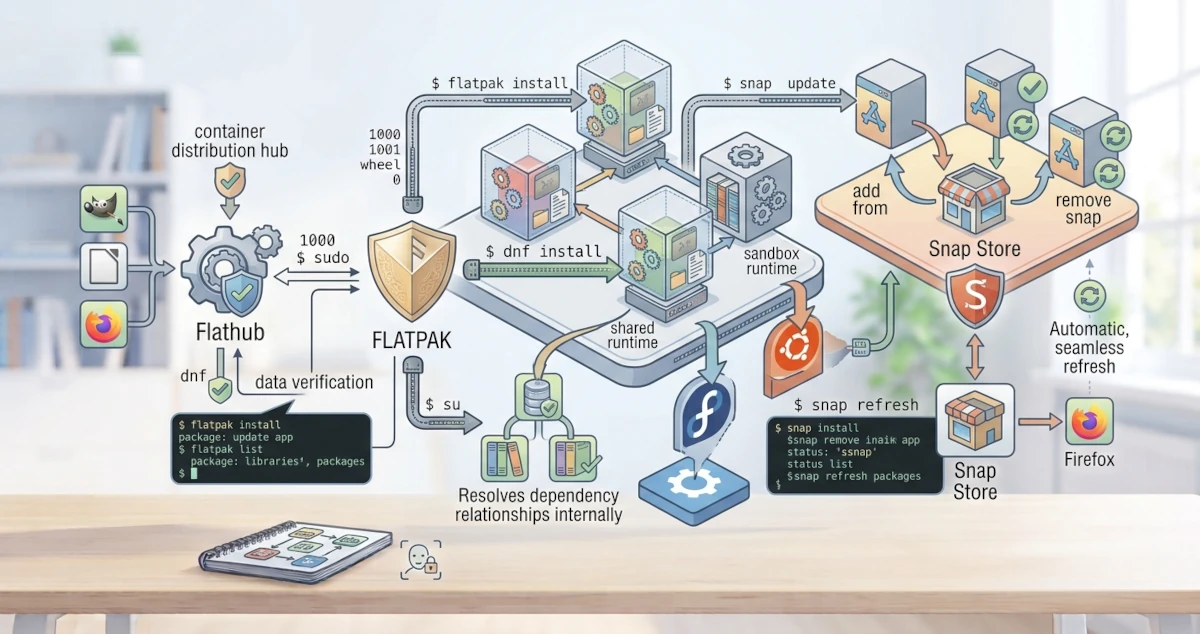
In addition to APT and DNF, which manage classic packages, the Linux world now has a modern approach to installing desktop applications: Flatpak and Snap. Both are universal formats that bundle an application along with all its dependencies into a single isolated package, so they can run on almost any distribution. This chapter explains the Flatpak concept, its advantages and disadvantages, the use of Flathub, and an introduction to Snap, which is the go‑to solution on Ubuntu.
What Are Flatpak and Container Software?
Flatpak is a desktop application distribution system that uses a container approach. This means each application is packaged together with all its dependencies and runtimes as a single unit that runs separately from the main system. A runtime is a collection of base libraries needed by many applications, and several applications can share the same runtime.
Because a Flatpak application carries its own dependencies, it does not depend on the library versions available on your distribution. The same package can run on Ubuntu, Fedora, and other distributions without needing recompilation.
Advantages and Disadvantages of Flatpak
Flatpak offers a number of advantages, but it also has consequences you need to understand.
Advantages:
- Universal. One package runs on multiple Linux distributions.
- Isolated. Applications run in a sandbox, so their access to the system is more restricted and safer.
- Latest versions. Developers can release updates without waiting for distributions to update their repositories.
- Stable. Applications are less likely to break due to system library changes.
Disadvantages:
- Larger size. Each application carries its runtime and dependencies, so it consumes more storage space.
- Theme integration. The application appearance does not always perfectly follow the desktop theme.
- Slower startup. The first time an application is opened may be slightly slower.
Flathub: The Largest Flatpak Repository
Flathub is the main repository where Flatpak applications are distributed. Almost all popular desktop applications, from LibreOffice and GIMP to Firefox, are available on Flathub.
On Fedora Workstation 44, Flathub is already enabled by default if you agreed to the Third‑Party Repositories option offered during the initial installation (or via the notification when first opening the Software application). Since Fedora 38, the Flathub remote enabled via this option is no longer filtered (no applications are hidden), so you get full access to Flathub. If you skipped that option during installation, you can still enable it at any time from the terminal.
On Ubuntu 26.04 LTS, you need to enable it first by installing Flatpak and then adding Flathub.
sudo apt install flatpakflatpak remote-add --if-not-exists flathub https://dl.flathub.org/repo/flathub.flatpakrepoAfter that, you are ready to install applications from Flathub. Note that Flatpak applications you install via the terminal will not automatically appear in the App Center, the default software store application on Ubuntu 26.04 LTS, because App Center is specifically designed to manage Snap and .deb packages only, without Flatpak support. If you want to manage Flatpak applications through a graphical interface on Ubuntu, install gnome-software-plugin-flatpak so that the GNOME Software application (separate from App Center) can display and manage your Flatpak applications.
Using Flatpak
The following are the most commonly used Flatpak commands.
Installing an Application
Use flatpak install followed by the repository name and the application ID.
flatpak install flathub org.videolan.VLCEach Flatpak application has a unique ID, for example org.videolan.VLC for VLC and org.gimp.GIMP for GIMP.
Updating Applications
To update all installed Flatpak applications, use flatpak update.
flatpak updateRemoving an Application
Use flatpak uninstall followed by the application ID to remove it.
flatpak uninstall org.videolan.VLCListing Installed Applications
To see installed Flatpak applications, use flatpak list.
flatpak listSnap (Ubuntu‑Specific)
Snap is a software distribution format developed by Canonical, the company behind Ubuntu. Its concept is similar to Flatpak, bundling an application with its dependencies into a single package, but with a centralised distribution and update system through the Snap Store. On Ubuntu, several applications such as Firefox are already distributed as Snap packages by default; in fact, the firefox package in the official APT repository is now just an empty "bridge" package that automatically redirects the installation to the Snap version.
Installing an Application
Use snap install to install an application from the Snap Store.
sudo snap install vlcRemoving an Application
Use snap remove to remove an application.
sudo snap remove vlcUpdating Applications
Use snap refresh to update all Snap applications.
sudo snap refreshSnap applications are generally updated automatically in the background, but you can still run the above command to check for updates manually.
Flatpak and Snap complement APT and DNF as modern ways to install desktop applications. Through both, you can obtain the latest versions of applications without worrying about breaking the main system. In the next chapter, you will move on to the topic of processes, learning how programs run on Linux and how to manage them.