
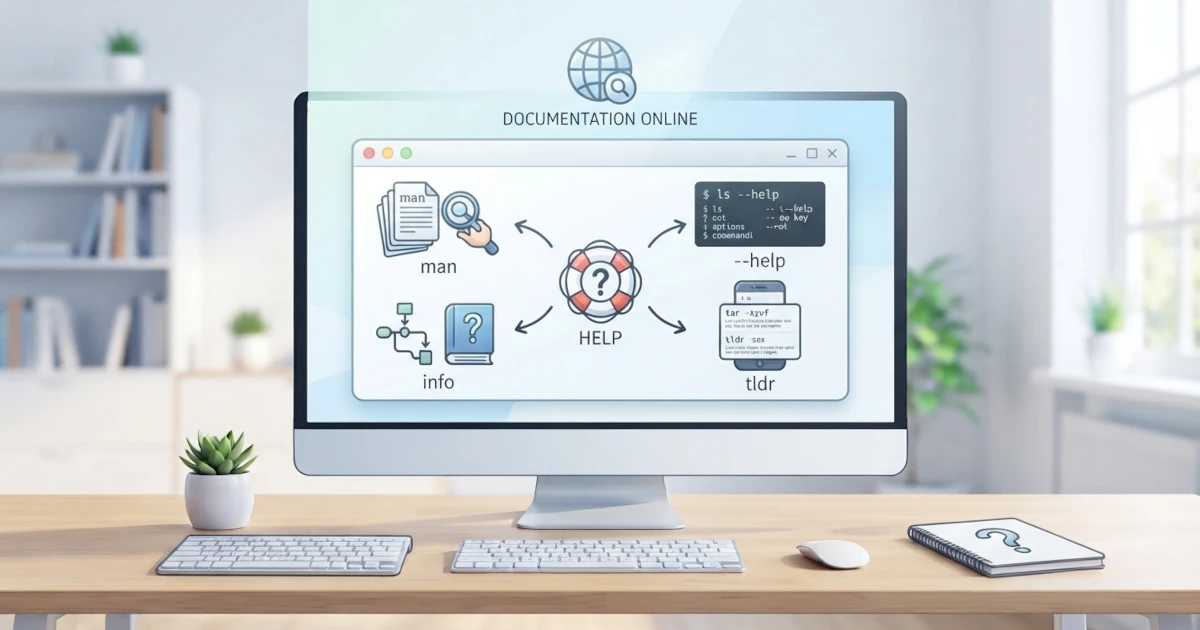
One of the most important skills you must have when learning Linux is the ability to seek help independently. Linux has hundreds of commands, and it is nearly impossible to memorize all the options and how they work. The good news is that the help system in Linux is very comprehensive and always available directly from the terminal. From manual pages that document every command in detail, the --help option for a quick summary, GNU documentation, to tldr which presents practical examples. This chapter will guide you through utilizing all these help resources so you never feel lost when facing an unfamiliar command.
man: Manual Pages
man stands for manual. This command displays the official documentation pages for almost every command, configuration file, and concept in Linux. When you run man followed by a command name, the terminal will display complete documentation covering the function explanation, list of options, usage examples, and even the program's authors. This documentation is installed by default on Ubuntu 26.04 LTS and Fedora Workstation 44, so it is accessible without an internet connection.
man lsThe command above opens the manual page for the ls command. Manual pages are organized into several standard sections that are consistent across all commands, including:
| Section | Content |
|---|---|
| NAME | Command name and a brief summary of its function |
| SYNOPSIS | General structure of command invocation along with its options |
| DESCRIPTION | Detailed explanation of what the command does |
| OPTIONS | Complete list of options with their descriptions |
| EXAMPLES | Usage examples (not always present) |
| SEE ALSO | References to related commands or documents |
Navigating Within a Man Page
While inside a manual page, you cannot scroll using the mouse as usual. Manual pages use a pager called less, so navigation relies on keyboard keys. Here are the most frequently used keys:
| Key | Function |
|---|---|
Space or Page Down | Scroll down one screen |
b or Page Up | Scroll up one screen |
| ↑ and ↓ | Scroll one line at a time |
/keyword | Search for a keyword downward |
n | Jump to the next search result |
N | Jump back to the previous search result |
g | Jump to the beginning of the page |
G | Jump to the end of the page |
h | Display navigation help |
q | Exit the manual page |
For example, if you want to find the option to display file sizes in a human-readable format in the ls manual page, you can type /human and press Enter. Press n repeatedly to jump to subsequent occurrences.
Sections in Man
Manual pages are grouped into several sections based on the category of their content. Sometimes a single word can refer to two different things in different sections. For example, the word passwd can refer to the passwd command (section 1) as well as the configuration file /etc/passwd (section 5). By default, man passwd displays the first section found. To open a specific section, you write the section number before the command name.
man 5 passwdThe sections you will most frequently encounter as a desktop user are as follows:
| Section | Content |
|---|---|
| 1 | Commands that can be run by ordinary users |
| 5 | File formats and configuration files |
| 7 | Concepts, conventions, and miscellaneous topics |
| 8 | System administration commands (usually require sudo) |
To search for manual pages related to a keyword without knowing the exact command name, use man -k or the apropos command. Both work the same way, searching through the brief description (NAME section) of every installed manual page.
man -k partition
apropos network
There is one more command often used alongside apropos, namely whatis. While apropos searches for keywords across all brief descriptions, whatis only displays a one‑line summary for a command whose name you already know exactly:
whatis lsThis command will print a short summary such as ls (1) - list directory contents, useful as a quick reminder before deciding whether you need to open the full manual page.
--help: Quick Command Help
Manual pages are comprehensive, but sometimes you only need a quick list of options. Most commands from the GNU project (including almost all basic commands such as ls, cp, and mv that you learned in the previous chapter) support the --help option, which prints a brief usage summary directly to the terminal. This option is much more concise than the manual page and is suitable for recalling the name of an option.
ls --help
cp --help
The output of --help typically displays the command usage, a short list of options in one line, and a few examples. Because it is concise, --help is often the first choice before opening the manual page. However, keep in mind that not all Linux commands support --help—this convention is most consistent among GNU coreutils, while some third‑party programs may use other options such as -h alone. Additionally, --help is not as detailed as the manual page, so for a thorough explanation you still need man.
info: GNU Documentation
In addition to manual pages, the GNU project provides another documentation system called info. Info documentation tends to be longer and is structured as interconnected nodes, making it suitable for reading a guide in full. You can open info documentation with the info command followed by the program name.
info coreutilsInside info documentation, navigation is done with the following keys:
| Key | Function |
|---|---|
n | Move to the next node |
p | Move to the previous node |
u | Go up to the parent node |
Enter | Follow a link at the cursor position |
q | Exit info documentation |
For most daily needs, manual pages and --help are sufficient. Info documentation is more useful when you want to study a GNU tool in depth, such as coreutils which underpins basic commands like ls, cp, and mv.
tldr: Practical Usage Examples
Manual pages can feel too long and technical, especially for beginners. This is where tldr comes in. tldr stands for too long; didn't read, and its purpose is precisely to summarize manual pages into practical examples that you can immediately apply. Instead of explaining every option, tldr displays several of the most common commands along with a brief description in a single screen.
tldr tarThe output of tldr tar will show examples such as how to create an archive, extract an archive, and so on, complete with short descriptions alongside them. This makes tldr a very convenient help source for everyday use.
Unlike man and --help, tldr is not installed by default. The simplest way is to install it from the official repository:
# on Ubuntu 26.04 LTS
sudo apt install tldr

# on Fedora Workstation 44
sudo dnf install tldr
After installation, run tldr --update to refresh the example database before using it for the first time. The tldr database content is maintained by the community through the tldr-pages project on GitHub, so the examples presented are always concise and focused on real‑world usage.
It is worth noting that there are several different tldr clients in the Linux ecosystem (Python client, Node.js client, and a modern Rust‑based client named tealdeer/tlrc), and the version that makes it into the apt/dnf repositories may sometimes be older than the latest version on GitHub. If the repository‑provided tldr command feels outdated or its errors are confusing, you can try an alternative client via pipx install tldr (the official Python client) or install tealdeer through the Snap Store with sudo snap install tealdeer. All these clients ultimately read the same example database from the tldr-pages community.
Online Documentation
In addition to help available directly from the terminal, there is also a variety of online documentation accessible through a web browser. The following sources complement what may not be covered in the manual pages.
Ubuntu Documentation
Official Ubuntu documentation is now centralized at documentation.ubuntu.com, which covers release notes, command‑line references, networking, security, and server administration. The older site help.ubuntu.com, maintained by the Ubuntu Documentation Project, remains active as a collection of community guides and additional desktop references.
For community support in the form of Q&A, note that Ubuntu Forums—the official Ubuntu forum that had been running since 2004—was officially closed in November 2024 and replaced by Ubuntu Discourse (discourse.ubuntu.com or community.ubuntu.com). If you come across older guides that still mention Ubuntu Forums, know that those discussions now take place on Discourse as well as on Ask Ubuntu (part of the Stack Exchange network).
Fedora Documentation
Fedora provides official documentation at docs.fedoraproject.org, including Fedora Workstation Documentation that explains desktop usage, software management, and system administration. This documentation is very useful for understanding the specific behavior of Fedora Workstation 44. For community support in the form of Q&A and discussions, Fedora centralizes its activity at Fedora Discussion (discussion.fedoraproject.org), which now also hosts the Ask Fedora Q&A forum.
ArchWiki
Although it does not belong to Ubuntu or Fedora, ArchWiki from Arch Linux is one of the most comprehensive sources of Linux knowledge on the internet. Because Linux is fundamentally similar across all distributions, the explanations on ArchWiki often remain applicable to Ubuntu and Fedora, especially for low‑level concepts such as system configuration, drivers, and troubleshooting. ArchWiki is well worth using as a general reference for deeper understanding.
Stack Overflow and man7.org
For very specific questions, Q&A communities like Stack Overflow provide solutions drawn from other users' experiences. You can search for existing answers before asking your own question. Meanwhile, man7.org is a project that hosts online copies of Linux manual pages, making it easy to read manual pages in a web browser or share links with others.
Once you have mastered man (including apropos and whatis), --help, info, tldr, and online documentation sources, you have equipped yourself with the ability to answer almost every question that arises while using Linux. The habit of consulting the help resources before asking others not only makes you more independent, but also trains your understanding of how the system works. Starting now, whenever you encounter an unfamiliar command, make man or tldr your first step.