
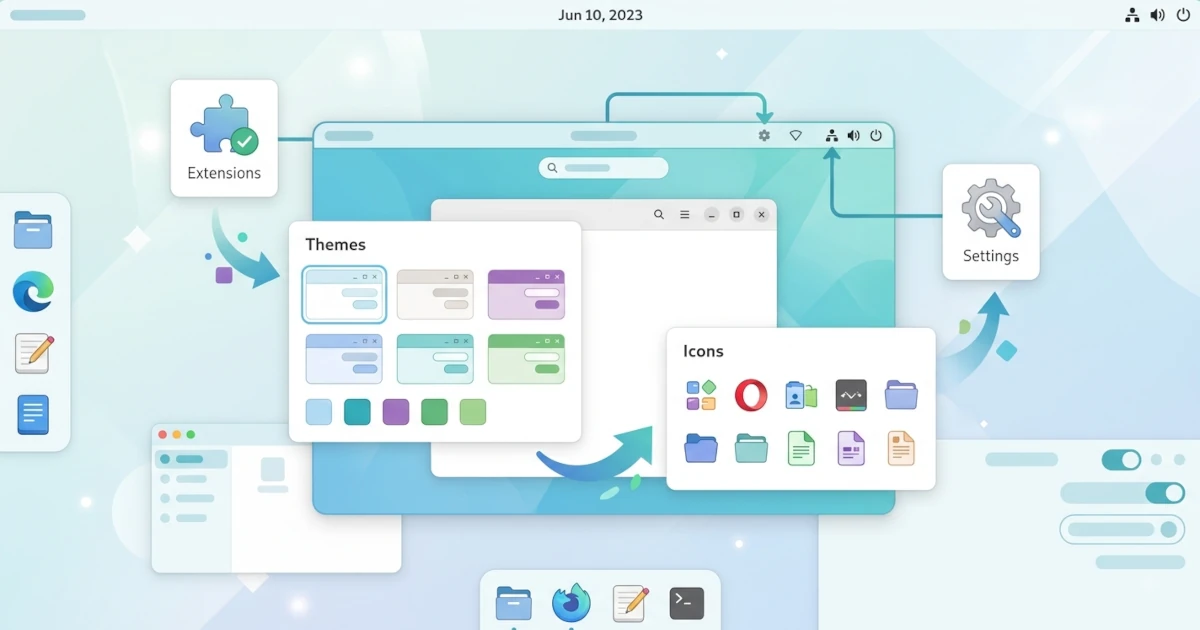
GNOME is known for its clean and simple design, but that simplicity does not mean you cannot customise it. Through GNOME Extensions, GNOME Tweaks, and the built‑in settings, you can change the appearance and behaviour of the desktop to your taste. This chapter discusses various ways to customise GNOME 50 on Ubuntu 26.04 LTS and Fedora Workstation 44, while also clarifying some old habits that have already changed in this version of GNOME.
GNOME Extensions
GNOME Extensions are add‑ons that add or change GNOME features. You can add a dock, blur effects, or even a reminder to prevent the screen from going to sleep.
Installing GNOME Extensions Manager
The easiest way to manage extensions is through the built‑in Extensions application. GNOME 50 generally already includes this application; if it is not available, you can install it via the package manager.
sudo apt install gnome-shell-extension-managerOn Fedora, use:
sudo dnf install gnome-extensions-appIn addition to the built‑in application, there is also a third‑party application called Extension Manager which has a more complete interface because it can directly browse and install extensions from extensions.gnome.org without needing a browser at all. This application is most conveniently installed via Flatpak from Flathub, so the method is the same on both Ubuntu and Fedora:
flatpak install flathub com.mattjakeman.ExtensionManagerYou may have read old guides that suggest installing extensions directly through the browser at extensions.gnome.org. That method still works, but it requires an additional browser extension and a "native connector" on the system, and it only works with Firefox or Chromium‑based browsers that are installed natively (not the Flatpak or Snap versions that are already sandboxed). For that reason, using the Extensions application or Extension Manager is much more consistent for beginners.
One thing to keep in mind: each extension is built for a specific version of GNOME Shell. Because both Ubuntu 26.04 and Fedora Workstation 44 have just moved to GNOME 50, make sure the extension you install already states support for GNOME 50 so that it is not automatically disabled by the system.
Popular Extensions: Dash to Dock, Blur my Shell, Caffeine
Some popular extensions among GNOME users include:
- Dash to Dock: transforms the Dash into a dock that is always visible at the bottom of the screen.
- Blur my Shell: adds blur effects to the Top Bar and desktop elements.
- Caffeine: prevents the screen from automatically going to sleep while certain applications are running.
Changing Themes and Icons
Themes and icons determine the visual appearance of the GNOME interface.
GNOME Tweaks
GNOME Tweaks is an application for adjusting GNOME settings that are not available in the Settings application, including icon themes, fonts, and legacy application behaviour. On Ubuntu, you can install it with:
sudo apt install gnome-tweaksGNOME Tweaks on Fedora
GNOME Tweaks is also available directly in the official Fedora repositories, so you do not need Flatpak to install it. Install it with:
sudo dnf install gnome-tweaksWhy Does Changing the "Theme" Now Feel Less Effective?
If you install a third‑party GTK theme via Tweaks and then feel that most applications do not change their appearance, that is not your fault. Since a few recent versions, the majority of core GNOME applications (including Files, Settings, and many other GTK4 applications) are built with a library called libadwaita, which deliberately does not support custom themes so that their appearance remains consistent with GNOME's design guidelines. The Application theme setting in Tweaks now only affects older GTK3‑based applications.
The official way to add a personal touch to these modern applications is through the Accent Color available directly in Settings, not via Tweaks. Open Settings, select the Appearance panel, then choose one of the colour dots in the Style section to change the accent colour for buttons, sliders, and selected elements across the entire system.
Wallpaper, Fonts, and Cursor
Basic appearance settings can be changed from the Settings application. Open Settings, then select the Appearance panel to change the wallpaper, light/dark style, and accent colour all on one page. To change fonts and the cursor, use GNOME Tweaks in the Fonts and Appearance sections.
You can download additional wallpapers, fonts, and icon themes from various community sites, then place them in the appropriate directories so they can be selected. Keep in mind that, due to the theme limitations mentioned in the previous section, icon themes and cursors generally still work well through Tweaks even though the GTK theme of applications no longer fully changes.
Keyboard Shortcuts: Customising GNOME Shortcuts
GNOME provides many built‑in shortcuts that you can view and modify. Open Settings, then select the Keyboard panel, and click View and Customize Shortcuts. From there you can add, remove, or change key combinations for various actions, such as switching workspaces or opening the terminal.
Night Light and Accessibility Settings
For eye comfort at night, enable Night Light, which reduces blue light from the screen. Open Settings, select the Displays panel, then enable Night Light and set its schedule.
GNOME also provides accessibility settings to help users with special needs. Open Settings, select the Accessibility panel, and you can enable features such as High Contrast, Large Text, and the built‑in screen reader called Orca.
Customising GNOME gives you the freedom to shape a desktop that is comfortable and fits your personality. From extensions, themes, to accessibility settings, every change helps you work more enjoyably. In the next chapter, you will explore various terminal productivity tools to further speed up your work.