
Welcome to a very important new section of this series: the command line. In the previous chapters, you have largely used the GNOME graphical interface to explore and manage the system. However, the real power of Linux lies in the command line. This chapter serves as your gateway to the command‑line world by introducing two concepts that are often confused – the terminal and the shell – explaining the anatomy of the command prompt, the basic structure of Linux commands, and various tips to make using the terminal more comfortable and efficient.
What Is a Terminal Emulator?
In the past, users interacted with computers through physical devices called terminals, consisting of a screen and keyboard connected to a large computer. When graphical interfaces emerged, the need to access the command line remained. This is where the terminal emulator comes into play.
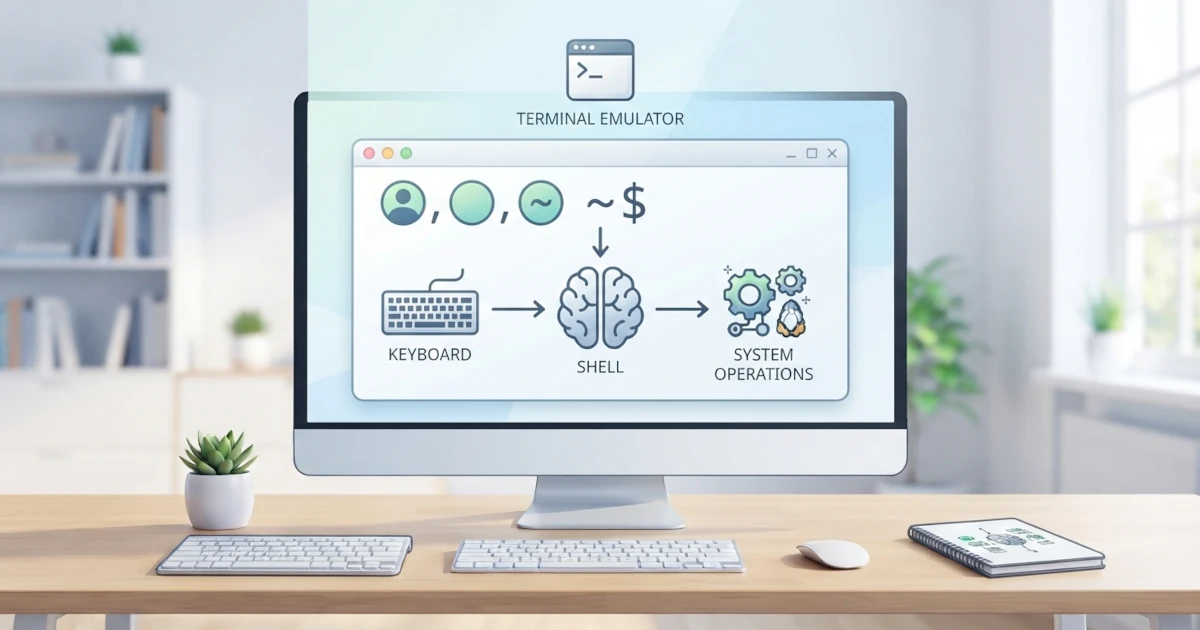
A terminal emulator is a graphical program that "imitates" that physical terminal within a desktop environment. Through the terminal emulator, you can type commands and see the results as text. This means that the terminal is the window that provides access to the command line, while the commands you type are actually processed by another program called the shell. This is an important distinction that will remain relevant throughout this chapter: the terminal is just the "window", while the shell is the "brain" that interprets your commands. Whatever terminal emulator you use, the shell and all the commands running behind it remain the same.
Some common terminal emulators include:
- Ptyxis: the default terminal in Ubuntu (since version 25.10) and Fedora Workstation (since version 41), including Ubuntu 26.04 LTS and Fedora Workstation 44 used in this series. Ptyxis is built with GTK4 and libadwaita, leverages GPU acceleration for smoother rendering, and has built‑in support for container environments like Podman, Toolbx, and Distrobox.
- GNOME Terminal: the classic GNOME terminal that was the default for many years. Since Ptyxis was introduced, GNOME Terminal is gradually being replaced as the default application, though it can still be installed manually for those who prefer it.
- Konsole: the default terminal for the KDE desktop.
- Terminator and Tilix: terminals with window‑splitting features.
Whatever terminal you use, its function is the same: it is where you type commands and read their output. On Ubuntu 26.04 LTS and Fedora Workstation 44, the application you will use throughout this series is Ptyxis, as already mentioned in Chapter 10.
Opening the Terminal on Ubuntu and Fedora
Because both Ubuntu 26.04 and Fedora Workstation 44 use GNOME, the ways to open the terminal on both are almost identical. There are several methods you can use:
- Via the Activities Overview. Press the Super key (the Windows/Start logo key), type "Terminal" in the search box and press Enter.
- Via keyboard shortcut. Press Ctrl+Alt+T to quickly open the terminal.
- Via the application list. Click the Show Apps icon at the bottom of the Dash, then search for the Terminal application.
- Via Files (Nautilus). Right‑click on a folder and select Open in Console to open the terminal directly in that directory.
Once the terminal opens, you will see a window with a dark or light background, containing text called the command prompt. This is where you will type all the commands in the following chapters.
What Is a Shell?
Shell is the program responsible for translating the commands you type in the terminal into actions that the operating system can execute. The shell acts as an intermediary between you and the Linux kernel: you give a command, the shell interprets it, then the kernel executes it and returns the result to you.
The term "shell" itself means "outer layer", describing that this program wraps around the kernel. There are many types of shells in Linux, but the most popular are Bash (Bourne Again Shell) and Zsh (Z Shell).
- Bash is the default shell on Ubuntu 26.04 LTS. Bash is a development of the original Bourne shell and has been the de facto standard in the Linux world for decades.
- Fedora Workstation 44 also uses Bash as the default shell for the majority of users. Some users prefer Zsh, which offers additional features like advanced auto‑completion and richer themes, but Zsh is not the default shell in Fedora.
For beginners, you do not need to worry about choosing a shell. All the material in this series uses Bash, which is available on both Ubuntu and Fedora. You can find out your active shell with the following command:
echo $SHELLIf you are ever curious about which shells are installed on the system, that list is stored in the file /etc/shells. Changing the default shell can actually be done with the chsh command, but this is an advanced topic that will be covered in more depth in Chapter 37 about shell and terminal customisation. For now, just understand that Bash is the "language" you will learn throughout this book.
Anatomy of the Command Prompt
Before typing commands, it is helpful to understand the meaning of the text that appears in the command prompt. The prompt is the indicator that shows that the shell is ready to accept commands. The prompt on your system will look similar to the following example:
username@hostname:~$Let's break down the parts:
username: the username of the currently logged‑in user.hostname: the computer's hostname.~: the current working directory. The tilde~is shorthand for your home directory.$: a symbol indicating that you are logged in as a regular user.
In addition to the $ symbol, there is also the # symbol. This symbol appears when you are running the shell as the root user (administrator). The difference is important to note:
username@hostname:~$     ← regular user
root@hostname:~#     ← root user
Throughout this series, commands that require administrator privileges will be written with the sudo prefix, rather than switching to root. Therefore, you will rarely see a prompt with the # symbol. The concept of sudo, including its differences from su, will be covered in more depth in Chapter 22.
Structure of Linux Commands
Most Linux commands follow the same basic pattern:
command [options] [arguments]command: the name of the program to run, e.g.lsorcp.options: additional settings that modify the command's behaviour, usually preceded by a hyphen.arguments: the objects that the command acts upon, e.g. a file or directory name.
For example, the command ls -l /home consists of the command ls, the option -l, and the argument /home. This command asks the shell to display the contents of the /home directory in long format.
Options themselves come in two forms:
- Short option: a single letter preceded by a single hyphen, e.g.
-lor-a. Several short options can be combined, e.g.ls -la. - Long option: a full word preceded by two hyphens, e.g.
--allor--human-readable. Long options are easier to read and remember.
Many commands provide both option forms for the same function. For example, ls -a is equivalent to ls --all. This convention makes Linux commands flexible and adaptable to your preferences.
Tips for Using the Terminal
After understanding the basics, the following tips will make your terminal experience much more comfortable and efficient.
Tab Completion
Typing long command names or file names can be tiring and error‑prone. Tab completion allows the shell to automatically complete commands or file names.
Just type the first few letters, then press the Tab key. The shell will automatically fill in the rest. For example, type docu and press Tab; the shell will complete it to Documents if there is a directory with that name. If there is more than one possibility, press Tab twice to display all available options.
Command History
The shell keeps a history of the commands you have run. You can recall previous commands by pressing the arrow keys ↑ (up) and ↓ (down). This is very useful for repeating long commands without retyping them.
You can also display the entire command history with:
historyThis command displays a numbered list of commands. You can re‑run a specific command by typing an exclamation mark followed by its number, e.g. !50 to run command number 50.
Ctrl+C, Ctrl+D, and Ctrl+L
There are three basic keyboard combinations that you should memorise from the start:
Ctrl+C: interrupts the currently running command. Use this when a program is taking too long or you want to cancel it.Ctrl+D: signals the end of input, or closes the terminal session. Often used to exit interactive programs or to exit the shell.Ctrl+L: clears the terminal screen without erasing the command history. It behaves similarly to theclearcommand, though the two handle the scrollback buffer (the history of lines that can be scrolled up) in slightly different ways.
Copying and Pasting in the Terminal
Copying and pasting text in the terminal is different from the usual habits in graphical applications. The shortcut Ctrl+C is already used for interrupting processes, so for copying text you use:
Ctrl+Shift+C: copies the selected text.Ctrl+Shift+V: pastes text into the terminal.
In many modern terminals, including Ptyxis, you can also paste text by right‑clicking and selecting Paste, or simply by clicking the middle mouse button. Mastering these shortcuts will prevent you from accidentally stopping a process just because you intended to copy text.
In this chapter, you have learned about the terminal emulator and the shell as the two foundational elements of the command line, how to open the terminal on Ubuntu and Fedora, the anatomy of the command prompt and the difference between the $ and # symbols, and the basic structure of Linux commands. You have also been equipped with various tips, from Tab completion and command history to essential shortcuts like Ctrl+C, Ctrl+D, and Ctrl+L.
In the next chapter, you will start using the terminal to explore the filesystem using the pwd, ls, and cd commands, and understand the difference between absolute and relative paths.