
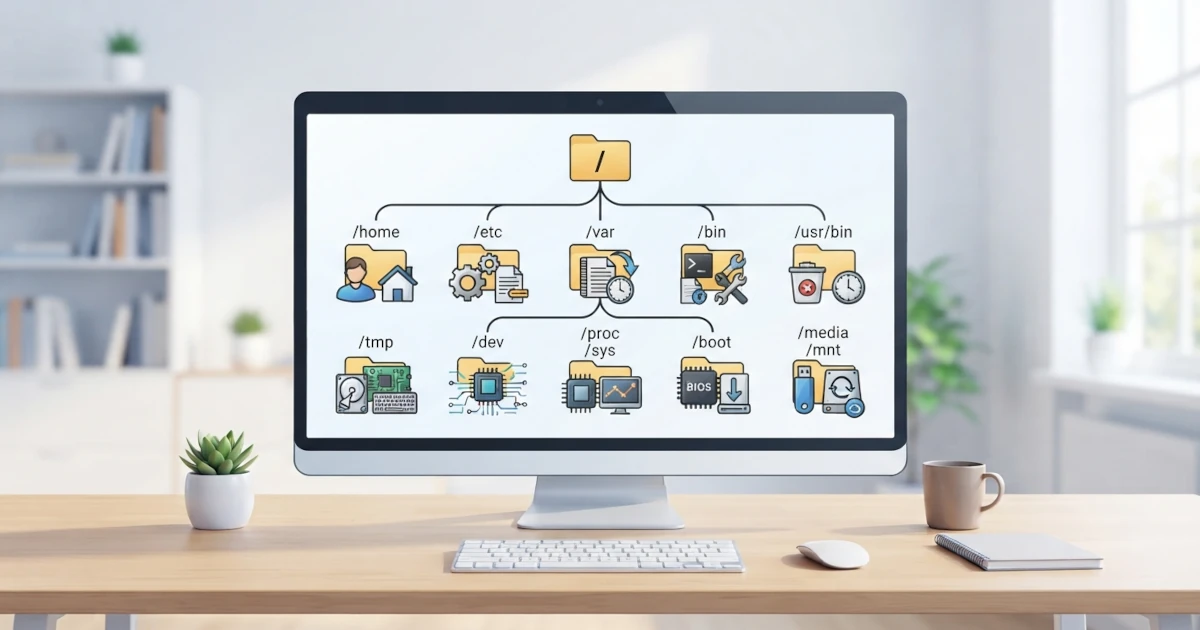
In the previous chapter, you learned the basic concepts of files and directories in Linux, including the philosophy of "everything is a file" and the fact that Linux has a single unified directory tree rooted at /. Now it is time to study that tree structure in more detail. This chapter covers the Filesystem Hierarchy Standard (FHS), which defines the directory layout in Linux, explains the concepts of the root filesystem and mount points, and then details the function of each major directory you will frequently encounter, such as /home, /etc, /var, /proc, and others. Understanding this structure will make it easier for you to find files, understand how the system works, and troubleshoot problems.
Filesystem Hierarchy Standard (FHS)
The Filesystem Hierarchy Standard (FHS) is a standard that defines the directory structure and the contents of directories on Unix‑based and Linux operating systems. This standard is maintained by the Linux Foundation and aims to ensure that software can predict the location of files and directories, regardless of which Linux distribution is being used.
Before this standard existed, each Linux distribution had a different directory layout, so a program built for one distribution might not find the configuration files or libraries it needed on another distribution. Thanks to the FHS, the locations of important files have become uniform: for example, system configuration files are in /etc, commands are under /usr/bin, and variable data is in /var.
Both Ubuntu and Fedora follow the FHS, so the directory structure you learn in this chapter applies equally to both distributions. Nevertheless, the FHS leaves room for distributions to make certain adjustments, so there are still some minor differences between one distribution and another.
Root Filesystem and Mount Points
As mentioned in the previous chapter, the entire Linux file system is rooted at a single top‑level directory called the root, written as a single forward slash /. This root directory is the parent of all other directories on the system. When you write a path like /home/username/Documents, the very first slash on the left refers to this root directory.
The second important concept is the mount point. A mount point is an empty directory used as the "entry point" for a filesystem. When a partition or storage device is mounted onto a mount point, the contents of that partition appear to be inside that directory.
For example, when you plug in a USB flash drive, the system may mount it to a directory like /media/username/flash-drive-name. After that, all files on the flash drive can be accessed through that directory, as if they were indeed part of the main directory tree. Thanks to the mount point mechanism, the entire system appears as one unified whole, even though it is actually composed of many separate partitions and physical devices.
Explanation of Major Directories
Below is a description of the functions of the main directories in a Linux system. The following table provides a brief summary, and then each directory is explained in more detail.
| Directory | Function |
|---|---|
/ | Root: parent of all directories |
/home | Home directories for regular users |
/root | Home directory for the root user |
/bin, /sbin, /usr/bin | Programs and commands |
/etc | System configuration |
/var | Variable data (logs, mail, spools) |
/tmp | Temporary files |
/dev | Device files |
/run | Runtime data since last boot (virtual, tmpfs) |
/proc | Process and kernel information (virtual) |
/sys | Hardware information (virtual) |
/lib, /usr/lib | Shared libraries |
/media, /mnt | Mount points for removable media |
/opt | Third‑party software |
/boot | Boot loader files |
/: Root
The root directory / is the top of the entire hierarchy. No directory exists above it, and all other files and directories are its descendants. In general, the root directory contains subdirectories organised by the FHS, and ideally contains only a few files. Most activity and data reside inside its subdirectories.
/home: User Directories
/home is where the personal data of each regular user is stored. Each user has their own subdirectory, e.g. /home/username, which contains that user's documents, downloads, images, and personal configuration files.
This home directory also stores many dotfiles and configuration directories such as .bashrc and .config, as discussed in the previous chapter. When you save a document to the Documents or Downloads folder through graphical applications, those files are saved inside your home directory by default. Keeping important data in /home also makes backups easier, because all personal data is centralised in one place.
/root: Home for the Superuser
/root is the home directory of the root user, the highest‑privilege administrator account on the system. Note that /root is different from the root directory /. The /root directory is simply the special home directory for the root account, whereas / is the root of the entire filesystem.
The root home directory is intentionally kept separate from /home, because /home on some systems may be mounted on a separate partition or over the network. Being separate, root can still log in even if the /home partition has problems.
/bin, /sbin, and /usr/bin: Programs and Commands
These directories store executable programs, i.e. the commands you run in the terminal:
/usr/bincontains the majority of everyday user commands, such asls,cp,mv,cat, andnano./usr/sbincontains system administration commands that are typically only run by root or viasudo, such asfdisk,useradd, andshutdown./binand/sbinhistorically contained essential commands needed during boot. However, on modern distributions like Ubuntu 26.04 and Fedora 44, these two directories are generally merged into symbolic links pointing to/usr/binand/usr/sbin. This means that all commands are now actually located under/usr.
Therefore, when you type a command, the system searches for it in the directories listed in the PATH environment variable, which typically includes /usr/bin and /usr/sbin.
/etc: System Configuration
/etc is the storage location for system‑wide configuration files. Almost all settings that apply to the entire machine, not just to a single user, are stored here.
Some important files and directories inside /etc include:
/etc/passwd: list of user accounts./etc/fstab: configuration for filesystem mounting at boot./etc/hosts: local hostname resolution./etc/apt/: APT package manager configuration (on Ubuntu)./etc/yum.repos.d/: DNF repository configuration (on Fedora)./etc/systemd/: systemd configuration.
The convention in Linux refers to these files as config files, and many of them are plain text, so they can be read and edited with a text editor. Much of the configuration material in this book will refer to files inside /etc.
/var: Variable Data
/var stores data that changes during system operation. The name var comes from variable. Unlike /usr, which is generally static, the contents of /var change continuously as the system runs.
Important subdirectories inside /var include:
/var/log: stores system and application log files./var/mail: stores user emails./var/spool: spool data for printing and scheduled jobs./var/cache: application cache data./var/lib: changing data for applications and package managers.
When you are troubleshooting a system issue, the /var/log directory is one of the first places to check.
/tmp: Temporary Files
/tmp is used to store temporary files created by programs or users. Many applications use /tmp to store data that is only needed momentarily.
The special feature of /tmp is that its contents are not intended to persist. On modern Ubuntu and Fedora systems, /tmp is usually mounted as tmpfs, meaning a filesystem that actually resides in RAM, not on disk. This is why the contents of /tmp are automatically lost every time the system is shut down or restarted — not because they are actively cleaned, but because data in RAM is inherently non‑persistent. In addition, the systemd-tmpfiles service periodically deletes files in /tmp that have not been accessed for a long time (by default after 10 days), even if the system has not been rebooted. Because it resides in RAM, you should not store important data or very large files in /tmp, as they could disappear at any time, and they also consume memory capacity that would otherwise be available for running applications.
/dev: Device Files
/dev contains device files, i.e. special files that represent hardware devices. As explained in the previous chapter, hardware in Linux is also accessed as files.
Some examples of device files in /dev include:
/dev/sda: the first hard disk or SSD./dev/sda1: the first partition on disk/dev/sda./dev/tty: the terminal./dev/null: a "black hole" that discards all data written to it./dev/random: a source of random numbers.
You generally do not need to interact directly with files in /dev, but understanding their existence helps explain the principle of "everything is a file".
/run: Runtime Data Since Last Boot (Virtual)
/run is a directory that holds runtime data — information that is only relevant since the last system boot. Like /tmp on modern distributions, /run is also mounted as tmpfs in RAM, so its contents are automatically recreated each time the system starts.
Various system services, including systemd, store data such as PID files (markers for running processes), sockets for inter‑process communication, and current boot status information inside /run. This directory replaces the role of the older /var/run directory used on older Linux systems; according to the latest FHS standard, /var/run is now generally just a symbolic link pointing to /run, kept for compatibility with older programs that still reference that location.
/proc: Process and Kernel Information (Virtual)
/proc is a virtual filesystem that provides information about running processes and the state of the kernel. This directory does not contain actual files on disk; its contents are generated directly by the kernel every time they are read.
Every running process is represented by a numbered directory corresponding to its Process ID (PID). For example, /proc/1234 contains information about the process with PID 1234. In addition, /proc also stores general information files such as /proc/cpuinfo (processor information) and /proc/meminfo (memory information).
/sys: Hardware Information (Virtual)
Like /proc, the /sys directory is also a virtual filesystem. However, /sys focuses on information about hardware, drivers, and kernel subsystems. Through /sys, the system and applications can view and, in some cases, change the behaviour of hardware.
The contents of /sys are generally managed by the kernel and rarely need to be manually edited by ordinary users. The existence of /sys and /proc demonstrates how powerful the "file" abstraction is in Linux: even the internal state of the kernel can be accessed as files.
/lib and /usr/lib: Libraries
The /lib and /usr/lib directories store shared libraries, i.e. common code libraries used by various programs. Libraries are like reusable "code snippets" that can be shared, so programs do not need to include all the code they need by themselves.
On modern systems, just like /bin, the /lib directory is also generally a symbolic link to /usr/lib as part of the merged usr scheme. These libraries are crucial for the system; if a key library is deleted or corrupted, many programs may stop working.
/media and /mnt: Mount Points for Removable Media
/media and /mnt are standard locations for mounting filesystems, especially removable storage media such as USB flash drives and external hard disks.
/mediais used for automatic mounting of removable media. When you plug in a flash drive, the system typically mounts it to/media/username/flash-drive-name./mntis used as a temporary manual mount location, for example when an administrator wants to mount another partition directly using themountcommand.
/opt: Third‑Party Software
/opt (short for optional) is provided for installing third‑party software that does not follow the standard directory scheme. Some commercial or proprietary applications install their entire contents into a separate subdirectory under /opt, e.g. /opt/application-name.
In general, software installed through the official package manager (APT or DNF) does not use /opt; instead, it is placed under /usr. The /opt directory is more often used by applications installed manually or by specific software vendors.
/boot: Boot Loader Files
/boot contains files needed to start (boot) the system. Inside it are the Linux kernel (usually named vmlinuz-...), the initial RAM disk (initrd or initramfs), as well as boot loader configuration files and modules such as GRUB.
This /boot directory is critical for the boot process. Therefore, its contents should not be changed or deleted carelessly, because errors here can cause the system to fail to start.
In this chapter, you have learned about the Filesystem Hierarchy Standard (FHS), the concepts of the root filesystem and mount points, and the function of each major directory in Linux such as /home, /etc, /var, /tmp, /dev, /run, /proc, /sys, /boot, and others. This understanding will serve as a map for you when exploring the system, searching for configuration files, reading logs, or troubleshooting.
In the next chapter, we will continue the discussion of the filesystem by studying partitions and filesystem types such as ext4, XFS, and Btrfs, as well as the concepts of swap, mount, and unmount.