
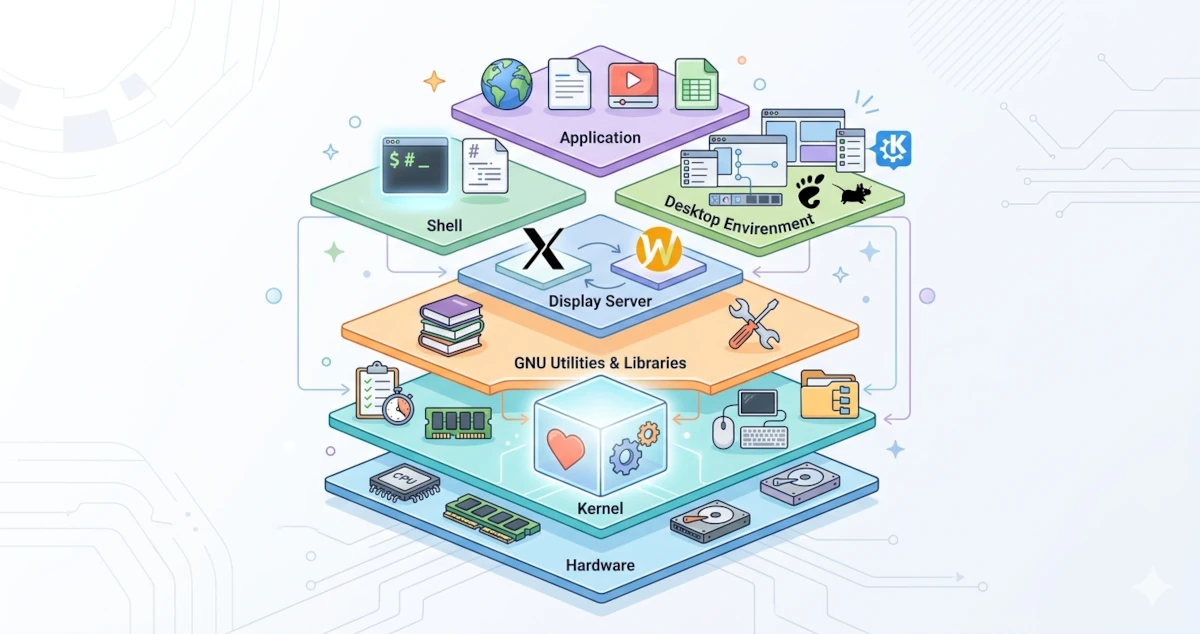
The previous chapter touched upon the fact that Linux is technically just a kernel — the core of the operating system that interacts directly with the hardware. To become a functional operating system, the kernel needs various software components, each with a specific role.
Understanding these components is very important because it will help you read error messages more accurately, understand how the system works, and navigate Linux with more confidence without merely memorising commands.
Imagine the Linux system like a restaurant. The kernel is the kitchen: where all the hard work happens, hidden from the guests. The shell is the waiter who takes your order and delivers it to the kitchen. The desktop environment is the dining room you see and feel. Each part has its own function, but all must work together for the restaurant to run.
Let us discuss these components one by one.
Layers of the Linux System
Let us look at the big picture of how Linux components are organised before diving into details. The Linux system can be imagined as a stack of layers. The lowest layer is the physical hardware, while the topmost layer is the applications you use daily. In between are the kernel, various GNU libraries and utilities, the display server, and the desktop environment (or the shell if you work without a graphical interface).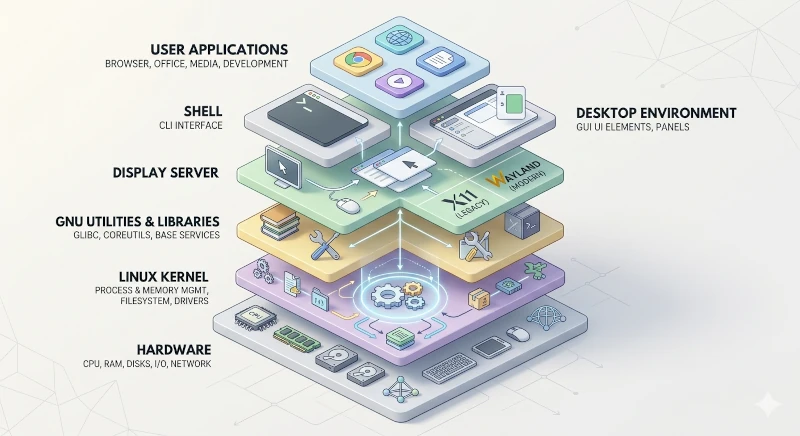
Each layer communicates directly only with the layer below and above it. Applications do not need to know hardware details because that is the kernel's concern. The kernel does not need to know how to display windows because that is the display server's and desktop environment's concern.
The Linux Kernel
The kernel is the heart of the entire system. This component is the only part of the operating system that runs directly at the hardware level, in a space called kernel space — a protected memory area that can only be accessed by the kernel itself.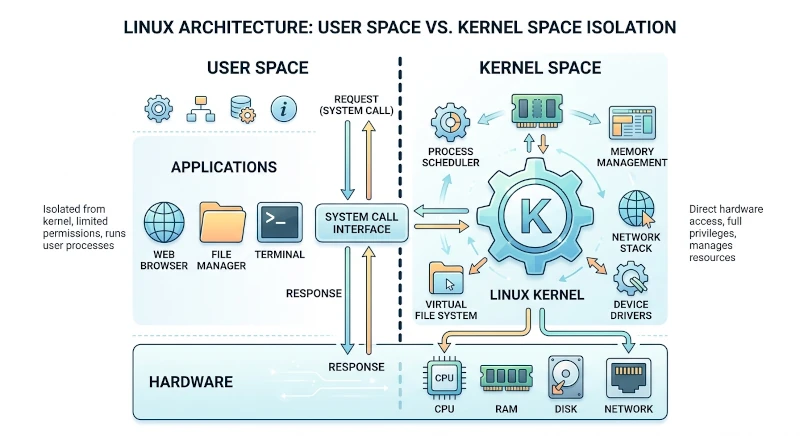
All programs we run, such as browsers, terminals, or text editors, operate in user space. Programs that need hardware access — like reading a file, sending data over the network, or displaying something on screen — must request permission from the kernel through a mechanism called a system call (syscall).
This separation between kernel space and user space is the foundation of Linux system security. A program that crashes in user space cannot directly damage the entire system because it does not have direct access to hardware or to other programs' memory. The kernel manages everything.
The Linux Kernel: Monolithic with Modules
Linux uses a monolithic kernel architecture. Most core functions — process management, memory management, device drivers, and filesystem management — are compiled and run as a single block of code in kernel space.
The monolithic kernel architecture is more efficient than a microkernel (used by systems like MINIX or QNX) because its components can communicate directly without the overhead of context switching.
The Linux kernel also supports loadable kernel modules (LKM) — pieces of code that can be loaded into the kernel when needed and unloaded when no longer required, without needing to reboot. Almost all device drivers in Linux are implemented as modules. You can see currently loaded modules with the command:
lsmodProcess Management
Every program running on Linux is a process. The kernel creates a new process when you open a browser. The browser may create additional processes when opening a new tab. A freshly booted system already has dozens to hundreds of processes running in the background.
The kernel has full responsibility for process management through several mechanisms:
Process scheduling
A physical CPU can only execute one instruction at a time per core. Yet we can run hundreds of programs simultaneously. The kernel uses a scheduler to divide CPU time among all active processes. Each process gets a turn to use the CPU in very short time slots, usually a few milliseconds. This switching happens so quickly that humans perceive it as true multitasking.
The Linux kernel has used the Completely Fair Scheduler (CFS) as the default scheduler since kernel version 2.6.23. CFS distributes CPU time fairly among all active processes, taking each process's priority (niceness) into account. Since kernel 6.6 in 2023, Linux has included the EEVDF (Earliest Eligible Virtual Deadline First) scheduler as a refinement of CFS, offering lower latency and more precise time distribution. Kernel 7.0, which is the base for Ubuntu 26.04 LTS and available to Fedora Workstation 44 via regular updates, adds the sched_ext framework that allows eBPF-based custom schedulers to be loaded and swapped directly without recompiling the kernel, while EEVDF remains the default scheduler.
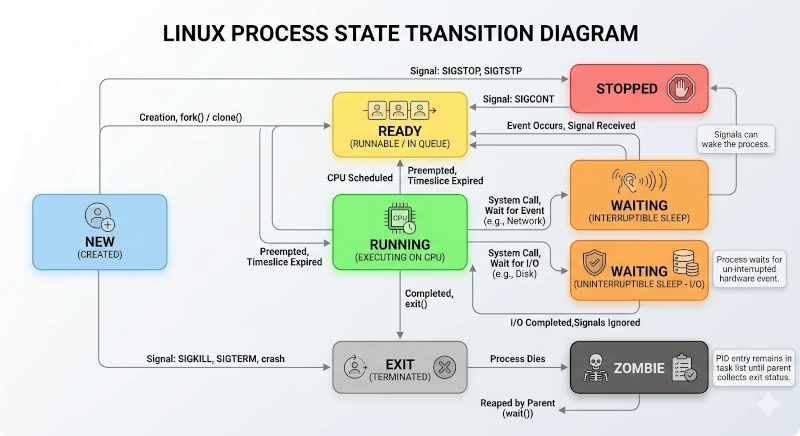
Process states
| State | Description |
|---|---|
| Running | Process is actively using the CPU |
| Sleeping (Interruptible) | Process is waiting for an event (I/O, signal) and can be interrupted |
| Sleeping (Uninterruptible) | Process is waiting for hardware I/O and cannot be interrupted |
| Stopped | Process has been paused (usually by SIGSTOP signal) |
| Zombie | Process has finished but has not yet been cleaned up by its parent |
Process hierarchy
Every process in Linux, except the very first one, has a parent process — the process that spawned it. This creates a tree hierarchy. The first process run by the kernel at boot is systemd (PID 1), which becomes the ancestor of all other processes. You can view the entire process tree with the command:
pstreeInter-Process Communication (IPC)
Processes need to communicate with each other. The kernel provides various IPC mechanisms:
- Pipe: a one-way data stream between two processes.
- Signal: asynchronous notifications, e.g., SIGTERM to ask a process to stop.
- Shared memory: a memory area accessible by several processes.
- Socket: two-way communication, including between different machines.
Memory Management
Memory management is one of the most critical kernel functions. The kernel must ensure that each process gets the memory it needs and cannot access other processes' memory.
Virtual memory
Each process in Linux does not work directly with physical memory addresses (RAM). Instead, the kernel gives each process the illusion that it has its own large, contiguous memory space, called the virtual address space. The kernel manages the mapping between the virtual addresses seen by the process and the physical addresses, or actual locations in RAM, through a table called the page table. The smallest unit of this mapping is called a page, which is usually 4 KB in size.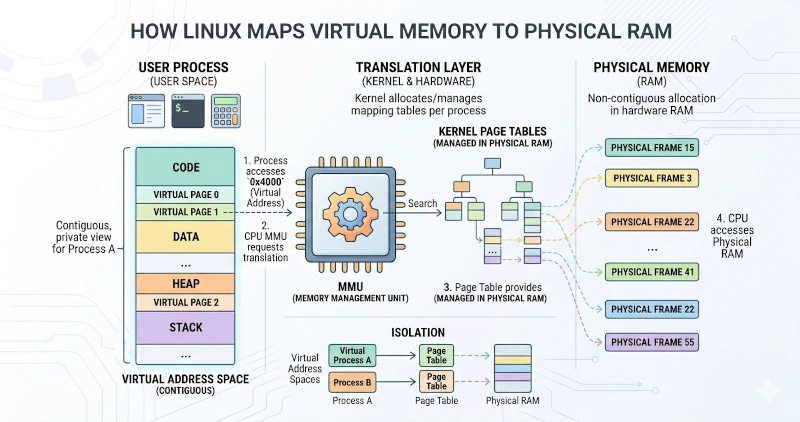
Virtual memory provides several advantages:
- Process isolation: processes cannot access each other's memory even though they share the same physical RAM.
- Flexibility: a program can act as if it has more RAM than physically available.
- Security: memory exploits become more difficult to carry out.
Demand paging
The kernel does not always allocate physical RAM immediately when a process requests a memory block. It records the request and only allocates a physical page when the process actually accesses that memory. This mechanism is called demand paging — an efficient way to manage memory without wasting RAM.
Swap
When physical RAM is full, the kernel can move inactive memory pages to a special area called swap. Those pages are moved back to RAM when needed again. This mechanism allows the system to run more programs than the physical RAM capacity would allow, although with a speed penalty if swap is on disk, because disk performance is far below RAM. In Ubuntu 26.04 LTS, swap is still implemented as a swapfile on disk, created automatically during installation; zswap support (in-kernel swap compression) is available but not enabled by default. Fedora Workstation, including version 44, takes a different approach: by default it uses swap-on-zram, a compressed block device in RAM (/dev/zram0) that is much faster than disk-based swap because it involves no storage I/O at all. A disk-based swapfile in Fedora is only created manually, e.g., when a user wants to enable hibernation.
OOM Killer
The kernel activates the OOM Killer (Out-Of-Memory Killer) in extreme conditions when both RAM and swap are exhausted. This mechanism automatically terminates certain processes to free memory and prevent a total system crash.
Hardware and Driver Management
The Linux kernel supports thousands of different hardware types — from various CPU architectures, graphics cards, audio devices, USB, Bluetooth, to laptop temperature sensors. All of this is made possible through the device driver system.
Device driver
A device driver is software that acts as a translator between the kernel and the hardware. The driver understands how to communicate with specific hardware — its communication protocols, the registers to access, how to send and receive data — and then exposes it to the kernel through a standard interface.
Almost all drivers in Linux are included directly in the kernel source code (in-tree drivers), although there are also out-of-tree drivers loaded separately, such as proprietary NVIDIA drivers. This is one reason the Linux kernel is large: it carries support for thousands of devices at once.
Device file
Linux applies the philosophy of "everything is a file". Hardware is represented as special files in the /dev/ directory:
/dev/sda: first SATA or SCSI disk./dev/nvme0n1: first NVMe SSD./dev/tty1: first terminal./dev/input/mouse0: mouse device./dev/null: location that discards all input.
There are two main types of device files:
- Block device: devices that read or write in blocks, such as disks and USB flash drives.
- Character device: devices that read or write character by character, such as keyboards and serial ports.
udev: Device manager
udev is the device manager for the Linux kernel that runs in user space. The kernel detects a new device and notifies udev when you plug in a USB flash drive. udev then automatically creates a file in /dev/, calls the appropriate scripts, and notifies the system about the new device. udev is integrated with systemd through the systemd-udevd component on both Ubuntu and Fedora.
Kernel parameters and /proc, /sys
The kernel exposes information about itself and the system through two virtual filesystems that can be read like ordinary files:
/proc/: contains information about running processes, kernel parameters, and system statistics./sys/(sysfs): contains information and configuration interfaces for hardware and drivers.
The files in these directories are dynamically created by the kernel when accessed and are not actually stored on disk.
Filesystem Management
The filesystem is the system that organises how data is stored and accessed on storage. The Linux kernel supports dozens of different filesystem types through an abstraction layer called the Virtual File System (VFS).
VFS defines a standard interface — operations like open, read, write, and close — that every filesystem must implement. Applications can read and write files without needing to know whether the data is stored in ext4, XFS, Btrfs, or a network filesystem, thanks to VFS.
Common filesystems on Linux:
| Filesystem | Description |
|---|---|
| ext4 | Default on most Debian-derived distros, including Ubuntu 26.04 LTS: mature, stable, and fast. |
| Btrfs | Default on Fedora Workstation, including Fedora 44, since Fedora 33 (2020): supports snapshots, compression, and built-in volume management without needing a separate LVM. |
| XFS | High performance, especially for large files; default on Fedora Server, not on Fedora Workstation. |
| FAT32 / exFAT | Compatibility with Windows and older devices. |
| NTFS | Windows filesystem accessible via the ntfs3 driver or NTFS-3G. |
| tmpfs | RAM-based filesystem for /tmp and /run: data is lost on reboot. |
ext4 and XFS are journaling filesystems: both log changes to a special area (the journal) before actually applying them, allowing the filesystem to recover to a consistent state by replaying the journal if the system crashes suddenly. Btrfs achieves similar resilience through a different approach: copy-on-write (COW). Instead of overwriting old data directly, Btrfs always writes changes to a new location first and only updates metadata after the write completes, so the filesystem is never in a half-written state even during a sudden power loss. This COW approach is also the foundation for Btrfs's instant snapshot feature.
GNU Utilities: Basic System Tools
The kernel alone cannot do much from the user's perspective. A collection of basic programs is needed to make a truly usable system. This is where the GNU Utilities come in.
The GNU Project, started by Richard Stallman in 1983, has produced hundreds of programs that form the foundation of the Linux system. The most important groups are as follows.
GNU Coreutils
GNU Coreutils is the package containing the most fundamental commands you use daily in the terminal. Without them, the system cannot function:
| Command | Function |
|---|---|
ls | List directory contents |
cp | Copy files |
mv | Move or rename files |
rm | Remove files |
mkdir | Create directories |
cat | Display file contents |
The commands above, along with dozens of other similar ones, are always available on all Linux distros as fundamental system dependencies, but not all distros still run the original GNU project implementation to execute them. Ubuntu 26.04 LTS is a concrete example: since Ubuntu 25.10, Canonical has made uutils — a Rust-based rewrite of coreutils aiming to be a drop-in replacement for GNU Coreutils — the default implementation for about a hundred commands such as ls, cat, mkdir, chmod, and sort. The goal is better memory safety compared to old C code. Three commands — cp, mv, and rm — temporarily still use the GNU versions because TOCTOU (time-of-check to time-of-use) security vulnerabilities were found in their Rust implementations. Both versions remain installed side by side, and users who wish to revert entirely to GNU Coreutils can do so via the package manager. Fedora Workstation, so far, has not followed this step and still uses the original GNU Coreutils.
GNU Binutils
GNU Binutils is a collection of tools for working with binary code and object files, essential for the software compilation process. It includes ld (linker), as (assembler), and various other utilities.
GNU C Library (glibc)
glibc is the standard C library implementation used on Linux. This component is very critical because almost every program running on Linux links to glibc. It provides basic functions like printf(), malloc(), file management, and the interface to kernel system calls.
glibc acts as a bridge between the program and the kernel. It wraps system calls into standard C functions that are easier for programmers to use. Unlike Coreutils, glibc has not yet been touched by the trend of replacing system components with Rust, and it remains the GNU implementation on both Ubuntu and Fedora.
Bash (GNU Bourne Again Shell)
Bash is the default shell on many Linux distros, including Ubuntu 26.04 LTS. It is part of the GNU project and is a free implementation of the original Bourne Shell (sh).
Systemd
Systemd is a fundamental component present on modern Linux distros, although it is not formally part of GNU. Systemd acts as the init system — the first program run by the kernel after boot (PID 1). It is also a service manager, logging system, device manager, and handles many other system functions.
Systemd's presence has been controversial in the Linux community because its philosophy of doing many things is considered contrary to the more modular UNIX tradition. However, systemd has now become the de facto standard across almost the entire mainstream Linux distro ecosystem, including the latest versions carried by Ubuntu 26.04 LTS and Fedora Workstation 44.
Shell: The Command-Line Interface
The shell is a program that receives commands from the user or from scripts, interprets them, and executes them either directly or by invoking other programs. This component is the primary interface between humans and the operating system.
The name shell refers to the metaphor: it is the shell that wraps around the kernel to protect users from the kernel's complexity while still providing access to its capabilities.
How the Shell Works
The following happens when you type a command in the terminal and press Enter:
- The shell reads your input.
- The shell parses the input, breaking it down into a command, options, and arguments.
- If the command is built-in, such as
cdorecho, the shell executes it directly. - If not built-in, the shell searches for the appropriate executable file in the directories listed in
$PATH. - The shell creates a new process (fork) and runs that program (exec).
- The shell waits for the program to finish, then displays the prompt again.
The shell also provides various supporting features:
- Redirection: directing output to a file or input from a file (
>,<,>>). - Pipe: connecting one command's output to another command's input (|).
- Variables: storing values.
- Scripting: writing sequences of commands in a file that can be executed automatically.
- Tab completion: automatically completing command and file names.
- History: remembering previously typed commands.
Common Shells on Linux
| Shell | Description |
|---|---|
| Bash | Default on Ubuntu: popular and widely compatible. |
| Zsh | Popular with plugins like Oh My Zsh: interactive and advanced. |
| Fish | Has built-in syntax highlighting and autosuggestion. |
| Dash | Lightweight shell used as /bin/sh on Ubuntu for system scripting. |
The default login shell for users on Ubuntu is Bash, while /bin/sh is symlinked to Dash for system scripts due to its faster performance. Bash is also the default on Fedora, although Zsh is available as a popular alternative.
Shell Is Not a Terminal
The difference between the shell and the terminal must be clearly understood:
- Terminal emulator (such as GNOME Terminal or Konsole) is a graphical application that provides a text window and manages keyboard and screen interaction.
- Shell is the program that runs inside the terminal to interpret your commands.
The terminal is just the virtual screen and keyboard. The shell is the component that does the actual work. You can change the shell running inside the same terminal.
Desktop Environment: Graphical Interface
A Desktop Environment (DE) provides a complete graphical user interface (GUI) for users who are not comfortable interacting solely through text. A DE includes windows, icons, menus, taskbars, notification panels, and other visual elements.
A DE is not a single program, but rather a collection of software that works together, consisting of:
- Window manager: manages window positions, sizes, and decorations.
- Panel / taskbar: displays menus, clock, notifications, and open applications.
- File manager: graphical interface for browsing folders.
- Settings manager: central system configuration hub.
- Session manager: handles login, logout, and session saving.
- Various supporting applications: text editor, image viewer, calculator, and others.
Major Desktop Environments on Linux
GNOME
GNOME is the default DE used by Ubuntu and Fedora Workstation. GNOME emphasises a clean and simple design. Its hallmarks include the Activities Overview for viewing open windows, the Top bar for system controls, and a focus on touchpad gestures and keyboard use.
KDE Plasma
KDE Plasma is a highly customisable DE with a look more similar to Windows. Distros like Kubuntu use this DE by default.
XFCE
XFCE is a lightweight and efficient DE, making it suitable for low-spec computers.
Desktop Environment on Ubuntu vs Fedora
| Aspect | Ubuntu 26.04 LTS | Fedora Workstation 44 |
|---|---|---|
| Default DE | GNOME 50 | GNOME 50 |
| Modifications | Many modifications (Ubuntu Dock, Yaru theme, App Center) | Minimal (vanilla GNOME) |
| Appearance | Dock on the left by default, now displayed as opaque | No permanent Dock |
Both distros are now on the same GNOME 50, so the user experience differences between them are more determined by the degree of modifications and default applications each carries, rather than by vastly different GNOME versions as in previous releases.
Display Server: X11 and Wayland
The display server is software that manages communication between applications, the window manager, and the graphics hardware. This component is responsible for displaying windows and graphics on the screen.
X Window System (X11)
The X Window System, or X11, is the display server that has been used on Linux for more than three decades. X11's architecture uses a client-server model. The X server manages input and output on the machine, while X clients are applications that request display. X11's old design carries a complex historical burden and makes it difficult to cleanly implement modern features like HDR.
Wayland
Wayland is a modern display server protocol designed as a replacement for X11. The server role in Wayland is merged directly into the compositor. The compositor communicates directly with the graphics hardware through kernel interfaces called KMS (Kernel Mode Setting) and DRM (Direct Rendering Manager).
Wayland offers better security, smoother performance, and support for modern features such as variable refresh rate (VRR) and fractional scaling.
Wayland is now not just the default choice, but the only GNOME session available on both distros. GNOME 50 on Ubuntu 26.04 LTS has removed the X11 session option from the login screen (GDM), and Fedora Workstation had already done the same. Older X11-based applications can still run thanks to the Xwayland compatibility layer, but you can no longer choose to log into a full X11 session in GNOME as in previous releases. You can check the active session type with the command:
echo $XDG_SESSION_TYPE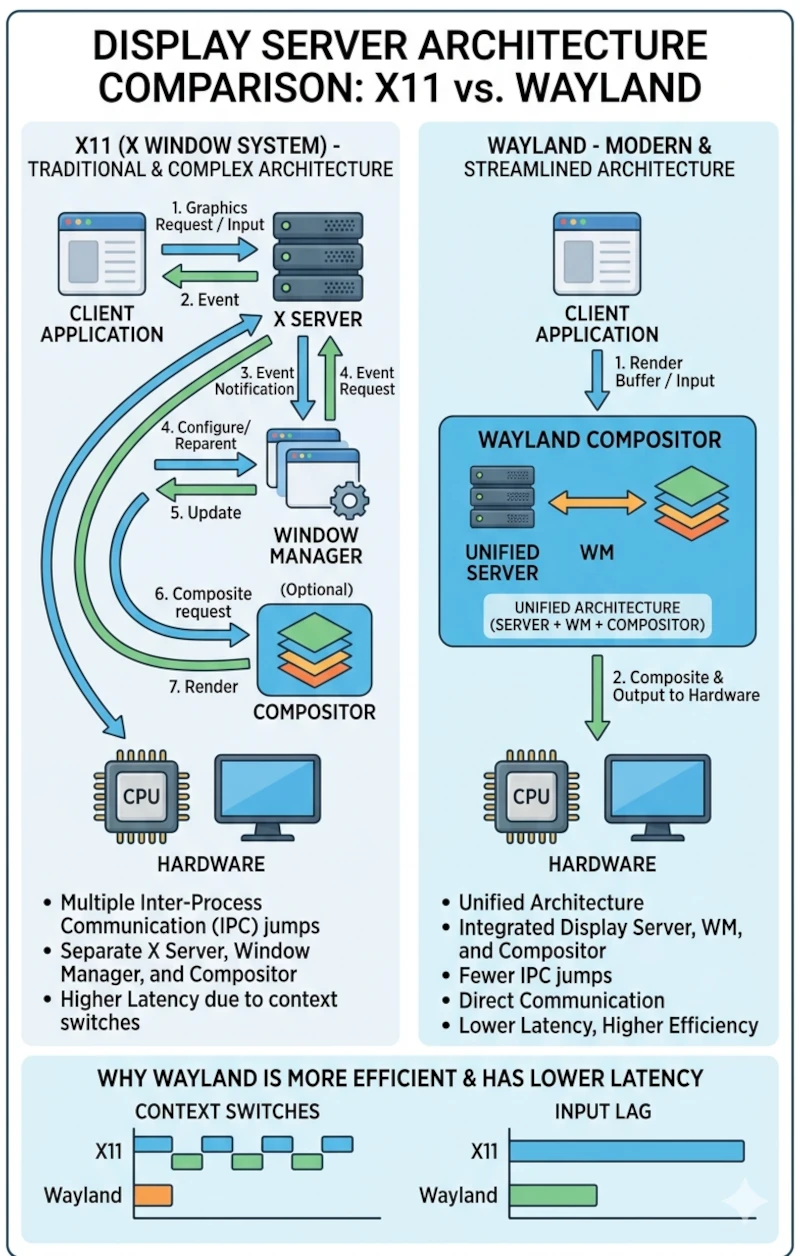
Package Manager: Software Installation System
A package manager is a system that centrally manages the installation, updating, configuration, and removal of software. It downloads software from a repository: an official server that stores thousands of pre-verified packages.
The advantages of using a package manager include guaranteed security, automatic dependency management, and ease of performing full system updates with a single command.
Package Manager Ecosystems
APT (Advanced Package Tool): Ubuntu
Ubuntu uses the .deb package system with APT as the primary frontend.
sudo apt update
sudo apt install package_name
sudo apt upgrade
DNF (Dandified YUM): Fedora
Fedora uses the .rpm package system with DNF as the primary frontend. Since Fedora 44, the entire software installation path, including the graphical GNOME Software application, runs on the same DNF5 backend (libdnf5) as the dnf command in the terminal, making behaviour more consistent across interfaces.
sudo dnf check-update
sudo dnf install package_name
sudo dnf upgrade
Universal Package Formats
Flatpak and Snap are universal package formats that can run across various distros. Flatpak allows applications to run in an isolated sandbox. Fedora 44 enables Flathub by default, while Ubuntu 26.04 LTS uses Snap for many default applications. Ubuntu 26.04 LTS also introduces the App Center, which unifies the management of Deb, Snap, and Flatpak packages within a single graphical interface.
All Components Working Together
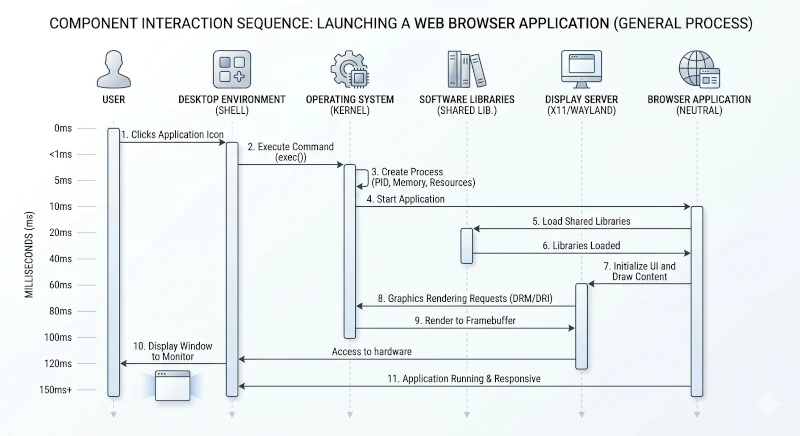
A simple action like opening the Firefox browser involves the following component interactions:
- The Desktop Environment receives a click on the Firefox icon.
- GNOME asks the Shell to launch the program.
- The kernel allocates memory and creates a new process entry for Firefox.
- Firefox communicates with the Wayland compositor to display its window.
- The Wayland compositor asks the kernel to draw pixels to the screen via the GPU driver.
- Firefox calls networking functions from glibc, which then make system calls to the kernel to download data.
- The kernel uses the network driver to receive data packets from the internet.
- Firefox renders the web page and displays it again through the Wayland compositor.
Summary
- The Linux kernel is the core of the system, managing processes, memory, hardware, and the filesystem.
- GNU Utilities complete the kernel to make a functional system for users, although some implementations are now beginning to be replaced by Rust-based rewrites in distros like Ubuntu.
- The shell is the command-line interface for executing user commands.
- The Desktop Environment provides a complete graphical interface, such as GNOME.
- The Display Server manages graphical display, with Wayland now being the only GNOME session on Ubuntu and Fedora.
- The Package Manager manages software through secure official repositories.
Understanding these components is not just theoretical knowledge; it is a navigational map. When a program fails to run, you now know whether the problem lies with the kernel, libraries, shell, or desktop environment. When an error message about a missing dependency appears, you will understand why the package manager exists. This understanding of the layers will continue to be useful as you explore Linux further. It will serve as a lens to help you read documentation, understand error messages, and think systematically about how the system you are using works.