
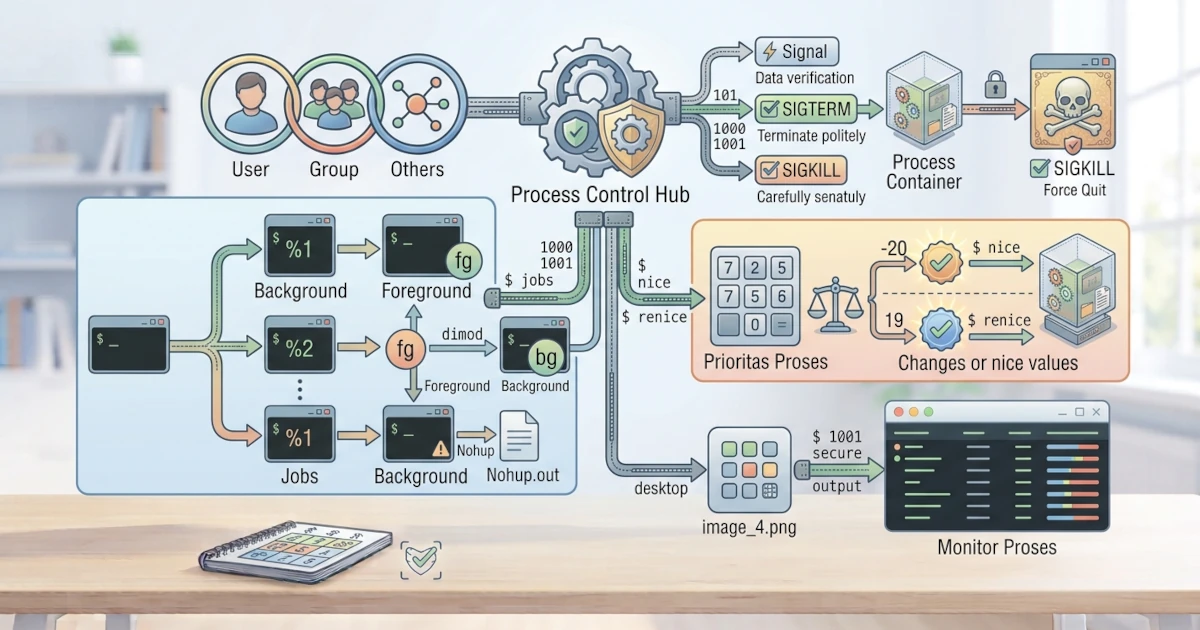
In the previous chapter you learned to understand processes, from PID to how to view running processes. Now you will learn how to control those processes. This ability is important when an application stops responding, when you want to run a task in the background, or when you need to adjust a process's priority. This chapter covers three main skills: sending signals to stop processes, running processes in the background, and adjusting process priorities.
Sending Signals to Processes
Processes in Linux can receive signals, which are small messages sent by the kernel or by a user to tell a process to do something, for example to stop. Signals have standard numbers and names, although only a few of them are the ones you will use most often.
| Signal | Number | Description |
|---|---|---|
| SIGHUP | 1 | Tells the process that its terminal parent has closed; often used to ask a service to reload its configuration |
| SIGINT | 2 | Interrupt signal, same as pressing Ctrl+C |
| SIGKILL | 9 | Forces the process to stop immediately and cannot be ignored |
| SIGTERM | 15 | Asks the process to stop gracefully (the default signal for kill) |
| SIGSTOP | 19 | Suspends the process temporarily (cannot be ignored) |
| SIGCONT | 18 | Resumes a suspended process |
To see the full list of all signals along with their numbers, use kill -l.
kill -lThe main commands for sending signals are kill, killall, and pkill.
kill: Sending Signals (Default: SIGTERM)
The kill command sends a signal to a process based on its PID. By default, kill sends the SIGTERM (terminate) signal, which asks the process to stop gracefully.
kill 1234SIGTERM gives the process a chance to clean up, for example saving data or closing files, before it actually stops. For this reason, SIGTERM is the safest way to stop a process.
To find the PID of a process, you can use ps as you learned earlier, or pidof which directly returns the PID based on the program name.
pidof firefoxThe PID returned by pidof can be used directly as an argument to kill.
kill -9 (SIGKILL): Forcefully Killing a Process
When a process does not respond to SIGTERM, you can force it to stop using the SIGKILL signal, usually written as kill -9.
kill -9 1234SIGKILL cannot be ignored by the process and immediately forces it to stop. Because the process is not given a chance to clean up, use kill -9 only as a last resort after SIGTERM fails. Any unsaved data in that process is likely to be lost.
killall and pkill: Killing Processes by Name
If you do not want to look up the PID first, use killall or pkill to stop processes by their name.
killall firefoxpkill firefoxkillall stops all processes that match the exact name, while pkill is more flexible because it supports pattern matching. Both make it easier to stop an application without needing to find its PID, and both also accept the -9 option to send SIGKILL, for example pkill -9 firefox.
Running Processes in the Background
By default, a command you run in the terminal runs in the foreground and takes over the terminal until it finishes. You can run a process in the background so that the terminal remains free for other commands.
&: Running in the Background
Add an & at the end of the command to run it in the background.
sleep 300 &The sleep 300 command above will run in the background for five minutes, while the terminal immediately returns control to you.
Ctrl+Z: Suspending a Foreground Process
Besides running a command directly in the background with &, you can also move a currently running foreground process to the background. To do this, press Ctrl+Z while the process is running. This key combination sends the SIGTSTP signal, which suspends the process (puts it into the Stopped state, as discussed in the previous chapter) and returns terminal control to you.
^Z
[1]+  Stopped                 nano catatan.txt
A process suspended with Ctrl+Z is not actually running in the background; it is merely frozen. To actually resume it in the background, use the bg command described next.
jobs: Viewing the List of Background Jobs
To see processes currently running in the background in your terminal session, use jobs.
jobsThis command displays a list of jobs along with their numbers and status, for example Running for a job actively running in the background or Stopped for a job suspended with Ctrl+Z.
fg and bg: Moving Processes
You can move processes between the foreground and the background. Use fg to bring a job back to the foreground, and bg to resume a Stopped job so that it runs again in the background.
fg %1bg %1The number %1 refers to the job number shown by jobs. A common workflow is to run a command, press Ctrl+Z when you want to regain terminal control, and then type bg so that the process continues running in the background.
nohup: Keeping a Process Running After Logout
Normally, a process run in the terminal will also stop when you close the terminal or log out, because the process receives the SIGHUP signal. nohup ("no hang up") prevents that, so the process keeps running even after you log out.
nohup command &The output of the process will be saved to a file named nohup.out in the current directory. nohup is very useful for long‑running tasks that you want to keep running after you leave the session.
Process Priorities
The kernel schedules CPU time for each process based on its priority. You can adjust this priority using nice and renice.
nice: Running a Process with a Specific Priority
The nice command runs a process with a given niceness value. The niceness value ranges from -20 (highest priority) to 19 (lowest priority), with a default value of 0 for new processes. A larger value means the process is "nicer" because it gives more opportunity to other processes.
nice -n 10 commandOrdinary users can only increase the niceness value (lower the priority). Lowering the niceness value to increase priority requires administrative privileges.
renice: Changing the Priority of a Running Process
To change the priority of an already running process, use renice.
sudo renice -n 5 -p 1234The command above changes the niceness value of the process with PID 1234 to 5. Priorities are useful when a process is consuming a lot of resources and you want to limit it, or conversely, when you want to give more priority to an important process. You can verify the new niceness value by looking at the NI column in ps -eo pid,ni,comm or in the top/htop display.
Managing processes is a fundamental skill you will use often. Through an understanding of signals, kill, killall, pkill, as well as how to run processes in the background and adjust their priorities, you can better control the applications running on your system. In the next chapter, you will be introduced to systemd, the modern init system that manages services and logs on both Ubuntu 26.04 LTS and Fedora Workstation 44.