
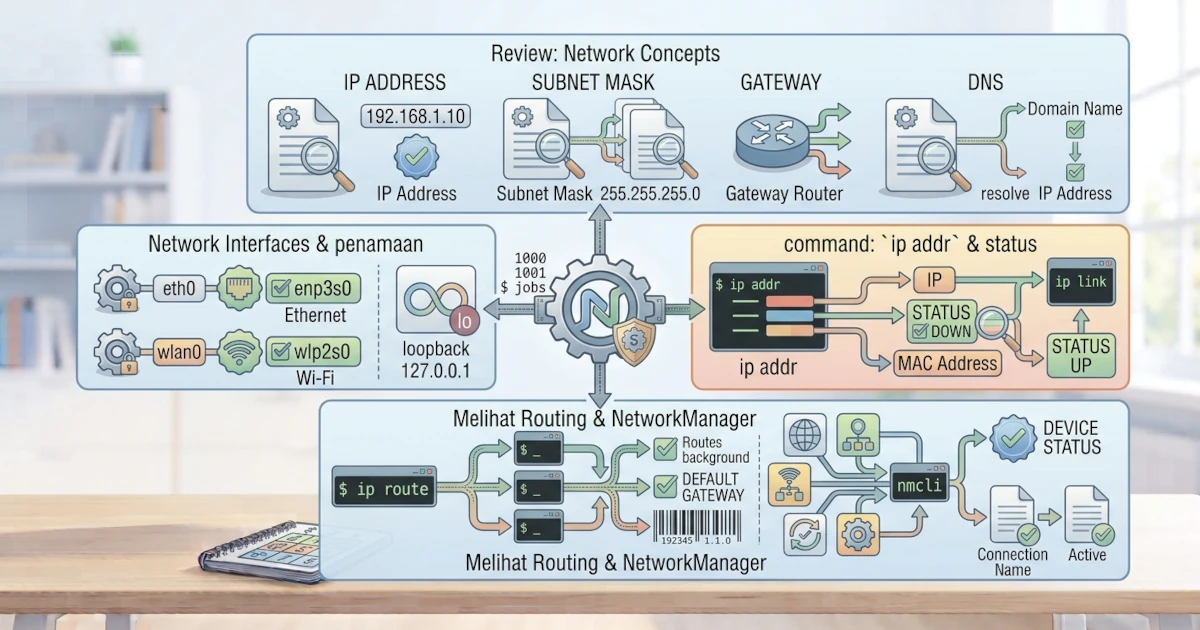
Networking is an inseparable part of modern computer use, whether for browsing the web, downloading updates, or sharing files. This chapter lays the foundation for understanding networking on Linux. You will briefly review networking concepts such as IP, subnet, gateway, and DNS, then learn about network interfaces on Linux and how to view network configuration using commands such as ip and nmcli. This chapter is purely observational, meaning you will only look at the already running network state. How to change that configuration will be fully covered in the next chapter.
Brief Review of Networking Concepts
Before diving into Linux commands, there are a few networking concepts you need to remember. These concepts are universal, not only on Linux, but understanding them will greatly help when reading the output of network commands on Linux.
- IP address is a numeric address that identifies each device on a network, for example
192.168.1.10. This format is called IPv4 and remains the most common standard found in home and office networks. There is also IPv6, a newer address format that is much longer (e.g.2001:0db8:85a3::8a2e:0370:7334), created because the number of available IPv4 addresses worldwide is becoming increasingly limited. Modern Linux systems, including Ubuntu and Fedora, support both IPv4 and IPv6 simultaneously. - Subnet mask determines which part of the IP address is the network identifier and which part is the device identifier, for example
255.255.255.0. On Linux, this subnet mask is more often written in CIDR (Classless Inter-Domain Routing) notation as a prefix number after a slash, for example192.168.1.10/24. The number/24is equivalent to the subnet mask255.255.255.0and means that the first 24 bits of the address are the network identifier. This CIDR notation is what you will see directly in the output of theip addrcommand. - Gateway is a device that acts as the exit point from one network to another, usually a router. This gateway is used every time your computer sends data outside the local network, for example to the internet.
- DNS (Domain Name System) translates domain names such as
google.cominto IP addresses that machines can understand.
Another useful thing to know is the difference between private IP and public IP. A private IP is only valid within a local network (for example your home network) and cannot be directly accessed from the internet; commonly used ranges are 192.168.0.0/16, 10.0.0.0/8, and 172.16.0.0/12. In contrast, a public IP is an address recognised globally on the internet, usually owned by your router or modem that connects to your Internet Service Provider (ISP). If you see an IP address with the format 192.168.x.x on your laptop, that is a private IP, not the one visible to the outside world.
These four concepts — IP, subnet/CIDR, gateway, and DNS — are the foundation for understanding the network configuration you will encounter on Linux.
Where Does This Configuration Come From: DHCP vs Static IP
In practice, your computer does not need to type all four pieces of information one by one. Most networks, including home and office Wi‑Fi, run a service called DHCP (Dynamic Host Configuration Protocol) on the router. As soon as your computer connects to the network, DHCP automatically provides an IP address, subnet/prefix, gateway, and DNS without any intervention from you. This is what happens every time you connect your laptop to a new Wi‑Fi network and can immediately browse without extra setup.
The alternative is static IP, where all four pieces of information are filled in manually and do not change. Static IPs are typically used for servers, network printers, or other devices that need a consistent address for easy access. How to set up a static IP on Ubuntu and Fedora will be covered in the next chapter.
Network Interfaces on Linux
A network interface is the connection point between the system and the network, whether wired or wireless. Each interface has a name that you can see and use in networking commands.
Interface Naming
Linux names network interfaces based on their type and physical location on the hardware. Some common name examples are as follows.
| Name | Description |
|---|---|
eth0 | Ethernet interface, old‑style naming. |
enp3s0 | Ethernet interface, new naming based on physical location on the bus. |
wlan0 | Wireless interface (Wi‑Fi), old‑style naming. |
wlp2s0 | Wireless interface, new naming based on physical location. |
The new naming scheme such as enp3s0 and wlp2s0 is used on modern systems, including Ubuntu 26.04 LTS and Fedora Workstation 44, because it is more consistent and stable. This scheme is called predictable network interface names and has been the standard on almost all Linux distributions since the mid‑2010s. A name like enp3s0 is not just a random code; each part has meaning: en stands for ethernet, p3 indicates the PCI bus number where the network card is installed, and s0 indicates the slot number on that bus. With this scheme, the interface name remains the same every time the system reboots, even if you add or remove another network card. This is different from old names like eth0 and eth1, whose order could swap between boots on computers with more than one network card, which was quite troublesome in the past.
Loopback Interface lo
In addition to physical interfaces, Linux has a special interface called lo (loopback). This interface allows the computer to communicate with itself and always has the IP address 127.0.0.1 (and ::1 for IPv6). The loopback is useful for testing local services without involving external networks, for example when a web application you are developing is accessed via http://127.0.0.1:8000 or the alias http://localhost:8000 from a browser on the same computer.
Viewing Network Configuration
The main command for viewing and managing modern networking on Linux is ip, part of the iproute2 package installed by default on both Ubuntu and Fedora. Additionally, nmcli provides an interface for NetworkManager, the default network manager service on both distributions.
ip addr: IP Address Information
To see the IP addresses assigned to each interface, use ip addr.
ip addrThe output of this command shows a list of interfaces along with their IP addresses, status, and MAC addresses. Note that IP addresses are shown in CIDR notation as discussed earlier, for example inet 192.168.1.10/24, where the /24 replaces the role of the subnet mask. The ip addr command is often shortened to ip a. If your interface list is quite long and you want a more compact display, add the -br (brief) option:
ip -br addrThis option displays the interface name, status, and IP address in one line per interface, making it easier to read at a glance.
ip link: Interface Status
To see the status of each interface, use ip link.
ip linkThis command displays a list of interfaces along with their status, whether active (UP) or not (DOWN), without showing IP address information. Use ip addr if you also need IP information.
ip route: Routing Table
To view the routing table, which determines the rules for forwarding data, use ip route.
ip routeThe output of this command shows the default gateway and the networks that can be reached. The line starting with default points to the gateway that is the main exit to the internet. This command is often shortened to ip r.
nmcli: NetworkManager Command‑Line Interface
NetworkManager is the default network manager on Ubuntu 26.04 LTS and Fedora Workstation 44, for both wired and wireless connections. nmcli is its command‑line interface, and it is very useful because it can display information in a more human‑readable way compared to the ip command.
nmcli device statusThe command above shows the status of all network devices along with the active connection. To see the list of saved connections, use nmcli connection show. To see the details of a particular connection, including the IP, gateway, and DNS currently in use, add its name, for example nmcli connection show "Wired connection 1".
Understanding networking concepts and how to view their configuration is an important first step. Through the commands ip addr, ip link, ip route, and nmcli, you can learn about your system's network state, from IP addresses, interface status, routing paths, to active connections. In the next chapter, you will learn how to configure networking, from NetworkManager to configuration files such as /etc/hosts and /etc/resolv.conf.