
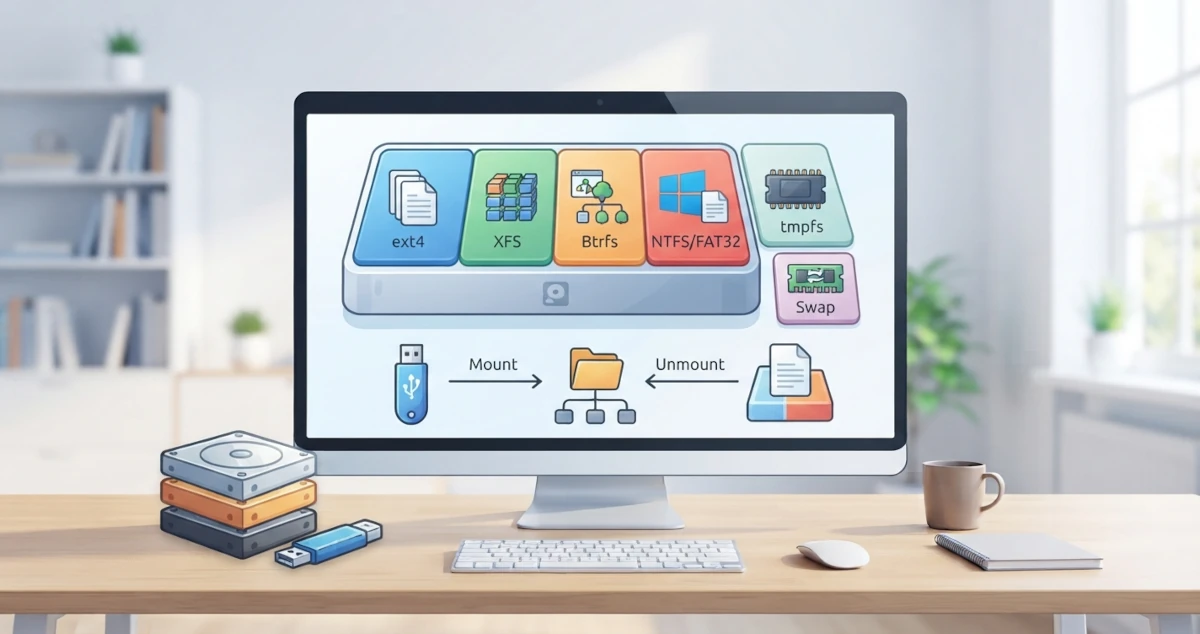
In the previous chapter, you studied the Linux directory structure and the Filesystem Hierarchy Standard (FHS) that governs it. You now know that the entire system appears as a single directory tree rooted at /. The next question that arises is: where is that data actually stored physically, and how does Linux manage it? This chapter answers that question by discussing disk partitions, common Linux filesystem types, the concept of swap, and how to mount and unmount filesystems. You will also learn how to view disk space usage using the df, du, and the graphical Disk Usage Analyzer application.
Disk Partition Concepts
A storage device, such as a hard disk or SSD, is physically a single unit. However, a single disk is rarely used as one single storage block. To make management easier, a disk is usually divided into several sections called partitions.
A partition is a logical division of a disk. Each partition appears to the operating system as a separate storage device, even though they physically reside on the same disk. Through partitions, you can separate the operating system from personal data, install two operating systems side by side (dual boot), or allocate space for specific purposes such as swap.
Each partition is then formatted with a filesystem. Partitions and filesystems are two different but related things: a partition is a division of physical space, while a filesystem is the set of rules that governs how files are stored and organised within that partition. A partition cannot be used to store files until it is formatted with a specific filesystem.
Partition Types: MBR and GPT
Dividing a disk into partitions requires a scheme that records the partition information itself. There are two main schemes in use today: MBR and GPT.
MBR (Master Boot Record)
MBR is the older partition scheme introduced in the era of IBM PCs in the 1980s. Partition information under the MBR scheme is stored in the first sector of the disk (sector 0), along with the boot loader code. MBR has several limitations:
- It only supports a maximum of 4 primary partitions. To create more than 4 partitions, one of the primary partitions must be made an extended partition, which can then contain many logical partitions.
- The maximum partition size is 2 TB. Disks larger than 2 TB cannot be fully utilised by MBR.
Because of these limitations, MBR is increasingly being abandoned and is generally only found on older systems or special boot media.
GPT (GUID Partition Table)
GPT is the modern partition scheme that is currently the standard and is used together with UEFI as a replacement for BIOS. GPT stores partition information in multiple copies across the disk, making it more resistant to corruption than MBR, which stores only a single copy. The advantages of GPT include:
- Supports up to 128 partitions by default on Linux systems.
- Supports very large disk sizes, far beyond the 2 TB limit.
- Stores a backup of the partition table at the end of the disk, so it can be recovered if the primary table is damaged.
Ubuntu 26.04 and Fedora Workstation 44 use GPT by default for installation on modern UEFI‑based computers. When you perform an operating system installation, the installer usually chooses GPT automatically.
Common Filesystem Types in Linux
Once partitions are created, they need to be formatted with a filesystem. Linux supports many filesystem types. Below are some of the most common ones you will encounter.
| Filesystem | Description |
|---|---|
| ext4 | Default filesystem in Ubuntu |
| Btrfs | Default filesystem in Fedora Workstation; supports snapshots and compression |
| XFS | Default filesystem in Fedora Server; excels with large files and high throughput |
| FAT32 and NTFS | Compatibility with Windows |
| tmpfs | Filesystem that resides in RAM |
ext4: Default Filesystem in Ubuntu
ext4 (short for fourth extended filesystem) is the default filesystem in Ubuntu 26.04 LTS. ext4 is a development of ext3 and has proven stable and reliable for many years.
ext4 supports very large file and partition sizes, and offers good performance across a variety of workloads. Because of its maturity and reliability, ext4 is a safe choice for the majority of desktop users. If you install Ubuntu with automatic settings, your system will use ext4.
Btrfs: Default Filesystem in Fedora Workstation
Btrfs (pronounced "Butter FS" or "B‑tree FS") is a modern filesystem that offers advanced features not available in ext4 or XFS, including:
- Snapshots: the ability to record the state of the filesystem at a point in time, similar to restore points.
- Compression: transparent data compression to save disk space.
- Checksums: data integrity verification to detect corruption.
- Subvolumes: logical partitions within the filesystem that can be managed separately.
Fedora has used Btrfs as the default filesystem for its desktop variant since Fedora 33 in 2020, and this policy still applies to Fedora Workstation 44. When you install Fedora Workstation with the automatic partitioning scheme, the Anaconda installer will create a single Btrfs volume and divide it into several subvolumes, typically one subvolume for / (root) and another for /home (the /boot partition remains separate and is usually formatted as ext4 for boot loader compatibility reasons). This subvolume approach allows / and /home to share the same free space without having to create fixed‑size partitions for each, while also paving the way for snapshot features that are useful as restore points before performing major system updates.
Although it is now the standard on Fedora Workstation, Btrfs is relatively newer than ext4 and XFS, so some experienced users still choose to manually switch to ext4 during installation because they prioritise maturity and simplicity. openSUSE and several other distributions also use Btrfs as the default.
XFS: High‑Performance Filesystem, Default in Fedora Server
XFS is a filesystem developed by Silicon Graphics (SGI) and designed to handle large files and parallel operations, making it excellent for handling large data volumes and high throughput.
It should be clarified that XFS is not the default filesystem for the Fedora Workstation edition; it is the default for the Fedora Server edition. Before Fedora 33, XFS was indeed the default for the desktop edition, but since Fedora 33 the Workstation edition switched to Btrfs as described in the previous section. XFS remains available as an option in Anaconda's custom partitioning screen if you want to use it on Fedora Workstation, and it continues to be a mainstay on server scenarios that store large numbers of large files, although in some cases XFS is more difficult to shrink than ext4 or Btrfs. For everyday desktop use, the performance differences between ext4, Btrfs, and XFS are generally not very noticeable; all three are equally reliable and fast.
FAT32 and NTFS: Compatibility with Windows
FAT32 and NTFS are filesystems that originate from the Windows world. Linux does not use them as system filesystems, but understanding them is very useful when interacting with Windows devices.
- FAT32 is a simple filesystem that is widely supported, including by Windows, macOS, Linux, cameras, and other electronic devices. Its drawback is that FAT32 only supports a maximum file size of 4 GB. Because of its wide support, FAT32 is commonly used for USB flash drives.
- NTFS is the main filesystem of modern Windows, supporting large files and various security features. Linux can read and write NTFS thanks to the
ntfs3driver available in modern kernels.
When you plug in a flash drive or external hard disk formatted as FAT32 or NTFS, both Ubuntu and Fedora will be able to read it without additional configuration.
tmpfs: Filesystem in RAM
tmpfs is a filesystem whose contents are stored in RAM, not on disk. Because it resides in RAM, access to tmpfs is very fast, but all its contents are lost when the computer is turned off or rebooted.
Linux systems use tmpfs for several directories, such as /tmp on many distributions, and /dev/shm which is used for shared memory between processes. tmpfs is ideal for temporary data that does not need to persist and requires fast access.
Swap: What and Why It Is Needed
Swap is space that the system uses as an "extension" of RAM. When physical RAM is full, the system can move some infrequently used data from RAM to swap to free up space. This process is called swapping.
Swap can take the form of a dedicated partition (swap partition), a file (swap file), or even a compressed block device inside RAM itself called zram. Ubuntu 26.04 LTS uses a swap file by default, created inside the root filesystem. Fedora Workstation 44 takes a different approach: since Fedora 33, Fedora no longer creates a traditional swap partition by default; instead, it enables swap‑on‑zram through the zram-generator service. With zram, data that would be swapped is compressed first and then stored in a dedicated area of RAM, making it much faster than disk‑based swap, although there are still consequences (see the hibernation note below).
Why is swap needed? There are several main reasons:
- Handling RAM shortages. If applications need more memory than the available RAM, swap prevents the system from running out of memory.
- Supporting hibernation. When the computer is hibernated, the contents of RAM are saved to swap before the computer powers off. Note: because zram itself resides in RAM and also becomes empty when power is completely lost, Fedora Workstation, which by default relies only on swap‑on‑zram, requires additional configuration of a swap file or a swap partition on disk if you want to enable hibernation.
- Providing a safety margin. Even if your computer has a large amount of RAM, swap is still useful as a safety net.
It is important to understand that disk‑based swap is much slower than RAM. If the system swaps data too frequently, performance will noticeably degrade, a condition sometimes called thrashing. Swap is a safety net, not a replacement for RAM.
Mount and Unmount
In the previous chapter, you were introduced to the concept of a mount point. In this section, we will deepen the concepts of mounting and its opposite, unmounting.
The Mounting Concept
Mounting is the process of attaching a filesystem located on a partition or device to a directory (the mount point) within the Linux directory tree. After a filesystem is mounted, its contents become accessible through that mount point.
When you plug in a USB flash drive, the system automatically mounts it to a directory such as /media/username/flash-drive-name. You can also mount manually using the mount command. For example, to mount partition /dev/sdb1 to directory /mnt:
sudo mount /dev/sdb1 /mntUnmounting is the opposite: detaching the filesystem from the directory tree. Unmounting is important before removing a storage device to ensure that all data has been written. The command is umount (without the "n"):
sudo umount /mntIf a filesystem is in use, for example if a file is open, the system will refuse the unmount command to prevent data loss.
/etc/fstab: Automatic Mounting at Boot
If mounting is done manually, you would have to repeat it every time the computer starts. For partitions that always need to be mounted, Linux provides the configuration file /etc/fstab (short for filesystem table).
/etc/fstab contains a list of filesystems that will be mounted automatically when the system boots. Each line in this file consists of several fields: the device or UUID, the mount point, the filesystem type, mount options, and dump and fsck settings.
For example, a line in /etc/fstab to automatically mount an ext4 partition might look like this:
UUID=xxxxxxxx-xxxx-xxxx-xxxx-xxxxxxxxxxxx /home ext4 defaults 0 2Using UUID (Universally Unique Identifier) is recommended over device names like /dev/sda1, because UUIDs remain fixed even if the device order changes after adding or removing disks. When the installer sets up Ubuntu or Fedora, the /etc/fstab file is automatically created and filled according to the partitions you selected.
Viewing Disk Usage
Knowing how much disk space is used and how much is free is an essential basic skill. Linux provides several tools for this purpose.
df and du
df (short for disk free) displays the disk space usage of all currently mounted filesystems. With the -h (human‑readable) option, sizes are shown in easy‑to‑read units such as MB, GB, or TB:
df -hThis command displays a list of filesystems together with total size, used space, available space, and the mount point of each.
du (short for disk usage) displays the size of a specific directory or file. The du command is useful when you want to find out which directory is using a lot of space. For example, to see the size of your home directory:
du -sh ~The -s (summarize) option shows the total size without detailing each subdirectory, while the -h option makes the size human‑readable.
Disk Usage Analyzer (GUI)
If you prefer a graphical interface, GNOME provides the Disk Usage Analyzer application, which can be installed and used to visually examine disk usage. This application scans directories and displays pie charts or bar charts showing the proportion of space used by each directory.
Using Disk Usage Analyzer, you can quickly find large files or folders that are taking up a lot of space without having to type commands. This application is very helpful when your disk starts getting full and you need to know what to clean up.
In this chapter, you have learned about the concepts of disk partitions, the differences between the MBR and GPT partition schemes, and the various common filesystem types in Linux such as ext4, Btrfs, XFS, FAT32, NTFS, and tmpfs, along with which distribution uses each as the default. You have also understood the function of swap, including the different approaches of the swap file in Ubuntu and swap‑on‑zram in Fedora, how mount and unmount work, the role of the /etc/fstab file in automatic mounting, and how to monitor disk usage using df, du, and Disk Usage Analyzer.
In the next chapter, we will enter a very important new section: the command line. You will start learning about the terminal and the shell, the foundation for understanding all the commands that will be covered in the following chapters.