
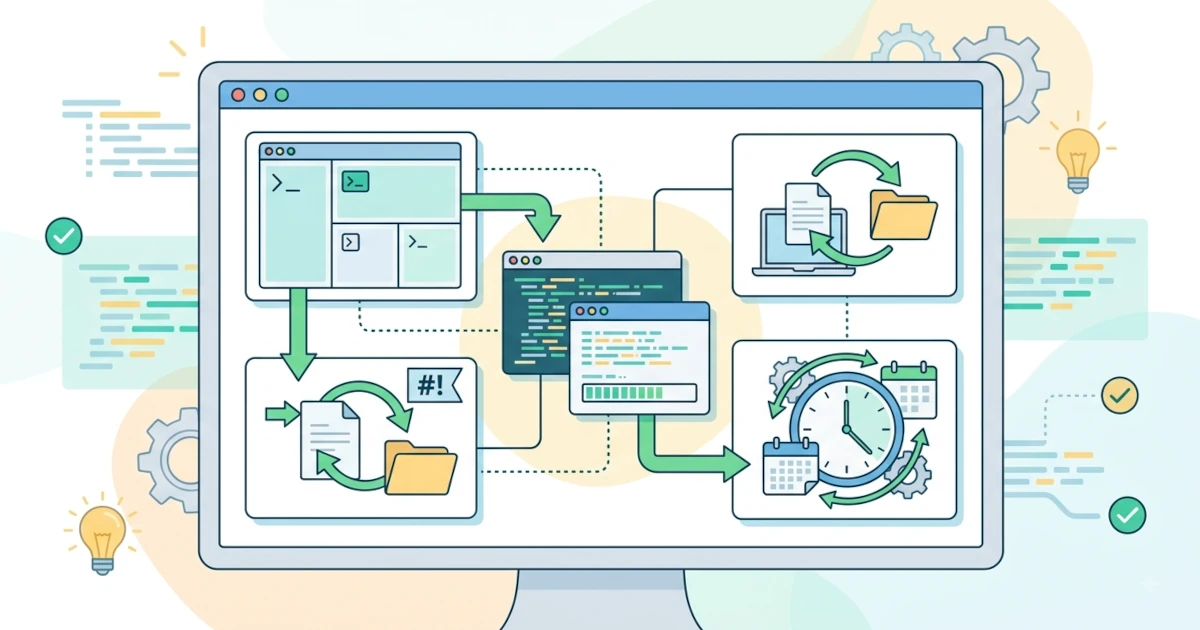
The terminal is not just a place to run commands one by one. For those who want to work more efficiently, the terminal offers a variety of tools that boost productivity, ranging from managing many sessions at once, writing scripts to automate tasks, to scheduling recurring jobs. This chapter introduces terminal multiplexers, the basics of shell scripting, and useful everyday synchronisation and scheduling utilities. Note that most of the tools in this chapter are not installed by default on either Ubuntu 26.04 LTS or Fedora Workstation 44, so their installation will be explained in each section.
Terminal Multiplexers
Terminal multiplexers allow you to run many sessions within a single terminal window, so that work continues even if the terminal window is closed.
tmux: Managing Many Terminal Sessions
tmux is the most popular terminal multiplexer, but it is not installed by default on either Ubuntu or Fedora. Install it first with:
sudo apt install tmuxOn Fedora, use:
sudo dnf install tmuxtmux divides the screen into sessions, windows, and panes.
- Session is a complete working environment that keeps running in the background.
- Window is a tab inside a session.
- Pane is a split screen area within a window.
To start tmux, run:
tmuxYou can name a session for easier identification:
tmux new -s worktmux works with a prefix key, which is Ctrl+b pressed before other shortcuts. Here are some basic tmux shortcuts:
| Shortcut | Function |
|---|---|
Ctrl+b c | Create a new window |
Ctrl+b n | Move to the next window |
Ctrl+b p | Move to the previous window |
Ctrl+b % | Split pane vertically |
Ctrl+b " | Split pane horizontally |
Ctrl+b d | Detach from the session |
To reattach to a detached session, use:
tmux attach -t workTo see the list of running sessions, use tmux ls. If you want to permanently save settings such as status bar colours or change the prefix key, store the configuration in ~/.tmux.conf; this file will be read automatically each time tmux is run.
screen: An Alternative to tmux
screen is an older multiplexer and an alternative to tmux. Although its features are not as complete as tmux, screen is still widely used because it is lightweight and has long been available in the Unix world. Like tmux, screen needs to be installed first:
sudo apt install screenOn Fedora, use:
sudo dnf install screenOnce installed, run it with:
screenscreen uses the prefix key Ctrl+a. To detach a session, press Ctrl+a then d, and to reattach use screen -r.
Basic Shell Scripting: Introduction
Shell scripting is a way to write a series of commands into a file so that they can be run together, thereby automating repetitive tasks.
Shebang #!/bin/bash
The first line of a script is usually a shebang that tells the system which shell will execute the script.
#!/bin/bashThanks to this shebang, your script will be run using Bash.
Variables, Input, and Output
Variables store values that can be reused. Note that there must be no spaces around the equals sign.
name="Budi"
echo "Hello, $name"
To ask for input from the user, use the read command.
read name
echo "Welcome, $name"
Conditionals if-then-else
Conditionals allow the script to make decisions based on certain conditions.
if [ "$name" = "Budi" ]; then
    echo "Hello Budi"
else
    echo "Hello visitor"
fi
Simple Loops
Loops are used to repeat commands several times, for example with for.
for i in 1 2 3 4 5; do
    echo "Number $i"
done
Creating a Simple Useful Script
As an example, the following script prints the date and a list of files in the current directory. Save it in a file, give it execute permission, and run it.
#!/bin/bash
echo "Date: $(date)"
echo "Directory contents:"
ls -l
After saving the file, for example as info.sh, give it execute permission and run it:
chmod +x info.sh
./info.sh
Other Useful Utilities
rsync: File Synchronisation
rsync is a tool for copying and synchronising files, either between local directories or between computers. Its advantage is that it only transfers the parts of files that have changed. If it is not already available on your system, install it with sudo apt install rsync on Ubuntu, or sudo dnf install rsync on Fedora.
rsync -av documents/ backup/This command copies the contents of the documents/ directory to backup/ in archive mode (-a) and shows the progress (-v).
cron: Automatic Task Scheduling
cron is a task scheduler that runs commands automatically at specified times. Each user's schedule is stored in a crontab.
On Ubuntu, the cron package is generally installed by default. However, on Fedora Workstation 44, cron is not installed by default since several recent releases, so the crontab -e command will fail with a "command not found" message if not yet installed. Install the cronie package (the cron implementation on Fedora) first, then enable its service:
sudo dnf install cronie
sudo systemctl enable --now crond
If on Ubuntu the crontab -e command also does not work, install and enable it in a similar way:
sudo apt install cron
sudo systemctl enable --now cron
Once cron is active, edit the crontab with:
crontab -eThe crontab syntax consists of five time columns followed by the command to run.
* * * * * commandThe five columns respectively represent minute, hour, day of month, month, and day of week. For example, the following line runs a backup every day at 2:00 AM.
0 2 * * * rsync -a /home/you/documents/ /home/you/backup/To view the schedules that have been created, use crontab -l.
As an additional note, Fedora is increasingly directing task scheduling toward systemd timers (.timer units paired with .service units, as discussed in Chapter 30) as a modern replacement for cron. For simple everyday needs, cron is still much easier to use because it only requires a single line, so it remains a good choice for beginners.
Mastering productivity tools in the terminal allows you to work faster and in a more organised manner. Through tmux, you can manage many sessions at once; with shell scripting you automate repetitive tasks; and with rsync and cron you synchronise and schedule jobs automatically. In the next chapter, you will move on to storage and hardware management to gain a deeper understanding of the devices behind the Linux system.